Adobe Acrobat Analyzer REST API Overview
Last update: May 13, 2026.
Adobe Acrobat Analyzer provides APIs that allow enterprises to automatically ingest, process, search, and extract structured, auditable insights from large volumes of documents, helping teams automate workflows, reduce risk, and make faster decisions at scale.
These APIs enable organizations to:
- Upload and process documents (PDF, DOC, DOCX).
- Search and filter documents and retrieve processing status.
- Retrieve available attributes (or custom insights) for filtering and searching.
- Search and filter processed documents with pagination support to retrieve detailed document-level intelligence and extracted insights.
Access is provided through a Technical Account configured in the Adobe Developer Console using OAuth server-to-server authentication. This allows secure, system-to-system integration without requiring individual user login tokens.
Primary API Endpoints
Acrobat Analyzer is a multi-region service. All API calls must be directed to your organization's regional host. Before making an API call, resolve your base URI by calling the endpoint below. Use the base URI in the response for making any further API calls. This endpoint is only served on the North America (NA1) shard — calling it on any other shard returns a 404 error:
GET https://analyzer-na1.adobe.io/baseUris
Authorization: Bearer {your_access_token}
Use the apiAccessPoint value returned in the response as the base URL for all subsequent requests. See Step 1: Resolve your base URI for full details.
Interactive API documentation (Swagger UI):
-
GET /baseUris
Resolve the base URI for your organization's region. Only served on the North America (NA1) shard. -
POST /documents
Upload a document for processing. -
POST /documents/search
Search and filter for documents and retrieve processing status. -
GET /documents/{documentId}
Retrieve detailed extracted data for a specific document. -
GET /attributes
Retrieve available attributes (custom insights) for filtering and searching.
Getting access to Acrobat Analyzer APIs
To use the APIs, you must create a Technical Account in the Adobe Developer Console.
A Technical Account:
- Uses OAuth server-to-server authentication.
- Enables secure API access.
- Eliminates the need for individual user tokens.
- Allows scalable enterprise integration.
Prerequisites
Before creating a Technical Account:
- You must have Developer access, or
- You must be the System Administrator for your organization.
Create a Technical Account
- Log in to the Adobe Developer Portal (https://developer.adobe.com/) with an organization account that has the required permissions.
- Go to the Developer Console by selecting Console.

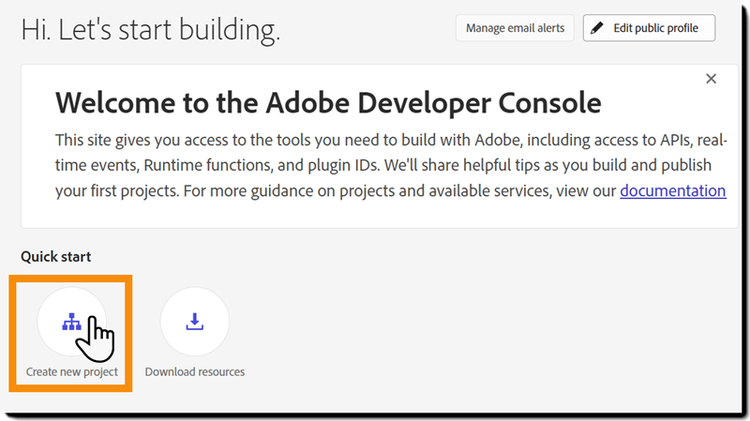
- Select Create a new project.
This project represents your Technical Account.
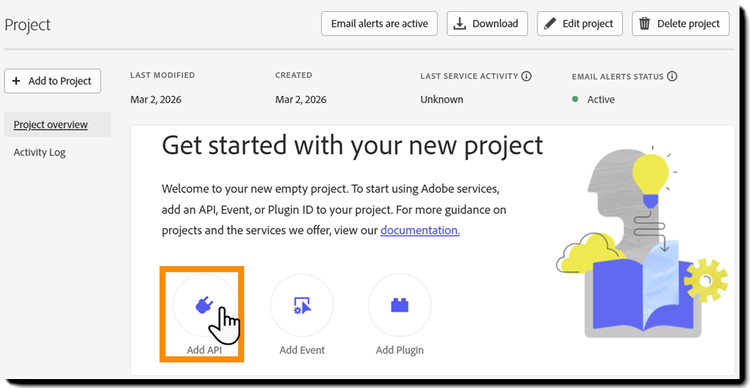
- Select Add API.
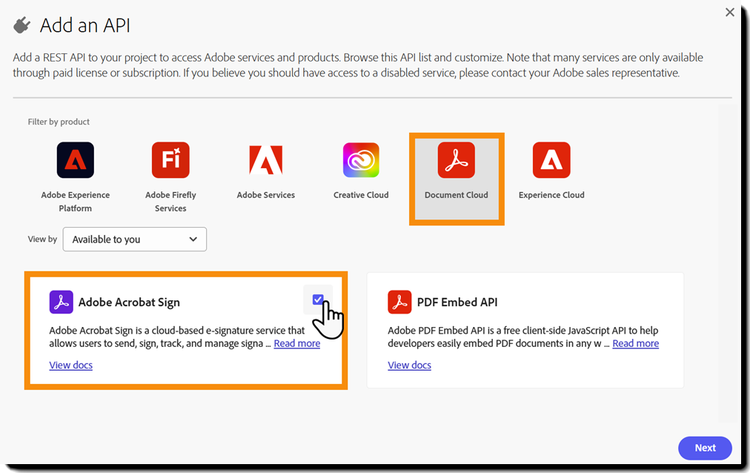
- Choose the Adobe Acrobat Sign product and select Next.
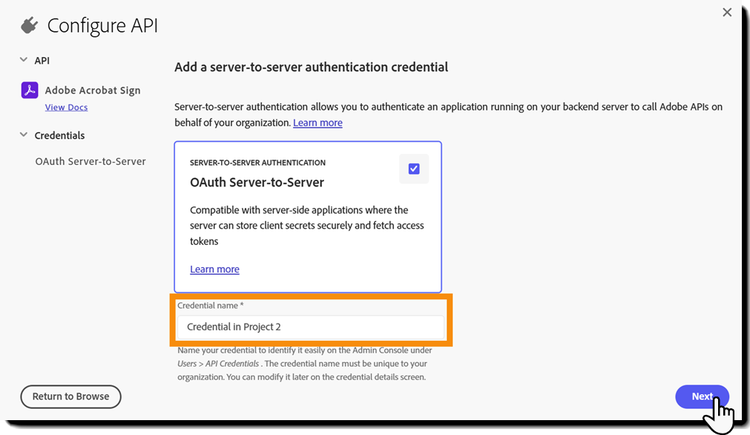
- Provide a Credential name, and then select Next to establish OAuth server-to-server authentication.
- Select your Acrobat Sign product profile, and then select Save configured API.
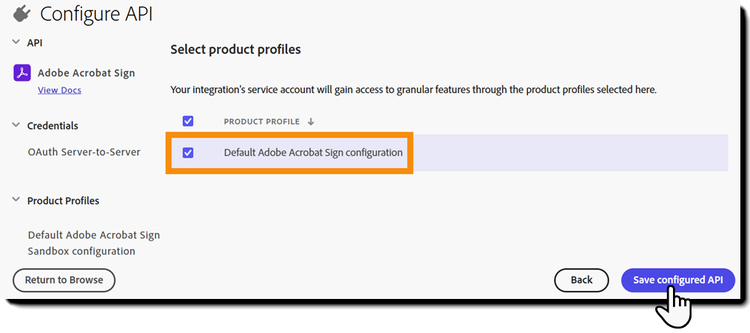
Your Technical Account is now configured.
Generate an access token
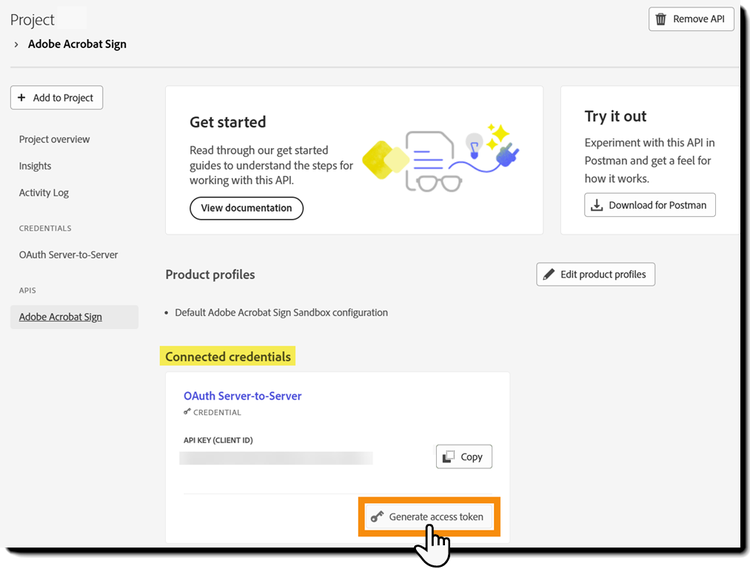
- In the Connected Credentials section of the project page, select Generate access token.
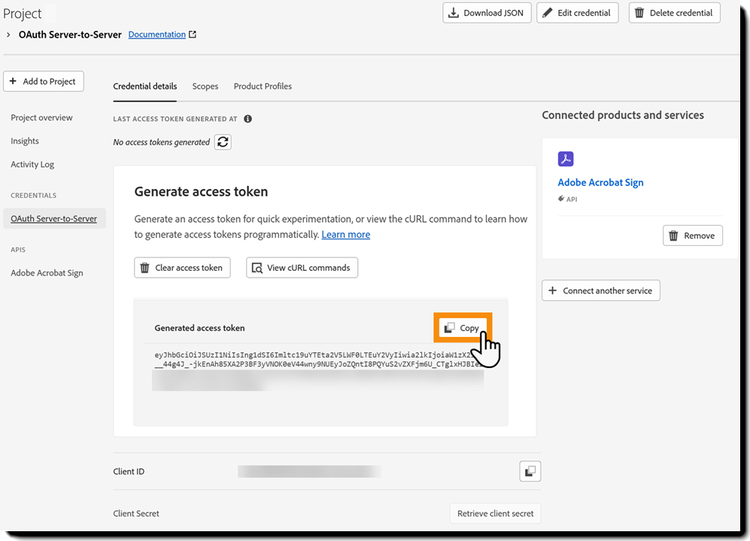
- Copy the access token. Use this token to authenticate API requests.
Important:
- Access tokens expire every 24 hours.
- Generate a new token after it expires.
- For production integrations, automate token refresh.
- Store the access token securely.
Using Acrobat Analyzer APIs
Once you generate the access token, you can begin making API calls.
Step 1: Resolve your base URI
Acrobat Analyzer is a multi-region service. Your organization's data is stored in a specific region (for example, North America or Europe). Before making an API call, resolve the base URI for your region and use it for further calls.
The base URI endpoint is only served on the North America (NA1) shard. Calling it on any other regional host returns a 404 error. Always call this endpoint on NA1 regardless of your organization's region.
The response returns the base URI for your organization's region:

```json
{
  "apiAccessPoint": "https://analyzer-{region}.adobe.io"
}
Use the returned apiAccessPoint value as the base URL for all subsequent API calls.
Example — European region:
If your organization is located in Europe, the response will be:
{
  "apiAccessPoint": "https://analyzer-eu1.adobe.io"
}
In this case, all your API calls and the interactive API documentation are available at:
https://analyzer-eu1.adobe.io/swagger-ui/index.html
Step 2: Access the API documentation
Open the Swagger UI for your region using the apiAccessPoint from the previous step:
{apiAccessPoint}/swagger-ui/index.html
For reference:
Step 3: Authorize and invoke endpoints
- Select Authorize.
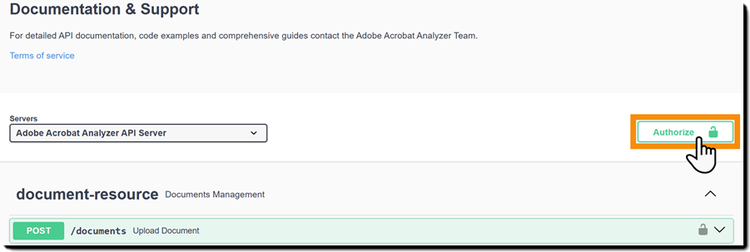
- Paste your access token into the bearerAuth Value text box, and select Authorize.
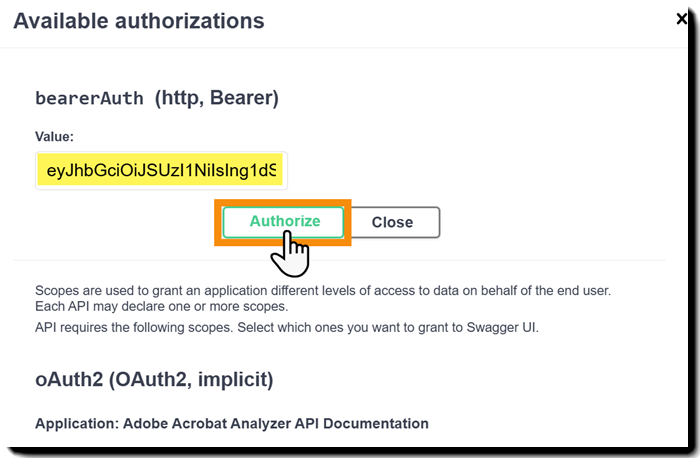
- Begin invoking API endpoints.
Your system is now authenticated as the Technical Account.
In production environments, include the token in the Authorization header of each API request, and direct all requests to the apiAccessPoint URL resolved in Step 1.
Enable X-On-Behalf-of access (optional)
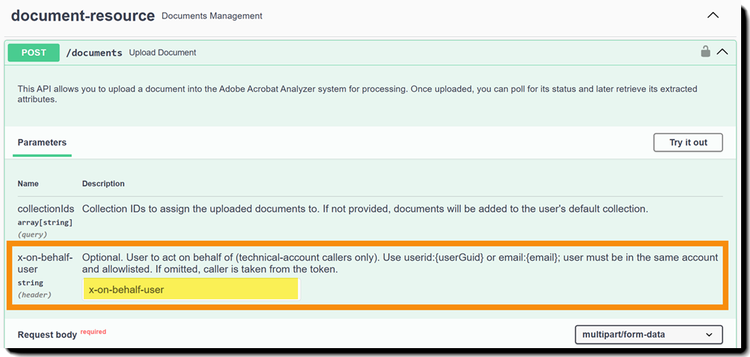
What is x-on-behalf-user access?
Technical Accounts can act on behalf of specific end users within the same organization. This is known as x-on-behalf-user access.
When enabled, the Technical Account can:
- Access a specific user's documents.
- Retrieve extracted values from that user's documents.
- Perform searches on that user's data.
- Upload documents into that user's account.
- Extract attributes configured by that user.
This supports enterprise workflows where a central system programmatically manages or extracts data from user-level Acrobat Analyzer accounts.
Requirements for on-behalf access
Two conditions must be met:
- The end user must belong to the same organization as the Technical Account.
- The end user must be explicitly allowlisted for that Technical Account.
Requests for users outside the organization will be rejected.
Steps to allowlist a user for x-on-behalf access
To enable a Technical Account to act on behalf of specific users, follow these steps.
Step 1: Identify the Technical Account that will make the API calls
-
Identify the Technical Account that generates the OAuth access token. This account makes the API requests.
-
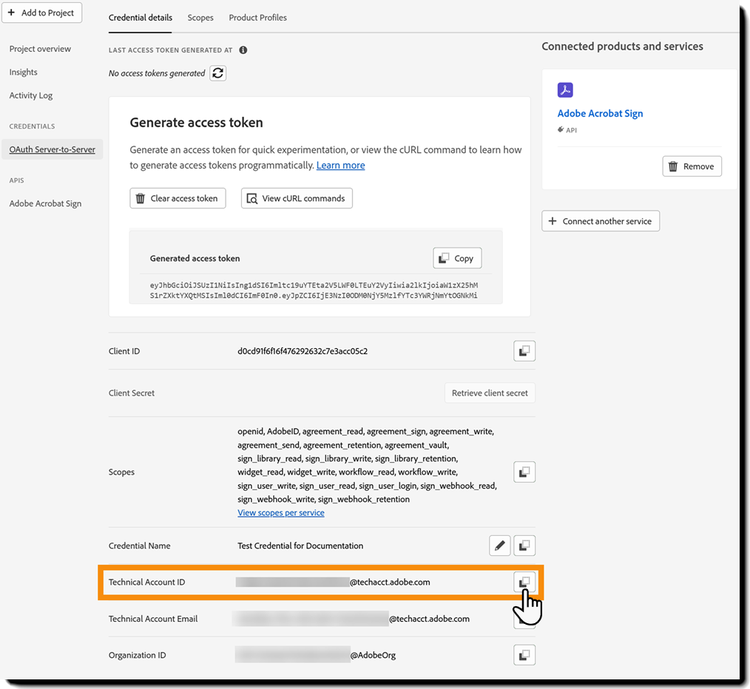
Find the Technical Account ID:
- Ends with
@techacct.adobe.com. - Appears on the Generate access token page in the Adobe Developer Console.
- Ends with
-
Confirm you selected the correct account intended for integration use.
Step 2: Identify the end users to be allowlisted
- Collect the exact email addresses of the end users the Technical Account needs to act on behalf of.
- Verify that each user belongs to the same organization as the Technical Account.
On-behalf access will be rejected if:
- The user belongs to a different organization.
- The email address does not exactly match the user's account.
Carefully validate all email addresses before you submit the request.
Step 3: Submit a support ticket to add allowlist users
Adobe Support manages allowlisting to enforce governance and security controls.
-
The System Administrator of the customer account must submit a support ticket that includes:
- The Technical Account ID (ending in
@techacct.adobe.com). - The full list of end-user email addresses to be allowlisted.
- Confirmation of approval from your organization's System Administrator.
- The Technical Account ID (ending in
-
Adobe reviews the request and configures the allowlist for that Technical Account.
Important:
- Make at least one successful API call using the Technical Account before Adobe can update its settings. The initial API call activates and fully provisions the Technical Account in the system.
Once approved:
- The Technical Account can access the allowlisted users' data.
- Include the
x-on-behalf-userheader in API requests with the approved user's email address.