Provisioning Design and FAQ v.1.0
Last update: Jan 30, 2025.
data-slots=header, text
The following guidelines will help you understand how to use the Adobe Acrobat Sign account provisioning API to create new accounts for your customers. Download the PDF.
Provisioning FAQs
Managing OAuth tokens for your customer accounts
In addition to managing e-sign workflows on your customers’ behalf, your multi- tenant SaaS application can create and manage new accounts for your customers. This will involve storing and retrieving the OAuth tokens your partner app uses to access the accounts you create for your customers. These tokens must be encrypted at rest.
As you design your app to manage token storage, retrieval, and refresh, keep in mind the following:
- Authorization Code expires in 5 minutes
- Access Token expires in 60 minutes
- Refresh Token expires in 60 days
What does provisioning mean?
In this context, “provisioning” means executing POST/accounts to create a new account for one of your customers. (We do not think of POST/users as part of provisioning because it doesn’t create a new Acrobat Sign account.)
What kind of account are we creating?
The account created by POST/accounts:
- Exists as an equal entity to your own account, with full rights and privileges
- Is not a subaccount. It is not subordinate to your partner account, nor is it a group that could be managed through the Acrobat Sign web UI.
- Once created, there is no relationship between the new admin account and the entity that ran POST/accounts.
- Accounts that you create for your customers are aggregated into a channel for billing purposes and to provide Adobe with the ability to make certain configuration changes, across all accounts in the channel.
- The account belongs to the new admin, and your partner app will not be able to access it until the new admin grants access to your app via the OAuth Authorization Request and Consent flow (via the embed link)
What is geo-sharding, and why is it important in this context?
Geo- sharding is the technique used to store data close to the customer, based on the customer’s country code. When you create a new account, Acrobat Sign will locate the account data in the geographic region associated with the countryCode specified in the JSON payload for POST/accounts. If a region has multiple shards associated with it, Acrobat Sign will use a round-robin approach to choose a shard from within that region. (For example: JP1 is the only shard associated with the Japan region, while NA1, NA2, NA3, and NA4 are used for countryCodes associated with the North America region.)
All API calls must include the correct shard for the account. Using the incorrect shard will result in 403 Forbidden errors that may occur only intermittently and may be difficult to troubleshoot. The following endpoint returns the shard you should use for POST/account:
-
GET/baseUris—Returns the shard inside of apiAccessPoint, based on the Bearer Token provided in the Authorization header
{ “apiAccessPoint”: “https://api.na4.adobesign.com/”, “webAccessPoint”: “https://joesBikeShop.na4.adobesign.com/” } -
The provisioning use case uses your provisioning integration key as the Bearer Token to return the appropriate shard for your calls to POST/accounts.
-
The shard identified in apiAccessPoint above, is “na4” and would be used as follows: POST/https://api.na4.adobesign. com/api/rest/v6/accounts.
The following endpoint returns the shard you will use when making any other API calls on the new account. (You could also run GET/ baseUris using the OAuth access_token of the new account.)
-
POST/token—Returns the shard within api_access_point, (“na3” in the case below) as well as the access_token and refresh_token that you will need to store for each customer that grants account access to your partner app
{
“access_token”: “3AAABLblqZhCRAx7kdeCpju3Vh94mmZ0LIYtggGIKgODF_ hH3MB3ocmzzB8T”,
“refresh_token”: “3AAABLblqZhBXZeXJLc_kSjfNrgzlYiwi5CBFrsU kMWrt2oOWi8llaYaPc-kxdA*”,
“api_access_point”: “https://api.na3.adobesign.com/”, “web_access_point”: “https://joesBikeShop.na3.adobesign.com/”, “token_type”: “Bearer”,
“expires_in”: 3600
}
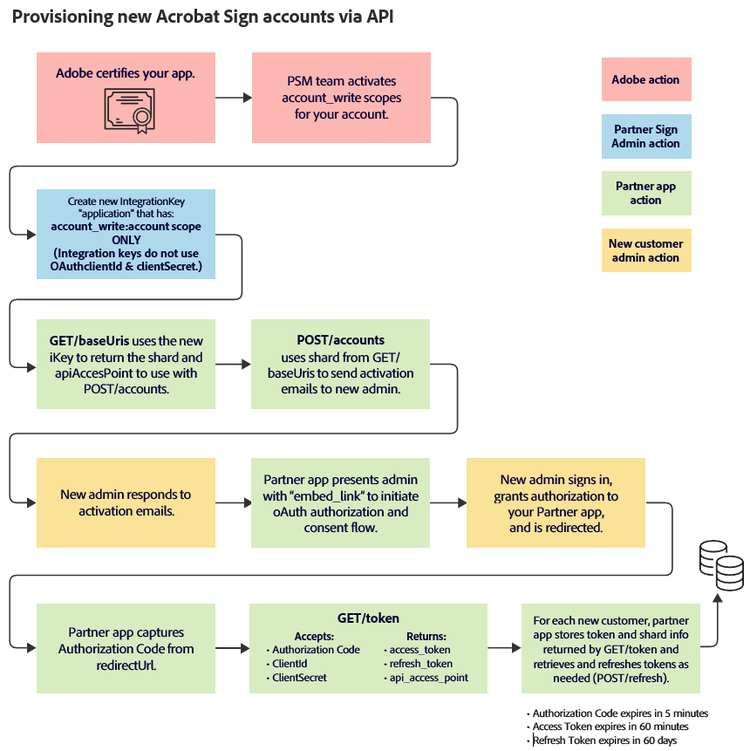
New account provisioning flow
-
GET/ https://secure.adobesign.com/api/rest/v6/baseUris—Uses your provisioning integration key to return baseUris (aka {{apiAccessPoint}}) for POST/accounts
-
POST/ {{apiAccessPoint}}/api/rest/v6/accounts:
-
Uses shard returned by GET/baseUris
-
Required JSON: customer-admin email address
-
Highly recommended but optional: countryCode (used to determine correct geo-shard for new account)
-
Uses IntegrationKey (with account_write scope enabled; PSM team must enable this)
-
Returns accountId and userId for the new admin. You can use these as the unique keys to store information about the account’s shard, authentication tokens, admin info, and so on.
-
Generates:
- Activation email to new admin to set password
- Activation email to new admin to agree to Terms of Use
-
-
New-account admin—Responds to Activation emails.
-
Partner app—Initiates Authorization Request (aka URL that grants account access to your partner app, or embed link)
-
New-account admin—Responds to Authorization Request
- Signs on with new credentials
- Provides consent for your partner app to access the new account
- Is redirected
-
Partner app
- Redirects to the redirectUrl supplied when you created your partner app (aka clientId, appId) in the web admin console (aka WebUi). This code expires in 5 minutes.
- Captures Authorization Code from “code=” parameter returned to redirectUrl
- Uses this Authorization Code (along with the Partner app ClientId and ClientSecret) to initiate the OAuth flow:
-
POST/token
curl --location --request POST 'https://api.na4.adobesign. com//oauth/v2/token' \
--header 'Content-Type: application/x-www-form- urlencoded' \
--header 'Authorization: Bearer 3AAJl1pbkP0WPsYtnPMVee- haxGbcndSLQF' \
--data-urlencode 'code=CBNCKBAAHBCAABAAC3FJuIrvk- 1SxOFKHkCI2-OoCq2gTxHC' \
--data-urlencode 'client_id=xxxxxxxxxx' \
--data-urlencode 'client_ secret=xxxxxxxxxx' \
--data-urlencode 'grant_type=authorization_code' \
--data-urlencode 'redirect_uri=https://oauth.pstmn.io/v1/ callback'
Response:
{
  “access_token”: “3AAABLblqZhODF_hH3MB3ocmzzB8T- ppWKZTLvb-3WXsl0”,
  “refresh_token”: “3AAABLblqZhBXZeXJLc_ kSjfNrgzlYiwi5CBFaYaPc-kxdA*”,
  “api_access_point”: “https://api.na3.adobesign.com/”,
  “web_access_point”: “https://embedprovisiontest.na3. adobesign.com/”,
  “token_type”: “Bearer”,
  “expires_in”: 3600
}
The partner app stores token and api_access_point/shard information for the new account and refreshes tokens as needed.
- POST/refresh
curl --location --request POST 'https://api.na4.adobesign.com// oauth/v2/refresh' \
--header 'Content-Type: application/x-www-form-urlencoded' \
--header 'Authorization: Bearer 3AAABLblqZhDnssmTBKy7_ JTp0BYiTZ3bcndSLQF' \
--data-urlencode 'client_id=xxxxxxxxxx' \
--data-urlencode 'client_ secret=xxxxxxxxxx' \
--data-urlencode 'refresh_ token=xxxxxxxxxx*' \
--data-urlencode 'grant_type=refresh_token'
Response:
{
  “access_token”: “3AAABLblqZhDpbkeOfkTY7Jk8YLe- haxGbcndSLQF”,
  “token_type”: “Bearer”,
  “expires_in”: 3600
}
© Copyright 2022, Adobe Inc.. Last update: Jan 30, 2025.
