Generate API key and access token through Adobe Developer Console
The Adobe Developer Console is an administration interface that enables developers to manage Adobe's APIs and services, including the Adobe Admin APIs for Storage Management.
Prerequisite: Gaining access to the Adobe Developer Console
Enterprise users must be assigned the System Administrator or Developer role in the Adobe Admin Console to access the Adobe Developer Console.
- Identify an Adobe Admin in your organization. This may be as simple as checking the notes in your Adobe account, or you can ask your Adobe solution consultant for the appropriate contact.
- Ask the Admin to set up either System Administrator or Storage Administrator role and provide developer access to use the Admin APIs, for users who need to generate API keys.
- Alternatively, ask your Admin to generate the keys if they prefer not to elevate roles.
- If your Admin allows you to generate your API keys, the Admin must also assign an Adobe product that uses Enterprise Storage to you in the Admin Console.
Steps to generate an API Key and access token
Follow these steps to create a project and generate credentials in the Adobe Developer Console once your organization has provisioned developer access.
Step 1: Create a project
- Go to https://developer.adobe.com/console/home and sign in to the Developer Console.
- Select Create new project under the Quick start section in the middle of your screen:
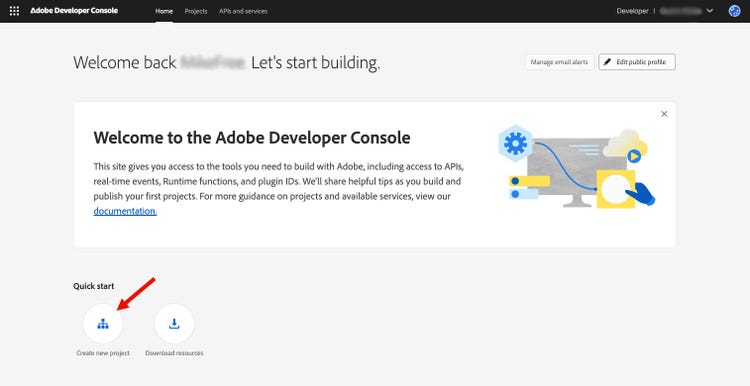
Step 2: Add the API to your project
-
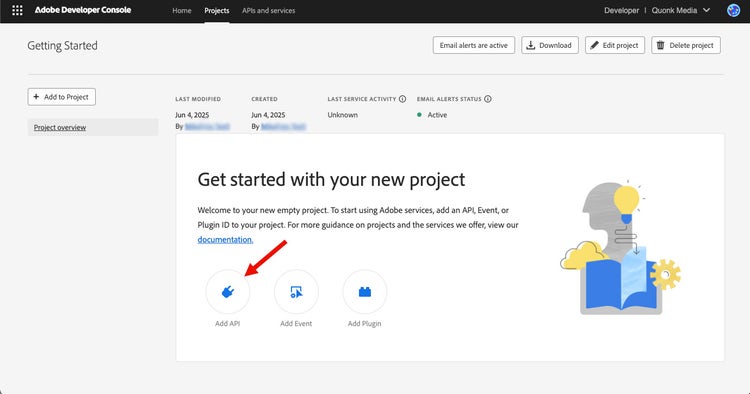
Select Add API.
-
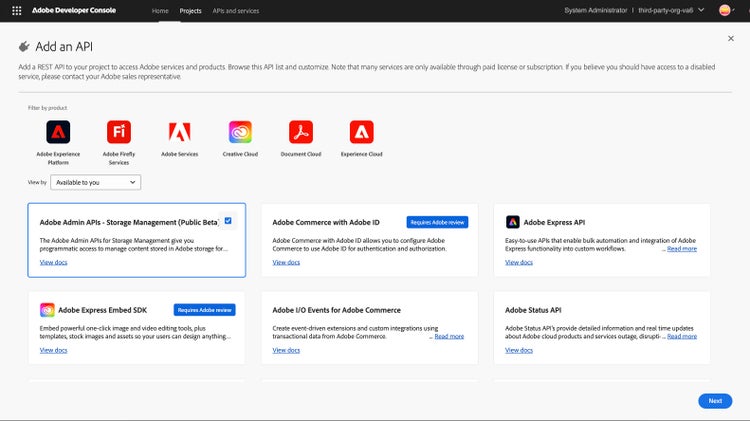
Select Adobe Admin APIs - Storage Management and click Next:
Step 3: Set Credentials
-
Choose the type of authentication.
-
Choose your preferred authentication method as Server-to-Server Authentication. It allows your application's server to generate access tokens and make API calls on behalf of your application itself. Choose this if your app needs to operate independently of user interaction. Learn more.
-
Give your credential a name and click Next.
Step 4: Select Product Profiles
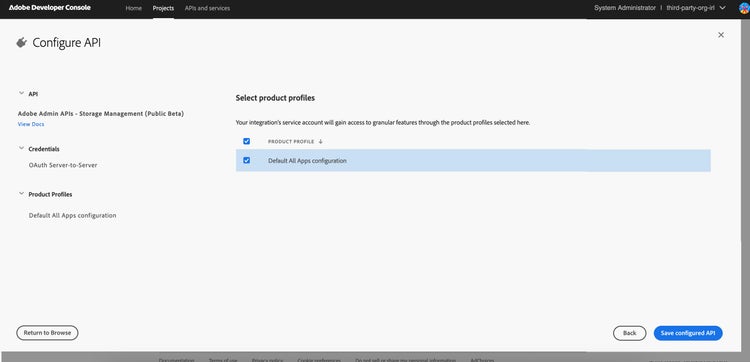
Depending on the API you add, you may be prompted to select product profiles to assign to your credential. These profiles define what data your application can access within your organization.
Choose the appropriate product profile(s) and select Save configured API.
Step 5: View Connected Credentials and APIs
You can view the credentials on the Developer Console project page.
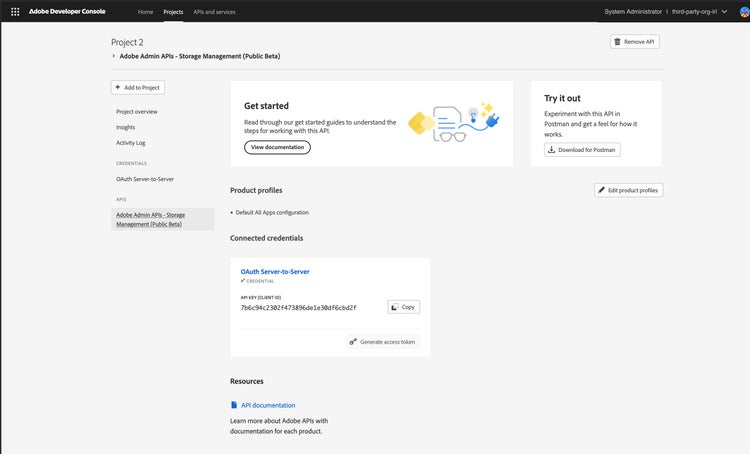
Step 6: Generate access token
Access tokens can be generated or refreshed in two ways:
- Manual generation: Click Generate access token in the Developer Console for quick testing and experimentation.
- Programmatic generation: Click View cURL command to learn how to generate access tokens programmatically. Learn more about how to do it.
Scopes
Scopes define the specific actions or data your application is allowed to access. As a security best practice, your application should request only the minimum scopes necessary to function properly.
Click View scopes per service to see the available services and their scopes.
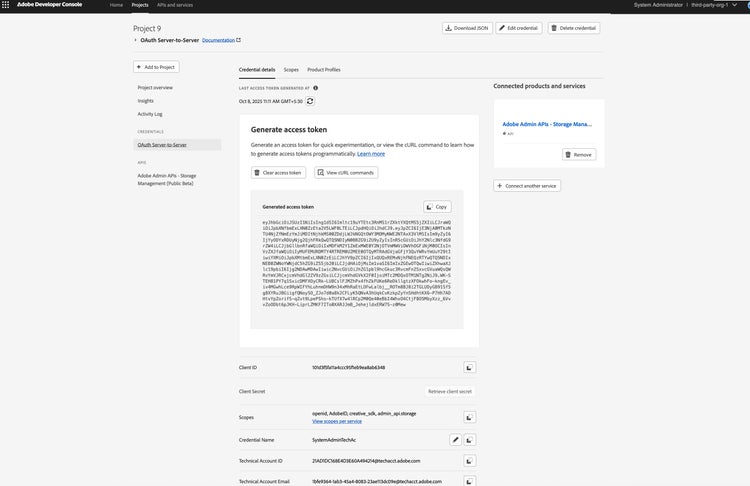
Congratulations! You have successfully generated an access token.
Account Configuration
API calls made using OAuth Server-to-Server are made using a Technical Account. This account is created automatically when you added Server-to-Server authentication to your Developer Console Project. However, you must ensure the Technical Account is properly configured. For more information, see Technical Account Permissions.