Design Guidelines for Custom Pod Development
Introduction
The updated Adobe Connect pod UI is a complete redesign based on Spectrum 2, aimed at delivering a cleaner, more lightweight, and intuitive experience. It replaces the older blocky layout with modern visuals rounded corners, transparent and blurred backgrounds, and consolidated headers for better clarity and control. Interaction feedback is improved with clear hover and focus states, and the layout is optimized for touch devices. Accessibility has been significantly enhanced to meet WCAG standards. To ensure visual and functional consistency across the room, it’s recommended that all custom pods be developed using Spectrum 2 components, enabling seamless integration and synergy with the native pod experience.
Design Philosophy
The redesigned Adobe Connect pod UI is guided by the principles of Spectrum 2, Adobe’s unified design system. It emphasizes clarity, consistency, and adaptability across devices and user contexts. By adopting Spectrum 2, the UI achieves a modern, lightweight feel with accessible interactions, scalable components, and a cohesive visual language. To maintain synergy across the room, custom pods should also be developed using Spectrum 2 components, ensuring seamless integration and a unified user experience.
Pod Structure Overview
To ensure consistency, usability, and visual harmony across all pods in Adobe Connect, we recommend structuring custom pods according to the updated pod architecture and Spectrum 2 design principles. Each pod may include:
-
Pod Controls in the header for essential pod-level actions, compact and consistent across pod types.
-
Content Controls placed contextually below the header, limited to four, logically grouped (left-first), and styled with icon+label buttons.
-
A Content Area that remains visually stable and responsive, with support for empty states using Spectrum Express illustrations.
-
A Pod Frame that subtly highlights on focus to indicate active collaboration zones.
-
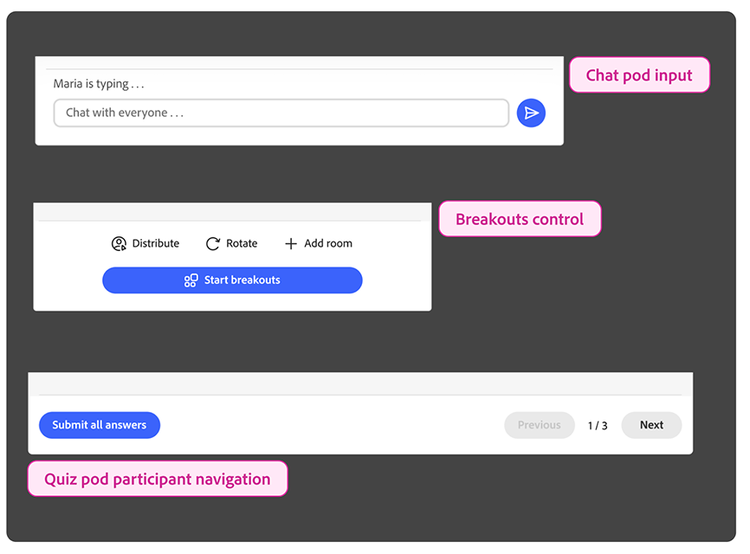
Footer Controls for persistent input or navigation, anchored and unobtrusive.
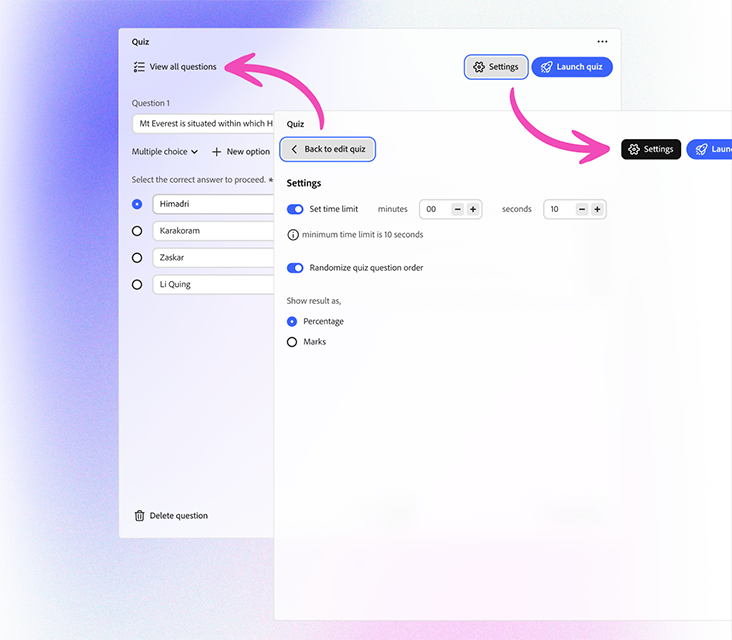
Below, you will find a few images to help you understand the pod structure better. Please note that this is pod structure is what we currently recommend you use on your pods to stay in line with the native pods, and thus provide a consistent experience to Adobe Connect users.
data-slots=image
data-repeat=1
data-bgColor=#f8f8f8
data-className=boxmodal
data-isCenter=
data-variantsTypePrimary=accent
Best practices
When creating custom pods with the new UI framework, follow these guidelines to ensure consistency and a seamless experience within Connect rooms:
-
Use Spectrum 2 Components for UI Workflows.
- Always prefer Spectrum 2 components from the open-source library for workflow-related UI (buttons, menus, dialogs, etc.).
- This ensures visual consistency, accessibility, and behaviour alignment with in-built pods.
- Avoid building custom UI elements unless Spectrum 2 does not cover the use case.
-
Leverage the Content Control Section for Navigation & Actions
- Place content-related navigation and actions inside the content control section.
- This keeps controls predictable and consistent across pods, helping users quickly adapt between in-built and custom pods.
- Avoid scattering navigation or actions across the pod surface.
-
Avoid Explicit Background Colours
- By default, pods get a white background with transparency and blur effects for focus and layering states.
- Setting an explicit background colour can break this behaviour and feel inconsistent inside Connect rooms.
- Only use background overrides when absolutely necessary (e.g., branding requirements), and test carefully in both focused and unfocused states.