Reporting API first calls
The Analytics 2.0 reporting API endpoints allow you to access reports programmatically through Adobe Developer. The endpoints use the same data and methods that are used when working with reports in the UI. By using this API, you can programmatically report to executive dashboards, custom reporting platforms, tight Experience Cloud integrations, or other options.
data-variant=info
data-slots=text
The report endpoints described in this guide are routed through analytics.adobe.io. To use them, you will need to first create a client with access to the Adobe Analytics Reporting API. For more information, refer to Getting started with the Analytics API.
This guide includes instructions for using the following endpoints:
- POST reports: Creates report requests and returns data for an existing report suite. This corresponds to creating a visualization in the UI.
- GET top items: Returns only the specified number of items in the report, ranked by highest data values
This guide does not include descriptions for all request and response parameters for the reports endpoint. For more information on parameters included with this endpoint, see the API reference. Also, you can copy API JSON request payloads and responses associated with any visualization directly from Analysis Workspace with the Oberon debugger tool. This can be a helpful aid in structuring any API reporting request from Analysis Workspace visualizations.
Request reporting data
This guide includes API instructions that correspond to an example free-form table visualization in Analysis Workspace with the page dimension and the following metrics:
pageviewsvisitsvisitors
This example appears in Analysis Workspaces similar to the following graphic:
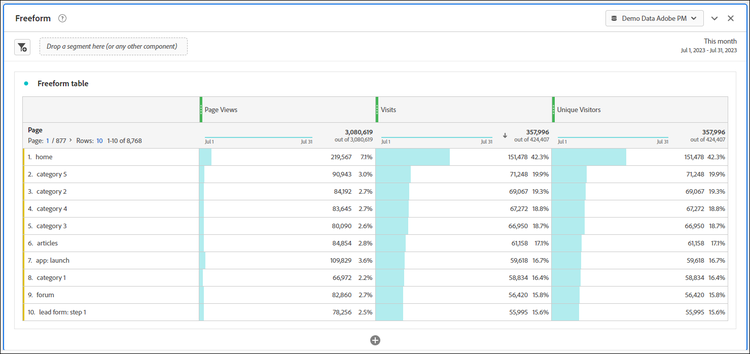
To make the request, use the following URI for your POST HTTP call:
POST https://analytics.adobe.io/api/{global-company-id}/reports
Click the Request tab in the following example to see a POST request corresponding to the data shown in the visualization above, limited to the top ten values. Click the Response tab to see a successful JSON response for the request.
data-slots=heading, code
data-repeat=2
data-languages=CURL,JSON
Example request
curl -X 'POST' \
  'https://analytics.adobe.io/api/{global-company-id}/reports' \
  -H 'accept: application/json' \
  -H 'Content-Type: application/json' \
  -H 'x-api-key: {CLIENT_ID}' \
  -H 'Authorization: Bearer {ACCESS_TOKEN}" \
  -d '{REQUESTJSON}
{
    "rsid": "examplersid",
    "globalFilters": [
        {
            "type": "dateRange",
            "dateRange": "YYYY-07-01T00:00:00.000/2023-08-01T00:00:00.000",
            "dateRangeId": "thisMonth"
        }
    ],
    "metricContainer": {
        "metrics": [
            {
                "columnId": "0",
                "id": "metrics/pageviews"
            },
            {
                "columnId": "1",
                "id": "metrics/visits",
                "sort": "desc"
            },
            {
                "columnId": "2",
                "id": "metrics/visitors"
            }
        ]
    },
    "dimension": "variables/page",
    "settings": {
        "countRepeatInstances": true,
        "includeAnnotations": true,
        "limit": 10,
        "page": 0,
        "nonesBehavior": "exclude-nones"
    },
    "statistics": {
        "functions": [
            "col-max",
            "col-min"
        ]
    },
    "capacityMetadata": {
        "associations": [
            {
                "name": "applicationName",
                "value": "Analysis Workspace UI"
            },
            {
                "name": "projectId",
                "value": "undefined"
            },
            {
                "name": "projectName",
                "value": "New project"
            },
            {
                "name": "panelName",
                "value": "Freeform table"
            }
        ]
    }
}
Example response
{
    "totalPages": 877,
    "firstPage": true,
    "lastPage": false,
    "numberOfElements": 10,
    "number": 0,
    "totalElements": 8768,
    "columns": {
        "dimension": {
            "id": "variables/page",
            "type": "string"
        },
        "columnIds": [
            "0",
            "1",
            "2"
        ]
    },
    "rows": [
        {
            "itemId": "3306266643",
            "value": "home",
            "data": [
                219567,
                151478,
                151478
            ]
        },
        {
            "itemId": "2796092754",
            "value": "category 5",
            "data": [
                90943,
                71248,
                71248
            ]
        },
        {
            "itemId": "1738577623",
            "value": "category 2",
            "data": [
                84192,
                69067,
                69067
            ]
        },
        {
            "itemId": "3553521723",
            "value": "category 4",
            "data": [
                83645,
                67272,
                67272
            ]
        },
        {
            "itemId": "3455114909",
            "value": "category 3",
            "data": [
                80090,
                66950,
                66950
            ]
        },
        {
            "itemId": "545858230",
            "value": "articles",
            "data": [
                84854,
                61158,
                61158
            ]
        },
        {
            "itemId": "894732499",
            "value": "app: launch",
            "data": [
                109829,
                59618,
                59618
            ]
        },
        {
            "itemId": "338857740",
            "value": "category 1",
            "data": [
                66972,
                58834,
                58834
            ]
        },
        {
            "itemId": "1284838141",
            "value": "forum",
            "data": [
                82860,
                56420,
                56420
            ]
        },
        {
            "itemId": "773465109",
            "value": "lead form: step 1",
            "data": [
                78256,
                55995,
                55995
            ]
        }
    ],
    "summaryData": {
        "filteredTotals": [
            3080619,
            357996,
            357996
        ],
        "annotations": [],
        "totals": [
            3080619,
            424407,
            424407
        ],
        "annotationExceptions": [],
        "col-max": [
            219567,
            151478,
            151478
        ],
        "col-min": [
            1,
            1,
            1
        ]
    }
}
Example request details
In addition to the metrics described above, the JSON payload requests the following:
- Time period From July 1, 2023 00:00:00.000 - August 1, 2023 00:00:00.000, using the report suite timezone
- To sort response
visitsby descendingvalue, i.e. highest to lowest
Request parameters
The example request includes the following parameters in the payload:
rsidglobalFilterstype, dateRange, and dateRangeIdtypedateRangedateRangeIdThisMonthmetricContainermetrics arraymetricsColumnId, id, and sortcolumnId0idmetricsortasc or descdimensiondimension is not supplied, the request becomes a Totals report. For more information, see Using dimension in payload requests.settingscountRepeatInstancesincludeAnnotationslimitpagenonesBehavior0 if set to exclude-nonesstatisticsfunctions arrayfunctionscol-max and col-mincol-maxcol-mincapacityMetadataassociations arrayassociationsname and value parameters for each type of metadata associated with report; e.g., applicationName, projectId, projectName, and panelNamenamevalueExample response details
The response above shows the following top ten ranked pages for this month according to the pageViews, visits, and visitors metrics:
- home
- category 5
- category 2
- category 4
- category 3
- articles
- app: launch
- category 1
- forum
- leaf form: step 1
Additionally, the response above shows the following:
-
Each
rowsection contains each report record. -
The
valueproperty contains the dimension value. -
The
dataproperty contains a list of metric counts for each metric requested. -
The
summaryDatasection contains a total of the metrics in the current report.
If you do not include a limit with your POST request, you can subsequently use the GET top items endpoint--described in a following section--to have only the top specified number of items returned.
Response parameters
The example response includes the following parameters:
totalPagesfirstPagelastPagenumberOfElementsnumber0totalElementscolumnsdimension datadimensionid and typeidtypedimension ID data typecolumnIds0rowsitemId, value and dataitemIdvalueitemId in the reportdatasummaryDatafilteredTotalsannotationstotalsannotationExceptionscol-maxcol-minRetrieve top items
Use the GET Top Items request to return only the top items from the previous POST body, according the maximum number of items you want returned (excluding NonValues). They are returned in ranked order. You can specify the maximum with limit included as a query parameter in the request.
To make the request, use the following URI for your GET HTTP call:
GET https://analytics.adobe.io/api/{global-company-id}/reports/topItems
Example request
The following example shows a request for a top items report for the POST body shown above:
curl -X 'GET' \
  'https://analytics.adobe.io/api/{global-company-id}/reports/topItems?rsid=examplersid=variables%2Fpage&locale=en_US&lookupNoneValues=false&limit=10&page=0' \
  -H 'accept: application/json' \
  -H 'x-api-key: {CLIENT_ID}\
  -H 'Authorization: Bearer {ACCESS_TOKEN}
In this example, you append the previous request body to the cURL call. Note that this request specifies that NoneValues not be included and that the limit of items to return be 10.
The response for this request is the same as the example response shown above.
Partial Responses (206 Status Code)
A 206 status code indicates a partial response. This status code means that there were some columns in the reporting response that have errors. These errors can include any of the following:
- Unauthorized Metric: User does not have access to the requested metric
- Metric Not Enabled: The requested metric is not enabled in this report suite
- Unauthorized Dimension: User does not have access to the requested dimension
- Dimension Not Enabled: The requested dimension is not enabled in this report suite
- Unauthorized Global Dimension: User does not have access to the global dimension for this request
- Global Dimension Not Enabled: The global dimension for this request is not enabled in this report suite
- Unexpected Number of Items: Anomaly Detection algorithm returned an unexpected number of anomalies
- General Service Error: General Anomaly Detection service error
Additional information
For more information on the Reporting API, see the following resources: