Forward Operational Data to Edge Network tutorial
The Forward Operational Data to Edge Network rule action lets you select operational data from an SDK event and forward it to Edge Network. The underlying forward-operational-data consequence is supported in Mobile Core starting with 3.11.0 on Android and 5.13.0 on iOS.
This tutorial follows a push-token example using the Identity extension's Sync Operational Data event and Forward Operational Data to Edge Network action in the Data Collection UI.
Prerequisites
Before creating the rule:
- Create a mobile property in Data Collection.
- Install the Edge Network and Identity for Edge Network extensions in the mobile property.
- For Messaging token synchronization, also install the Adobe Journey Optimizer (Messaging) extension in the mobile property.
- Add and register the corresponding SDK extensions in your app.
Use the following minimum SDK versions:
The Messaging versions above support synchronization of tokens confirmed by Edge Identity. For dependency and initialization instructions, see Identity for Edge Network and Adobe Journey Optimizer.
Context
How the consequence works
The Rules Engine evaluates a rule against the triggering SDK event. When a rule matches, this consequence copies values from explicitly enabled paths in the triggering event's data into a new event.
The Forward Operational Data to Edge Network action dispatches a new event using the type and source specified in the consequence's detail. The new event is chained to the triggering event as its parent. The action does not modify the triggering event.
Using the action
The action offers the following operational-data selections:
timezonetokens.pushNotificationtokens.liveActivityStart and tokens.liveActivityUpdateThe Edge integration includes App ID and platform with the selected operational data. Core does not add these fields when dispatching the consequence event.
data-variant=warning
data-slots=text
Example - Forwarding a push token to Edge Network
To create the rule, select your mobile property in the Data Collection UI and complete the following steps:
- Create a rule
- Select the event that triggers the rule
- Select the action and the data to forward
- Save the rule and rebuild your property
Create a rule
- On the Rules tab, select Create New Rule or Add Rule.
- Give the rule an easily recognizable name, such as Forward operational data rules.
Select an event
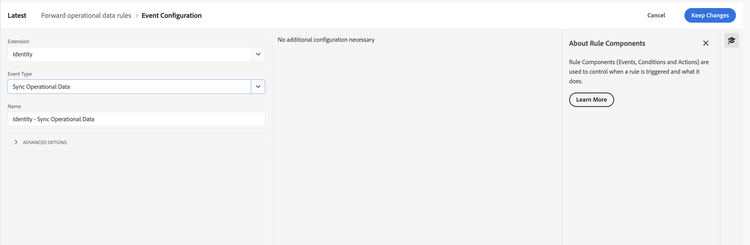
- Under the Events section, select Add.
- From the Extension dropdown list, select Identity.
- From the Event Type dropdown list, select Sync Operational Data.
- No additional event configuration is necessary. Select Keep Changes.
Define the action
- Under the Actions section, select Add.
- From the Extension dropdown list, select Identity.
- From the Action Type dropdown list, select Forward Operational Data to Edge Network.
- In the configuration pane, select Push token. Leave Timezone and Live Activity tokens unselected for this example.
- Select Keep Changes.
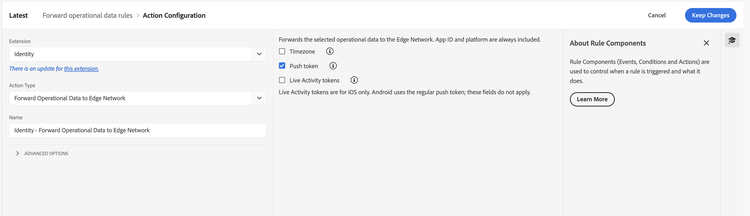
The rule forwards the push token supplied by the triggering event at tokens.pushNotification. It does not obtain a token by itself. To forward other operational data, select the corresponding options and ensure the triggering event supplies those values. Live Activity token selections apply to iOS only; Android uses the regular push token.
data-variant=info
data-slots=text
no or pending. Set up the Messaging and Messaging Live Activity extensions in your app to provide these tokens. The rule only forwards tokens; it does not collect them.Save the rule and rebuild your property
- Select Save.
- In Publishing Flow, create or update a library.
- Include the rule and the required extension configuration in the library.
- Build and publish the library for the environment used by your app.
- Launch the app and confirm that it downloads the updated configuration and rules before testing.
Verify the result
Trigger an operational-data update from your app, such as a call to Identity.updateOperationalData that supplies a push notification token under tokens.pushNotification. Verify the SDK logs and the device attributes request in Assurance.
If no rule matches, or the matching rules allow none of the supplied fields, no device attributes request is sent. Identity may also skip values it has already confirmed when operational-data sync optimization is enabled.
Consequence payload
The following sections describe the SDK consequence payload and its filtering behavior. They are a reference for understanding how the rule is processed; the Data Collection UI configures the action in the preceding example.
Consequence detail fields
Set the consequence object's type to forward-operational-data. Its detail object supports these fields:
typesourceattributesattributes[].pathattributes[].enabledtrue enables the path. A missing, false, or incorrectly typed value does not enable it.Payload example
The following SDK consequence example enables the push notification token and disables timezone and Live Activity push-to-start tokens, matching the push-token UI example above.
{
  "id": "forward-operational-data-example",
  "type": "forward-operational-data",
  "detail": {
    "type": "com.adobe.eventType.edgeIdentity",
    "source": "com.adobe.eventSource.responseOperationalData",
    "attributes": [
      { "path": ["timezone"], "enabled": false },
      { "path": ["tokens", "pushNotification"], "enabled": true },
      { "path": ["tokens", "liveActivityStart"], "enabled": false }
    ]
  }
}
Given this triggering event data:
{
  "timezone": "America/Los_Angeles",
  "tokens": {
    "pushNotification": "push-token",
    "liveActivityStart": [
      { "attributeType": "GameScoreLiveActivityAttributes", "value": "start-token" }
    ]
  },
  "unselectedField": "not-forwarded"
}
The dispatched event contains only the selected push notification token. Timezone, Live Activity tokens, and unselected fields are not forwarded:
{
  "tokens": {
    "pushNotification": "push-token"
  }
}