Adobe Campaign Classic
Configure Campaign Classic extension in the Data Collection UI
-
In the Data Collection UI, select the Extensions tab.
-
On the Catalog tab, locate the Adobe Campaign Classic extension, and select Install.
-
Type in the settings for your extension.
-
Select Save.
-
Complete the publishing process to update the SDK configuration.
For more information about publishing, see the publishing overview.
Configure Campaign Classic extension
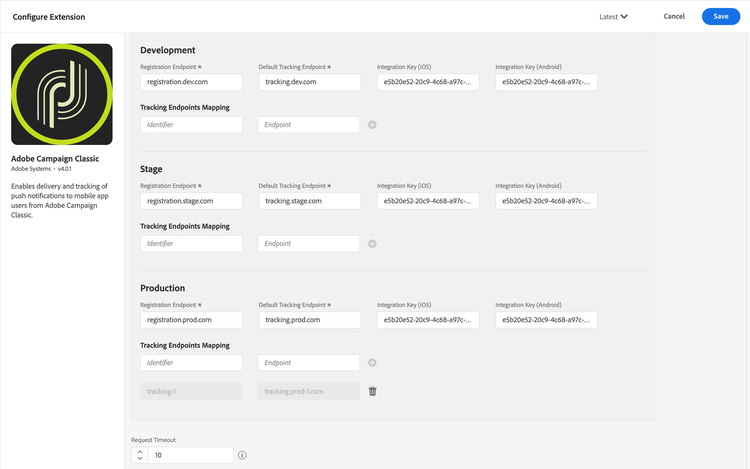
data-variant=info
data-slots=text
Registration endpoints
Type the registration endpoint URL(s) for your Campaign Classic instances. You can specify up to three unique endpoints for your development, staging, and production environments. Registration endpoints are required for all three environments before the configuration can be saved.
data-variant=warning
data-slots=text
mkt.campaign.adobe.com instead of https://mkt.campaign.adobe.com).Default tracking endpoints
Type the default tracking endpoint URL(s) for your Campaign Classic instances. Like the registration URLs, you can specify up to three unique endpoints for your development, staging, and production environments. Default tracking endpoints are required for all three environments before the configuration can be saved.
data-variant=warning
data-slots=text
mkt.campaign.adobe.com instead of https://mkt.campaign.adobe.com).Tracking Endpoints Mapping
Each environment (development, staging, and production) supports an optional list of tracking endpoint mappings. Each mapping consists of an identifier and an endpoint, where the endpoint must be a hostname without a protocol prefix. Use tracking endpoint mappings to route tracking requests to different servers based on a given identifier.
To add a mapping, enter an identifier and endpoint in the input row and select the + button. Saved mappings appear below the input row and can be removed individually. The mappings are stored as a JSON array of {identifier, endpoint} pairs.
Integration key (iOS)
You can specify up to three unique iOS integration keys for your development, staging, and production environments. iOS integration keys are generated after creating a service that contains iOS applications using the Campaign Classic client console. For more information on where to find the integration key, see the tutorial on configuring the mobile application in Adobe Campaign.
Integration key (Android)
You can specify up to three unique Android integration keys for your development, staging, and production environments. Android integration keys are generated after creating a service that contains Android applications using the Campaign Classic client console. For more information on where to find the integration key, see the tutorial on configuring the mobile application in Adobe Campaign.
Request timeout
The request timeout is the amount of time, in seconds, to wait for a response from the registration or tracking endpoint before timing out. The SDK default timeout value is 30 seconds. Valid values range from 0 to 30.
Add the Campaign Classic extension to your app
Include Campaign Classic extension as an app dependency
Add the MobileCore and Campaign Classic dependencies in your app's Gradle file.
Android Kotlin
Add the required dependencies to your project by including them in the app's Gradle file.
implementation(platform("com.adobe.marketing.mobile:sdk-bom:3.+"))
implementation("com.adobe.marketing.mobile:core")
implementation("com.adobe.marketing.mobile:lifecycle")
implementation("com.adobe.marketing.mobile:campaignclassic")
data-variant=warning
data-slots=text
Android Groovy
Add the required dependencies to your project by including them in the app's Gradle file.
implementation platform('com.adobe.marketing.mobile:sdk-bom:3.+')
implementation 'com.adobe.marketing.mobile:core'
implementation 'com.adobe.marketing.mobile:lifecycle'
implementation 'com.adobe.marketing.mobile:campaignclassic'
data-variant=warning
data-slots=text
iOS CocoaPods
Add the required dependencies to your project using CocoaPods. Add following pods in your Podfile:
use_frameworks!

target 'YourTargetApp' do
  pod 'AEPCore', '~> 5.0'
  pod 'AEPCampaignClassic', '~> 5.0'
end
Initialize Adobe Experience Platform SDK with Campaign Classic Extension
Next, initialize the SDK by registering all the solution extensions that have been added as dependencies to your project with Mobile Core. For detailed instructions, refer to the initialization section of the getting started page.
Using the MobileCore.initialize API to initialize the Adobe Experience Platform Mobile SDK simplifies the process by automatically registering solution extensions and enabling lifecycle tracking.
Android Kotlin
data-variant=warning
data-slots=text
import com.adobe.marketing.mobile.LoggingMode
import com.adobe.marketing.mobile.MobileCore
...
import android.app.Application
...

class MainApp : Application() {
  override fun onCreate() {
    super.onCreate()
    MobileCore.setLogLevel(LoggingMode.DEBUG)
    MobileCore.initialize(this, "ENVIRONMENT_ID")
  }
}
Android Java
data-variant=warning
data-slots=text
import com.adobe.marketing.mobile.LoggingMode;
import com.adobe.marketing.mobile.MobileCore;
...
import android.app.Application;
...
public class MainApp extends Application {
  @Override
  public void onCreate(){
    super.onCreate();
    MobileCore.setLogLevel(LoggingMode.DEBUG);
    MobileCore.initialize(this, "ENVIRONMENT_ID");
  }
}
iOS Swift
data-variant=warning
data-slots=text
// AppDelegate.swift
import AEPCore
import AEPServices
...

final class AppDelegate: NSObject, UIApplicationDelegate {
  func application(_: UIApplication, didFinishLaunchingWithOptions _: [UIApplication.LaunchOptionsKey: Any]? = nil) -> Bool {
    MobileCore.setLogLevel(.debug)
    MobileCore.initialize(appId: "ENVIRONMENT_ID")
    ...
  }
}
iOS Objective-C
data-variant=warning
data-slots=text
// AppDelegate.m
#import "AppDelegate.h"
@import AEPCore;
@import AEPServices;
...
@implementation AppDelegate
- (BOOL)application:(UIApplication *)application didFinishLaunchingWithOptions:(NSDictionary *)launchOptions {
  [AEPMobileCore setLogLevel: AEPLogLevelDebug];
  [AEPMobileCore initializeWithAppId:@"ENVIRONMENT_ID" completion:^{
      NSLog(@"AEP Mobile SDK is initialized");
  }];
  ...
  return YES;
}
@end
Configuration keys
To update SDK configuration programmatically, use the following information to change your Campaign Classic configuration values. For more information, see the Configuration API reference.
build.environmentcampaignclassic.timeoutcampaignclassic.marketingServercampaignclassic.trackingServercampaignclassic.trackingEndpointsMappingidentifier and endpoint fields, where the endpoint must be a hostname without a protocol prefix. Default is [].campaignclassic.ios.integrationKeycampaignclassic.android.integrationKey