Adobe Content Analytics
Configure Content Analytics extension in the Data Collection UI
- In the Data Collection UI, select the Extensions tab.
- On the Catalog tab, locate the Adobe Content Analytics extension, and select Install.
- Configure the extension settings. For more information, see Configure the Content Analytics extension.
- Select Save.
- Follow the publishing process to update your SDK configuration.
Configure the Content Analytics extension
To configure the Content Analytics extension, complete the following steps:
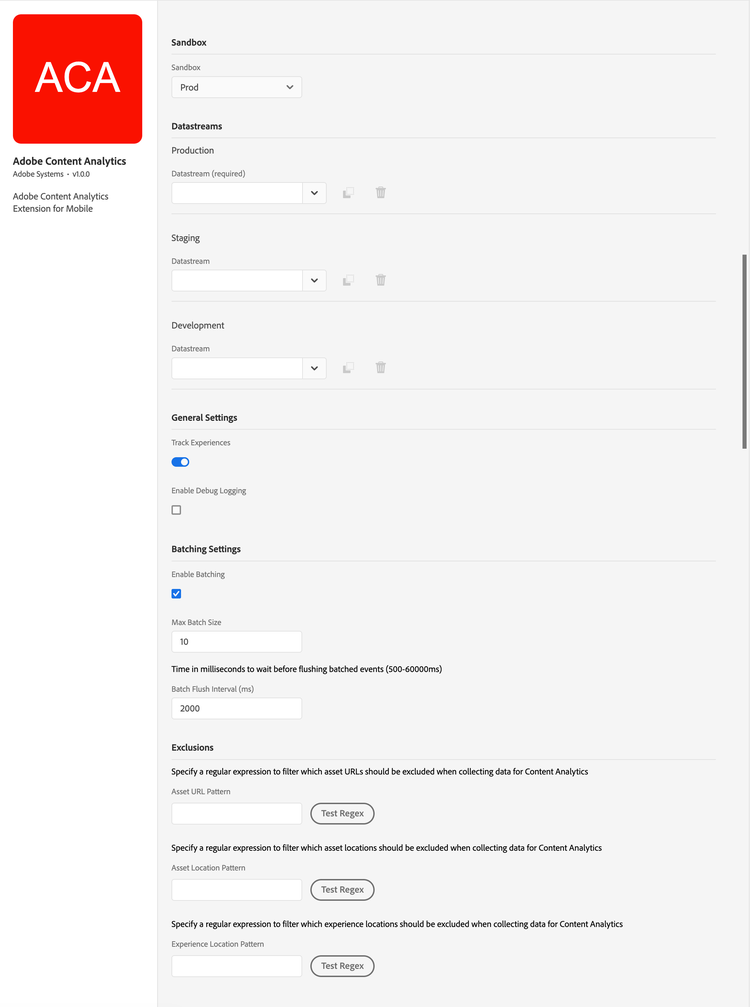
Sandbox
Select a Sandbox to use for Content Analytics.
Datastreams
Select the Datastream to use for Content Analytics for the Production (required), Staging, and Development environment.
General Settings
Enable or disable Track Experiences to track experiences in Content Analytics or not. Default is enabled (true).
Select Enable Debug Logging to enable verbose debug logging for Content Analytics. Default is disabled (false).
Batching Settings
Select Enable Batching to enable batching for Content Analytics.
Enter a value in Max Batch Size to define the maximum batch size. Default is 10.
Enter a value in Batch Flush Interval (ms) to define a time in miliseconds to wait before flusing batched events. Default is 2000 (2 seconds).
Exclusions
Specify exclusions for asset URLs, assets locations, and experience locations.
- Enter an Asset URL Pattern to specify a regular expression to filter which asset URLs should be excluded when collecting data for Content Analytics. For example:
.*\\.gif$|.*\\.svg$to exclude GIF or SVG files.<br/>Use Test Regex to open the Regular Expression Tester where you can validate your regular expression. - Enter an Asset Location Pattern to specify a regular expression to filter which asset locations should be excluded when collecting data for Content Analytics. For example:
^(debug|test).*to exclude asset location that containdebugortest. <br/>Use Test Regex to open the Regular Expression Tester where you can validate your regular expression. - Enter an Experience Location Pattern to specify a regular expression to filter which experience locations should be excluded when collecting data for Content Analytics. For example:
^test\\..*|^dev\\..*to exclude any experience location that containstest.ordev.<br/>Use Test Regex to open the Regular Expression Tester where you can validate your regular expression.
Add Content Analytics extension to your app
To add the Content Analytics extension to your app, follow the steps below based on the platform and package manager you use.
Include Content Analytics extension as an app depencency.
Add MobileCore, Edge, EdgeIdentity, and Content Analytics as dependencies to your project.
Android Kotlin
Add the required dependencies to your project by including them in the app's Gradle file.
// Use the BOM to manage Adobe Mobile SDK versions
implementation(platform("com.adobe.marketing.mobile:sdk-bom:3.+"))

// Adobe Mobile SDK dependencies (versions managed by BOM)
implementation("com.adobe.marketing.mobile:core")
implementation("com.adobe.marketing.mobile:edge")

// Content Analytics (not yet in BOM - specify version explicitly)
implementation("com.adobe.marketing.mobile:contentanalytics:1.0.0")
data-variant=warning
data-slots=text
Android Groovy
Add the required dependencies to your project by including them in the app's Gradle file.
// Use the BOM to manage Adobe Mobile SDK versions

implementation platform('com.adobe.marketing.mobile:sdk-bom:3.+')

// Adobe Mobile SDK dependencies (versions managed by BOM)
implementation 'com.adobe.marketing.mobile:core'
implementation 'com.adobe.marketing.mobile:edge'

// Content Analytics (not yet in BOM - specify version explicitly)
implementation 'com.adobe.marketing.mobile:contentanalytics:1.0.0"
data-variant=warning
data-slots=text
iOS SPM
Add the required dependencies to your project using Swift Package Manager. For Content Analytics, use the following instructions.
-
In Xcode, select File > Add Package Dependencies.
-
Enter the package URL:
https://github.com/adobe/aca-mobile-sdk-ios-extension -
Select version
5.0.0or later. -
Select Add Package.
iOS CocoaPods
Add the required dependencies to your project using CocoaPods. Add following pods in your Podfile:
use_frameworks!

target 'YourTargetApp' do
  pod 'AEPCore', '~> 5.0'
  pod 'AEPEdge', '~> 5.0'
  pod 'AEPContentAnalytics', '~> 5.0'
end