Configure eligible extensions
data-variant=info
data-slots=text
Navigate to Stores > Settings > Configuration > Adobe Services > Admin UI SDK. In the General Configuration section, click the Configure extensions button. The Configure Extensions modal dialog displays.
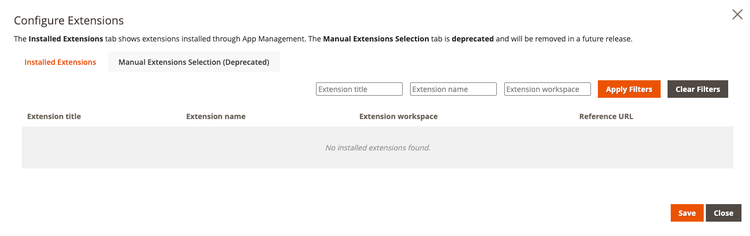
The Installed Extensions tab displays extensions that were installed with App Management. This tab is for informational purposes only. You cannot manage these apps from this dialog.
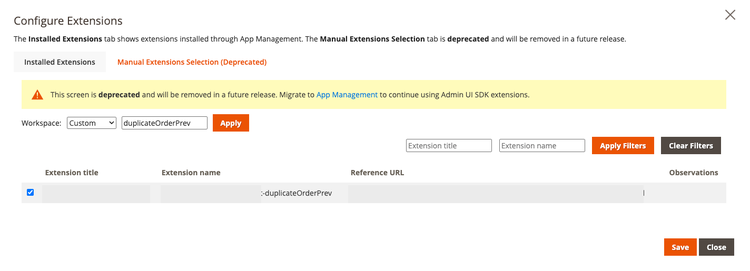
The Manual Extensions Selection tab allows you to select the extensions that have already been installed for a specific Commerce instance. Commerce loads all eligible extensions from the App Registry. An extension is considered eligible when the deployed workspace is published to the commerce/backend-ui/1 extension point.
-
Select the workspace of extensions you want to map to the Commerce instance. Click Apply to load the eligible extensions. Workspace choices are: Stage, Production, or Custom. If Custom is selected, be sure to provide the workspace name corresponding to the extension in App Builder. Only English alphanumeric and Latin alphabet characters are allowed.
-
Select the extensions you want to include in the Commerce instance.
-
Save the selection to have registrations correctly included in the Commerce Admin.