Best practices for Commerce development MCPs and skills
Adobe recommends the following practices when using the Commerce development MCPs and skills for Commerce App Builder. For skills and sample prompts, see Skills, prompts, and commands.
Checklist
Before starting a development session
- Check for
REQUIREMENTS.md - Verify MCP tools are working
- Review current phase and goals
- Start from sample code or scaffolded projects
During development
- Trust the four-phase protocol
- Request implementation plans for complex work
- Use MCP tools when available
- Test each feature after implementation
- Test locally first, then deploy and test again
- Use the Commerce development MCPs and skills for testing support
- Question unnecessary complexity
- Deploy incrementally for faster iteration
When starting a new chat
- Provide a clear session handoff
- Reference key files with
@ - Set clear goals for the session
- Use phase-based boundaries
Workflow
When developing with the Commerce development MCPs and skills, start with sample code or scaffolded projects. This approach ensures you are building on a solid foundation rather than starting from nothing, while also optimizing your AI development workflow.
This also allows you to leverage Adobe's templates and build upon proven patterns and architectures, while keeping established directory structures and conventions.
Consult the following resources to get started:
- Integration starter kit
- Checkout starter kit
- Adobe Commerce starter kit templates
- Adobe I/O Events starter templates
- App Builder sample applications
Why you should use these resources
- Proven patterns: Starter kits embody Adobe's best practices and architectural decisions
- Faster development: Reduces time spent on boilerplate and configuration
- Consistency: Ensures your application follows established conventions
- Maintainability: Easier to maintain and update when following standard patterns
- Documentation: Starter kits come with examples and documentation
- Community support: Easier to get help when using standard approaches
- AI context efficiency: Use familiar patterns and structures to work with, reducing the need for extensive explanations and improving code generation accuracy
- Reduced token usage: Reference existing patterns instead of generating everything from scratch, leading to more efficient conversations and fewer context summarizations
Protocol
The following four-phase protocol is automatically enforced by the installed skills. The tools should follow this protocol automatically when developing applications:
- Phase 1: Requirements analysis and clarification
- When asked clarifying questions, provide complete answers.
- Phase 2: Architectural planning and user approval
- When presented a plan, review it carefully before approving.
- Phase 3: Code generation and implementation
- Review generated code before accepting any changes.
- Phase 4: Documentation and validation
- Review documentation and validate code.
Request implementation plans for complex development
For complex development involving multiple runtime actions, touchpoints, or integrations, explicitly request that the AI tools create a detailed implementation plan. When you see a high-level plan in Phase 2 that involves multiple components, ask for a detailed implementation plan to break it down into manageable tasks:
Create a detailed implementation plan for this complex development.
Complex Adobe Commerce applications often involve:
- Multiple runtime actions
- Event configuration across multiple touchpoints
- Integration with external systems
- State management requirements
- Testing across multiple components
Use MCP tools
data-variant=info
data-slots=text
The tooling defaults to MCP tools, but in certain circumstances it can use CLI commands instead. To ensure MCP tool usage, explicitly request them in your prompt.
If you see CLI commands being used and want to use MCP tools instead, use the following prompt:
Use only MCP tools and not CLI commands
- MCP tools: aio-app-deploy, aio-app-dev, aio-dev-invoke
- CLI commands: aio app deploy, aio app dev, aio rtinvoke
CLI commands can be used for the following scenarios:
- Deployment scenarios are complex
- You are debugging a specific issue
- MCP tools have a limitation
- A one-off operation does not benefit from MCP integration
Development
Question unnecessary complexity created by the AI tools.
When unnecessary files are added (validator.js, transformer.js, sender.js) for simple read-only endpoints, use the following prompts:
Why do we need these files for a simple read-only endpoint?
Perform a root cause analysis before adding complexity
Verify if simpler solutions exist
Testing
Use the following best practices when testing:
Test each feature after implementation
After completing development of a feature in your implementation plan, test it immediately. Early testing prevents compound issues and makes debugging easier.
- Do not wait until all features are complete
- Test incrementally to catch issues early
- Validate functionality before moving to the next feature
Test locally first
Always test locally first using the aio-app-dev tool. This provides immediate feedback and allows for faster iteration cycles, easier debugging, and no deployment overhead.
-
Start local development server:
aio-app-dev -
Test actions locally:
aio-dev-invoke action-name --parameters '{"test": "data"}'
Deploy and test again
Once local testing is successful, deploy and test in the runtime environment. Runtime environments can have different behavior than local development.
-
Deploy to runtime:
aio-app-deploy -
Test deployed actions
-
Use web browser or direct HTTP requests
-
Check activation logs for debugging
Leverage the Commerce development MCPs and skills for testing support
Ask for help with testing. The tools can help with debugging, log analysis, and creating appropriate test data for your specific runtime actions.
Test runtime actions:
Help me test the customer-created runtime action running locally
Debug failures:
Why did the subscription-updated runtime action activation fail?
Check logs:
Help me check the logs for the last stock-monitoring runtime action invocation
Create test payloads:
Generate test data for this Commerce event
Create a test payload for the customer_save_after event
Find runtime endpoints:
What's the URL for this deployed action?
Handle authentication:
How do I authenticate with this external API?
Troubleshoot:
Help me debug why this action is returning 500 errors
Debugging
Stop and assess when things go wrong. If you encounter issues:
- Stop and assess - Do not continue in a broken state
- Check logs - Use activation logs to identify issues
- Simplify - Remove complexity to isolate problems
- Test incrementally - Fix one issue at a time
- Validate - Test each fix before proceeding
Deployment
Use the following best practices when deploying:
Deploy incrementally
Deploy only modified actions to speed up development. This approach reduces the risk of breaking existing functionality and provides quicker feedback on changes.
-
Use MCP tools to deploy specific actions
aio-app-deploy --actions action-name -
Deploy individual actions after testing locally
-
Deploy incrementally and avoid full application deployments during development
Runtime cleanup
After major changes, leverage the tools to clean up orphaned actions. Let the AI tooling handle the cleanup process systematically. It can efficiently identify orphaned actions, verify their status, and safely remove them without manual intervention.
Help me identify and clean up orphaned runtime actions
Request the AI tooling to list deployed actions and identify unused ones:
List all deployed actions and identify which ones are no longer needed
Have the AI tools remove orphaned actions using appropriate commands:
Remove the orphaned actions that are no longer part of the current implementation
Monitoring
Use the following best practices when monitoring your application:
Watch for context quality indicators
- Good context: AI remembers recent decisions, references correct files
- Poor context: AI asks for previously provided info, repeats resolved issues
Track development velocity
- High velocity: Clear progress, minimal clarification needed
- Low velocity: Repeated explanations, AI confusion, slow progress
Monitor cost efficiency
Track token usage patterns:
- Efficient: Low token usage, few context summarizations
- Inefficient: High token usage, multiple summarizations, repeated work
What to avoid
Avoid the following anti-patterns when using the Commerce development MCPs and skills:
- Do not skip the clarification phase - Always ensure Phase 1 is completed before implementation.
- Do not skip testing after each feature - Test incrementally, don't wait until everything is complete.
- Do not add complexity without root cause analysis - Question unnecessary file additions and request proper investigation.
- Do not declare success without real data testing - Always test with actual data in addition to edge cases.
- Do not forget runtime cleanup - Always clean up orphaned actions after major changes.
Providing feedback
Developers who are interested in providing feedback on the Commerce development MCPs and skills can use the /feedback command.
This command allows you to provide text feedback and send logs to Adobe. Any logs you send will be sanitized to remove any private or personal information.
data-variant=info
data-slots=text
-
In your agent, type
/feedbackand select thecommerce-extensibility/feedbackcommand. -
Provide your feedback for the tooling in the Feedback field that appears at the top of the IDE and press the Enter key.
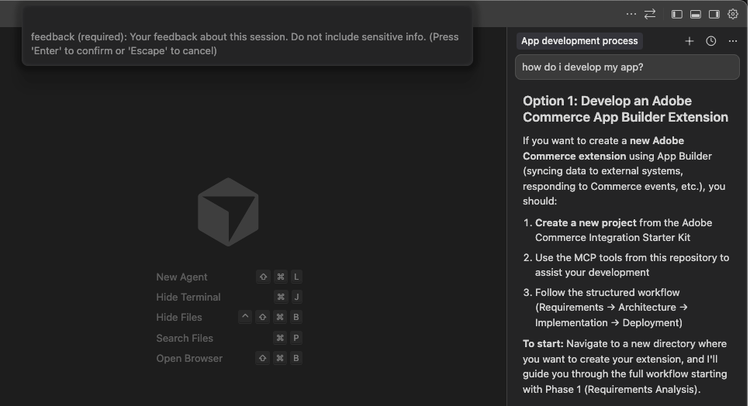
-
In the Save Locally field, type either
yesornoand press Enter to indicate if you want to save a local copy of your logs.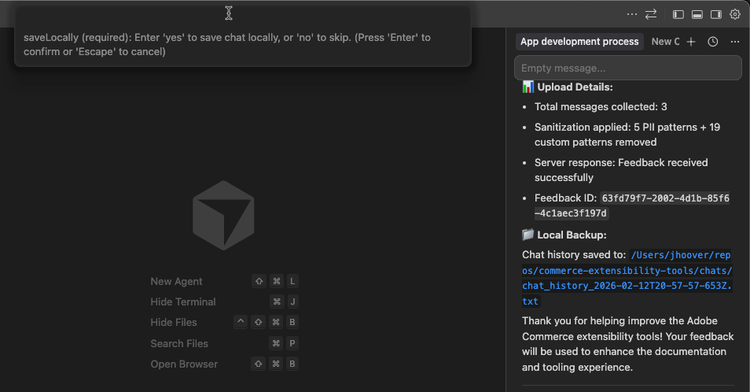
If you selected Yes, you can review the logs in your
chatsfolder after sending your feedback. -
The
commerce-extensibility/feedbackcommand appears in your agent's chat input field. Press Enter or click Send to send your feedback to Adobe.
data-variant=info
data-slots=text
/feedback command, you may need to update to the latest version.