Export API
The Adobe Commerce Reporting Export API allows you to access some of the raw data behind your Adobe Commerce Reporting dashboard.
Before using the export API, make sure you authenticate your connection.
data-variant=info
data-slots=text
Raw data exports
List all available raw exports
The GET /export call returns a list of raw exports available.
Endpoint: GET /export Request:
curl -H "X-RJM-API-Key: <your_key>" https://api.rjmetrics.com/0.1/export
Get a specific export
The GET /export/:idcall returns a zip-compressed CSV file containing the raw data of a completed export.
Endpoint: GET /export/:id Request:
curl -H "X-RJM-API-Key: <your_key>" https://api.rjmetrics.com/0.1/export/51
Get an export description
The GET /export/:id/info call returns a description of the export with the specified ID.
Endpoint: GET /export/:id/info Request:
curl -H "X-RJM-API-Key: <your_key>" https://api.rjmetrics.com/0.1/export/51/info
Copy an export
Creates a new export with the exact same parameters as the specified export. If you specify the name parameter, the new export will be assigned its value.
data-variant=info
data-slots=text
Endpoint: POST /export/:id/copy/name=<ExportName> Request:
curl -d "name=New Copied Export" -H "X-RJM-API-Key: <your_key>" https://api.rjmetrics.com/0.1/export/51/copy
Data tables
Get a list of tables
The GET /client/:clientId/table call returns a list of tables in the data warehouse of the client corresponding to clientId.
Endpoint: GET /client/:clientId/table Request:
curl -H "X-RJM-API-Key: <your_key>" https://api.rjmetrics.com/0.1/client/12/table
Get a list of table columns
The GET /client/:clientId/table/:tableId call returns a list of table columns in the table corresponding to tableIid.
Endpoint: GET /client/:clientId/table/:tableId Request:
curl -H "X-RJM-API-Key: <your_key>" https://api.rjmetrics.com/0.1/client/12/table/3
Create a raw data export of a table
The POST /client/:clientId/table/:tableId/export call creates a new raw data export of the entire contents of the table corresponding to tableId.
data-variant=info
data-slots=text
Endpoint: POST /client/:clientId/table/:tableId/export Request:
curl -d "" -H "X-RJM-API-Key: <your_key>" https://api.rjmetrics.com/0.1/client/12/table/3/export
Figures
Get a list of figures
The GET /figure call returns a list of figures that are available for export.
Endpoint: GET /figure Request:
curl -H "X-RJM-API-Key: your\_key" https://api.rjmetrics.com/0.1/figure
Export figure data
The POST /figure/:id/export/format=<FormatType> call outputs the data used to create the figure with the specified ID. Figure IDs can be found in the "Export Figure" dialog in the Adobe Commerce Reporting dashboard interface.
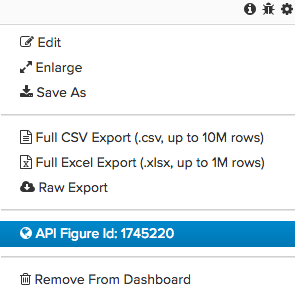
If a figure was created using the Visual Report Builder, you can specify an output format of either .csv or .json. If a figure was created using the SQL Report Builder, you can specify an output format of .csv only.
Endpoint: POST /figure/:id/export/format=<FormatType> Request:
curl -d "format=csv&includeColumnHeaders=1" -H "X-RJM-API-Key: your\_key" https://api.rjmetrics.com/0.1/figure/360531/export
Get a figure description
The POST /figure/:id/info call returns a description of the specified figure. Figure IDs can be found in the "Export Figure" dialog in the Adobe Commerce Reporting dashboard interface.
Endpoint: POST /figure/:id/info Request:
curl -H "X-RJM-API-Key: your\_key" https://api.rjmetrics.com/0.1/figure/360531/info
Charts
Export Specific Reports (created by cohort report builder)
Get a list of charts
The GET /chart call returns a list of charts that are available for export.
Endpoint: GET /chart Request:
curl -H "X-RJM-API-Key: your\_key" https://api.rjmetrics.com/0.1/chart
Export chart data
The POST /chart/:id/export/format=<FormatType>\] call outputs the data used to create the specified chart. Chart IDs can be found in the "Export Chart" dialog in the Adobe Commerce Reporting dashboard interface.
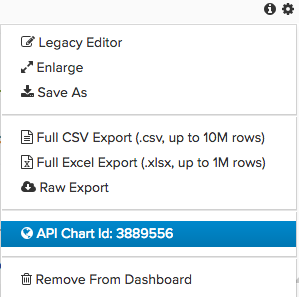
The user can specify an output format of either .csv or .json.
Endpoint: POST /chart/:id/export/format=<FormatType>\] Request:
curl -d "format=csv&includeColumnHeaders=1" -H "X-RJM-API-Key: your\_key" https://api.rjmetrics.com/0.1/chart/2038112/export
Get a chart description
The POST /chart/:id/info call returns a description of the specified chart or a 404 if the chart does not exist. Chart IDs can be found in the "Export Chart" dialog in the Adobe Commerce Reporting dashboard interface.
Endpoint: POST /chart/:id/info Request:
curl -H "X-RJM-API-Key: your\_key" https://api.rjmetrics.com/0.1/chart/2038112/info