Quickstart for PDF Extract API (Node.js)
To get started using Adobe PDF Extract API, let's walk through a simple scenario - taking an input PDF document and running PDF Extract API against it. Once the PDF has been extracted, we'll parse the results and report on any major headers in the document. In this guide, we will walk you through the complete process for creating a program that will accomplish this task.
Prerequisites
To complete this guide, you will need:
- Node.js - Node.js version 18.0 or higher is required.
- An Adobe ID. If you do not have one, the credential setup will walk you through creating one.
- A way to edit code. No specific editor is required for this guide.
Step One: Getting credentials
- To begin, open your browser to https://acrobatservices.adobe.com/dc-integration-creation-app-cdn/main.html?api=pdf-extract-api. If you are not already logged in to Adobe.com, you will need to sign in or create a new user. Using a personal email account is recommend and not a federated ID.

-
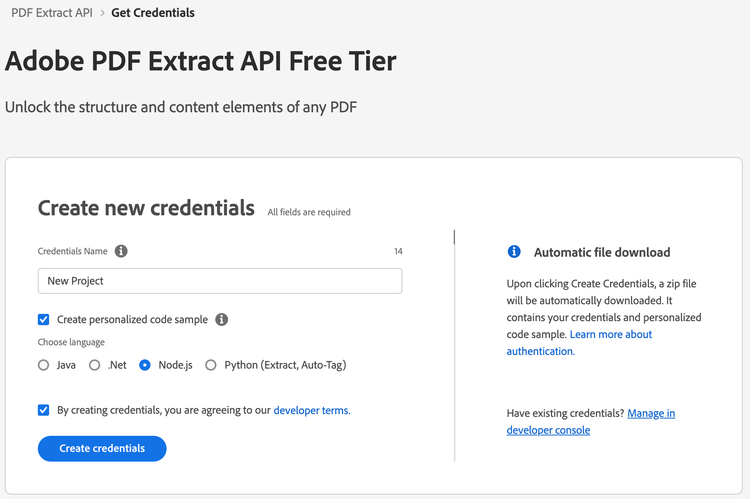
After registering or logging in, you will then be asked to name your new credentials. Use the name, "New Project".
-
Change the "Choose language" setting to "Node.js".
-
Also note the checkbox by, "Create personalized code sample." This will include a large set of samples along with your credentials. These can be helpful for learning more later.
-
Click the checkbox saying you agree to the developer terms and then click "Create credentials."
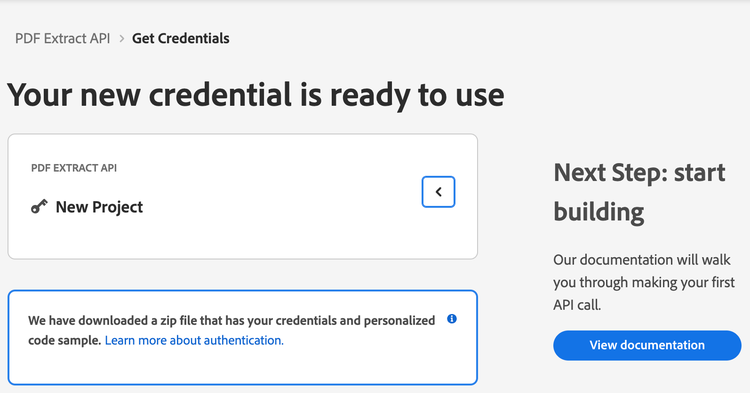
- After your credentials are created, they are automatically downloaded:
Step Two: Setting up the project
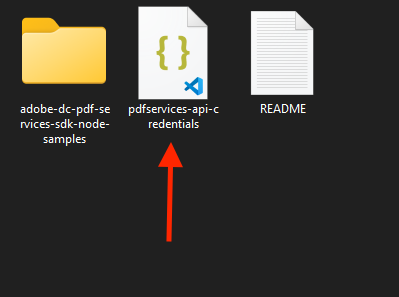
- In your Downloads folder, find the ZIP file with your credentials: PDFServicesSDK-Node.jsSamples.zip. If you unzip that archive, you will find a folder of samples and the
pdfservices-api-credentials.jsonfile.
-
Take the
pdfservices-api-credentials.jsonfile and place it in a new directory. Remember that these credential files are important and should be stored safely. -
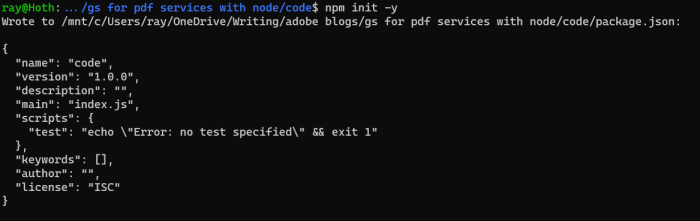
At the command line, change to the directory you created, and initialize a new Node.js project with
npm init -y
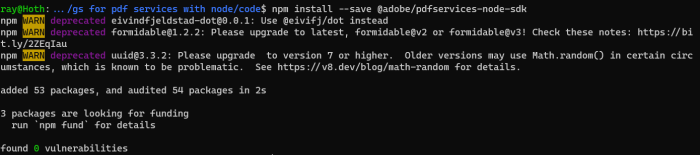
- Install the Adobe PDF Services Node.js SDK by typing
npm install --save @adobe/pdfservices-node-sdkat the command line.
- Install a package to help us work with ZIP files. Type
npm install --save adm-zip.
At this point, we've installed the Node.js SDK for Adobe PDF Services API as a dependency for our project and have copied over our credentials files.
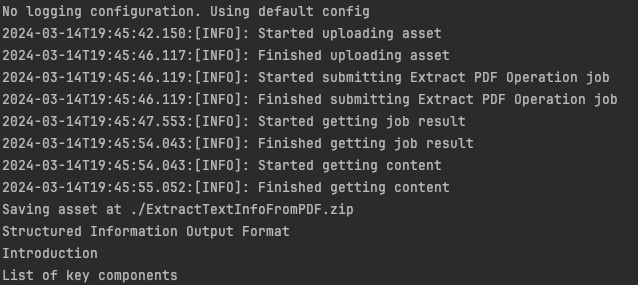
Our application will take a PDF, Adobe Extract API Sample.pdf (included as part of the Node.js sample project), and extract its contents. The results will be saved as a ZIP file, ExtractTextInfoFromPDF.zip. We will then parse the results from the ZIP and print out the text of any H1 headers found in the PDF.
- In your editor, open the directory where you previously copied the credentials. Create a new file,
extract.js.
Now you're ready to begin coding.
Step Three: Creating the application
- We'll begin by including our required dependencies:
const {
  ServicePrincipalCredentials,
  PDFServices,
  MimeType,
  ExtractPDFParams,
  ExtractElementType,
  ExtractPDFJob,
  ExtractPDFResult
} = require("@adobe/pdfservices-node-sdk");
const fs = require("fs");
const AdmZip = require('adm-zip');
- Set the environment variables
PDF_SERVICES_CLIENT_IDandPDF_SERVICES_CLIENT_SECRETby running the following commands and replacing placeholdersYOUR CLIENT IDandYOUR CLIENT SECRETwith the credentials present inpdfservices-api-credentials.jsonfile:
-
Windows:
set PDF_SERVICES_CLIENT_ID=<YOUR CLIENT ID>set PDF_SERVICES_CLIENT_SECRET=<YOUR CLIENT SECRET>
-
MacOS/Linux:
export PDF_SERVICES_CLIENT_ID=<YOUR CLIENT ID>export PDF_SERVICES_CLIENT_SECRET=<YOUR CLIENT SECRET>
- Next, we setup the SDK to use our credentials.
// Initial setup, create credentials instance
const credentials = new ServicePrincipalCredentials({
  clientId: process.env.PDF_SERVICES_CLIENT_ID,
  clientSecret: process.env.PDF_SERVICES_CLIENT_SECRET
});

// Creates a PDF Services instance
const pdfServices = new PDFServices({credentials});
- Now, let's upload the asset:
const inputAsset = await pdfServices.upload({
  readStream,
  mimeType: MimeType.PDF
});
We define what PDF will be extracted. (The source Adobe Extract API Sample.pdf is included with the Node.js sample project.) In a real application, these values would typically be dynamic.
- Now, let's create the parameters and the job:
// Create parameters for the job
const params = new ExtractPDFParams({
  elementsToExtract: [ExtractElementType.TEXT]
});

// Creates a new job instance
const job = new ExtractPDFJob({inputAsset, params});
This set of code defines what we're doing (an Extract operation), it defines parameters for the Extract job. PDF Extract API has a few different options, but in this example, we're simply asking for the most basic of extractions, the textual content of the document.
- The next code block submits the job and gets the job result:
// Submit the job and get the job result
const pollingURL = await pdfServices.submit({job});
const pdfServicesResponse = await pdfServices.getJobResult({
  pollingURL,
  resultType: ExtractPDFResult
});

// Get content from the resulting asset(s)
const resultAsset = pdfServicesResponse.result.resource;
const streamAsset = await pdfServices.getContent({asset: resultAsset});
This code runs the Extraction process, gets the content of the result zip in stream asset.
- The next code block saves the result at the specified location:
// Creates a write stream and copy stream asset's content to it
const outputFilePath = "./ExtractTextInfoFromPDF.zip";
console.log(`Saving asset at ${outputFilePath}`);

const writeStream = fs.createWriteStream(outputFilePath);
streamAsset.readStream.pipe(writeStream);
Here's the complete application (extract.js):
- In this block, we read in the ZIP file, extract the JSON result file, and parse it:
let zip = new AdmZip(outputFilePath);
let jsondata = zip.readAsText('structuredData.json');
let data = JSON.parse(jsondata);
- Finally, we can loop over the result and print out any found element that is an
H1:
data.elements.forEach(element => {
  if(element.Path.endsWith('/H1')) {
    console.log(element.Text);
  }
});
Here's the complete application (extract.js):
const {
  ServicePrincipalCredentials,
  PDFServices,
  MimeType,
  ExtractPDFParams,
  ExtractElementType,
  ExtractPDFJob,
  ExtractPDFResult
} = require("@adobe/pdfservices-node-sdk");
const fs = require("fs");
const AdmZip = require('adm-zip');

(async () => {
  let readStream;
  try {
    // Initial setup, create credentials instance
    const credentials = new ServicePrincipalCredentials({
      clientId: process.env.PDF_SERVICES_CLIENT_ID,
      clientSecret: process.env.PDF_SERVICES_CLIENT_SECRET
    });

    // Creates a PDF Services instance
    const pdfServices = new PDFServices({credentials});

    // Creates an asset(s) from source file(s) and upload
    readStream = fs.createReadStream("./Adobe Extract API Sample.pdf");
    const inputAsset = await pdfServices.upload({
      readStream,
      mimeType: MimeType.PDF
    });

    // Create parameters for the job
    const params = new ExtractPDFParams({
      elementsToExtract: [ExtractElementType.TEXT]
    });

    // Creates a new job instance
    const job = new ExtractPDFJob({inputAsset, params});

    // Submit the job and get the job result
    const pollingURL = await pdfServices.submit({job});
    const pdfServicesResponse = await pdfServices.getJobResult({
      pollingURL,
      resultType: ExtractPDFResult
    });

    // Get content from the resulting asset(s)
    const resultAsset = pdfServicesResponse.result.resource;
    const streamAsset = await pdfServices.getContent({asset: resultAsset});

    // Creates a write stream and copy stream asset's content to it
    const outputFilePath = "./ExtractTextInfoFromPDF.zip";
    console.log(`Saving asset at ${outputFilePath}`);

    const writeStream = fs.createWriteStream(outputFilePath);
    streamAsset.readStream.pipe(writeStream);

    let zip = new AdmZip(outputFilePath);
    let jsondata = zip.readAsText('structuredData.json');
    let data = JSON.parse(jsondata);
    data.elements.forEach(element => {
      if(element.Path.endsWith('/H1')) {
        console.log(element.Text);
      }
    });
  } catch (err) {
    console.log("Exception encountered while executing operation", err);
  } finally {
    readStream?.destroy();
  }
})();
Next Steps
Now that you've successfully performed your first operation, review the documentation for many other examples and reach out on our forums with any questions. Also remember the samples you downloaded while creating your credentials also have many demos.