Create Credentials
data-variant=warning
data-slots=text
Before you begin
By the end of this guide you will have:
- Chosen the authentication type that matches your application architecture.
- Created a project in Adobe Developer Console with the Adobe Express API added.
- Generated the client ID (API key) and, where applicable, the client secret needed to call the Adobe Express API.
Choose an authentication type
Adobe Express API supports three authentication flows. Pick the one that matches how and where your application runs.
Learn more about authentication in the Adobe Developer Console docs.
Set up your project
Complete these steps once, regardless of which authentication flow you use. You'll configure the flow-specific credential in the next section.
1. Log in to the Adobe Developer Console
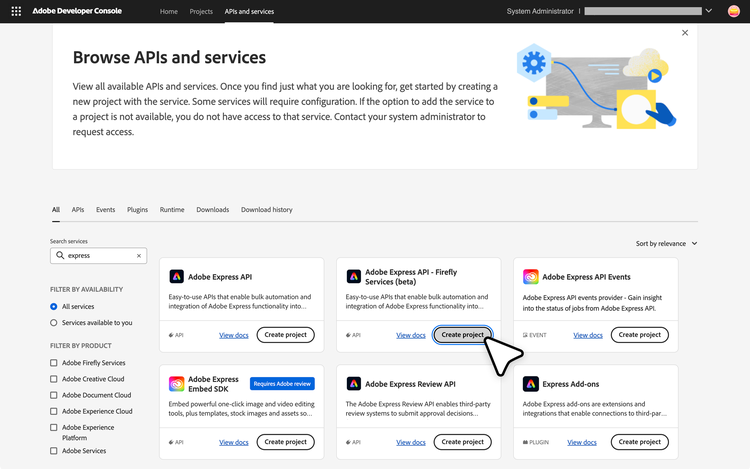
Sign in at Adobe Developer Console, open the APIs & Services catalog, and locate Adobe Express API.
2. Create a new project
On the Adobe Express API product card, click Create project.
3. Register your project name
Give the project a recognizable name so you can find it later in the Developer Console. You can change this name at any time.
Next, configure credentials for your chosen authentication flow.
Configure credentials
data-variant=info
data-slots=text
Server-to-Server
Server-to-Server authentication lets your backend generate access tokens and call Adobe APIs on behalf of your organization using the OAuth 2.0 client_credentials grant. The steps below follow the same Developer Console pattern used across Firefly Services APIs. For the full walkthrough—including console access, scopes, and sample token requests—see Getting started with Adobe Firefly Services.
1. Add the Adobe Express API
- In your project, click Add API and select Adobe Express API.
- When prompted for a credential type, keep OAuth Server-to-Server, name the credential, and continue.
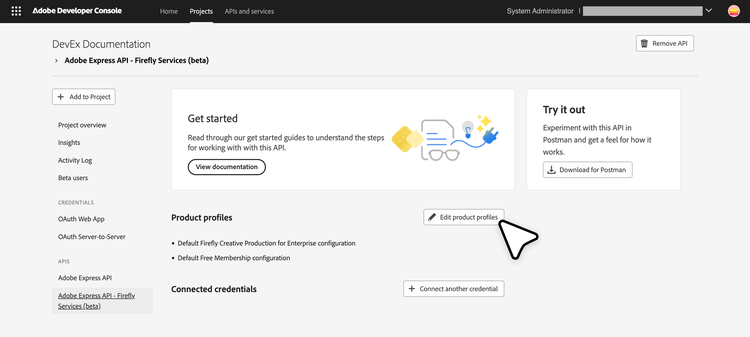
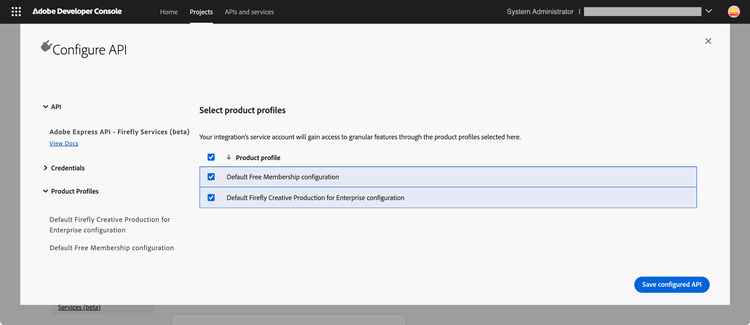
2. Assign product profiles
Select the product profiles your admin assigned for Express. These control what the credential can access in your organization.
data-variant=info
data-slots=text
data-variant=warning
data-slots=heading, text1, text2
Admin Console Product Provisioning
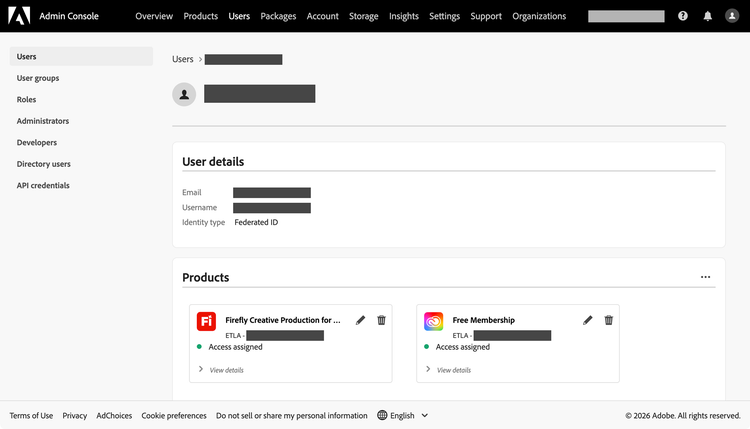
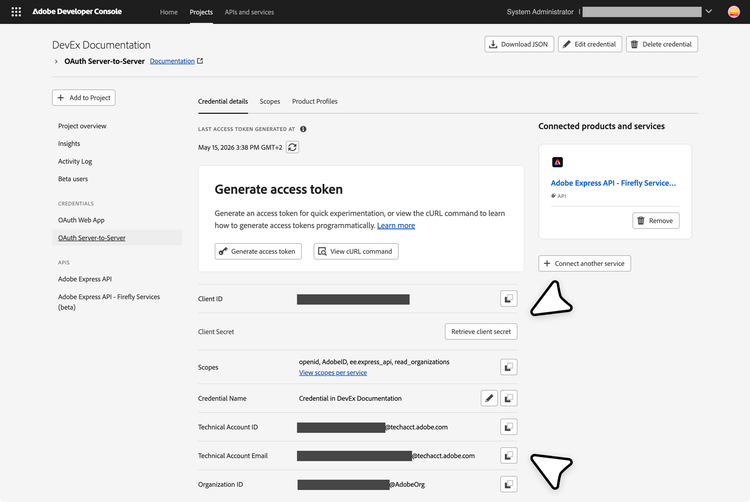
3. Save and retrieve credentials
Click Save configured API. On the credential overview, copy your client ID (API key) and client secret, and note the technical account email—you'll need it for document and asset access.
4. Generate access tokens
Use the token endpoint and scopes for your credential (see Generate access token in the Firefly Services getting started guide linked above). When calling Express API, send the token and client ID as described in Authentication – Call the Express API. Store your client secret only on the server.
5. Grant the technical account access to documents and assets
API calls run as the technical account tied to your OAuth Server-to-Server credential—not as an end user. Anything your integration must read or edit (templates, Express documents, cloud assets) must be reachable by that technical account.
If documents or assets are still inaccessible, confirm sharing with the technical account email, product profile assignment in Developer Console, and (for cloud storage) Storage administrator assignment and Enterprise Storage licensing per the guide above.
OAuth Web App
OAuth Web App authentication is ideal for applications with both frontend and backend components. This method uses the OAuth 2.0 authorization_code grant type to obtain an access token on behalf of the user.
1. Add the Adobe Express API
- In your project, click Add API and select Adobe Express API.
- Choose OAuth Web App as the authentication method.
2. Configure redirect URIs
Provide a Default Redirect URI and a Redirect URI pattern. These are the URLs where Adobe will redirect users after they authorize your application.
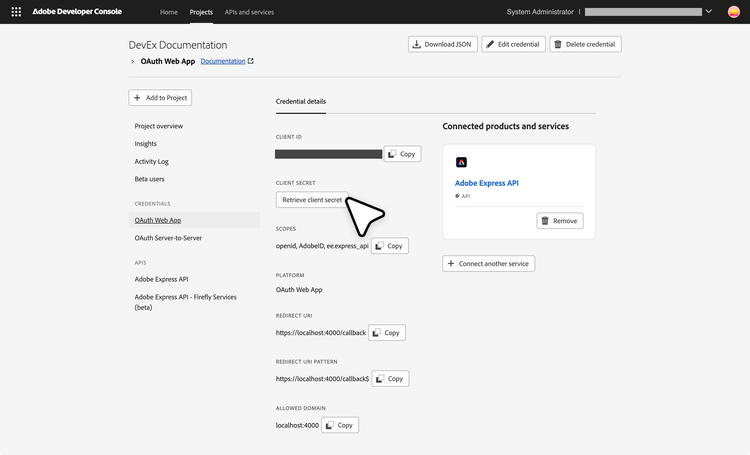
3. Save and retrieve credentials
- Click Save configured API.
- On the credential overview you'll see the client ID (API key).
- Select OAuth Web App from the left navigation to view or retrieve your client secret.
4. Manage beta access
- For projects in beta, add the users who can access your application.
- In your project, navigate to Credentials > OAuth Web App > Beta users.
- Add the email addresses of users who should have access. It may take a few minutes for beta user access to sync.
5. Use the client ID and client secret
- Authenticate requests using the client ID (API key) and client secret from the credential overview.
- Store the client secret only on your backend server and fetch tokens from there, so credentials are never exposed in the frontend.
- For end-to-end guidance, see the OAuth Web App implementation guide.
OAuth Single-page App
OAuth Single-page App authentication is designed for JavaScript applications that run entirely in the browser. This method uses the OAuth 2.0 PKCE (Proof Key for Code Exchange) flow to obtain tokens securely without requiring a client secret.
1. Add the Adobe Express API
- In your project, click Add API and select Adobe Express API.
- Choose OAuth Single-page App as the authentication method.
2. Configure redirect URIs
Provide a Default Redirect URI and a Redirect URI pattern. These are the URLs where Adobe will redirect users after they authorize your application.
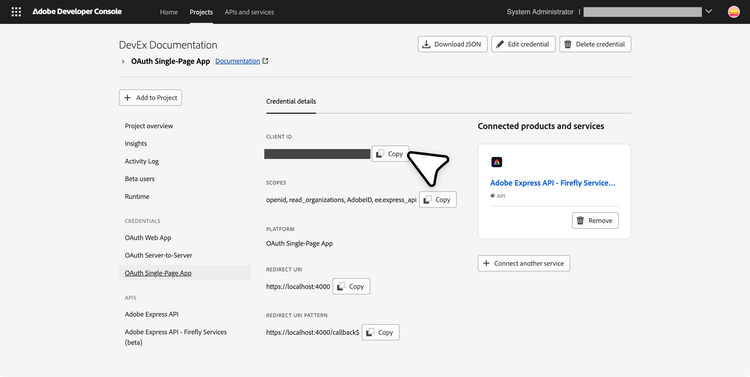
3. Save and retrieve the client ID
Click Save configured API. On the next screen you'll see your client ID (API key). No client secret is issued for SPA credentials.
4. Manage beta access
- For projects in beta, add the users who can access your application.
- In your project, navigate to Credentials > OAuth Single-page App > Beta users.
- Add the email addresses of users who should have access. It may take a few minutes for beta user access to sync.
5. Use the client ID with the PKCE flow
- Authenticate requests using the client ID (API key) from the credential overview.
- Implement the OAuth 2.0 PKCE flow in your frontend for secure token generation—no client secret is needed, as authentication happens directly in the browser.
- For end-to-end guidance, see the OAuth Single-page App implementation guide.
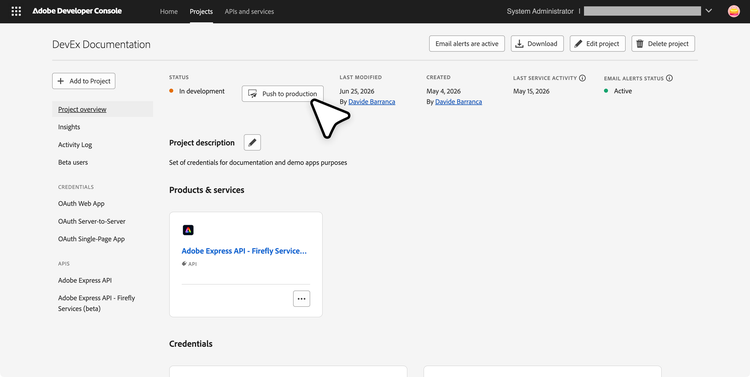
6. Push to production
data-variant=warning
data-slots=text
When you finish development, click Push to production.
User consent flow
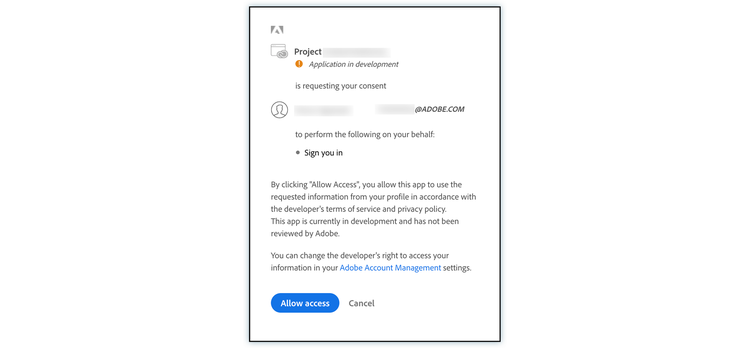
When users authenticate through OAuth Web App or OAuth Single-page App, they see a consent screen. Users must click Allow Access to grant the requested permissions.