Generate a Document Variation
Learn how to generate a single document variation based on a list of element variations and other details.
data-variant=warning
data-slots=heading, text
Deprecated API
Overview
The Generate Variation API lets you create document variations by modifying tagged elements. The process:
- Submit variation details
- Get a
jobIdfor tracking - Use the
/statusAPI to get the variation URL - Access your variation (available for 30 days)
Quick Start
Step 1: Get Your Document ID
First, get your tagged document ID.
Step 2: Generate a Variation
Make a POST request to /generate-variation with:
- Document ID
- Variation details (page numbers, name, tag mappings)
- Tag mappings for text, images and videos
Example tag mapping:
"tagMappings": {
    "brandText": "Adidas",
    "soccerBallImage": "https://my-bucket.s3.us-east-2.amazonaws.com/ball.jpg",
    "actionVideo": "https://my-bucket.s3.us-east-2.amazonaws.com/soccer-action.mp4"
}
Note: Use pre-signed URLs from approved domains (Azure, Dropbox, Amazon S3) for images and videos.
Part 1: Usage Example
In this example, you will learn how to generate a document variation using the Adobe Express API. A curl is first used to make a POST request to the generate-variation endpoint with the id of the desired tagged document to generate a variation from, as well as a set of variationDetails defined for use in the new variation.
Step 1: Generate Variation Request
First, follow the steps in the How to Get Tagged Documents Guide to get the tagged documents available for export.
Next, using one of the id's (document URN) returned from the tagged documents response, call the endpoint generate-variation with a set of variationDetails defined for use in the new variation of your document. A sample curl request and response is included below.
data-slots=heading, code
data-repeat=2
data-languages=CURL, JSON
Request
curl -i -X POST \
  --url 'https://express-api.adobe.io/beta/generate-variation \
  -H 'Authorization: Bearer YOUR_AUTH_TOKEN_HERE' \
  -H 'X-API-KEY: YOUR_API_KEY_HERE' \
  -d '{
    "id": "urn:aaid:sc:VA6C2:82d42ecf-8ce8-310b-b976-6f104a0d4fae",
    "variationDetails": {
      "pages": "1",
      "preferredDocumentName": "Generated Document 1",
      "tagMappings": {
        "imageTag": "<presignedUrl>",
        "textTag": "Hello World",
        "videoTag": "<presignedVideoUrl>"
      }
    }
  }'
Response
{
    "jobId":"72445529-2464-4aef-b29b-a5efdbc18d34",
    "statusUrl":"https://express-api.adobe.io/status/72445529-2464-4aef-b29b-a5efdbc18d34"
}
Request Payload Notes
The tagMappings object in the request payload is where you should map your tagged elements to the desired modified values. You will specify the tag name for each element as the key, with the new value you want to see in the variation.
Text, image and video elements can be tagged, with all text element tags set to a string value, and all image and video values set to a pre-signed URL.
For example, if you have a tag named brandText, a tag named soccerBallImage, and a tag named actionVideo in your document, you would map them as follows:
"tagMappings": {
    "brandText": "Adidas",
    "soccerBallImage": "https://my-bucket.s3.us-east-2.amazonaws.com/ball.jpg",
    "actionVideo": "https://my-bucket.s3.us-east-2.amazonaws.com/soccer-action.mp4"
}
Note: The pre-signed URL for any images or videos supplied must be from one of the allow-listed domains (Azure, Dropbox and Amazon s3).
Step 2: Get Generated Variation Result
Next, use the /status endpoint to check the status of the job, passing in the jobId returned in the response above as a path parameter. An example curl request and response is included below. In the response, the thumbnailUrl is the URL to the generated variation image.
data-slots=heading, code
data-repeat=2
data-languages=CURL, JSON
Request
curl -i -X GET \
  --url 'https://express-api.adobe.io/status/72445529-2464-4aef-b29b-a5efdbc18d34' \
  -H 'Authorization: Bearer YOUR_AUTH_TOKEN_HERE' \
  -H 'X-API-KEY: YOUR_API_KEY_HERE'
Response
{
    "jobId": "08c2d6a9-73ec-4c87-9bc9-c61565135e61",
    "status": "succeeded",
    "document": {
        "name": "Generated Document 1.express",
        "id": "urn:aaid:sc:VA6C2:17fae448-7853-3c38-b211-e1884ad00fcc",
        "thumbnailUrl": "https://cpf-temp-repo-ue1-stg.s3.amazonaws.com/""
    }
}
Part 2: Generate Variations with Node.js
In this part, you will create a script to generate a document variation with the supplied variation details using Node.js. The script uses the fetch API to make a POST request to the generate-variation endpoint.
Step 1: Set Up Your Environment
First, run the following commands in a secure terminal, replacing the key and token with your values. Note: The open dependency you will install is a node library that allows you to open the generated variation thumbnail URL in a browser.
export API_KEY=yourApiKeyHere
export AUTH_TOKEN=yourTokenHere

mkdir generate-variation-tutorial
cd generate-variation-tutorial
npm install open
touch index.mjs
Step 2: Create the Generate Variation Script
Next, open the index.mjs and add the following code to generate a document variation with the supplied variation details. Replace the id and variationDetails with your own values.
let BASE = "https://express-api.adobe.io";

async function generateVariation(id, variationDetails) {
  let body = {
    id,
    variationDetails,
  };

  let resp = await fetch(`${BASE}/beta/generate-variation`, {
    method: "POST",
    headers: {
      Authorization: `Bearer ${process.env.AUTH_TOKEN}`,
      "X-API-KEY": process.env.API_KEY,
      "Content-Type": "application/json",
    },
    body: JSON.stringify(body),
  });

  return await resp.json();
}

const id = "urn:aaid:sc:VA6C2:4e4cccff-055f-3b57-8196-607cc3a1e4f2";
const variationDetails = {
  pages: "1",
  preferredDocumentName: "New soccer ad",
  tagMappings: {
    brandText: "Adidas",
    soccerBallImage: "https://my-bucket.s3.us-east-2.amazonaws.com/ball.jpg",
    actionVideo:
      "https://my-bucket.s3.us-east-2.amazonaws.com/soccer-action.mp4",
  },
};

let result = await generateVariation(id, variationDetails);
console.log(result);
Step 3: Run the Script
Now, run the script using the command: node index.mjs from the command line. If successful, you should see the jobId and statusUrl in the response, like shown here:
{
    "jobId":"08c2d6a9-73ec-4c87-9bc9-c61565135e61",
    "statusUrl":"https://express-api.adobe.io/status/08c2d6a9-73ec-4c87-9bc9-c61565135e61"
}
Next, update your index.mjs file with the following code, which polls for the job status using the jobUrl returned in the response with the /status endpoint. Once the job has succeeded, the thumbnail URL will be opened in the browser.
// If the status URL is present, poll the job until it is complete
if (result.statusUrl) {
  let jobResult = await pollJob(
    result.statusUrl,
    process.env.API_KEY,
    process.env.AUTH_TOKEN,
  );
  console.log(jobResult);
  if (jobResult.status === "succeeded") {
    console.log(`Thumbnail URL: ${jobResult.document.thumbnailUrl}`);
    open(jobResult.document.thumbnailUrl);
  } else {
    console.log(`Job failed with status: ${jobResult.status}`);
  }
}

async function delay(x) {
  return new Promise((resolve) => {
    setTimeout(() => {
      resolve();
    }, x);
  });
}

async function pollJob(jobUrl, id, token) {
  let status = "";

  while (status !== "succeeded" && status !== "failed") {
    let resp = await fetch(jobUrl, {
      headers: {
        Authorization: `Bearer ${token}`,
        "x-api-key": id,
      },
    });

    let data = await resp.json();
    status = data.status;

    // delay is a utility to 'pause' for X ms
    if (status !== "succeeded" && status !== "failed") await delay(1000);
    if (status === "succeeded") return data;
  }

  return status;
}
Complete Code Sample
Below is the complete script for generating document variations in Node.js:
import open from "open";

let BASE = "https://express-api.adobe.io";

async function generateVariation(id, variationDetails) {
  let body = {
    id,
    variationDetails,
  };

  let resp = await fetch(`${BASE}/beta/generate-variation`, {
    method: "POST",
    headers: {
      Authorization: `Bearer ${process.env.AUTH_TOKEN}`,
      "X-API-KEY": process.env.API_KEY,
      "Content-Type": "application/json",
    },
    body: JSON.stringify(body),
  });

  return await resp.json();
}

const id = "urn:aaid:sc:VA6C2:4e4cccff-055f-3b57-8196-607cc3a1e4f2"; // replace with your document ID
const variationDetails = {
  pages: "1",
  preferredDocumentName: "New ad variation",
  tagMappings: {
    brandTag: "Adidas",
    soccerBallImage: "https://my-bucket.s3.us-east-2.amazonaws.com/ball.jpg",
    actionVideo:
      "https://my-bucket.s3.us-east-2.amazonaws.com/soccer-action.mp4",
  },
};

let result = await generateVariation(id, variationDetails);
console.log(result);

// If the status URL is present, poll the job until it is complete
if (result.statusUrl) {
  let jobResult = await pollJob(
    result.statusUrl,
    process.env.API_KEY,
    process.env.AUTH_TOKEN,
  );
  console.log(jobResult);
  if (jobResult.status === "succeeded") {
    console.log(`Thumbnail URL: ${jobResult.document.thumbnailUrl}`);
    open(jobResult.document.thumbnailUrl);
  } else {
    console.log(`Job failed with status: ${jobResult.status}`);
  }
}

async function delay(x) {
  return new Promise((resolve) => {
    setTimeout(() => {
      resolve();
    }, x);
  });
}

async function pollJob(jobUrl, id, token) {
  let status = "";

  while (status !== "succeeded" && status !== "failed") {
    let resp = await fetch(jobUrl, {
      headers: {
        Authorization: `Bearer ${process.env.AUTH_TOKEN}`,
        "x-api-key": process.env.API_KEY,
      },
    });

    let data = await resp.json();
    status = data.status;

    // delay is a utility to 'pause' for X ms
    if (status !== "succeeded" && status !== "failed") await delay(1000);
    if (status === "succeeded") return data;
  }

  return status;
}
For more details, check out the API Reference.
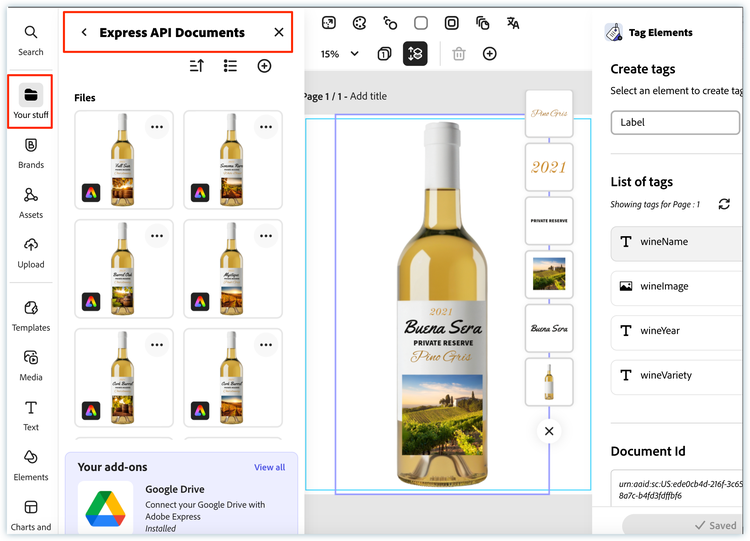
Finding Your Generated Documents
Generated documents are temporarily stored and remain available for 30 days, after which they are automatically removed. Find them in Adobe Express:
- Go to Your Stuff
- Select Express API Documents
- View or modify your API-generated documents within the 30-day window