Using Adobe Fonts with Photoshop API v2
Photoshop API v2 supports rendering text layers using fonts from the Adobe Fonts Free library. This lets you reference fonts by PostScript name directly in your API request without uploading or hosting font files yourself. Font access is resolved automatically through your Adobe entitlement.
Beta: This feature is in beta and currently only supports fonts in the Free tier of the Adobe Fonts library. This service may change before general availability.
Note: The Adobe Fonts feature is currently limited to fonts in the Adobe Fonts Free library. Browse supported fonts here. To use any other font, including fonts in the Adobe Fonts Paid library, see Using custom fonts.
Prerequisites
- A valid Firefly Services API key and access token
- An Adobe entitlement that includes Adobe Fonts access
- A font from the Adobe Fonts Free library
- A Fonts product profile configured in the Adobe Admin Console and added to your credential in the Adobe Developer Console
- A PSD file with one or more text layers
Admin Console setup
Before you can use fonts from the Free library of Adobe Fonts in API calls, your organization must have a Fonts service enabled on a product profile in the Adobe Admin Console, and that profile must be associated with your API credential.
Step 1: Create a product profile with Fonts enabled
- Sign in to the Adobe Admin Console
- Go to Products and select Firefly Creative Production for Enterprise
- Click New profile and follow the setup steps
- On the Enable services step, ensure the Fonts toggle is turned on
- Click Save
For detailed instructions on creating product profiles, see Create product profiles.
Step 2: Add the product profile to your project in Developer Console
- Sign in to the Adobe Developer Console
- Open your project. You will land on the project overview page showing your products and credentials
- Under Products & services, click the Photoshop API - Firefly Services title to open the API detail page
- On the API detail page, click Edit product profiles
- Add the Fonts-enabled profile you created in Step 1 and save
Once the profile is linked to your project, API calls made with that credential will have access to the free fonts in the Adobe Fonts Free library.
How it works
When your request includes a font PostScript name in fontOptions or characterStyles, the service resolves the font through Adobe Fonts at render time. No file URL is required. Only fonts from the Adobe Fonts Free library can be resolved. If the font cannot be resolved because the PostScript name is incorrect, the font is not in the Adobe Fonts Free library, or the font is not covered by your entitlement, the job will fail or fall back to a default font depending on your missingFontStrategy setting.
Request structure
Use the fontOptions object to specify the font at the document level, and reference the same PostScript name in characterStyles at the layer level.
{
  "image": {
    "source": {
      "url": "https://your-storage.example.com/input.psd"
    }
  },
  "fontOptions": {
    "defaultFontPostScriptName": "Aboreto-Regular",
    "missingFontStrategy": "fail"
  },
  "edits": {
    "layers": [
      {
        "name": "Your Text Layer Name",
        "type": "text_layer",
        "operation": {
          "type": "edit"
        },
        "text": {
          "content": "Hello from Adobe Fonts",
          "characterStyles": [
            {
              "characterStyle": {
                "font": { "postScriptName": "Aboreto-Regular" },
                "fontSize": 48
              }
            }
          ]
        }
      }
    ]
  },
  "outputs": [
    {
      "mediaType": "image/jpeg",
      "destination": {
        "validityPeriod": 3600
      }
    }
  ]
}
fontOptions reference
defaultFontPostScriptNamemissingFontStrategyfail returns an error. use_default silently substitutes a fallback font.additionalFontsFinding a font's PostScript name
PostScript names follow the pattern FamilyName-Weight, for example AdobeCaslon-Regular or SourceSans3-Bold. The PostScript name is the exact identifier the API expects, and it is not always the same as the display name shown on Adobe Fonts. For example, the font displayed as "Phudu Regular" has the PostScript name Phudu-Regular.
Only fonts from the Adobe Fonts Free library are supported, so start your search there.
To find the PostScript name for a specific font:
- Go to the Adobe Fonts Free library.
- Browse or search for the font family you want, then open the family page.
- Locate the specific style you need, such as Regular, Bold, or Black. Each style has its own PostScript name.
- Hover over the Try in Adobe Express button for that style. The link URL appears in the status bar at the bottom of your browser. You can also right click the button and choose Copy link address.
- Find the
fontPostscriptNameparameter in the URL. Its value is the PostScript name. In the example below, the value isPhudu-Regular.
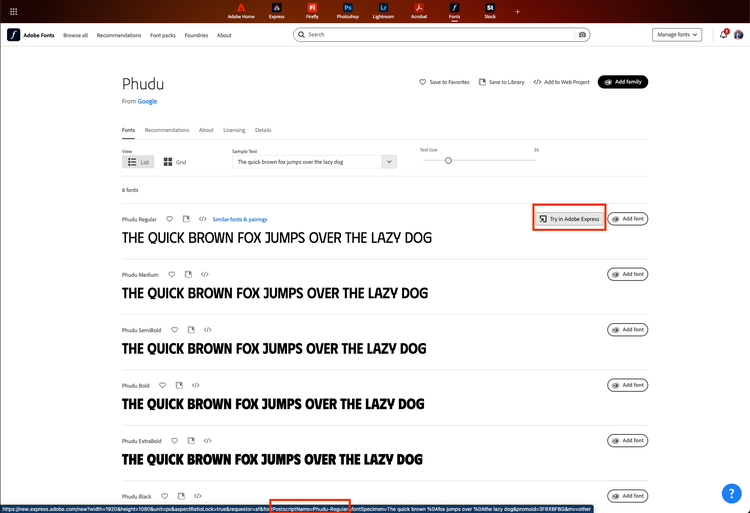
Use the value exactly as shown, including capitalization and the hyphen, when you pass the font name in your request.
Submitting a request
Submit the job:
curl -X POST "https://photoshop-api.adobe.io/v2/create-composite" \
  -H "Authorization: Bearer YOUR_ACCESS_TOKEN" \
  -H "X-Api-Key: YOUR_API_KEY" \
  -H "Content-Type: application/json" \
  -d '{
    "image": {
      "source": {
        "url": "https://your-storage.example.com/input.psd"
      }
    },
    "fontOptions": {
      "defaultFontPostScriptName": "Aboreto-Regular",
      "missingFontStrategy": "fail"
    },
    "edits": {
      "layers": [
        {
          "name": "Your Text Layer Name",
          "type": "text_layer",
          "operation": {
            "type": "edit"
          },
          "text": {
            "content": "Hello from Adobe Fonts",
            "characterStyles": [
              {
                "characterStyle": {
                  "font": { "postScriptName": "Aboreto-Regular" },
                  "fontSize": 48
                }
              }
            ]
          }
        }
      ]
    },
    "outputs": [
      {
        "mediaType": "image/jpeg",
        "destination": {
          "validityPeriod": 3600
        }
      }
    ]
  }'
A successful submission returns a 202 response with a jobId and statusUrl:
{
  "jobId": "a619b1bd-75c8-427f-9660-61b23d2b8dc4",
  "statusUrl": "https://photoshop-api.adobe.io/v2/status/a619b1bd-75c8-427f-9660-61b23d2b8dc4"
}
Poll for status using the statusUrl from the response:
curl -X GET "https://photoshop-api.adobe.io/v2/status/YOUR_JOB_ID" \
  -H "Authorization: Bearer YOUR_ACCESS_TOKEN" \
  -H "X-Api-Key: YOUR_API_KEY"
A completed job returns a succeeded status with an output URL:
{
  "jobId": "a619b1bd-75c8-427f-9660-61b23d2b8dc4",
  "status": "succeeded",
  "result": {
    "outputs": [
      {
        "mediaType": "image/jpeg",
        "destination": {
          "url": "https://photoshop-api.adobe.io/v2/short-url/..."
        }
      }
    ]
  }
}
Error handling
validation_error Missing required field type"type": "text_layer". Add it alongside the operation field.unauthorized_forbiddenmissingFontStrategy: "fail" to surface this as an explicit error rather than a silent fallback.Using custom fonts
If you need a font that is not in the Adobe Fonts Free library, including any Adobe Fonts that are in the Paid library, supply it as a file reference in additionalFonts. The font file must be accessible via a pre-signed URL.
"fontOptions": {
  "additionalFonts": [
    {
      "source": {
        "url": "https://your-storage.example.com/fonts/CustomFont-Regular.ttf"
      }
    }
  ],
  "defaultFontPostScriptName": "CustomFont-Regular",
  "missingFontStrategy": "fail"
}
Supported font formats are TTF and OTF. The PostScript name you reference must match the name embedded in the font file itself.