Understanding UXP APIs
Learn about the two types of APIs available in UXP and when to use each one
Overview
Now that you have successfully built your first plugin, you're ready to tackle more complex tasks. The key to building useful plugins is understanding which APIs to use and when.
The UXP platform provides two complementary sets of APIs:
- UXP Core APIs: for building user interfaces, file operations, network calls, and general functionality.
- Premiere APIs: for interacting with and modifying Premiere projects and sequences.
Most often than not, you will need to use both APIs together to create the functionality you want. Let's explore each one and see how they work.
UXP Core APIs
UXP Core APIs provide the fundamental building blocks for your plugin's functionality, and are shared across all Adobe Creative Cloud applications that support UXP. These APIs let you:
- Create user interfaces using HTML, CSS, and JavaScript
- Access the file system to read and write files
- Make network requests to communicate with external services
- Handle clipboard operations for copy/paste functionality
- Work with system utilities like shell commands and OS information
Accessing UXP APIs
The way you access UXP APIs depends on the specific API itself.
Global APIs are available immediately without any import. For example:
// Crypto API is globally available
const hash = crypto.randomUUID();

// Document API is globally available
const button = document.createElement("sp-button");
Module-based APIs require importing with require(). For example:
// Parent UXP module
const uxp = require("uxp");

// File system access
const fs = require("fs");

// Operating system utilities
const os = require("os");
Permission-based APIs also need to be allow-listed in your plugin's manifest.json. For example, to use the file system or make network requests, you must declare the appropriate permissions. Learn more about permissions in the Manifest guide.
Premiere APIs
Premiere APIs, also interchangeably called DOM APIs (Document Object Model) or Premiere DOM APIs, give you direct access to Premiere's document model. These APIs let you, among other things, to:
- Access and modify projects — sequences, tracks, clips, and markers
- Work with media — import files, manage project items
- Control playback — set in/out points, control the playhead
- Apply effects — add video and audio effects to clips
- Export content — configure and trigger exports
The entry point to Premiere APIs is the app object, that you require() from the "premierepro" module.
const app = require("premierepro");
You'll learn how to access and use Premiere APIs in the Working with Premiere APIs section and by browsing the Premiere API reference.
data-variant=warning
data-slots=heading, text
Unified JavaScript Engine
As the platform's name suggests, UXP provides a unified JavaScript engine that has direct access to both the Premiere APIs and the UXP Core APIs. This is a big advantage over the previous extensibility technology (CEP), where the communication between the extension logic and the host application happened through a bridge (CSInterface) that passed messages back and forth between the two runtimes.
With UXP, everything runs natively in the same environment, and you just need to require() the appropriate modules to access the APIs you need.
Practical Example
Let's see how both API types work together. Imagine you want to build a plugin that:
- Reads text content from a file on the user's computer
- Creates a new text layer in the active sequence
- Applies a specific style to the text layer
Here's which APIs you would use for each step:
Step 1: Read file content — Use UXP's fs module
const fs = require("fs");
const file = await fs.getFileForOpening();
const content = await file.read();
Step 2: Create text layer — Use Premiere APIs
const app = require("premierepro");
const sequence = app.project.activeSequence;
// Add text layer to sequence
Step 3: Apply styling — Use both APIs
// Premiere APIs to modify the clip properties
// UXP APIs to show progress in your plugin's UI
This demonstrates how UXP Core APIs handle the infrastructure, while Premiere APIs handle the creative content manipulation.
API Versioning and Compatibility
Both UXP and Premiere APIs are actively evolving, with new capabilities added in each release. It's important to understand how versioning works to ensure your plugin functions correctly.
Host Application and UXP
- Premiere version (v25.6): determines which Premiere DOM APIs are available.
- UXP version (v8.1): determines which UXP Core APIs are available.
Each Premiere release integrates a specific UXP version. For example, Premiere v25.6 includes UXP v8.1.
data-variant=info
data-slots=heading, text, text2
Checking Versions
You can determine the UXP version in several ways:
1. In the UXP Developer Tool
Once Premiere is running and appears under "Connected apps", you'll see both the Premiere version and UXP version displayed.
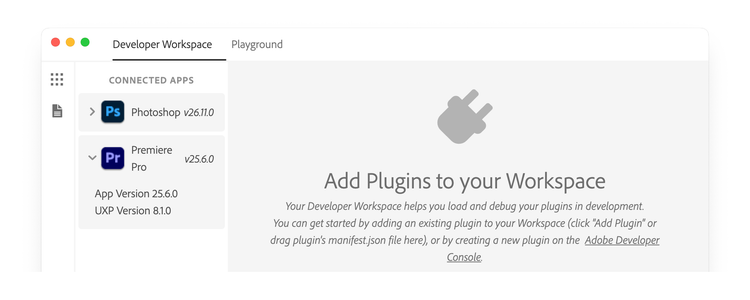
If you only see the host application version (as in the case of Photoshop in the screenshot above), please click the arrow next to the product icon to expand the details.
2. Programmatically in your plugin
const { host, version } = require("uxp");
console.log(`Premiere ${host.version}`); // Premiere 25.6.0
console.log(`UXP ${versions.uxp}`);          // UXP uxp-8.1.0-local
See the host info recipe for a complete example.
3. In the documentation
The What's new section lists the UXP version for each Premiere release, along with all new features, changes, and fixes.
Next Steps
Now that you understand the two types of APIs available, you're ready to:
- Explore practical code recipes that demonstrate common tasks
- Learn how to work with Premiere APIs in depth
- Browse the complete UXP API reference and Premiere API reference