Creating HTML Elements
Build user interfaces using HTML markup or JavaScript DOM methods
UXP lets you create UI elements in two ways: define them in HTML or create them dynamically with JavaScript. Both approaches work for Panel plugins, while Command plugins can only create modal dialogs using JavaScript.
Prerequisites
Before you begin, make sure your development environment uses the following versions:
- Premiere v25.6 or higher
- UDT v2.2 or higher
- Manifest version v5 or higher
Example: Using HTML Markup
Define your UI structure in HTML, then control it with JavaScript.
data-slots=heading, code
data-repeat=3
data-languages=HTML, JavaScript, CSS
index.html
<button id="showDialog">Show Dialog</button>

<dialog id="sampleDialog">
  <div>
    <h1>Hello! 👋</h1>
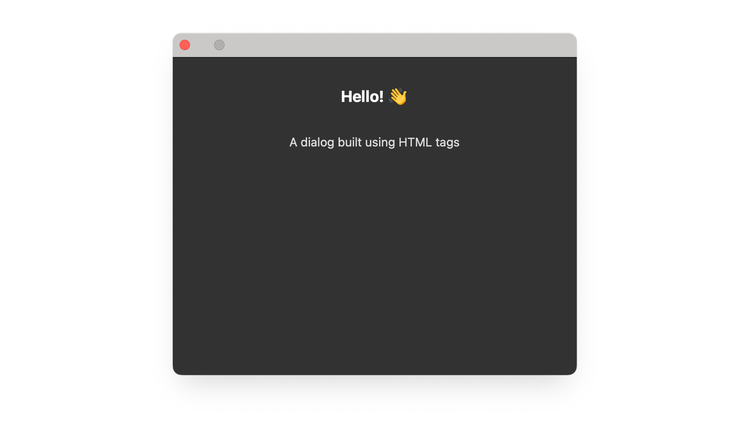
    <p>A dialog built using HTML tags</p>
  </div>
</dialog>
index.js
const showDialogBtn = document.getElementById("showDialog");
showDialogBtn.addEventListener("click", () => {
  const dialog = document.getElementById("sampleDialog");
  dialog.show();

  dialog.addEventListener("cancel", () => {
    console.log("Dialog dismissed");
  });
});
styles.css
#sampleDialog > div {
  display: flex;
  flex-direction: column;
  height: 300px;
  width: 400px;
  align-items: center;
  color:#DDD;
}

h1 { color: #FFF; }

#sampleDialog > div > p {
  margin-top: 30px;
}
Example: Using JavaScript Only
Create and style elements dynamically using JavaScript DOM methods.
data-slots=heading, code
data-repeat=2
data-languages=HTML, JavaScript
index.html
<!DOCTYPE html>
<html>
  <head>
    <script src="main.js"></script>
    <link rel="stylesheet" href="style.css" />
  </head>

  <body>
    <button id="showDialog">Show Dialog</button>
  </body>
</html>
index.js
const showDialogBtn = document.getElementById("showDialog");
showDialogBtn.addEventListener("click", () => {
  // Create dialog element
  const dialog = document.createElement("dialog");


  // Create container
  const div = document.createElement("div");
  div.style.display = "flex";
  div.style.flexDirection = "column";
  div.style.height = "300px";
  div.style.width = "400px";
  div.style.alignItems = "center";
  div.style.color = "#DDD"; // Apply UXP host text color

  // Create header
  const header = document.createElement("h1");
  header.textContent = "Hello! 👋";
  header.style.color = "#FFF";
  div.appendChild(header);

  // Create paragraph
  const para = document.createElement("p");
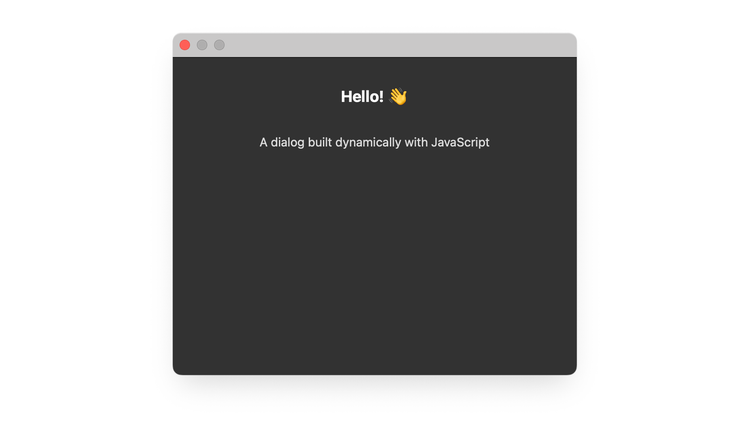
  para.textContent = "A dialog built dynamically with JavaScript";
  para.style.marginTop = "30px";
  div.appendChild(para);

  // Assemble and show
  dialog.appendChild(div);
  document.body.appendChild(dialog);
  dialog.showModal();

  dialog.addEventListener("cancel", () => {
    console.log("Dialog dismissed");
  });
});
Creating Spectrum Components
You can use document.createElement() to create Spectrum UI elements dynamically:
// Create a Spectrum button
const button = document.createElement("sp-button");
button.textContent = "Click me";
button.setAttribute("variant", "cta");
document.body.appendChild(button);
data-variant=info
data-slots=text
This approach works for Spectrum Widgets (
sp-* elements). For Spectrum Web Components, you must define them in HTML markup.Reference Material
- HTMLDialogElement: dialog-specific properties and methods.
- HTML Elements: complete list of supported HTML elements.
- Spectrum Web Components: Adobe's UI component library.