Launch external processes
Use the UXP shell API to open a local file in its default application or launch a registered URL scheme. Declare every file extension and scheme in the manifest, and explain each launch clearly in the consent dialog.
data-src=../_shared/prerequisites.md
Request launch permission
By default, UXP plugins can't launch external processes; this protects users from unwanted or malicious activity. If your plugin needs to open files or launch applications, you must declare the launchProcess permission in your manifest.json. It has two components:
- Extensions: file extensions your plugin can open, for example,
[".pdf", ".txt"]. - Schemes: URL schemes your plugin can use, for example,
["https", "mailto"].
{
  "requiredPermissions": {
    "launchProcess": {
      "extensions": [".pdf", ".mp4"],
      "schemes": ["https", "mailto"]
    }
  }
}
data-variant=warning
data-slots=heading, text
developerText parameter to explain why the action is needed.Choose a shell method
The shell module provides two main methods:
openPath(): Opens a file or folder in the system's default application.openExternal(): Launches an application using a URL scheme.
Both methods require user consent and return a Promise that resolves with an empty string on success or an error message on failure.
Access the API:
const { shell } = require("uxp");
Open a file or folder
Use openPath() to open any file on the user's system in its default application. For example, PDFs in a reader, videos in a player, or text files in an editor.
data-slots=heading, code
data-repeat=2
data-languages=JavaScript, JSON
index.js
const { shell } = require("uxp");

async function openPdfFile() {
  try {
    // For macOS
    const result = await shell.openPath(
      "/Users/user/Desktop/report.pdf",
      "Opening project report for review"
    );
    // For Windows, use: "C:\\Users\\user\\Desktop\\report.pdf"

    if (result === "") {
      console.log("File opened successfully");
    } else {
      console.error(`Failed to open file: ${result}`);
    }
  } catch (error) {
    console.error("Error opening file:", error);
  }
}

async function openProjectFolder() {
  // An empty extension in the manifest allows folders.
  try {
    // For macOS
    const result = await shell.openPath(
      "/Users/user/Documents/Projects",
      "Opening project folder"
    );
    // For Windows, use: "C:\\Users\\user\\Documents\\Projects"

    if (result === "") {
      console.log("Folder opened successfully");
    } else {
      console.error(`Failed to open folder: ${result}`);
    }
  } catch (error) {
    console.error("Error opening folder:", error);
  }
}
manifest.json
{
  "manifestVersion": 5,
  "requiredPermissions": {
    "launchProcess": {
      "extensions": [".pdf", ".txt", ".mp4", ""]
    }
  }
}
UXP displays a consent dialog before opening the file or folder. The user may choose to remember the decision.
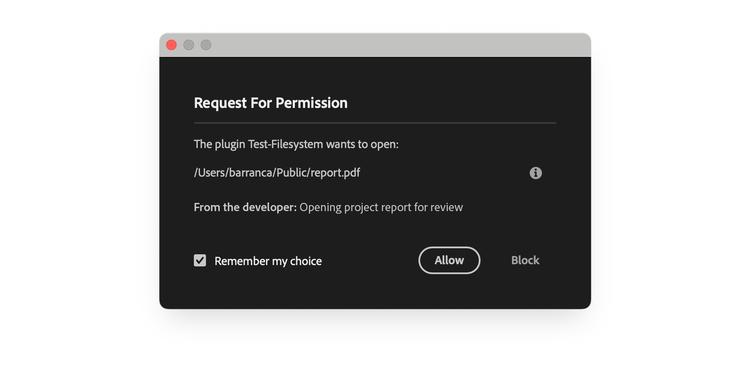
data-variant=info
data-slots=text, text2
openPath() in launchProcess.extensions. Add an empty string "" when the plugin needs to open folders.Open a URL scheme
Use openExternal() to launch applications via URL schemes: open websites in browsers, compose emails, or trigger platform-specific apps like Maps.
data-slots=heading, code
data-repeat=2
data-languages=JavaScript, JSON
index.js
const { shell } = require("uxp");

async function openDocumentation() {
  try {
    const result = await shell.openExternal(
      "https://developer.adobe.com/",
      "Opening Adobe Developer documentation"
    );

    if (result === "") {
      console.log("Browser opened successfully");
    } else {
      console.error(`Failed to open browser: ${result}`);
    }
  } catch (error) {
    console.error("Error opening browser:", error);
  }
}

async function sendFeedbackEmail() {
  try {
    const subject = encodeURIComponent("Plugin Feedback");
    const body = encodeURIComponent("I have feedback about your plugin...");

    const result = await shell.openExternal(
      `mailto:support@example.com?subject=${subject}&body=${body}`,
      "Opening mail client to send feedback"
    );

    if (result === "") {
      console.log("Mail client opened successfully");
    } else {
      console.error(`Failed to open mail client: ${result}`);
    }
  } catch (error) {
    console.error("Error opening mail client:", error);
  }
}

async function openLocationInMaps() {
  try {
    // For macOS: use maps:// scheme
    const macResult = await shell.openExternal(
      "maps://?address=345+Park+Ave+San+Jose",
      "Opening Maps to Adobe office location"
    );

    // For Windows: use bingmaps: scheme
    // const winResult = await shell.openExternal(
    //   "bingmaps:?q=345+Park+Ave+San+Jose,+95110",
    //   "Opening Maps to Adobe office location"
    // );

    if (macResult === "") {
      console.log("Maps opened successfully");
    } else {
      console.error(`Failed to open Maps: ${macResult}`);
    }
  } catch (error) {
    console.error("Error opening Maps:", error);
  }
}
manifest.json
{
  "manifestVersion": 5,
  "requiredPermissions": {
    "launchProcess": {
      "schemes": ["https", "mailto", "maps", "bingmaps"]
    }
  }
}
Both openExternal() and openPath() display a user-consent dialog.
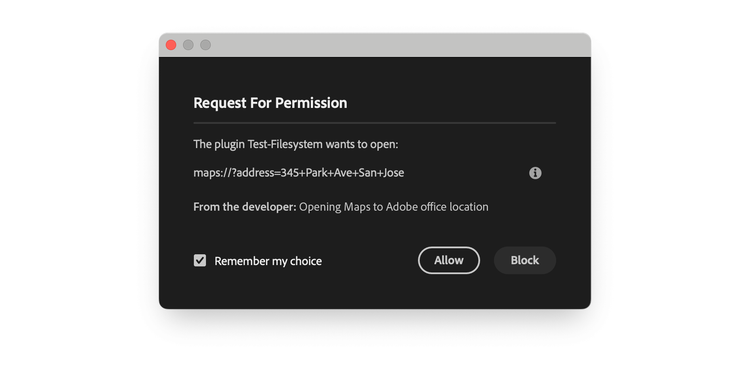
data-variant=info
data-slots=text
file:/ scheme is not allowed with openExternal(). Use openPath() instead for opening local files.Choose a platform-specific scheme
URL schemes vary between operating systems. Some schemes are platform-specific:
https://mailto:maps://bingmaps:facetime:data-variant=warning
data-slots=text
maps:// on Windows or bingmaps: on macOS will fail silently or display an error.Open an executable file
shell.openPath() can open an executable or script file, but it cannot pass command-line arguments or capture process output:
const commandResult = await shell.openPath(
  "/bin/ls",
  "Running the ls command"
);

const argumentResult = await shell.openPath(
  "/bin/ls -la", // Fails because the argument is part of the path.
  "Running the ls -la command"
);
Follow launch best practices
- Provide clear context: The
developerTextparameter appears in the user consent dialog. Write clear, user-friendly explanations in plain language.
// Clear and specific
await shell.openExternal(
  "https://example.com/guide",
  "Opening tutorial guide in your browser"
);

// Too vague
await shell.openExternal(
  "https://example.com/guide",
  "Opening URL"
);
- Handle user denial gracefully: Users can deny the launch request. Check the return value and provide fallback options.
const result = await shell.openPath(
  filePath,
  "Opening project file"
);
if (result !== "") {
  // User denied or operation failed
  console.log("Unable to open file. Please open it manually.");
}
- Check platform compatibility: Use platform detection for platform-specific schemes.
const isMac = require("os").platform() === "darwin";
const scheme = isMac ? "maps://" : "bingmaps:";
- Encode URL parameters: When building URLs with query parameters, always encode special characters.
const subject = encodeURIComponent("My Subject");
const url = `mailto:user@example.com?subject=${subject}`;
- Declare all schemes and extensions: Only list the schemes and extensions your plugin actually uses. Don't request unnecessary permissions.
Troubleshoot launch failures
launchProcess in manifestfile:// scheme doesn't workopenPath() for local files, not openExternal()