Run plugin workflows in UDT
After adding a project to the UXP Developer Tool (UDT), load it into a running host application, watch it during development, and open the debugger when something fails.
Load or watch a plugin
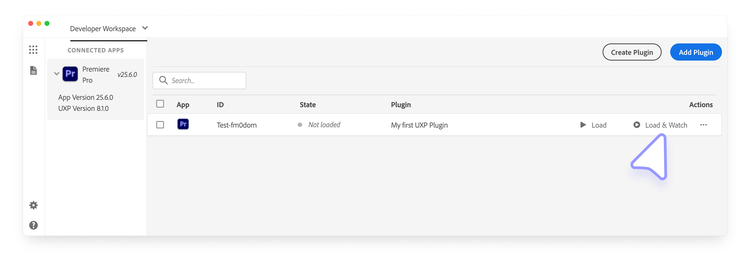
Adding a project to the Developer Workspace does not load it into the host application. Start the supported host, then choose one of these actions in the plugin row:
- Load: Load the current plugin files once.
- Load & Watch: Load the plugin and reload it when its source files change. Use this option during active development.
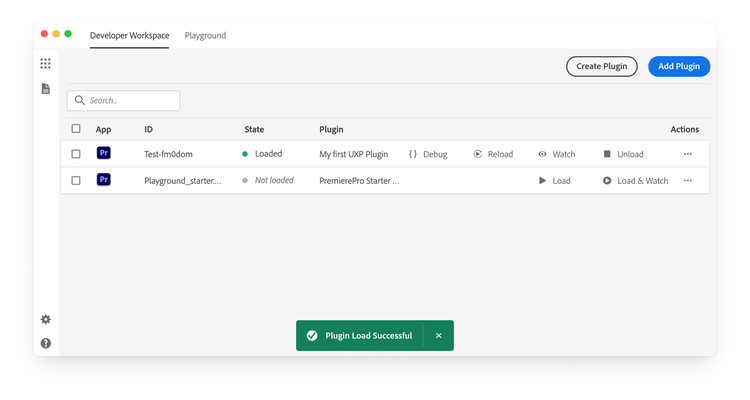
After a successful load, UDT displays a green Plugin Load Successful notification.
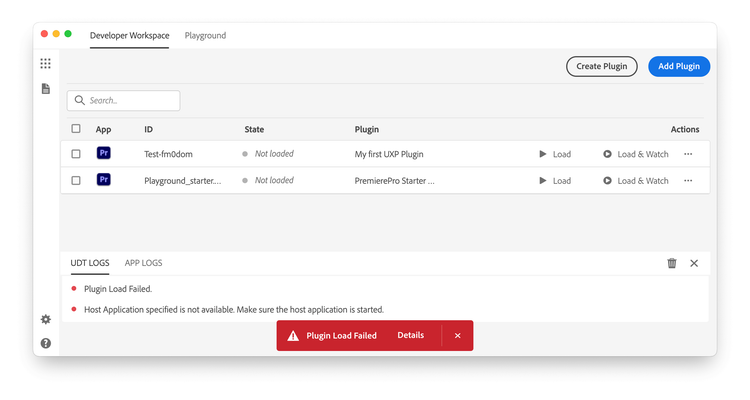
If loading fails, select Details in the red Plugin Load Failed notification to inspect the UDT logs.
With Load & Watch active, select Reload whenever you need to refresh the plugin manually.
data-slots=heading,text
data-variant=info
manifest.json. After editing the manifest, select Unload, then Load or Load & Watch.Debug the plugin
Select the {} control in the plugin row to open the UDT debugger. It is based on Chrome DevTools.
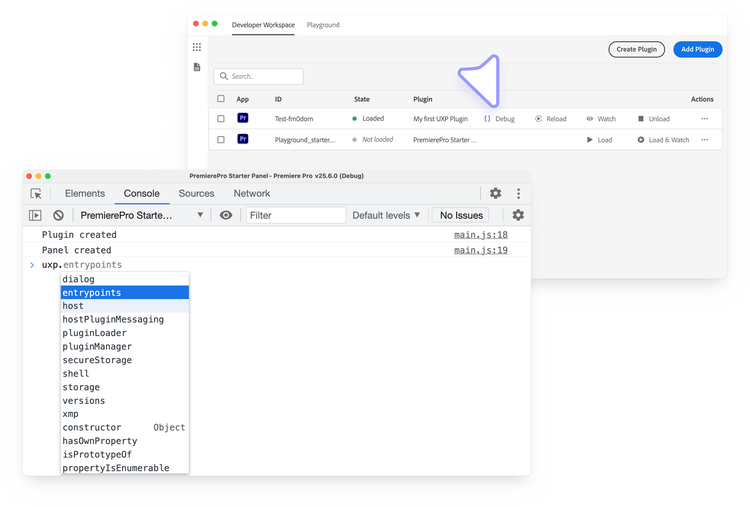
Use Elements to inspect markup and styles, Console to read errors and logs, Sources to set breakpoints and step through code, and Network to inspect requests.
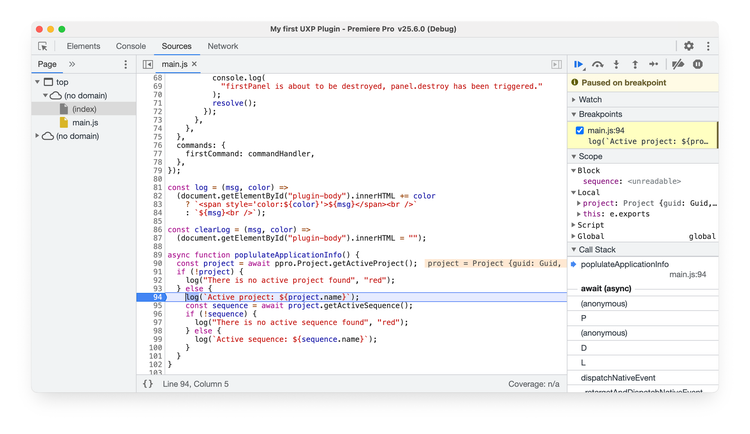
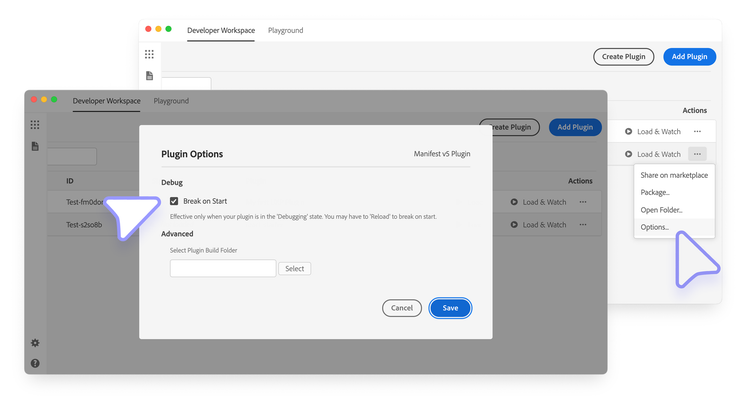
To pause as soon as the plugin loads, open Actions (•••) > Options... > Advanced, then enable Break on start.
See Debug your plugin for a symptom-based troubleshooting workflow.
Use UDT with a bundler
Frameworks and bundlers usually compile source files into a distribution directory. Configure UDT to load that output while keeping the source manifest as the stable project reference.
Choose the project manifest
Bundled projects commonly contain one manifest.json in the source directory and another in the generated distribution directory.
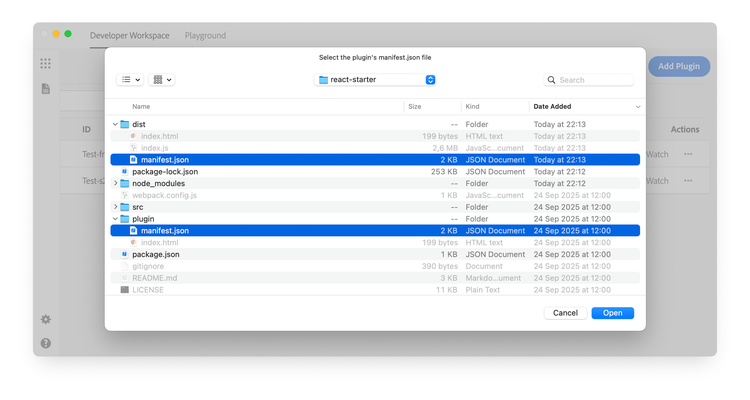
Add the source manifest to UDT when possible. A build process may delete and recreate the distribution directory, which can break a project added directly from its generated manifest.
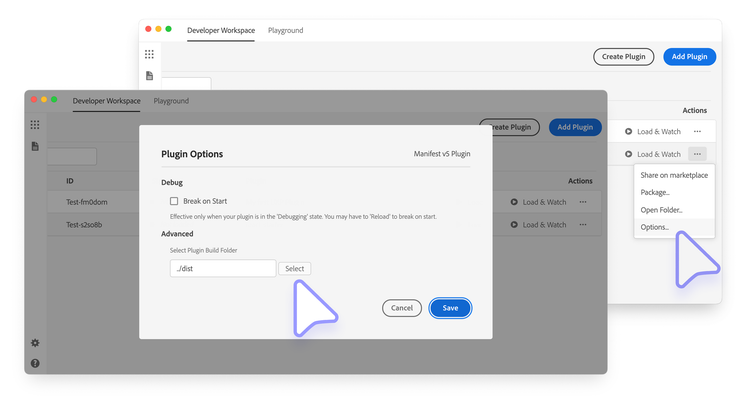
After adding the source manifest, open Actions (•••) > Options... > Advanced and enter the path from that manifest to the distribution directory. UDT then loads the generated output without losing its reference when the directory is rebuilt.
data-slots=text
data-variant=info
Watch generated files
Run both watchers during development:
- Start the project's watch build in a terminal.
- Select Load & Watch for the plugin in UDT.
The build process writes updated files to the distribution directory, and UDT reloads the plugin when those generated files change.
Package your plugin for distribution
UDT can package the plugin as a .ccx installer. See Share and Distribute Your Plugin for packaging and distribution options.