Data exports
Data exports provide an asynchronous way to retrieve data across a partner's resellers as a downloadable report. Reports currently support the propensity dataset, with churn and seat expansion report types. Each report contains a single dataset type.
Export workflow
Use the following workflow to create and download a data export:
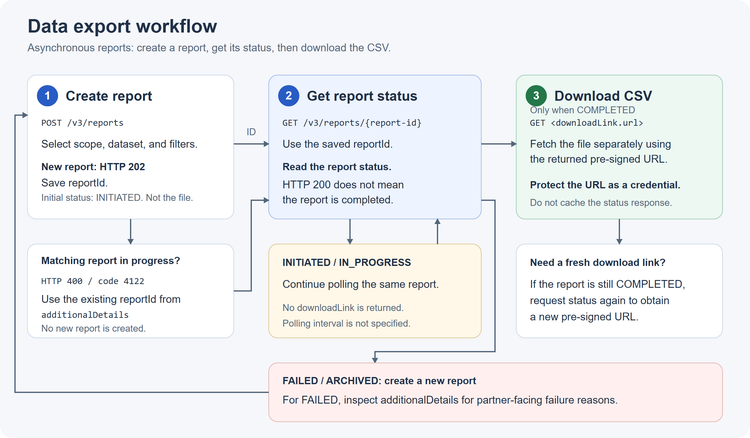
- Create report: Select the dataset, scope, and applicable filters. The service accepts the request and returns a
reportIdfor the report instead of the generated file. - Get report status: Use the
reportIdto check the report status until processing is complete. Once processing is complete, a download URL is returned. - Download report: When the report status is
COMPLETED, retrieve the CSV file usingdownloadLink.url.
All exports are asynchronous, including small exports. Use the list operation to find previous reports or check for work already in progress. For endpoints, request fields, and examples, see Manage data exports using APIs.
Scope and access
The report scope determines whether the export includes data across all resellers or specific resellers.
Partner identity is determined by authentication rather than by a partner identifier in the request. Partners can view only reports of their own resellers.
Set scope.level to partner to export the authenticated partner's data across resellers, or set it to reseller with one or more reseller IDs in scope.ids. Invalid reseller IDs and reseller IDs that do not belong to the authenticated partner are skipped and contribute no rows. The service does not return a reseller-recognition error for these IDs. They do not provide access to another partner's data. For partner scope, scope.ids is ignored.
Each report response includes a read-only source field. The value is API for reports created through a partner integration and Bridge for reports created through the Bridge UI. Do not include source in a create report request.
Report contents
The selected dataset determines the available filters and the contents of the resulting file. Reports are UTF-8 CSV files with a header row and one row per customer. See Report file format for the columns and probability-filter behavior.
Report lifecycle
The API returns the following report states:
INITIATEDIN_PROGRESSCOMPLETEDdownloadLink. The report transitions to ARCHIVED when retention ends.FAILEDARCHIVEDA successful status does not necessarily indicate that report generation succeeded. HTTP 200 with status: "FAILED" means the status request succeeded but report generation failed. Partner-facing failure reasons are returned in additionalDetails. See Error codes for data exports.
Repeated requests and report creation
Before creating a report, the service checks for a matching request for the authenticated partner. The response depends on the state of the existing matching report.
INITIATED or IN_PROGRESS400, code 4122, with the existing reportId in additionalDetails. No new report is created.COMPLETED, FAILED, or ARCHIVED202. A new report is created.202. A new report is created.A request is considered a match based on the authenticated partner and the normalized request body. During normalization, the service ignores JSON field and array order, removes duplicate array values, and applies default values before comparison. scope.ids is ignored for partner scope. See Duplicate request handling.
Download links and retention
The status operation returns downloadLink only for COMPLETED reports. The url is a short-lived pre-signed URL, and expiresAt specifies the UTC time when the URL expires.
Request the report status again using the same reportId to get a new download link to the retained file while the report remains COMPLETED. Download link expiry does not affect report retention or cause the report to transition to ARCHIVED. Treat pre-signed URLs as credentials and do not cache the completed status response. Share the URL only with the intended resellers.
Report retention begins when processing completes and is independent of download link expiry:
churnseat_expansionAfter retention ends, the report becomes ARCHIVED. Create a new report to obtain fresh data.