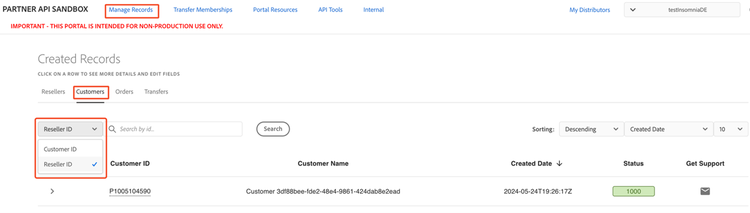
View customer details
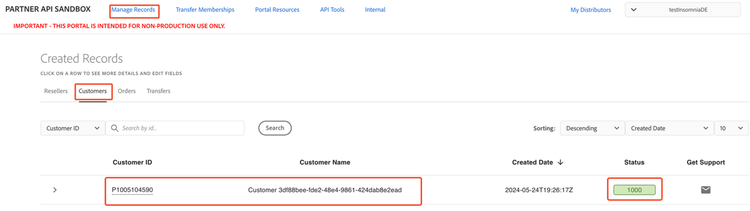
To access customer details, navigate to Manage Records -> Created Records -> Customers. The list of customers is sorted by creation date in descending order, showing the most recently created customers first. A successfully created customer has a designated status of 1000 (Success).
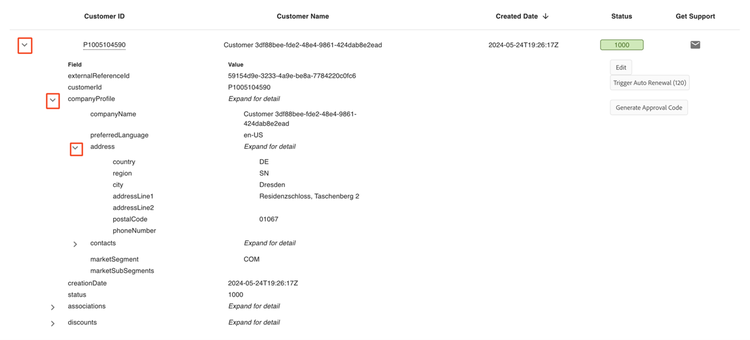
Expand the view by clicking on the down arrow next to the customer ID to view a customer's detailed information. Expanding the companyProfile and associations fields also allows you to view additional information on the customer.
Order and subscription details
The Customer details also include the orders and subscriptions that are associated with the selected customer.
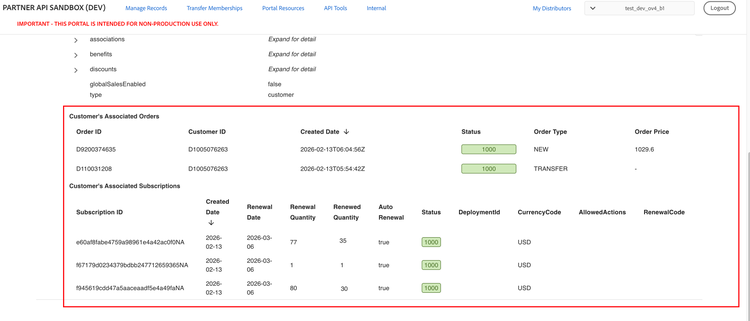
This information helps partners understand the customer’s purchase history, active subscriptions, and renewal-related data.
Customer’s associated orders
This section lists all orders that are linked to the customer.
Customer’s associated subscriptions
This section lists all subscriptions that belong to the customer.
MANUAL_RENEWAL is available as the allowed action.Sort the customer list
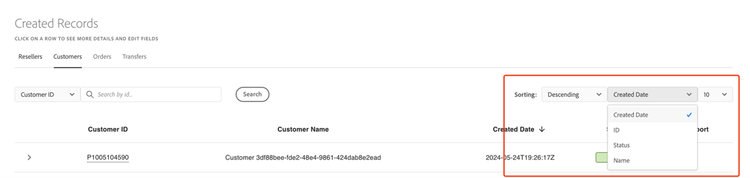
You can sort the customer list by:
- Created date (default)
- Customer ID
- Status
- Name
The sorted order can be set either in descending (default) or ascending order. You can also adjust the number of customers shown per page to 10 (default), 20, 30, 50, or 100 by using the corresponding sorting dropdown menus.
Searching a customer
Two criteria can be used to search for customers in the Portal:
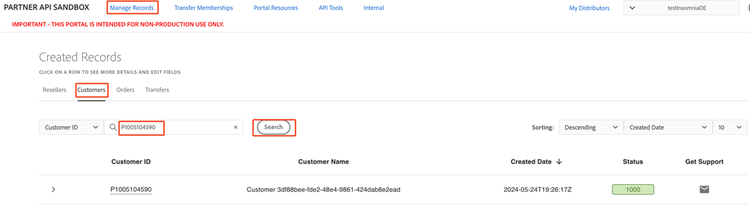
Searching a customer by customer ID
Search for individual customers under Manage Records -> Customers by entering the Customer ID in the Search by ID field.
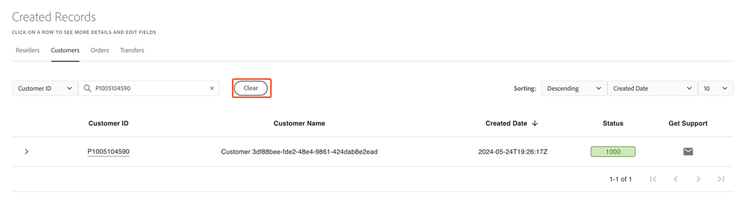
To return to the complete list, select Clear.
Searching customers by reseller ID
Search for customers under a specific reseller under Manage Records -> Customers. Change the dropdown criteria to Reseller ID, enter a valid ID, and select Search to display all customers for that reseller.