Expire an active subscription (Portal Only)
To expire an active subscription of a customer, perform the following steps:
- Navigate to the Manage Records -> Customers page, and expand the Customer view by selecting the down arrowhead next to the desired Customer ID.
- In the Customer’s Associated Subscriptions section, select the Edit button at the end of the Subscription line to turn off the Auto-Renewal flag.
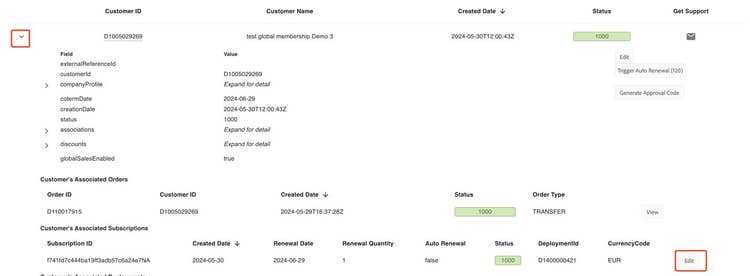
Clicking the EDIT button will display several fields, among which you should set the Auto Renewal Flag to false.

- Update the customer's coTermDate to the current date by clicking the Edit button under the Status column in the expanded Customer Details view.
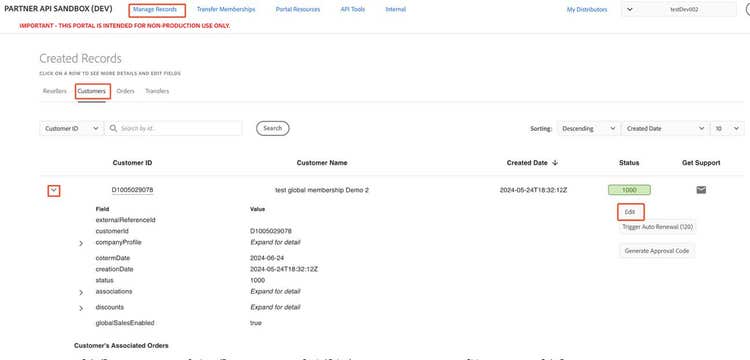
-
Enter the current date in the date field under the Update Value Column.
-
Click Save to set the new cotermDate to current date.
-
Manually trigger the Auto Renewal, by clicking on the Trigger Auto Renewal button, in the expanded Customer details view.
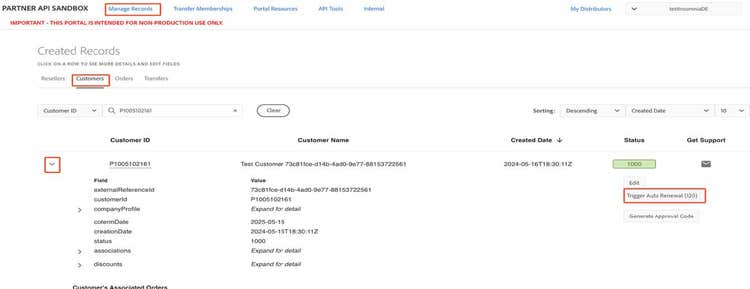
- Wait for 2 minutes for the Auto Renewal Job to complete, then check that the subscription is marked as expired.
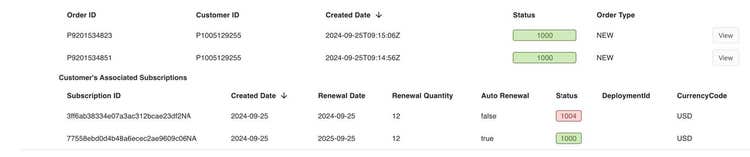
- Go to the Customer’s Associated Subscriptions section and ensure that the subscription status is marked as 1004.