Create an Application Quickstart
Last update: Feb 06, 2024.
Create an app in the web UI
To use Acrobat Sign APIs, create an application.
- Log in to Acrobat Sign.
- Select API from the top menu. If you are already an enterprise customer, you may not see the API link. In that case, choose Account.
- Select API Applications.
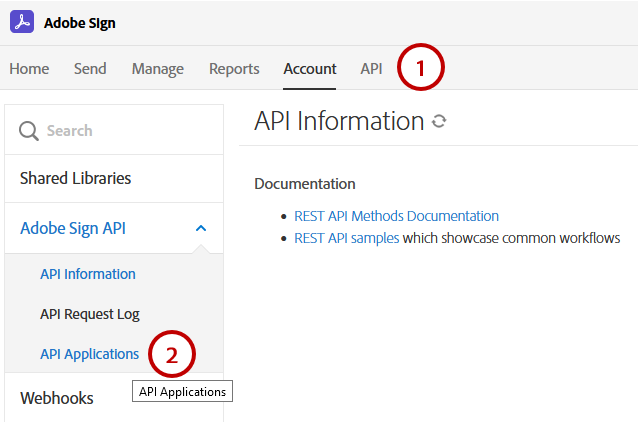
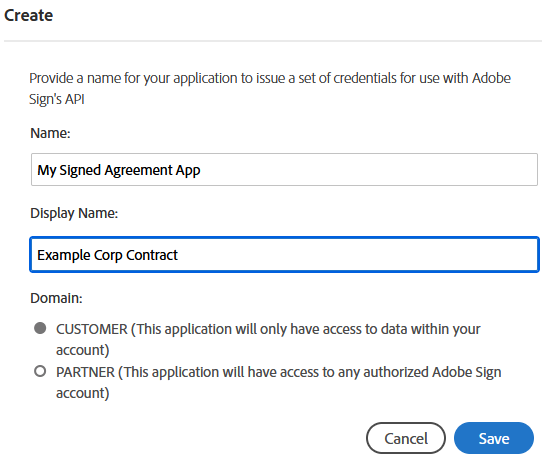
- Select the Create (+) icon and provide details about your app.
- Choose a domain based on the intended use:
- CUSTOMER: Apps that only access your account or are used for internal use and testing.
- PARTNER: Select this type if you’re developing an application for other users and your app needs access to other Acrobat Sign accounts.
data-slots=text
Get the app ID and secret
- Select API Applications to view your app list.
- Select your app to view its action menu.
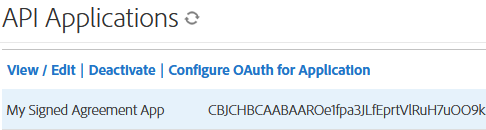
- Select View/Edit to get the application ID and secret.
- Save the app’s application ID and secret. You’ll use this information to issue access tokens in the Acrobat Sign API.
data-slots=text
Configure OAuth
The OAuth process requires that the client application request permissions from the end user before performing any actions on their behalf. The workflow redirects users to the Acrobat Sign application where they authenticate and grant the requested permissions. Acrobat Sign then redirects users back to the client application. Acrobat Sign uses the OAuth 2.0 authentication protocol to authorize requests for any Sign API endpoint.
Once you have created your application, configure OAuth as follows:
- Click Configure OAuth for the Application link to configure your OAuth integration.
- Specify a secure (https) redirect URL to your servers/website (see Configure the redirect URI on your server).
Configure Scopes
You now need to add the permissions and scopes needed by your app when it interacts with the Sign APIs. Scopes describe what resources and actions your application will access. If you apply for Certification, Adobe will review the enabled scopes to confirm that they match the intended application use.
Your application’s OAuth authorization requests include a scope parameter describing the permissions. Note the following:
- The requested scopes must be a subset of the scopes that are enabled for the application.
- The requested scopes must be appropriate for the action the user is attempting to perform.
- The user will be asked to authorize the requested permissions for your application.
When your application makes API calls using the access token, the calls must be permitted by the scopes associated with the access token. For example, to call GET /agreements, the agreement_read scope must have been requested and authorized.
While this screen sets the max allowable scopes, every token does not exercise them all. You can create different tokens for various users, and specific scenarios may use one or more of the scopes. Limit the scopes to those that you intend to request through OAuth. For example, agreement_send:account user_login:self would allow the application to send on behalf of any user in the account and also log in on behalf of the user that authorized the request.
data-slots=text
:group scope modifier, and only account admins can approve OAuth requests that use the :account scope modifier.data-slots=text
To set the scopes:
- Check the Enabled checkbox for each needed scope.
- Set the modifier.
- Choose Save.
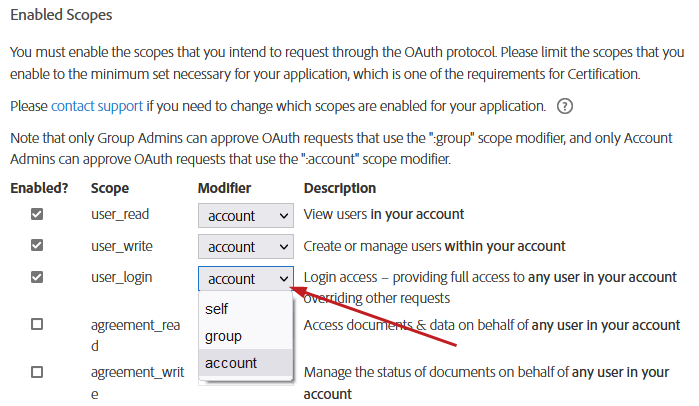
The following modifiers are available:
Create an authorization request link
Your app must include a link your customers use to initiate the OAuth request process. The OAuth process starts with the client directing the user’s browser request to the /public/oauth/v2 endpoint with the requisite query string parameters. You are simply invoking the Acrobat Sign APIs here. For example:
For partner apps the Base URI (Acrobat Sign endpoint) should NOT contain the “shard” of an account (i.e.: na1, na2, eu1, jp1, etc.)
https://secure.echosign.com/public/oauth?
   redirect_uri=https://your-oAuthInteraction-Server/your-oAuth-Page.html&
   response_type=code&
   client_id=xxxxxxxxxx&
   state=xxxxxxxxxx&
   scope=user_read:account+user_write:account+user_login:account+agreement_read:account+agreement_write:account+agreement_send:account+widget_read:account+widget_write:account+library_read:account+library_write:account+workflow_read:account+workflow_write:account
state parameter is highly recommended to protect against CSRF as described in the RFC. You can use it to pass a unique ID that will be passed to the redirect URI so your system knows which client/instance requested the token and where to save it inside your platform.Configure the redirect URI on your server
Next, create a public redirect URI on your servers that captures the account details and code sent from your app’s authorization request so that the workflow connects to the customer’s Acrobat Sign account. The request URL that links your customer’s app instance to the Acrobat Sign account contains the permission parameters and account level (self, group, or account) that your API integration needs to enable the specified actions.
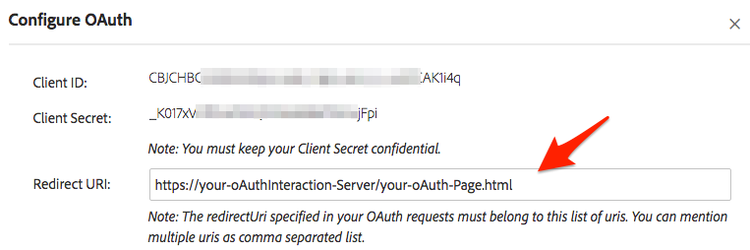
The redirect URI specified in your OAuth requests must belong to this list of URIs. You can mention multiple URIs as comma separated list.
- Select Configure OAuth for Application.
- Enter your URL.
- Before continuing, set the scopes as described below.
data-slots=text
Success vs failure
When your customer initiates the OAuth process by clicking your app’s Sign link, their browser redirects to the redirect_uri specified in the initial request. Query string parameters are added to indicate whether the request succeed or failed.
Success
Failure
The customer experience
data-slots=text
- Customers are routed to Acrobat Sign’s main log in page if they are not already logged in.
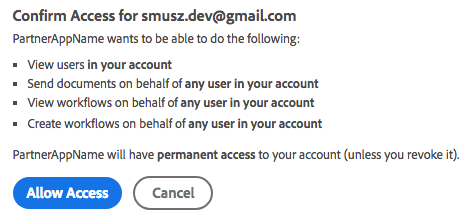
- After signing in, a confirmation screen appears.
- When the user selects Allow Access, the page redirects to the URL defined on your server (see above). The process adds the query string parameters the app needs to retrieve the refresh and access tokens for making API calls.
https://your-oauthinteraction-server/your-oAuth-Page.html?
code=CBNCKBAAHBCAABAApvoU1TLVOj_GuGynhtExjJbQNOmst9KP&
api_access_point=https%3A%2F%2Fapi.na1.echosign.com%2F&
state=uhuhygtf576534&
web_access_point=https%3A%2F%2Fsecure.na1.echosign.com%2F
Getting the access token
If the previous steps succeeded, request an access token by sending the authorization code along with the client ID and client secret to the Sign service. The client makes an HTTP POST to the /oauth/v2/token endpoint (using https://api.na1.adobesign.com) with the following parameters in the post body (not through query parameters):
POST /oauth/token HTTP/1.1
Host: api.na1.adobesign.com
Content-Type: application/x-www-form-urlencoded
Cache-Control: no-cache

  grant_type=authorization_code&
  code=CBNCKBAThIsIsNoTaReAlcs_sL4K32wCzs4N&
  client_id=xxxxxxxxxx&
  client_secret=xxxxxxxxxx&
  redirect_uri=https://myserver.com HTTP/1.1
The response returns the following JSON body containing the access token and the refresh token:
{
   "access_token":"3AAABLblThIsIsNoTaReAlToKeNPr6Cv8KcZ9p7E93k2Tf",
   "refresh_token":"3AAABLblThIsIsNoTaReAlToKeNWsLa2ZBVpD0uc*",
   "token_type":"Bearer",
   "expires_in":3600,
   "api_access_point ":"https://api.na1.adobesign.com/",
   "web_access_point":" https://secure.na1.adobesign.com/"
}
© Copyright 2022, Adobe Inc.. Last update: Feb 06, 2024.
