Quickstart
This guide walks you through the complete validation flow - from getting an access token to reading per-asset results - using curl.
Prerequisites
- Your organization's brand profile is configured. This is set up during Adobe Brand Intelligence onboarding - contact your Adobe representative if this has not been completed.
- OAuth Server-to-Server credentials set up in Adobe Developer Console (see Authentication).
- Your Client ID and Client Secret available in a secure terminal session.
- One or more asset files ready to upload, or asset URLs already reachable on the public web.
Validation flow
The Brand Intelligence API is asynchronous. You submit an invocation, receive an invocationId, poll until the invocation completes, then fetch per-asset results.
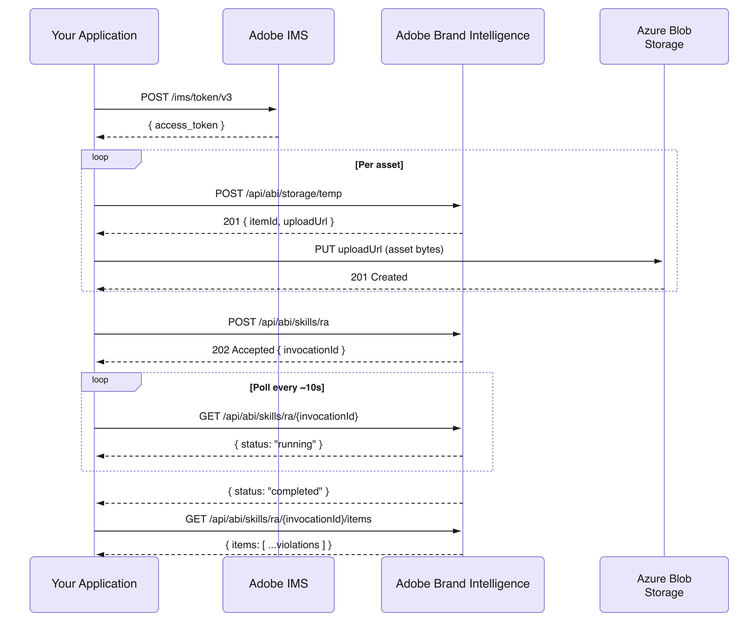
Step 1 - Get an access token
Export your credentials as environment variables:
export CLIENT_ID=<your_client_id>
export CLIENT_SECRET=<your_client_secret>
Request a token from Adobe IMS:
curl --location 'https://ims-na1.adobelogin.com/ims/token/v3' \
  --header 'Content-Type: application/x-www-form-urlencoded' \
  --data-urlencode 'grant_type=client_credentials' \
  --data-urlencode "client_id=$CLIENT_ID" \
  --data-urlencode "client_secret=$CLIENT_SECRET" \
  --data-urlencode 'scope=openid,AdobeID'
Export the token for use in subsequent requests:
export ACCESS_TOKEN=<access_token_from_response>
Tokens are valid for 24 hours (expires_in: 86399). Refresh before expiry to avoid interruption.
Step 2 - Upload your assets
Brand Intelligence validates assets that live in its own storage - you upload each asset first and reference it by the returned itemId when you submit the invocation.
For each asset, request an upload slot:
curl --request POST \
  --url 'https://abi-mw.adobe.io/api/abi/storage/temp' \
  --header "Authorization: Bearer $ACCESS_TOKEN" \
  --header 'Content-Type: application/json' \
  --data '{ "tenantId": "<your_tenant_id>" }'
Response (201 Created):
{
  "itemId": "c3f1a2b0-0000-0000-0000-000000000001",
  "uploadUrl": "https://<storage-account>.blob.core.windows.net/<container>/<blob>?<sas-token>",
  "uploadUrlExpiresAt": "2026-08-31T13:00:00Z"
}
Save the itemId, then PUT the asset bytes directly to uploadUrl - it's an Azure Blob SAS URL, so the upload needs the x-ms-blob-type header:
curl --request PUT \
  --upload-file banner-01.png \
  --header "x-ms-blob-type: BlockBlob" \
  --url "<uploadUrl_from_response>"
uploadUrl expires one hour after it's issued - upload promptly. Repeat this step once per asset. Save each itemId:
export ITEM_ID_1=c3f1a2b0-0000-0000-0000-000000000001
export ITEM_ID_2=c3f1a2b0-0000-0000-0000-000000000002
data-variant=info
data-slots=text
itemSource: "web" and sourceRef: "<asset_url>" directly in Step 3 instead of uploading.Step 3 - Submit a validation invocation
Submit one or more uploaded assets for brand validation. Each item requires an itemSource, a sourceRef, a mediaType, and an itemName. For uploaded assets, itemSource is blob and sourceRef is the itemId from Step 2.
curl --request POST \
  --url 'https://abi-mw.adobe.io/api/abi/skills/ra' \
  --header "Authorization: Bearer $ACCESS_TOKEN" \
  --header 'Content-Type: application/json' \
  --data '{
    "tenantId": "<your_tenant_id>",
    "campaignId": "<your_campaign_id>",
    "displayName": "Spring Campaign - Banner Set",
    "items": [
      {
        "itemSource": "blob",
        "sourceRef": "'"$ITEM_ID_1"'",
        "mediaType": "image/png",
        "itemName": "banner-01"
      },
      {
        "itemSource": "blob",
        "sourceRef": "'"$ITEM_ID_2"'",
        "mediaType": "image/png",
        "itemName": "banner-02"
      }
    ]
  }'
Response (202 Accepted):
{
  "invocationId": "9b9d00c5-8659-4766-8430-ed0a1c9bd87d",
  "skill": "ra",
  "tenantId": "<your_tenant_id>",
  "campaignId": "<your_campaign_id>",
  "status": "queued",
  "itemCount": 2,
  "successCount": 0,
  "failureCount": 0
}
Save the invocationId:
export INVOCATION_ID=9b9d00c5-8659-4766-8430-ed0a1c9bd87d
data-variant=info
data-slots=text
campaignId is optional. Omit it to validate against organization-level brand guidelines only. Include it to also apply campaign-specific rules.Step 4 - Poll invocation status
Call the status endpoint every 5–10 seconds until the invocation reaches a terminal state.
curl --request GET \
  --url "https://abi-mw.adobe.io/api/abi/skills/ra/$INVOCATION_ID" \
  --header "Authorization: Bearer $ACCESS_TOKEN"
Response while running (200 OK):
{
  "invocationId": "9b9d00c5-8659-4766-8430-ed0a1c9bd87d",
  "skill": "ra",
  "tenantId": "<your_tenant_id>",
  "campaignId": "<your_campaign_id>",
  "status": "running",
  "itemCount": 2,
  "successCount": 1,
  "failureCount": 0
}
Keep polling until status is one of: completed, failed, or cancelled. Under completed, check successCount / failureCount - some items may still have failed even though the invocation as a whole finished.
Step 5 - Fetch per-asset results
Once the invocation completes, list its items for a summary view.
curl --request GET \
  --url "https://abi-mw.adobe.io/api/abi/skills/ra/$INVOCATION_ID/items" \
  --header "Authorization: Bearer $ACCESS_TOKEN"
Response (200 OK):
{
  "itemsCount": 2,
  "itemsWithViolations": 1,
  "itemsWithoutViolations": 1,
  "itemsFailed": 0,
  "items": [
    {
      "itemId": "a1b2c3d4-0000-0000-0000-000000000001",
      "status": "completed",
      "mediaType": "image/png",
      "itemName": "banner-01",
      "thumbnailUrl": "https://example.com/signed/banner-01-thumb.png",
      "violationCount": 0
    },
    {
      "itemId": "a1b2c3d4-0000-0000-0000-000000000002",
      "status": "completed",
      "mediaType": "image/png",
      "itemName": "banner-02",
      "thumbnailUrl": "https://example.com/signed/banner-02-thumb.png",
      "violationCount": 1
    }
  ]
}
Items with violationCount: 0 are fully compliant. For items with violations, fetch the full detail to see what was flagged:
curl --request GET \
  --url "https://abi-mw.adobe.io/api/abi/skills/ra/$INVOCATION_ID/items/a1b2c3d4-0000-0000-0000-000000000002" \
  --header "Authorization: Bearer $ACCESS_TOKEN"
Response (200 OK):
{
  "itemId": "a1b2c3d4-0000-0000-0000-000000000002",
  "status": "completed",
  "mediaType": "image/png",
  "itemName": "banner-02",
  "thumbnailUrl": "https://example.com/signed/banner-02-thumb.png",
  "renditionUrl": "https://example.com/signed/banner-02.png",
  "result": {
    "summaryText": "The asset violates 1 brand guideline.",
    "violations": [
      {
        "violationId": "v-0001",
        "violationSource": "system",
        "violationSummary": "Color #FF0000 is not in the approved palette.",
        "assetAttributions": [
          {
            "attributionId": "aa-0001",
            "documentId": "banner-02.png",
            "metadata": {},
            "regions": [
              {
                "regionType": "boundingBox",
                "boundingBox": { "x": 0.1, "y": 0.05, "width": 0.3, "height": 0.15 }
              }
            ]
          }
        ],
        "corpusAttributions": [
          {
            "attributionId": "ca-0001",
            "documentId": "brand-guidelines-color.pdf",
            "documentUrl": "https://example.com/signed/brand-guidelines-color.pdf",
            "chunkUrl": "https://example.com/signed/brand-guidelines-color-p4.pdf",
            "metadata": { "page": 4 },
            "regions": []
          }
        ],
        "recordVersion": 1
      }
    ]
  }
}
The response includes additional fields per item and per violation - see the API Reference for the full schema.
What's next
- Explore all available endpoints in the API Reference.
- Learn how to attach reviewer feedback to flagged assets.
- Try the API interactively with Postman.