Re-evaluate in-app messages before display
This guide explains how to create re-evaluate campaigns in the Adobe Journey Optimizer UI. These campaigns are validated before the in-app message is displayed to the user.
What is re-evaluate?
When the re-evaluate option is enabled on a campaign trigger, the SDK fetches the latest rules from the backend before displaying an in-app message. The in-app message is then displayed using the updated rules and content, so campaign content or state changes (such as an update or stop) can take effect on the device without the user restarting the application or programmatically refreshing in-app messages.
data-variant=warning
data-slots=text
Supported SDK versions
Re-evaluate is supported in the following SDK versions. Update your app to at least these versions of the Mobile Core and Adobe Journey Optimizer (AJO) extensions to use the feature.
Android
Re-evaluate is available from AEPMessaging (Messaging extension) version 3.7.0 and Mobile Core version 3.6.0. Update your app to use these versions or later to enable the feature.
See Current SDK versions for the latest extension versions.
iOS
Re-evaluate is available from AEPMessaging (Messaging extension) version 5.10.0 and Mobile Core version 5.8.0. Update your app to use these versions or later to enable the feature.
See Current SDK versions for the latest extension versions.
Create re-evaluable campaigns
- In the Adobe Journey Optimizer UI, create a scheduled campaign that contains an in-app message action. For campaign creation basics, see the Experience League documentation for in-app messages.
- Enable "Re-evaluate before display" for that trigger.
- Complete the trigger conditions and in-app message content, then review and activate the campaign.
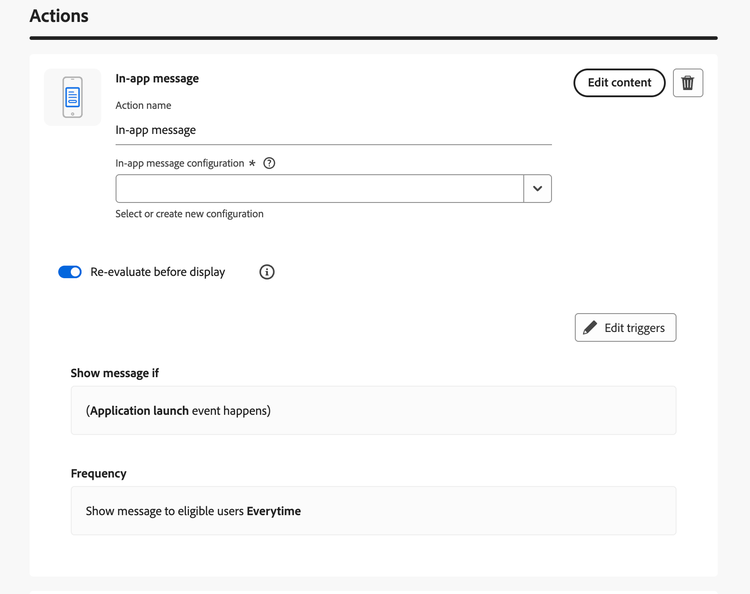
To trigger the campaign from your app, send an Experience event that matches the campaign's trigger conditions. For details, see Trigger Adobe Journey Optimizer campaigns using the send data to Experience Platform events.
Test that re-evaluate works
Use the following steps to verify that re-evaluate is working:
- Run your application and trigger the re-evaluable in-app message campaign, so that the message is displayed. Note the content shown.
- In the Adobe Journey Optimizer UI, update the content of the same campaign (for example, change the message text or creative). Ensure the campaign remains active and save or publish the changes. Wait until the campaign's state is updated and the new content is active.
- In the app, trigger the campaign again (for example, send the same Experience event that matches the trigger, or perform the action that triggers it). The SDK will fetch the updated rules and re-evaluate; the in-app message should now show the new content without restarting the application.
Re-evaluation takes into account complete state of the campaign not just the content. Any change like stopping a campaign, changing trigger rule or behaviour of the in-app message are updated before final evaluation.