Create event subscriptions from the Admin
data-variant=info
data-slots=text1
View event subscriptions
In the Admin, select System > Events > Events Subscriptions to display the Events Subscriptions grid page.
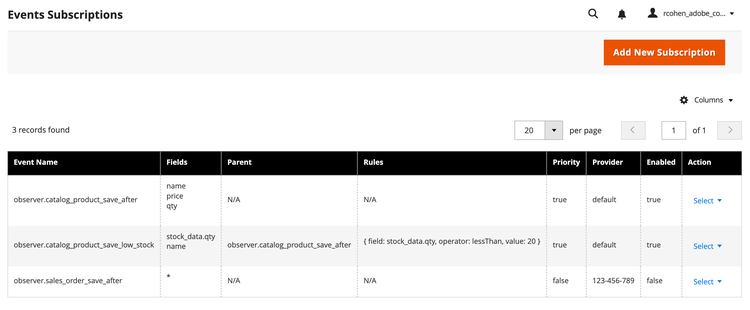
The rows of this grid show configuration settings for all event subscriptions, both enabled and disabled.
Create a new event subscription
Click Add New Subscription from the grid page to display the form for creating a new event subscription.
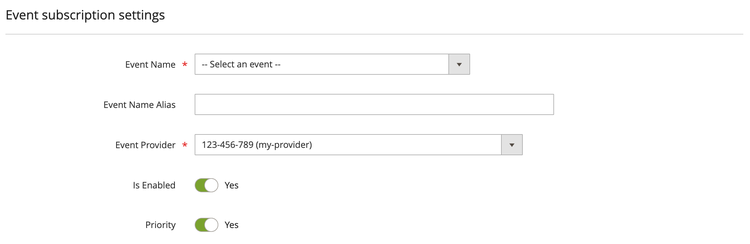
The Event subscription settings configuration panel contains the following fields:
Configure event subscription fields
The Event Subscription Fields configuration panel allows you to define the fields of the event payload to transmit from Commerce. The name provides the path to the field in the event payload.
data-src=/_includes/event-size-limitation.md
data-src=/_includes/sample-event.md
data-variant=info
data-slots=text
The following example shows how three fields can be configured for the observer.catalog_product_save_after event:
Name: entity_id
Name: sku
Name: is_new
The contents of an observer.catalog_product_save_after event are similar to the following:
{
    "entity_id": "3",
    "sku": "test2",
    "is_new": "0"
}
Array of nested objects
data-src=/_includes/nested-event.md
Name: order_id
Name: items[].sku
Name: items[].qty
The contents of the transmitted event are similar to the following:
{
   "order_id": "8",
   "items": [
      {
         "sku": "simple-product-2",
         "qty": "3.000000"
      },
      {
         "sku": "simple-product-1",
         "qty": "5.000000"
      }
   ]
}
Configure event subscription rules
You may decide that you want Adobe I/O Events for Adobe Commerce to notify the client application when certain conditions occur. For example, by default, if you register an event that tracks the remaining quantity of a product, the eventing service sends that information to your client application each time Commerce emits the event. However, you might be interested in the remaining quantity only when it reaches a specific threshold, such as 20 units. Conditional events allow you to define exactly when to send events to your application. Otherwise, the client application must include code to filter out the unimportant and unnecessary data.
A conditional event acts as an extension of a custom or native Commerce event. You must specify the source, or parent, event and define one or more rules that evaluate the data that is present in the parent event payload. If all the individual rules defined in a conditional event evaluate as true, then the eventing service sends the conditional event to the application. If one or more rules evaluate as false, the service sends neither the parent event nor the conditional event, unless the parent has been subscribed separately, without any rules.
All conditional events contain the following information:
-
A unique name for the conditional event.
-
The name of the parent event. You must attach a conditional event to a specific registered event.
-
One or more rules.
Each rule contains the following:
-
A field that is defined in the parent event.
-
An operator, which is represented as a comparison statement between the value supplied in the parent event's payload and the threshold value.
The operator must be one of the following:
greaterThan— Checks whether the value supplied in the payload of the event is greater than a specified value. Applicable for integer and float data types.lessThan— Checks whether the payload value is less than a specified value. Applicable for integer and float data types.equal— Checks whether the payload value matches the specified value. For Boolean data types, use1to compare totrueand0to compare tofalse.regex— A regular expression that checks for matches. The specified value must be compatible with the regular expression match.in— Checks whether the payload value is one of multiple specified values. The value must be a comma-separated list. You do not need to provide additional escape characters.onChange— Checks whether the provided field's value has changed compared to its previous value. The value attribute is optional. If provided, the operator checks whether the field's new value is equal to the specified value field.
-
The value to compare against. When you assign the
regexoperator, you must delimit the regular expression value with valid characters, such as forward slashes (/). For example,/^TV .*/i, which checks whether the string starts with the stringTV, ignoring the case of the letters. -
The value in the
onChangeoperator is a path to a field to compare against. By default, comparison is done againstfieldand_origData.fieldvalues. In cases where the event payload has a different structure, you can provide a custom path to compare against.
Example
Field: qty
Operator: lessThan
Value: 20

Field: category_id
Operator: in
Value: 3,4,5

Field: name
Operator: regex
Value: /^TV .*/i

Field: category.store_id
Operator: in
Value: 1,2
Events Subscriptions grid actions
Click Select > Edit in the Action column of an event subscription's row to display a form for editing the subscription.
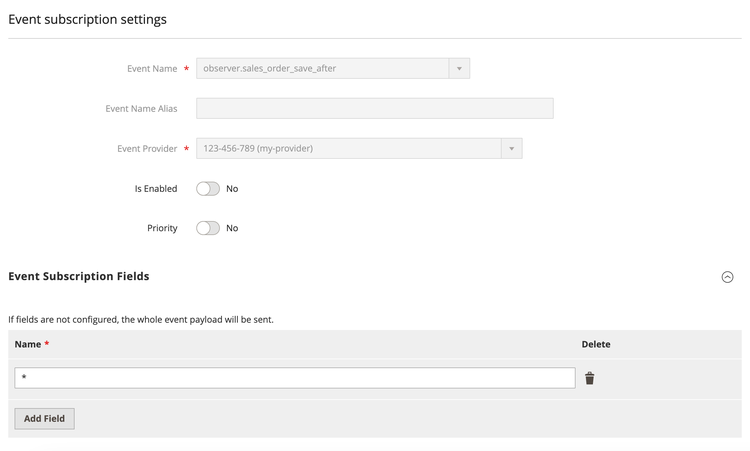
Click Select > Delete in the Action column to delete an event subscription.