Create an App Builder project
Adobe I/O Events for Adobe Commerce allows you to send and monitor custom Adobe Commerce user-driven events. Follow the instructions on this page to create and configure a project for Adobe I/O Events.
Requirements
To get started with Adobe I/O Events, you must:
data-src=/_includes/project-requirements.md
Set up a project
Projects Overview describes the different types of projects and how to manage them. Here, we'll create a templated project.
-
Log in to the Adobe Developer Console and select the desired organization from the dropdown menu in the top-right corner.
-
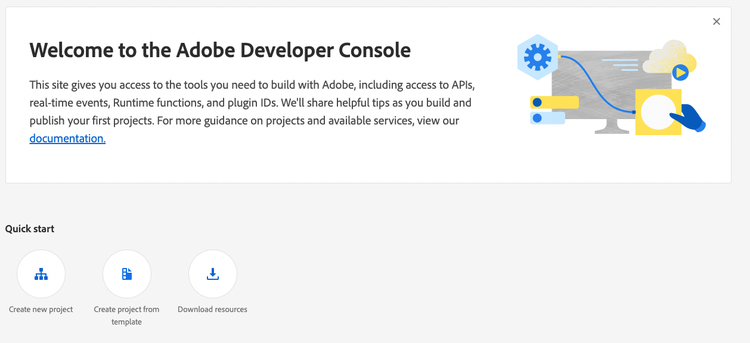
Click Create new project > Project from template.
-
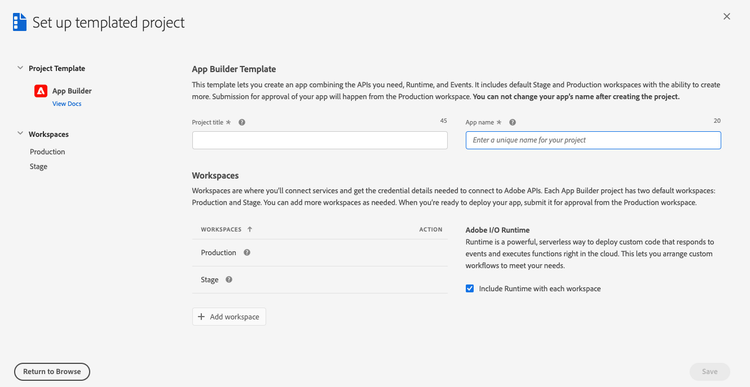
Select App Builder. The Set up templated project page displays.
-
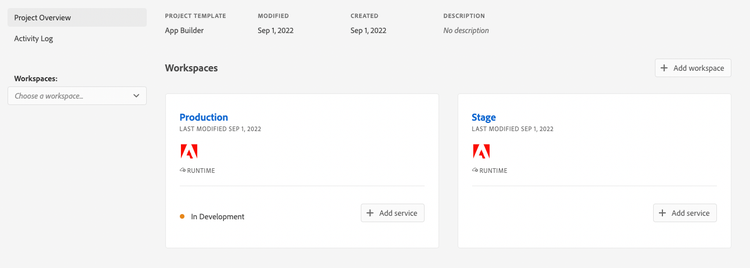
Specify a project title and app name. Make sure the Include Runtime with each workspace checkbox is selected. Click Save. The Console creates a workspace.
-
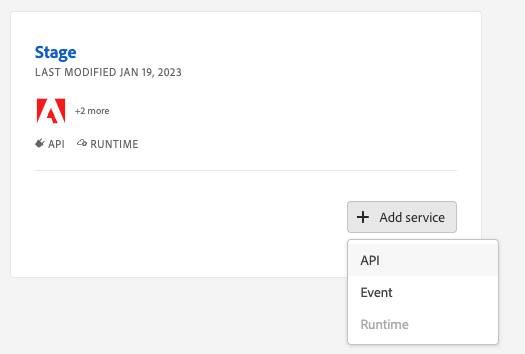
In your workspace, click the Add service pop-up menu and select API.
-
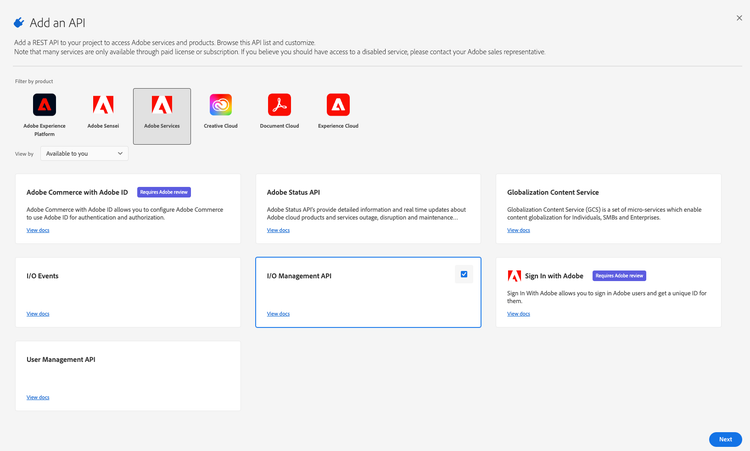
On the Add an API page, filter on Adobe Services and select one of the following options. These APIs provide authentication and authorization services for your project.
- I/O Management API
- I/O Events
- Adobe I/O Events for Adobe Commerce
- SaaS Only Adobe Commerce as a Cloud Service
Then click Next.
-
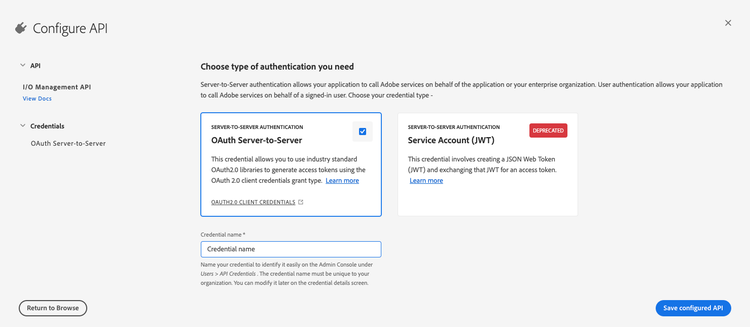
On the Configure API page, select the OAuth Server-to-Server option and click Save configured API.
-
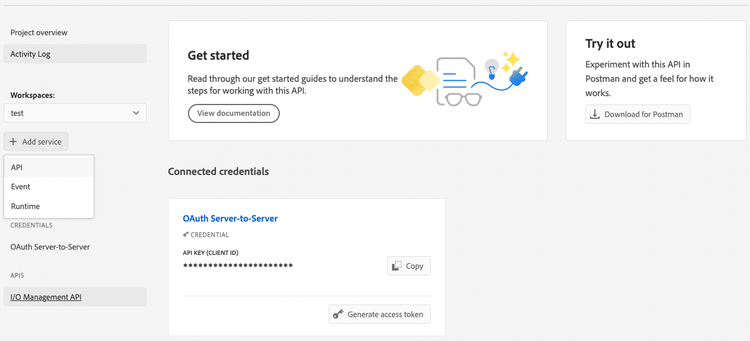
On the front page of your workspace, click the Add service pop-up menu and select API.
-
On the Add an API page, filter by Experience Cloud and select Adobe I/O Events for Adobe Commerce. Then click Next.
-
On the Configure API page, click Save configured API.
Download the workspace configuration file
The console can generate a JSON file that defines the configuration of your workspace. You will use this file to configure the Commerce Admin.
To download a .json file containing your workspace configuration:
-
Go to the overview page of your workspace.
-
Click the Download All button in the top-right corner.
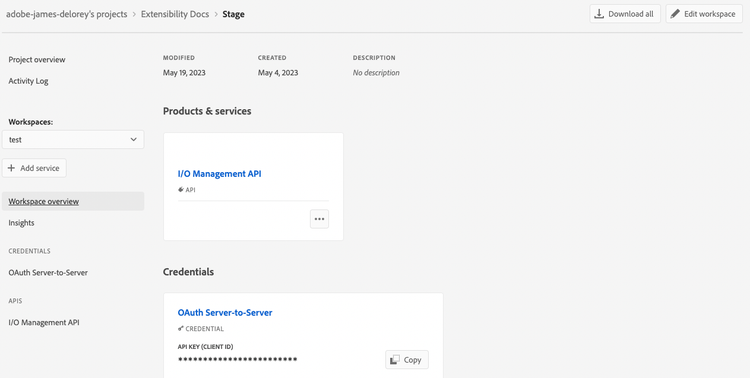
The
<Workspace-name>.jsonfile downloads automatically. In this example, the file is named485PeachHare-283976-Stage.json.
You've completed the basic setup of your project. The next step is to install Adobe I/O Events for Adobe Commerce.