Tax use cases
This page explores different use cases and scenarios for implementing tax integrations using the Adobe Commerce checkout starter kit.
For more general use cases, refer to use-cases.
Collect taxes
You can calculate and apply taxes on shopping carts during checkout by using the plugin.magento.out_of_process_tax_management.api.oop_tax_collection.collect_taxes webhook. See webhooks to learn how to set up a webhook.
To enable this webhook, set active to true in the tax integration configuration.
When the quote is recalculated, such as during a cart update or at checkout, a synchronous call is dispatched to the App Builder application that handles tax calculation. The response is returned through the oopQuote object, which includes the calculated tax fields. This webhook is triggered only when a shipping destination address is set, to avoid unnecessary calls during early cart interactions.
Refer to actions/collect-taxes.js for an example of how to process the request and return the tax calculation to the commerce instance. This file can serve as a template to implement custom tax calculations.
PaaS Only To register a webhook, you need to create a webhooks.xml configuration file in your module or in the root app/etc directory.
<config xmlns:xsi="http://www.w3.org/2001/XMLSchema-instance"
        xsi:noNamespaceSchemaLocation="urn:magento:module:Magento_AdobeCommerceWebhooks:etc/webhooks.xsd">
    <method name="plugin.magento.out_of_process_tax_management.api.oop_tax_collection.collect_taxes" type="before">
        <hooks>
            <batch name="collect_taxes">
                <hook
                    name="collect_taxes"
                    url="https://<your_app_builder>.runtime.adobe.io/api/v1/web/tax-integration/collect-taxes"
                    method="POST" timeout="10000" softTimeout="2000" priority="100" required="true"
                    fallbackErrorMessage="Tax calculation failed. Please try again later."
                >
                </hook>
            </batch>
        </hooks>
    </method>
</config>
SaaS Only SaaS webhooks have slightly different naming conventions. For this example, use the plugin.out_of_process_tax_management.api.oop_tax_collection.collect_taxes method.
Payload
The Appbuilder application receives the following payload as an oopQuote object that contains the necessary data for the tax calculation. Once the calculation is processed, the response will populate the tax and tax_breakdown fields under the items array and provide the response to the commerce instance.
{
  "oopQuote": {
    "customer_tax_class": "string",
    "items": [
      {
        "code": "sequence-1",
        "type": "product",
        "tax_class": "tax-1",
        "unit_price": 60,
        "quantity": 2,
        "is_tax_included": false,
        "discount_amount": 0,
        "custom_attributes": [],
        "sku": "SKU-1",
        "name": "Product Name 01",
        "tax": null,
        "tax_breakdown": []
      },
      {
        "code": "shipping",
        "type": "shipping",
        "tax_class": "Shipping Tax",
        "unit_price": 60,
        "quantity": 1,
        "is_tax_included": false,
        "discount_amount": 0,
        "custom_attributes": [],
        "sku": null,
        "name": null,
        "tax": null,
        "tax_breakdown": []
      }
    ],
    "ship_from_address": {
      "street": [],
      "city": "City1",
      "region": "Alhabama",
      "region_code": "AL",
      "country": "US",
      "postcode": "12345"
    },
    "ship_to_address": {
      "street": ["address 1", "address 2"],
      "city": "City1",
      "region": "California",
      "region_code": "CA",
      "country": "US",
      "postcode": "12345"
    },
    "billing_address": {
      "street": ["address 1", "address 2"],
      "city": "City1",
      "region": "California",
      "region_code": "CA",
      "country": "US",
      "postcode": "12345"
    },
    "shipping": {
      "shipping_method": "FREE",
      "shipping_description": "FREE"
    },
    "custom_attributes": [],
    "quote_id": 1234,
    "customer": {
      "entity_id": 123,
      "website_id": 1,
      "group_id": 1,
      "email": "customer@example.com",
      "firstname": "John",
      "middlename": "",
      "lastname": "Doe"
    }
  }
}
Responses to commerce webhooks are expected to modify the original request body in various ways (see Webhook responses and logging). The following response example uses the replace operation to set the tax field and the add operation to add different taxes to the tax_breakdown array.
The key points for constructing the response are:
- The
amountin thetaxobject represents the actual tax applied to each line item. - The
ratein both thetaxandtax_breakdownobjects is included for reference to indicate which tax rate was applied. - The
discount_compensation_amountcorresponds to thehidden tax, which accounts for the portion of tax adjusted by discounts. - The
customerfield will not be sent in the request payload for guest users.
[
  {
    "op": "add",
    "path": "oopQuote/items/0/tax_breakdown",
    "value": {
      "data": {
        "code": "state_tax",
        "rate": 4.5,
        "amount": 5.4,
        "title": "State Tax",
        "tax_rate_key": "state_tax-4.5"
      }
    },
    "instance": "Magento\\OutOfProcessTaxManagement\\Api\\Data\\OopQuoteItemTaxBreakdownInterface"
  },
  {
    "op": "add",
    "path": "oopQuote/items/0/tax_breakdown",
    "value": {
      "data": {
        "code": "county_tax",
        "rate": 3.6,
        "amount": 4.32,
        "title": "County Tax",
        "tax_rate_key": "county_tax-3.6"
      }
    },
    "instance": "Magento\\OutOfProcessTaxManagement\\Api\\Data\\OopQuoteItemTaxBreakdownInterface"
  },
  {
    "op": "replace",
    "path": "oopQuote/items/0/tax",
    "value": {
      "data": {
        "rate": 8.1,
        "amount": 9.72,
        "discount_compensation_amount": 0
      }
    },
    "instance": "Magento\\OutOfProcessTaxManagement\\Api\\Data\\OopQuoteItemTaxInterface"
  }
]
Collect adjustment taxes for credit memo
You can calculate and apply taxes to the adjustment amount of a credit memo during a refund by using the plugin.magento.out_of_process_tax_management.api.oop_credit_memo_tax_collection.collect_taxes webhook.
To enable this webhook, activate the credit_memo_tax_enabled setting in the active tax integration configuration.
When the credit memo amount is recalculated, a synchronous call is dispatched to the App Builder application that handles tax calculation. The response includes the calculated adjustment tax fields. This webhook is triggered only when an adjustment refund or fee amount exists, to avoid unnecessary calls.
Refer to actions/collect-adjustment-taxes.js for an example of how to process the request and return the tax calculation to the commerce instance. This file can serve as a template for implementing custom tax calculations.
PaaS Only To register a webhook, create a webhooks.xml configuration file file in your module or in the root app/etc directory.
<config xmlns:xsi="http://www.w3.org/2001/XMLSchema-instance"
        xsi:noNamespaceSchemaLocation="urn:magento:module:Magento_AdobeCommerceWebhooks:etc/webhooks.xsd">
    <method name="plugin.magento.out_of_process_tax_management.api.oop_credit_memo_tax_collection.collect_taxes" type="before">
        <hooks>
            <batch name="collect_taxes">
                <hook
                    name="collect_taxes"
                    url="https://<your_app_builder>.runtime.adobe.io/api/v1/web/tax-integration/collect-adjustment-taxes"
                    method="POST" timeout="10000" softTimeout="2000" priority="100" required="true"
                    fallbackErrorMessage="Adjustment tax calculation failed. Please try again later."
                >
                </hook>
            </batch>
        </hooks>
    </method>
</config>
SaaS Only SaaS webhooks have slightly different naming conventions. For this example, use the plugin.out_of_process_tax_management.api.oop_credit_memo_tax_collection.collect_taxes method.
Payload
The App Builder application receives the following payload as an oopCreditMemo object, which contains the necessary data for the adjustment tax calculation. When action calculates the taxes, the response populates the refund_tax and fee_tax fields under the adjustment object and returns the result to the commerce instance.
{
  "order_id": 25,
  "adjustment": {
    "refund": 5,
    "refund_tax": null,
    "fee": 10,
    "fee_tax": null
  },
  "items": [
    {
      "type": "simple",
      "unit_price": 38,
      "quantity": 1,
      "discount_amount": 0,
      "is_tax_included": false,
      "tax_class": "Taxable Goods",
      "custom_attributes": [],
      "sku": "24-MB03",
      "name": "Crown Summit Backpack"
    }
  ],
  "ship_from_address": {
    "street": [
      "test1",
      "test2"
    ],
    "city": "test",
    "region": "California",
    "region_code": "CA",
    "country": "US",
    "postcode": "90034"
  },
  "ship_to_address": {
    "street": [
      "6146 Honey Bluff Parkway"
    ],
    "city": "Calder",
    "region": "Michigan",
    "region_code": "MI",
    "country": "US",
    "postcode": "49628-7978"
  },
  "billing_address": {
    "street": [
      "6146 Honey Bluff Parkway"
    ],
    "city": "Calder",
    "region": "Michigan",
    "region_code": "MI",
    "country": "US",
    "postcode": "49628-7978"
  },
  "shipping": {
    "shipping_method": "flatrate_flatrate",
    "shipping_description": "Flat Rate - Fixed"
  },
  "custom_attributes": [],
  "customer_tax_class": "Retail Customer",
  "customer": {
    "entity_id": 1,
    "website_id": 1,
    "group_id": 3,
    "email": "roni_cost@example.com",
    "firstname": "Veronica",
    "middlename": "",
    "lastname": "Costello"
  }
}
The adjustment refund and fee amounts are tax-exclusive, and the action can simply return the calculated taxes for each item:
[
  {
    "op": "replace",
    "path": "oopCreditMemo/adjustment/refund_tax",
    "value": 0.41
  },
  {
    "op": "replace",
    "path": "oopCreditMemo/adjustment/fee_tax",
    "value": 0.81
  }
]
Tax inclusive vs tax exclusive pricing
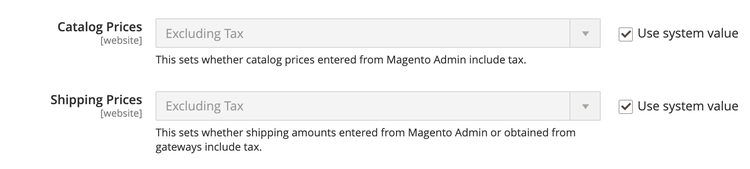
Adobe Commerce supports two pricing models for tax calculation: tax-inclusive and tax-exclusive pricing. The is_tax_included flag in the webhook payload indicates the model used for each line item:
-
Tax-Inclusive Pricing (
is_tax_included: true)- The line item's
unit_pricealready includes the full tax amount. - The out-of-process tax module will not add the tax amount again to the row total or grand total.
- The App Builder webhook must still set the tax amount correctly so it appears properly in the order summary.
- The line item's
-
Tax-Exclusive Pricing (
is_tax_included: false)- The line item's
unit_pricedoes not include tax. - The out-of-process tax module will add the tax amount to the row total and grand total.
- The App Builder webhook must calculate and set the tax amount.
- The line item's
Configure tax-inclusive pricing in Adobe Commerce
This configuration is set in the Adobe Commerce Admin under Stores > Configuration > Sales > Tax > Calculation Settings
Calculation examples
The following examples illustrate how tax should be calculated in both pricing models:
- Example (inclusive): Gross price 120.00, tax rate 20% → Net = 120 / 1.2 = 100.00, Tax = 20.00
- Example (exclusive): Net price 100.00, tax rate 20% → Tax = 20.00, Gross = 120.00
In the Adobe Commerce checkout starter kit you can find an implementation of both pricing models.
Update custom attributes on tax classes via Admin UI
The out-of-process tax module allows you to add custom attributes to tax classes. These attributes are useful when integrating with third-party tax systems that require standardized identifiers or additional metadata.
For the relevant endpoints to update tax class custom attributes, see the Tax API reference.
To simplify management, the tax-integration app includes a Tax Management admin UI. This single-page application, located in commerce-backend-ui-2, retrieves tax classes and lets you add or edit their custom attributes directly from the UI.
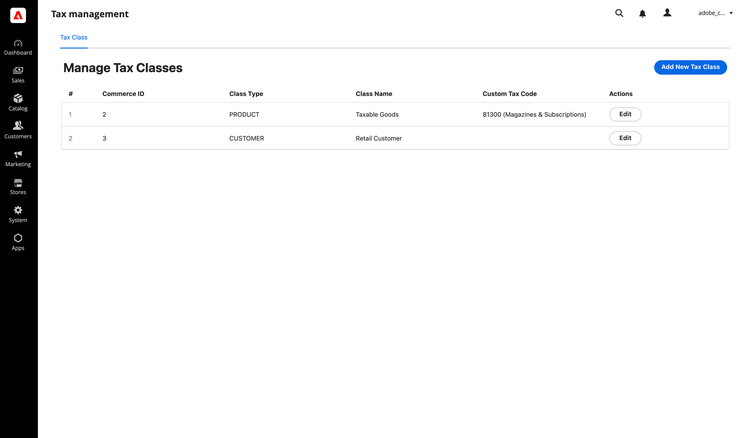
The Admin calls a Commerce REST proxy runtime action, authenticated with the logged-in admin's own IMS token, to read and update tax classes on your Commerce instance. Admin UI SDK configuration describes the configuration.
Once custom attributes are assigned to tax classes, they are included in webhook requests during tax calculation. Here's an example payload showing how the custom attributes from tax classes appear in the webhook request:
{
  "oopQuote": {
    "customer_tax_class": "Retail Customer",
    "custom_attributes": {
      "tax_code": "005",
      "tax_label": "Retail"
    },
    ...
    "items": [
      {
        "tax_class": "Taxable Goods",
        "custom_attributes": {
          "tax_code": "001",
          "tax_label": "Textbook"
        },
        ...
      }
    ]
  }
}
Propagate custom attributes of tax classes
The out-of-process tax module introduces support for assigning serialized custom attributes to tax classes. These attributes are then automatically associated with shopping cart data during cart creation and product addition. This allows for tax-related metadata to be included early in the checkout process and carried forward into subsequent operations:
-
Customer Tax Class > Quote:
When a customer creates a shopping cart, any serialized custom attributes associated with the customer's tax class are copied to theQuoteentity. -
Product Tax Class > Quote Item:
When a product is added to the cart, serialized custom attributes from the product's tax class are copied to the correspondingQuote Item.
This ensures that both the Quote and each Quote Item contain tax-relevant custom data for further processing or integration.
Quote to Order propagation
Once the customer places an order, all serialized custom attributes already present in the Quote and Quote Item entities are automatically propagated to the Order and Order Item entities, respectively.
This propagation ensures that tax class metadata—initially attached by customer and product associations—is consistently preserved throughout the entire checkout lifecycle. This allows external systems (such as tax calculation services) to access the tax class and its serialized custom attributes using:
- REST APIs
- GraphQL queries
- Event-driven integrations using Adobe Commerce Eventing
This consistency is critical for third-party integrations that rely on tax classification metadata for compliance, reporting, or invoicing purposes.