data-src=../../../includes/saas-only.md
Upload files to Amazon S3
Adobe Commerce as a Cloud Service (SaaS) supports file uploads through REST endpoints. This feature allows you to upload images to Amazon Simple Storage Service (S3). Sharing objects with presigned URLs describes how presigned URLs work.
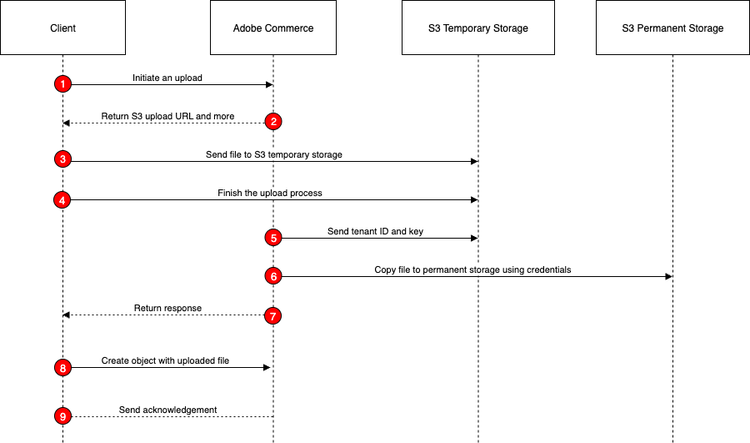
Uploading files is a multi-step process, as shown in the following diagram:
-
Initiate the upload: An admin or integration starts the upload by calling the
POST V1/media/initiate-uploadendpoint with the file name. To validate file integrity, you can alternatively call thePOST V1/media/initiate-upload-with-checksumendpoint and include a SHA-256 checksum of the file. Commerce then uses the AWS SDK to generate a URL for uploading the file. -
Receive the response: The response from the
initiate-uploadcall includes a presigned URL, a unique key for the file, and an expiration time for the URL. The client code extracts these values from the response. -
Upload the file: The client uploads the file to a temporary S3 location using the presigned URL and an HTTP PUT request. If you supplied a checksum, the request must include it in the
x-amz-checksum-sha256header. For more information, see PutObject. -
Finalize the upload: After uploading the file to S3, the client calls
POST V1/media/finish-uploadusing the unique key returned byinitiate-upload. -
Perform validation: Commerce uses a HEAD request on S3 Temporary to validate the key and size.
-
Move the file: Commerce performs a
CopyObjectoperation to move the file from the temporary location to a permanent location in the S3 bucket. -
Receive the final response: The response from the
POST V1/media/finish-uploadendpoint includes the unique key for the uploaded file. The client code extracts this key from the response. -
Create or update the entity: After
POST V1/media/finish-uploadsucceeds, the client creates or updates the entity (such as a category image) using the returned hashed key as the attribute value, not a URL or full S3 path. -
Receive the create/update response: The response from the create or update call includes the details of the created or updated entity.
Initiate the upload
Use the POST V1/media/initiate-upload endpoint to start the file upload process by generating a presigned URL for uploading a file to an Amazon S3 bucket. This endpoint requires the file name (key) and media resource type (media_resource_type) as input parameters. The key value cannot contain slashes.
The REST endpoint is an admin or backend API, which requires the Magento_S3PresignedUploadRest::manage_media ACL resource, that allows you to upload catalog media. The following media resource types are supported:
CATEGORY_IMAGE— a category image.PRODUCT_FILE_ATTRIBUTE— a product custom attribute of input type file.
data-variant=info
data-slots=text
initiateUpload and finishUpload mutations instead. See Upload files to Amazon S3 in the GraphQL documentation.When you call this endpoint, Commerce uses the AWS SDK to create a presigned URL that allows the client to upload the file directly to a temporary location in the S3 bucket. The presigned URL is valid for a limited time, specified by the expires_at field in the response.
The call requires an IMS access token.
curl --request POST \
  --url https://<server>.commerce.adobe.com/<tenant-id>/V1/media/initiate-upload \
  --header 'Authorization: Bearer <ACCESS_TOKEN>' \
  --header 'Content-Type: application/json' \
  --data '{
    "key": "1.png",
    "media_resource_type": "CATEGORY_IMAGE"
}'
Initiate the upload with a checksum
Use the POST V1/media/initiate-upload-with-checksum endpoint to validate the integrity of the uploaded file. This endpoint accepts the same parameters as POST V1/media/initiate-upload and has a required checksumSha256 parameter.
The checksumSha256 value must be the Base64-encoded raw 32-byte SHA-256 digest of the file. Do not use hexadecimal digests. The client must compute the value from the file before it calls the endpoint. For example:
openssl dgst -sha256 -binary 1.png | base64
curl --request POST \
  --url https://<server>.commerce.adobe.com/<tenant-id>/V1/media/initiate-upload-with-checksum \
  --header 'Authorization: Bearer <ACCESS_TOKEN>' \
  --header 'Content-Type: application/json' \
  --data '{
    "key": "1.png",
    "media_resource_type": "CATEGORY_IMAGE",
    "checksumSha256": "UNhY4JhezH9gQYqvDMWrWH9CwlcKiECVqejMrND2VFw="
}'
When you supply a checksum, the upload process changes as follows:
- Commerce signs the checksum into the presigned URL. If the value is not a valid Base64-encoded SHA-256 digest, the request fails with the error
Invalid checksum value. Expected a base64-encoded SHA-256 digest. - The client must send the same value in the
x-amz-checksum-sha256header of the PUT request to the presigned URL. - Amazon S3 rejects the upload if the checksums do not match. The file is not stored.
Upload the file to S3
The following curl command demonstrates how to upload a file using the presigned URL returned by the POST V1/media/initiate-upload call:
curl --fail --show-error --silent -X PUT --data-binary @./cat.jpg 'https://<bucket>.s3.<region>.amazonaws.com/<path-to-temp-file>?X-Amz-Content-Sha256=UNSIGNED-PAYLOAD&X-Amz-Security-Token=<token>&X-Amz-Algorithm=AWS4-HMAC-SHA256&X-Amz-Credential=<value>&X-Amz-Date=<value>&X-Amz-SignedHeaders=host&X-Amz-Expires=<value>&X-Amz-Signature=<value>...'
If you initiated the upload with a checksum, send the same value in the x-amz-checksum-sha256 header:
curl --fail --show-error --silent -X PUT \
  --header 'x-amz-checksum-sha256: UNhY4JhezH9gQYqvDMWrWH9CwlcKiECVqejMrND2VFw=' \
  --data-binary @./1.png \
  '<presigned-url>'
Finish the upload
Use the POST V1/media/finish-upload endpoint to complete the upload process after the file is successfully uploaded to S3. This endpoint includes the unique key received from the initiate-upload response.
When you call this endpoint, Commerce verifies that the file associated with the provided key has been successfully uploaded to the S3 bucket. If the upload is confirmed, Commerce finalizes the upload process and makes the file available for use within the system. The response from the finish-upload endpoint includes the unique key for the uploaded file. This key can be used to reference the file in subsequent operations, such as associating it with a category image attribute.
curl --request POST \
  --url https://server.commerce.adobe.com/<tenant-id>/V1/media/finish-upload \
  --header 'Authorization: Bearer <ACCESS_TOKEN>' \
  --header 'Content-Type: application/json' \
  --data '{
    "key": "<KEY_FROM_INITIATION>",
    "media_resource_type": "CATEGORY_IMAGE"
  }'
Add the uploaded file to an entity
Your Adobe Commerce instance must define the target attribute. Assign the returned key, filename only, to the attribute when you create or update it. Do not include the URL or path.
Add an image to a category
For CATEGORY_IMAGE, assign the returned key to the category image attribute when you create the category:
{
  "category": {
    "parent_id": "2",
    "name": "One",
    "is_active": true,
    "include_in_menu": true,
    "custom_attributes": [
      {
        "attribute_code": "image",
        "value": "1_7aa0b2d63f6d3dbf0290bb31.png"
      },
      {
        "attribute_code": "description",
        "value": "<p>test description one<\/p>"
      }
    ]
  }
}
Add a file to a product
For PRODUCT_FILE_ATTRIBUTE, assign the returned key to the product's file attribute. Set the value to the filename only (the key returned from finish-upload):
{
  "product": {
    "sku": "24-MB01",
    "custom_attributes": [
      {
        "attribute_code": "spec_sheet",
        "value": "manual_d35edd0d729fe160eac99295.pdf"
      }
    ]
  }
}