Admin authentication
Admin authentication enables partner-built apps to read and modify Adobe enterprise customer data with their explicit consent.
If you are an Adobe Technology Partner Program (TPP) partner and your application needs to read or modify data owned by an Adobe enterprise customer organization, you can use an Admin authentication credential.
However, before your application can access customer data, an administrator from the customer’s organization must explicitly grant consent to your application and assign relevant product profiles.
Note: The admin always remains in control and can modify the assigned product profiles or revoke your app's consent at any time.
data-slots=text
Whose data can you access with Admin authentication?
Admin authentication enables partner-built apps to read and modify Adobe enterprise customer data. Previously, enterprise customer data could only be manipulated through server to server authentication. Therefore, a customer had to build the app themselves or plug in their server-to-server credentials in partner-built apps.
With Admin authentication a partner application can use a single credential, yet multiple customers can install the app. The customer no longer needs to supply their credentials to partner apps, thereby, strengthening their security posture. Furthermore, the partner apps built with Admin authentication are click-to-install apps which can be installed without the help of an IT department on the customer organization.
To better understand the nuances of admin authentication, let's compare it to other supported authentication types.
Enterprise Web App credential
Adobe supports the Enterprise Web App credential for admin authentication, allowing partners to build click-to-install applications that interact securely with Adobe enterprise customer data.
Once a customer admin installs the app and provides consent to it, a technical account is set up in the customer org and linked to the partner app. The customer admin can control what data the partner app can access by managing the product profiles assigned to the technical account. Meanwhile, the partner app can generate access tokens for this technical account by using its own client id and secret.
To safeguard customer data, the Enterprise Web App credential requires the partner app to have a secure backend server. The backend server is responsible for implementing the security features of credential and generating access tokens.
How does it work?
The following diagram depicts the high level workflow through which a partner app can generate access tokens for the technical accounts in customer orgs.
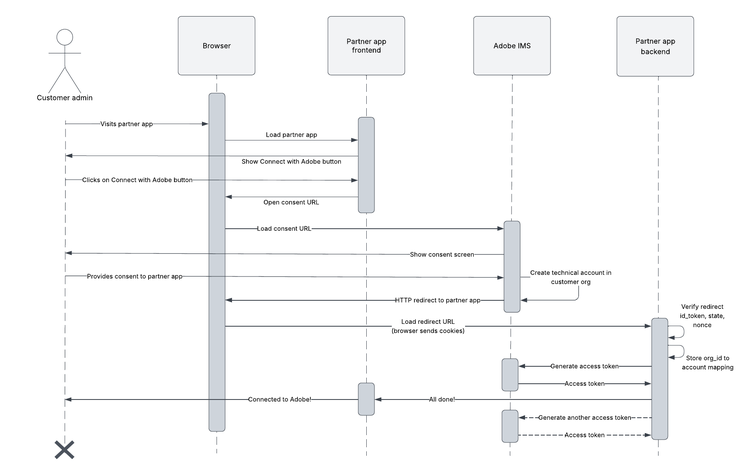
- The workflow starts when the customer admin visits the partner app and clicks on the Connect with Adobe button to connect their Adobe organization to the partner app.
- The customer admin is redirected to the Adobe IMS consent screen to provide consent to the partner app. Once the admin consents to the partner app to access their org's data, a technical account is created in the customer organization.
- After the admin provides consent, the admin is redirected back to the partner app. The redirect URL was supplied by the partner during Enterprise Web App credential set up.
- The partner app receives the redirect and verifies that it came from Adobe by validating the
id_token,state, andnonceparameters in the redirect. - If verification passes, the partner app links the customer org to the logged in account. At this point, the partner app can use its
client_idandclient_secretand the customerorg_idto generate access tokens. - Finally, the customer admin has completed the consent workflow and connected their Adobe org to the partner app. The customer admin can now navigate to the Adobe Exchange manage page and assign product profiles to the newly set up technical account.
data-slots=text
Development Next Steps
- Read the implementation guide to start implementing the Enterprise Web App credential.
- Read the API Reference to view details about the token generation request, consent URL parameters, and supported parameters & error codes in the redirect.
- Read the submission guide to submit your app for Adobe review.