Design Viewer
The Design Viewer module lets you display image-based designs inside an Adobe Express-powered experience embedded in your application.
In the viewer, you can let users Download the design on Desktop or Share it on Mobile using iOS or Android native widgets. Additionally, users can select or browse templates of similar designs from a collection or a list of explicit design IDs. It's a powerful way to engage users with your brand's templates while encouraging them to discover and remix more of your templates.
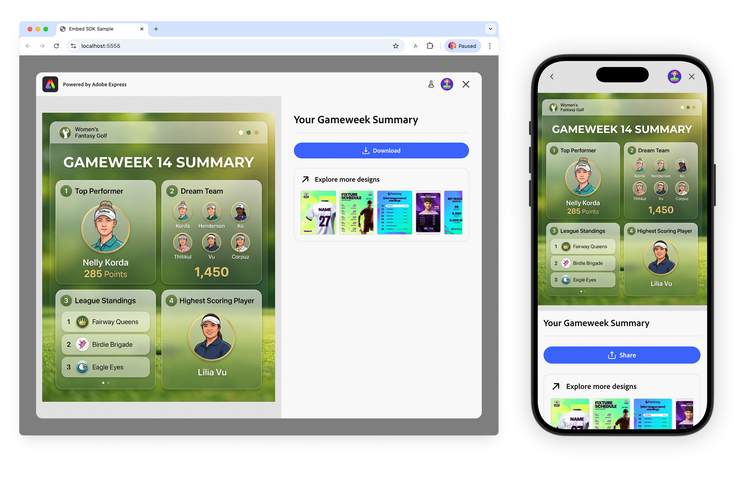
How the Design Viewer Works
The Design Viewer is a Workflow that loads a given image asset into a viewer experience. The entry point is the module.viewDesign() method.
await import("https://cc-embed.adobe.com/sdk/v4/CCEverywhere.js");

const { module } = await window.CCEverywhere.initialize(
  { clientId: "your-client-id", appName: "your-app-name" },
  {}
);

// Please note:
// the only required argument is docConfig, all other arguments are optional (exportConfig is ignored)
module.viewDesign(docConfig, appConfig, exportConfig, containerConfig);
Configuration options
The asset to view
The docConfig object, of type DesignViewerDocConfig, is the only required parameter and contains a single property: the Asset to view—a union type supporting three different data representations:
"base64""url""blob"Blob / File object<input type="file">The type property identifies the kind of media—for the Design Viewer—always use "image".
data-slots=heading, code
data-repeat=3
data-languages=base64, url, blob
Base64
// Base64 asset (most common for locally-sourced images)
const docConfig = {
  asset: {
    type: "image",
    dataType: "base64", // 👈
    data: "<base64-encoded-string>",
  },
};

module.viewDesign(docConfig);
URL
// URL asset (image hosted on a server)
const docConfig = {
  asset: {
    type: "image",
    dataType: "url", // 👈
    data: "https://your-server.com/path/to/image.png",
  },
};

module.viewDesign(docConfig);
Blob
// Blob asset (file from an `<input type="file">`)
const docConfig = {
  asset: {
    type: "image",
    dataType: "blob", // 👈
    data: new File([], "image.png"),
  },
};
data-slots=header, text, text2, text3
data-variant=info
Multiple assets support
docConfig.asset property can also be an array of assets. In that case, the first asset in the array is displayed in the viewer, with navigation controls to switch between assets.const docConfig = {
asset: [
{ type: "image" /* ... */ },
{ type: "image" /* ... */ },
{ type: "image" /* ... */ },
],
};
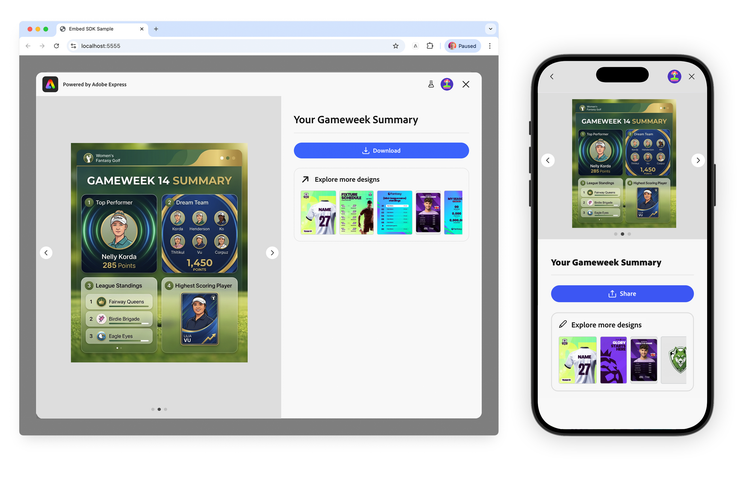
If you have a local image URL—for example, resolved by a bundler like Vite—you can use the FileReader API to convert it to a Base64 data URL before passing it to the SDK.
data-slots=list
data-repeat=1
data-summary=Expand to see the code
// Convert a local image URL to a Base64 data URL
function readFileAsDataUrl(file) {
  return new Promise((resolve, reject) => {
    const reader = new FileReader();
    reader.onload = () => resolve(reader.result);
    reader.onerror = reject;
    reader.readAsDataURL(file);
  });
}

const dataUrl = await readFileAsDataUrl(file);
Once you've defined the asset, you can customize the Viewer experience.
Viewer customization
The appConfig object, of type DesignViewerAppConfig, controls the viewer's appearance and the optional preview thumbnails sidebar. All properties are optional.
appConfig.designTitle
Sets the title text displayed in the viewer header.
- Type:
string - Default:
""(empty string) - Use case: Identify the design by name so users understand what they are viewing.
const appConfig = {
  designTitle: "Your Gameweek Summary", // 👈
};

module.viewDesign(docConfig, appConfig);
appConfig.previewThumbnails
Configures a sidebar panel showing related design templates. Users can click a thumbnail to load the template in the Full Editor.
- Type:
PreviewThumbnailsConfig - Default:
undefined(none) - Use case: Offer a curated gallery of related templates or designs alongside the viewed asset.
There are two ways to populate the thumbnails:
1. From a collection: provide a CollectionConfig with a collection URN and an optional count:
const appConfig = {
  previewThumbnails: {
    collectionConfig: {
      collectionId: "urn:aaid:sc:VA6C2:e0f161bf-3d73-4ad8-ba20-20722638c625", // 👈
      count: 7, // 👈 defaults to 5; must be greater than 0 or throws an INVALID_SIZE_VALUE error
    },
  },
};
The Collection URN is what the Explore more designs link on the Design Viewer sidebar will point to, opening Adobe Express in a new Browser tab, with the collection pre-loaded.
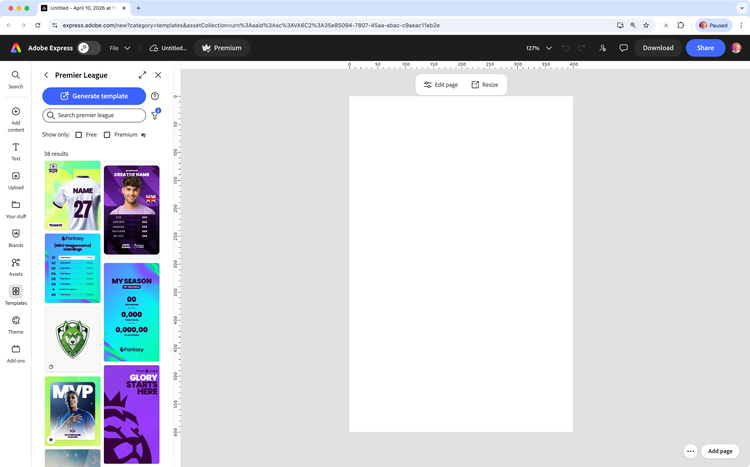
2. From explicit design URNs: provide an array of known design URNs. When previewIds is set, it takes precedence over collectionConfig.
const appConfig = {
  previewThumbnails: {
    previewIds: [
      "urn:aaid:sc:VA6C2:83b28917-ef22-5771-be35-d4622d72ff4d",
      "urn:aaid:sc:VA6C2:83b28917-ef22-5771-be35-d4622d72ff4d",
      "urn:aaid:sc:VA6C2:ec55e16c-501b-5ee3-953b-68ffef230801"
    ],
  },
};
data-slots=text
data-variant=info
callbacks
These are the usual callback functions to respond to viewer events. In particular, onPublish is going to be useful to handle the asset's sharing on Mobile devices, as explained in the Mobile sharing with the Web Share API section.
- Type:
Callbacks - Default:
undefined - Use case: Handle asset publishing, cancellation, and errors in your application's workflow.
const appConfig = {
  callbacks: {
    onPublish: (intent, publishParams) => {
      console.log("User published:", publishParams);
    },
    onCancel: () => {
      console.log("User cancelled.");
    },
    onError: (err) => {
      console.error("Error:", err.toString());
    },
  },
};
Desktop and Mobile CTAs
The Design Viewer provides two CTAs for desktop and mobile devices:
- Download: allows users to download the design as an image file.
- Share: allows users to share the design via iOS/Android native widgets.
While on Desktop the download action is immediate, on Mobile devices you would need to handle the asset's sharing via iOS/Android native widgets.
data-slots=text
data-variant=info
.zip file.Mobile sharing with the Web Share API
On mobile, the Design Viewer Share control does not open the system share sheet by itself. Your app should use the browser Web Share API (navigator.share / navigator.canShare) so the user gets the native iOS or Android share UI (Messages, Mail, installed apps, and so on).
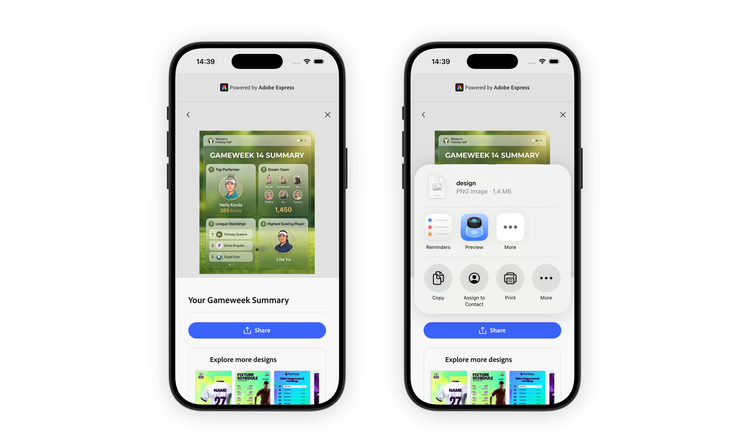
Implement sharing inside the onPublish callback from callbacks. The SDK passes publish parameters that include the exported asset. In practice you do three things: detect the Share CTA, turn the published image into a File, then call navigator.share.
1. Detect Share CTA
Restrict your share logic to the Share button by checking publishParams.exportButtonId === "shareToHostApp" before calling navigator.share. In theory this guard is optional: on desktop, Download does not invoke onPublish—the image is saved directly and the Design Viewer stays open—so that path never hits your share logic. Keeping the exportButtonId check still makes the intent obvious and protects you if other publish flows ever call onPublish with a different button id.
2. Convert Base64 → File
The SDK includes the exported image in publishParams.asset. When you opened the viewer with a Base64 data URL (dataType: "base64" in docConfig), that payload is still a data URL string suitable for parsing. Decode the header to read the MIME type, decode the payload with atob, wrap bytes in a Uint8Array, and construct a File so the Web Share API can attach it as files: [file].
3. Call navigator.share
After you have a File, use navigator.canShare({ files: [file] }) when available to confirm file sharing is supported, then await navigator.share({ files: [file] }) to open the system sheet. Treat AbortError as the user dismissing the sheet; log or surface other errors. If canShare is missing or returns false, fall back to your own UX (for example, a message that sharing is not available in this browser).
// Convert a base64 data URL to a File object for the Web Share API
function dataUrlToFile(dataUrl, filename = "gameweek-summary.png") {
  const [header, base64] = dataUrl.split(",");
  const mime = header.match(/:(.*?);/)[1];
  const bytes = atob(base64);
  const buffer = new Uint8Array(bytes.length);
  for (let i = 0; i < bytes.length; i++) {
    buffer[i] = bytes.charCodeAt(i);
  }
  return new File([buffer], filename, { type: mime });
}

// Share the published image using the native Share sheet (Web Share API)
async function shareImage(asset) {
  const file = dataUrlToFile(asset.data);

  if (navigator.canShare && navigator.canShare({ files: [file] })) {
    try {
      await navigator.share({ files: [file] });
      console.log("Shared successfully");
    } catch (err) {
      if (err.name !== "AbortError") {
        console.error("Share failed:", err);
      }
    }
  } else {
    console.warn("Web Share API file sharing not supported");
  }
}

// Callbacks to be used when creating or editing a document
const callbacks = {
  onCancel: () => {},
  onPublish: (intent, publishParams) => {
    console.log("publishParams", publishParams);
    if (publishParams.exportButtonId !== "shareToHostApp") {
      return;
    }
    shareImage(publishParams.asset[0]);
  },
  onError: (err) => {
    console.error("Error!", err.toString());
  },
};
data-slots=header, text, text2, text3
data-variant=info
Sharing multiple files
docConfig.asset can be an array of assets, publishParams.asset is likewise an array. To share all of them in a single operation, convert each asset to a File and pass the resulting array to the Web Share API instead of a single-element array.navigator.canShare({ files }) before calling navigator.share({ files }): browsers limit how many files—and which MIME types—can be shared at once, and canShare returns false when the set is unsupported so you can fall back to your own UX.// Share every published asset at once using the native Share sheet
async function shareImages(assets) {
const files = assets.map((asset) => dataUrlToFile(asset.data));
if (navigator.canShare && navigator.canShare({ files })) {
try {
await navigator.share({ files });
console.log("Shared successfully");
} catch (err) {
if (err.name !== "AbortError") {
console.error("Share failed:", err);
}
}
} else {
console.warn("Web Share API multi-file sharing not supported");
}
}
// In your onPublish callback, pass the whole asset array instead of asset[0]
const callbacks = {
onPublish: (intent, publishParams) => {
if (publishParams.exportButtonId !== "shareToHostApp") {
return;
}
shareImages(publishParams.asset); // 👈 share all assets, not just the first
},
};
Example
The following example mirrors the pattern from the Embed SDK View Design sample application. It accepts either a pre-loaded image or a user-uploaded file, converts it to Base64, and launches the Design Viewer. It also includes the Web Share API helpers and an onPublish handler that shares only when publishParams.exportButtonId is "shareToHostApp" (the Share control on mobile).
data-slots=heading, code
data-repeat=2
data-languages=main.js, index.html
main.js
await import("https://cc-embed.adobe.com/sdk/v4/CCEverywhere.js");

const { module } = await window.CCEverywhere.initialize(
  { clientId: "your-client-id", appName: "your-app-name" },
  { loginMode: "delayed" },
);

function dataUrlToFile(dataUrl, filename = "design.png") {
  const [header, base64] = dataUrl.split(",");
  const mime = header.match(/:(.*?);/)[1];
  const bytes = atob(base64);
  const buffer = new Uint8Array(bytes.length);
  for (let i = 0; i < bytes.length; i++) {
    buffer[i] = bytes.charCodeAt(i);
  }
  return new File([buffer], filename, { type: mime });
}

async function shareImage(asset) {
  const file = dataUrlToFile(asset.data);

  if (navigator.canShare && navigator.canShare({ files: [file] })) {
    try {
      await navigator.share({ files: [file] });
      console.log("Shared successfully");
    } catch (err) {
      if (err.name !== "AbortError") {
        console.error("Share failed:", err);
      }
    }
  } else {
    console.warn("Web Share API file sharing not supported");
  }
}

const appConfig = {
  designTitle: "Your Gameweek Summary",
  previewThumbnails: {
    collectionConfig: {
      collectionId: "urn:aaid:sc:VA6C2:35e85094-7807-45aa-abac-c9aeac11eb2e",
      count: 7,
    },
  },
  callbacks: {
    onPublish: (intent, publishParams) => {
      console.log("Published:", publishParams);
      if (publishParams.exportButtonId !== "shareToHostApp") {
        return;
      }
      shareImage(publishParams.asset[0]);
    },
    onError: (err) => {
      console.error("Error:", err.toString());
    },
  },
};

function launchViewDesign(dataUrl) {
  const docConfig = {
    asset: {
      type: "image",
      dataType: "base64", // 👈 pass the image as a Base64 data URL
      data: dataUrl,
    },
  };
  module.viewDesign(docConfig, appConfig);
}

// --- Pre-loaded image ---
async function loadAndView(imageUrl) {
  const res = await fetch(imageUrl);
  const blob = await res.blob();
  const dataUrl = await new Promise((resolve, reject) => {
    const reader = new FileReader();
    reader.onload = () => resolve(reader.result);
    reader.onerror = reject;
    reader.readAsDataURL(blob);
  });
  launchViewDesign(dataUrl);
}

// --- User-uploaded file ---
document.getElementById("fileInput").onchange = async (event) => {
  const file = event.target.files[0];
  if (!file || !file.type.startsWith("image/")) return;
  const dataUrl = await new Promise((resolve, reject) => {
    const reader = new FileReader();
    reader.onload = () => resolve(reader.result);
    reader.onerror = reject;
    reader.readAsDataURL(file);
  });
  launchViewDesign(dataUrl);
};
index.html
<!doctype html>
<html lang="en">
<head>
<meta charset="UTF-8" />
<meta
name="viewport"
content="width=device-width, initial-scale=1.0"
/>
<title>Embed SDK Sample</title>
</head>
<body>
<sp-theme
scale="medium"
color="light"
system="express"
>
<div class="container">
<header>
<h1>Adobe Express Embed SDK</h1>
<sp-divider size="l"></sp-divider>
<h2>Design Viewer Sample</h2>
<p>
The <b>View Design</b> button launches a design viewer instance.<br />
Upload your own image using the
<b>Upload Image & View Design</b> button.
</p>
</header>
<main>
<img
id="savedImage"
src="./img/fantasy-golf.png"
alt="Your design will appear here."
/>
<sp-button-group>
<sp-button id="viewBtn">View Design</sp-button>
<sp-button id="uploadBtn">Upload Image & View Design</sp-button>
</sp-button-group>
<input
type="file"
id="fileInput"
accept="image/*"
style="display: none;"
/>
</main>
</div>
</sp-theme>
<script
type="module"
src="./main.js"
></script>
</body>
</html>
Related Resources
module.viewDesign()API ReferenceDesignViewerDocConfigAPI ReferenceDesignViewerAppConfigAPI ReferencePreviewThumbnailsConfigAPI ReferenceCollectionConfigAPI ReferenceAssetType Reference- Web Share API (MDN) —
navigator.share/navigator.canSharefor native mobile share sheets - Error Handling