Embed SDK Mobile Web tutorial
Learn how to integrate the Adobe Express Embed SDK into Web, Mobile Web and WebView experiences.
Introduction
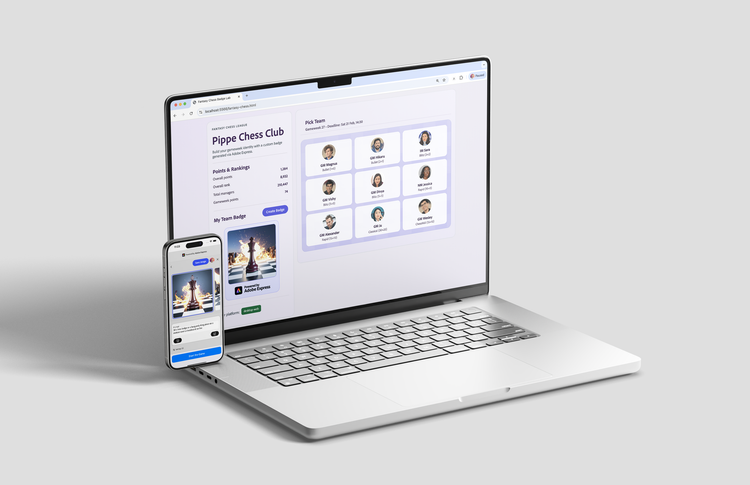
Hi, developers! In this tutorial, we'll create a mock Fantasy Game Embed SDK integration with Generate Image capabilities that can be served through Desktop and Mobile Web Browsers, as well as iOS and Android applications through WebViews.
What you'll learn
By completing this tutorial, you'll gain practical skills in:
- Creating a responsive, Web-based Embed SDK experience that follows the Mobile Web best practices.
- Implementing iOS and Android native applications that consume the Mobile Web integration.
- Setting up and configuring the WebViews in both Kotlin and Swift.
What you'll build
We'll build a mock Fantasy Chess Game, where users can generate their own team's Badge and use it in the game. This project includes three main components:
- A Web-based Embed SDK experience that can be consumed by Desktop and Mobile Browsers. We'll use Express.js (a minimalist web framework for Node.js) to create and serve the content.
- An iOS native application developed in Swift that loads the Web-based Embed SDK experience into a WebView.
- A similar Android native application developed in Kotlin.
You will develop locally on your machine, and run the mobile applications through simulators in Apple Xcode and Android Studio. The table below (reproduced for convenience from the Mobile Web Overview) shows the available ways to integrate the Embed SDK into multiple surfaces; this tutorial covers the first three use cases.
Prerequisites
Before we begin, make sure you have the following:
- An Adobe account: use your existing Adobe ID or create one for free.
- Embed SDK Credentials from the Adobe Developer Console; see the Quickstart Guide for more information.
- Familiarity with HTML, CSS, JavaScript, Swift, and Kotlin.
- Node.js, Xcode, and Android Studio are installed on your development machine.
We also recommend reviewing the following resources first:
- Mobile Web Overview: The different ways to implement mobile web support.
- Mobile Web in the Browser: The Mobile Web approach in the Browser.
- Mobile Web in a WebView: The Mobile Web approach in iOS and Android WebViews.
Given the complexity of the project, for the sake of brevity and clarity, we will focus on the parts that are most relevant to the main goal of the tutorial. The complete code is available in the embed-sdk-mobile-web-tutorial repository on GitHub, if you want to check the entire implementation.
1. Set up the project
1.1 Clone the sample
Clone the Embed SDK Mobile Web sample from GitHub and navigate to the project directory.
git clone https://github.com/AdobeDocs/embed-sdk-samples.git
cd embed-sdk-samples/code-samples/tutorials/embed-sdk-mobile-web
These are the three main directories of the project:
.
├── Android                      🤖 Android native application
│   └── ...
│
├── iOS                          🍎 iOS native application
│   ├── DevxSampleApp
│   └── DevxSampleApp.xcodeproj
│
└── Mobile-web
    ├── certs                    🔐 Certificate for local HTTPS server
    ├── scripts                  📜 Certificate generation scripts
    ├── server                   🖥️ Express.js server
    ├── src                      📂 Web experience content
    └── ...                      📄 Other files (HTML, Vite + ngrok configs, etc.)
1.2 Set up the API key
Locate the Mobile-web/.env.example file, rename it to .env, and replace the placeholder string in the VITE_API_KEY with your Embed SDK API Key:
VITE_API_KEY="your-api-key-here!"
data-variant=info
data-slots=text1, text2
localhost:5566 domain and port, as well as the *.ngrok-free.dev wildcard domain—read here for more information.5566 instead of the default 5555 we've been using in other tutorials to avoid conflicts with Android Studio.1.3 Run the Web experience
1.3.1 Install dependencies and run the development server
Install the dependencies in the Mobile-web directory and start the development server:
npm install
npm run gen:cert
npm run dev
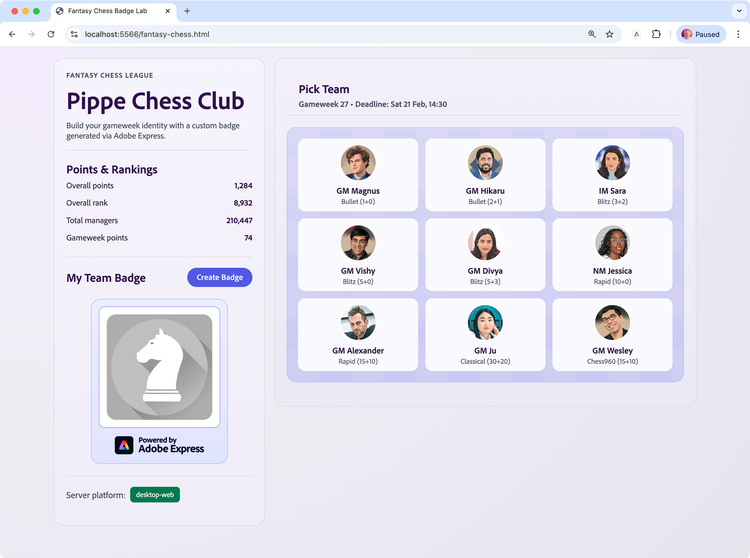
The gen:cert command will generate a self-signed certificate and key pair for the local development server. The dev command will start the development server and the web application will be available at localhost:5566 on a secure HTTPS connection (don't use any other port, even if the Vite output mentions it, it's reserved for the development server). Open your browser and navigate to this address to see the Web experience in action.
data-variant=error
data-slots=header, text1
Error: "Adobe Express is not available"
src/.env file as described here.1.3.2 Tunnel the development server
The development server is now accessible from your local machine. To avoid conflicts with the mobile development environments and properly simulate the experience in Android Studio and Xcode, it's advisable to tunnel the development server through a public URL, which the mobile applications will then consume.
For this purpose, we'll use ngrok, a tool that builds a secure tunnel to your local server. Visit their site and create an account—the free tier is enough to follow this tutorial. Follow the instructions to install and authenticate the ngrok CLI on your machine.
While the local server is running, start a new Terminal instance in the Mobile-web root and run the following command:
npm run ngrok
This will start the ngrok tunnel and provide you with a public URL that you can use to access the development server.
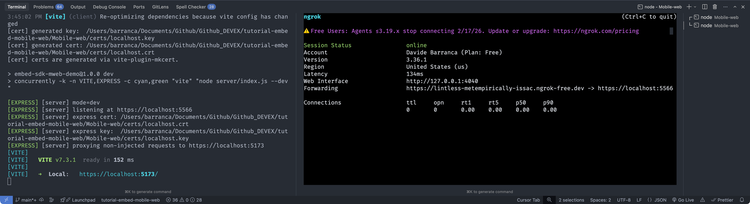
Note down the public URL provided by ngrok (in the screenshot above, it's https://lintless-metempirically-issac.ngrok-free.dev), as you'll need it to configure the mobile applications.
data-variant=info
data-slots=header, text1, text2
Allow-list ngrok
*.ngrok-free.dev as a wildcard). This is necessary to avoid the "Adobe Express is not available" error when trying to launch the Adobe Express integration from the mobile applications. Both the ngrok public URL and the localhost:5566 domain must be added to the list.localhost:5566 is the domain of the local development server and it's used to serve the Web experience consumed by the browser locally, while the ngrok public URL is the domain of the ngrok tunnel and it's used to access the development server from the mobile applications. Both need allow-listing for the Adobe Express integration to work during development.1.4 Run the Android application
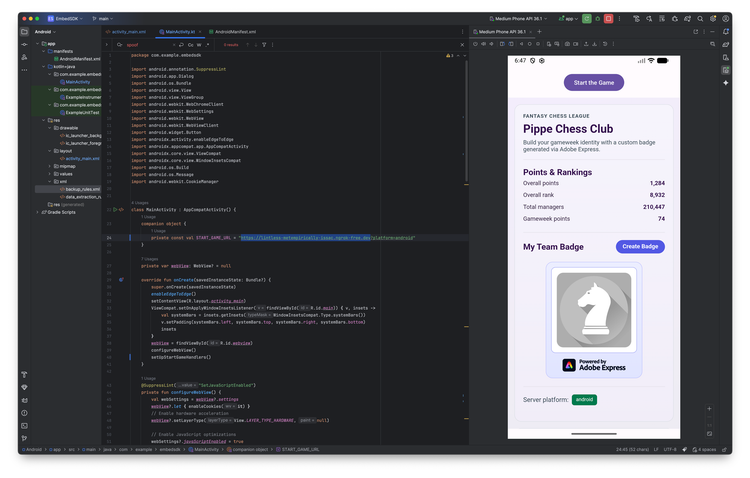
Open the Android folder as a project in Android Studio. In the MainActivity.kt file, replace the existing ngrok public URL with the one you noted down earlier, leaving the ?platform=android query parameter. Build and run the project by clicking the ▶️ button in Android Studio, or selecting Run > Run 'app' from the menu. The Android application should now be able to access the development server, run the Android simulator and display the Web experience. Click Start the Game to see the Adobe Express integration in action.
1.5 Run the iOS application
Open the iOS/DevxSampleApp.xcodeproj project in Xcode; ensure to have selected a virtual device in the simulator with an iOS version that is compatible with this project (anything above iOS 18 should work). From Xcode's menu, select Settings... > Components and check that you have installed an iOS simulator that matches the version of the selected virtual device.
data-slots=heading
data-repeat=1
data-summary=Click to view the iOS simulator settings
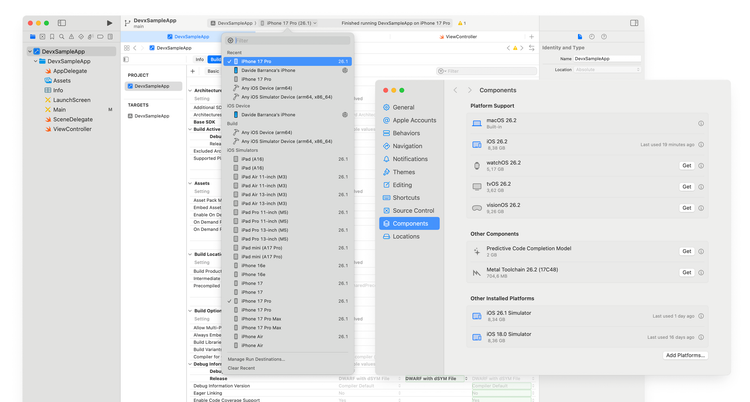
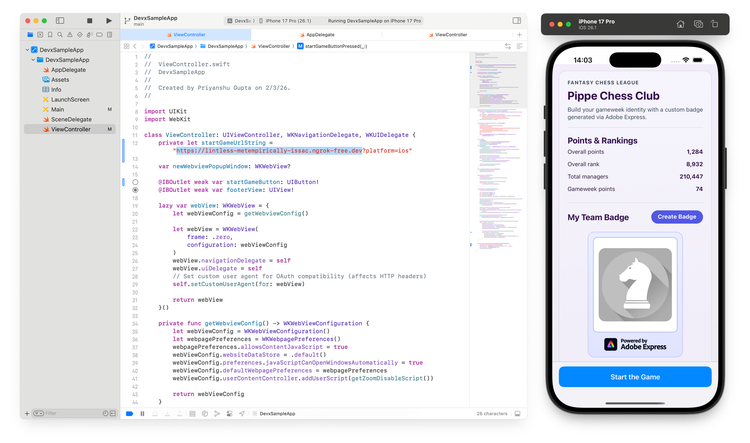
In the ViewController.swift file (line 146)—as you did for the Android application—replace the existing ngrok public URL with the one you noted down earlier, leaving the ?platform=ios query paramete in place. Build and run the project by clicking the ▶️ button in Xcode, or selecting Product > Run from the menu. The iOS application should now be able to access the development server, run the iOS simulator and display the Web experience. Click Start the Game to see the Adobe Express integration in action.
2. Build the Web experience
2.1 The Server
The Web experience is served by an HTTPS Express.js server running locally. It belongs to Mobile-web/server/index.js and uses the self-signed certificate and key pair generated by npm run gen:cert (stored in Mobile-web/certs).
2.1.1 Overview
This server does one critical thing: it resolves the platform and injects it into the HTML as a global, and only then sends HTML to the Browser or WebView.
This matters because later, when we initialize the Embed SDK, we should pass platform metadata (via appConfig.metaData.platform) for analytics purposes. For that reason, the root URL (which serves fantasy-chess.html) relies on the User-Agent to decide between desktop-web and mobile-web, while the iOS and Android apps hardwire ?platform=ios or ?platform=android when they load the same experience inside their WebViews.
2.1.2 How platform is resolved and injected
For each request to an injected route (/, /fantasy-chess.html, /src/fantasy-chess.html), the server reads:
- Query param:
?platform=... - User-Agent header:
User-Agent: ...
Platform resolution is case-insensitive on input, but canonical on output:
-
platform=ios(or any casing, e.g.iOS) →iOS -
platform=android(any casing) →android -
If
platformis omitted:- Mobile User-Agent →
mobile-web - Non-mobile User-Agent →
desktop-web
- Mobile User-Agent →
The server then injects an inline script into HTML before the first <script type="module" ...> tag:
window.__PLATFORM__ = "<resolved-platform>"window.PLATFORM = window.__PLATFORM__(compat alias)
This guarantees the client entrypoint (/src/main.js) runs after platform is available globally.
On the client side, platform is normalized again for SDK metadata (to avoid any inconsistencies), so appConfig.metaData.platform is always canonical (android / iOS / mobile-web / desktop-web) and never depends on URL parsing in client code.
2.2 The Client
The client implementation is in Mobile-web/src/main.js and Mobile-web/src/fantasy-chess.html. Crucially, the platform is read from the global space, as we just discussed.
// main.js
//...
const serverPlatform = String(window.__PLATFORM__ || "desktop-web");
window.PLATFORM = serverPlatform;
platformPill.textContent = serverPlatform; // Used to display the platform in the UI
It's used first to display the platform information in the UI via the green <sp-badge> element.
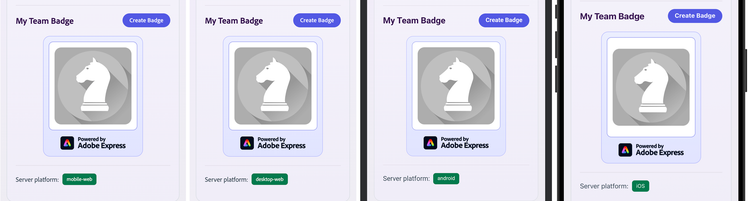
At initialization time, you need to set the skipBrowserSupportCheck parameter to allow Mobile Web browsers to be used.
// main.js
//...

await import("https://cc-embed.adobe.com/sdk/v4/CCEverywhere.js");

const hostInfo = {
  clientId: import.meta.env.VITE_API_KEY,
  appName: "Embed SDK mWeb Demo",
};

const configParams = {
  loginMode: "delayed",
  skipBrowserSupportCheck: ["iOS", "android", "mobile-web"].includes(
    window.PLATFORM,
  ),
};

const initResult = await window.CCEverywhere.initialize(
  hostInfo,
  configParams,
);
Later, the platform is passed as metadata to the Generate Image module's appConfig property, to allow proper attribution and tracking of analytics across surfaces.
// main.js
//...

const appConfig = {
  appVersion: "2",
  loginMode: "delayed",
  metaData: { platform: window.PLATFORM },
  promptInputPlaceholder: prompt,
  imageDimensions:   { /* ... */ },
  panelSettings:     { /* ... */ },
  callbacks:         { /* ... */ },
};

const exportConfig = [ /* ... */ ];

await embedModule.createImageFromText(appConfig, exportConfig);
Remember to tunnel the development server
At this point, you should have tunneled the development server through ngrok, as we discussed in this section; this is necessary to allow the mobile applications to properly access the Web experience. Tunneling is only required when developing locally—if you have a remote test or production environment, you should skip this step.
When you access the ngrok URL for the first time, you may see a prompt asking you to confirm that you want to proceed. This is expected behavior—simply click Visit Site to continue.

3. Build the Android application
3.1 Overview
The Android application is found in the Android folder; it's built using Kotlin and uses a WebView to display the Web experience built in the previous section. The app UI is intentionally simple: it shows one button that loads the ngrok-tunneled web server URL.
3.2 Point the app at your tunneled URL
In MainActivity.kt, replace the ngrok URL in START_GAME_URL with the URL you noted down in Section 1.3.2, and keep the ?platform=android query parameter.
That query parameter is important: as explained in Section 2.1, the server uses it to inject window.__PLATFORM__ = "android" into the HTML so the client can pass the correct platform metadata to the Embed SDK for analytics purposes.
// Android/app/src/main/java/com/example/embedsdk/MainActivity.kt
companion object {
    private const val START_GAME_URL =
        "https://your-ngrok-url.ngrok-free.dev?platform=android" // 👈 Replace with your ngrok URL
}
The app's button handler loads the URL into the WebView:
// MainActivity.kt
private fun setUpStartGameHandlers() {
    findViewById<Button>(R.id.btnStartGame)
        .setOnClickListener {
            webView?.loadUrl(START_GAME_URL)
        }
}
3.3 Configure the WebView
The Embed SDK runs in JavaScript and the Adobe sign-in experience relies on popup windows that must be managed by the WebView itself. Follow these best practices from the Mobile Web Concept Guide to configure it.
- JavaScript execution, storage APIs, and consistent text sizing.
- Multiple windows for the sign-in dialog.
- OAuth compatibility.
- Popup window handling via
WebChromeClient.onCreateWindow()andWebViewTransportwiring. - Popup WebViews configuration.
- Cookie acceptance for auth persistence.
In the sample app, all of these settings are applied in configureWebView(), which is called during onCreate() before any content is loaded. For the entire view of the setup, refer to the Complete Android Configuration Flow.
3.4 Run the app
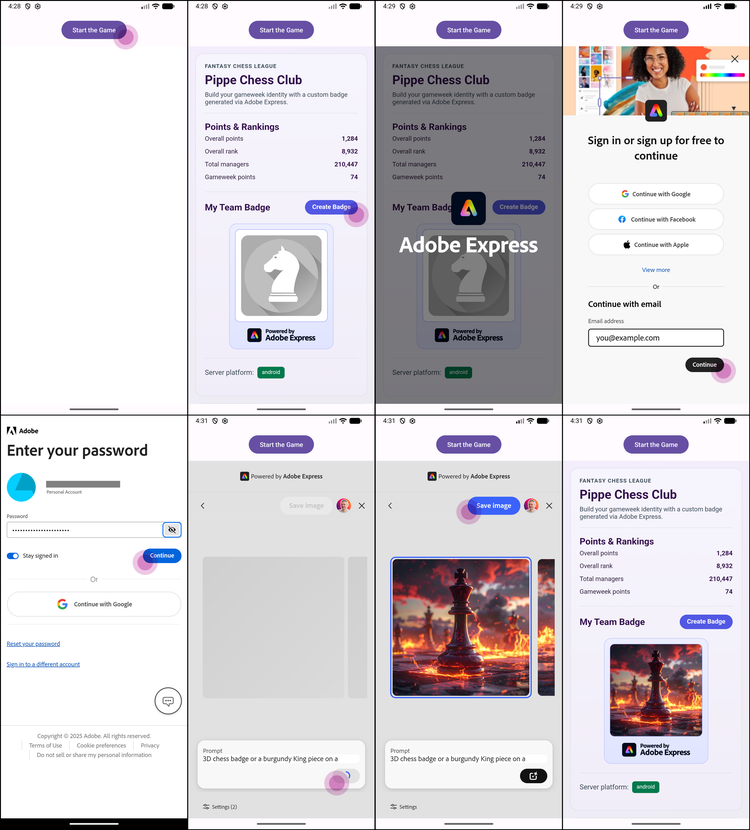
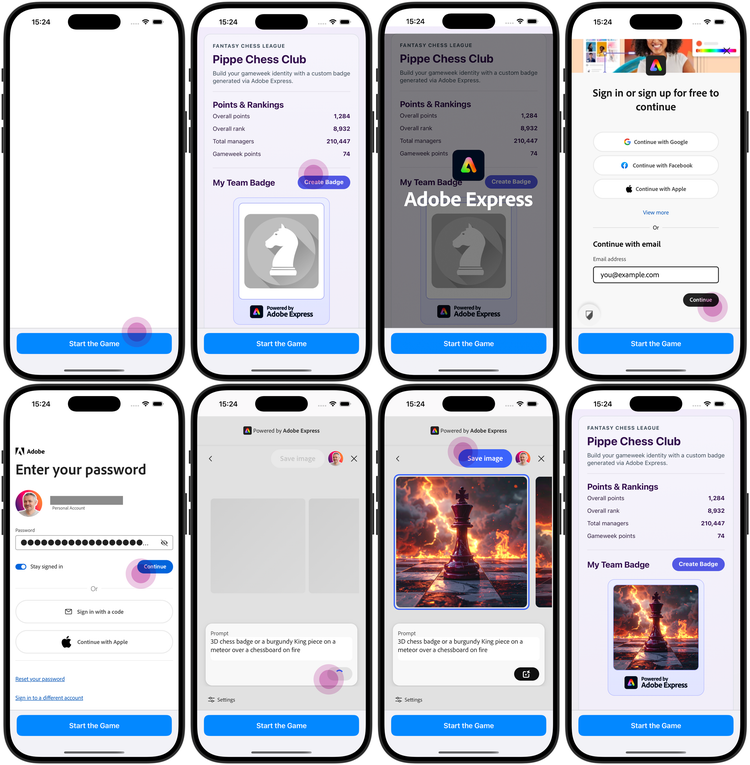
Build and run the Android project from Android Studio, then tap Start the Game. You should see the same Web experience, now running inside a WebView.
When signing in, the popup window is properly displayed in the WebView and the authentication flow completes successfully. You can generate a badge image and it'll be displayed in the game.
4. Build the iOS application
4.1 Overview
The iOS application is found in the iOS folder; it's built using Swift and uses a WKWebView to display the same Web experience.
Just like the Android sample, the iOS app renders a simple UI with a button that loads the ngrok-tunneled web server URL into the WebView.
4.2 Point the app at your tunneled URL
In iOS/DevxSampleApp/ViewController.swift, replace the URL used to load the WebView with the ngrok URL you noted down here, and keep the ?platform=ios query parameter. As explained earlier, the server injects window.__PLATFORM__ = "iOS" into the HTML so the client can pass the correct platform metadata to the Embed SDK for analytics purposes.
In the sample app, the URL is loaded from the button handler:
// iOS/DevxSampleApp/ViewController.swift
@IBAction func loadButtonPressed(_ sender: UIButton) {
  // 👇 Replace with your ngrok URL
    guard let url = URL(string: "https://your-ngrok-url.ngrok-free.dev?platform=ios") else { return }
    let urlRequest = URLRequest(url: url)
    webView.load(urlRequest)
}
4.3 Configure the WebView
Unlike Android, iOS requires that most WebView settings are provided up front through a WKWebViewConfiguration—they cannot be changed after the WKWebView is created. Follow these best practices from the iOS section of the Mobile Web in a WebView Concept Guide:
WKWebViewConfiguration (JavaScript, data store, popup capability)- Viewport and Zoom Control (prevent layout-breaking zoom behavior)
- OAuth compatibility (custom user agent)
- Popup windows (
WKUIDelegate) - Popup cleanup
- Cookie and session persistence
For the entire view of the setup, refer to the Complete iOS Configuration Flow.
data-slots=heading, text
data-variant=warning
Login issues
4.4 Run the app
Build and run the iOS project from Xcode, then tap Start the Game. You should see the same Web experience, now running inside a WKWebView.
When signing in, the popup window is properly displayed and the authentication flow completes successfully. You can generate a badge image and it'll be displayed in the game.
Code samples
The code samples for this tutorial (Web Server and Client, Android and iOS applications) are available in the embed-sdk-mobile-web-tutorial repository on GitHub.
Next Steps
Go deeper on Mobile Web support:
- Mobile Web Overview: Understand the available integration surfaces (Desktop Web, Mobile Web in Browser, Mobile Web in WebView) and when to pick each.
- Mobile Web in the Browser: Best practices for running the Embed SDK directly in mobile browsers (including the
skipBrowserSupportCheckapproach). - Mobile Web in a WebView: The platform-specific WebView configuration required for iOS/Android apps (multi-window auth popups, cookie persistence, user agent, etc.).
Reference docs: