Working with Advanced Data Merge API
This guide covers advanced techniques for the Advanced Data Merge API, building on the basics from Working with the Data Merge API, including output path variations, conditional visibility, dynamic styling, copyfitting, zip output and pre-signed URL support in CSV.
Conditional Visibility & Dynamic Styling
Make your Data Merge output react to your data. With a simple rules file, you can show or hide elements, restyle and recolor content, replace text, and resize or move frames, differently for every record, all from a single template and data file.
Overview
Traditionally, Data Merge drops the text or image from each record into fixed placeholders in your template. The layout stays the same for everyone. Only the placeholder content changes.
This feature adds a third input to a merge job: a rules file (JSON) that travels alongside your template and data.
Template (.indd / .idml) + Data (.csv) + Rules (.json) → Output (INDD / PDF / PNG / JPEG)
For each record, the merge applies the rule actions that match that record's data. A single job can then produce a different layout for each record. For example, you can show a VIP badge only for VIP customers, display a price in red when it exceeds a threshold, or show a promotional layer only for high-spend recipients.
This feature is optional. If you don't provide a rules file, the merge runs without any rules.
What you can do
All decisions are driven by the values in your CSV columns.
Getting started
- Author your template. Create the Data Merge template, including placeholders. Assign each element you intend to control a reference name: a Data Merge placeholder name, an XML tag, or a layer name (see Targets).
- Prepare your CSV. Ensure every column referenced by a rule exists in the CSV, even if that column is not placed anywhere in the template.
- Write a rules file. Define the conditions and actions in a
.jsonfile (see below). - Submit the merge job. Include the
rulesFileparameter, pointing to the rules file:
{
  "params": {
    "targetDocument": "template.indd",
    "dataSource": "data.csv",
    "rulesFile": "rules.json",
    "outputMediaType": "application/pdf"
  }
}
If you omit rulesFile, the merge runs without any rules.
The rules file
A rules file is a JSON document. At the top level it contains an optional ruleSetName, an optional version, and a list of rules.
{
  "version": "1.0",
  "ruleSetName": "Campaign",
  "rules": [
    {
      "cases": [
        {
          "condition": {},
          "then": [
            { "target": {}, "actions": [] }
          ]
        }
      ],
      "default": {
        "then": [ { "target": {}, "actions": [] } ]
      }
    }
  ]
}
version: optional, defaults to the current version.ruleSetName: optional, a label shown in logs/reports.rules: required, one or more rules. Each rule contains an ordered list ofcases. Each case has acondition(when this is true...) and athenlist (...do this). A rule can also define adefault, which runs only if no case matched.
How a rule is evaluated, per record
- Each rule contains an ordered list of cases. The engine tests each case's
conditionin order and runs the first one that is true, then stops looking at the remaining cases in that rule. - If no case matches and a
defaultis present, thedefaultruns. If there's nodefault, the rule simply does nothing for that record. - At most one case (or the default) fires per rule.
Multiple rules: you can list several rules. Every rule is evaluated for every record, in order. Rules are cumulative: more than one can fire for the same record. Use cases/default when you want a single "pick one" outcome; use separate rules for independent effects that can happen together. If two rules change the same property of the same target, the last one wins.
Each entry in a then list is a clause: one target plus an ordered list of actions to run on it.
Targets — what a rule acts on
A target selects the object(s) an action runs on. It always resolves within the current record's page(s).
layerxml_tagdata_merge_tag{ "type": "layer", "name": "premium_offer" }
Referencing a Data Merge placeholder by kind
A data_merge_tag target chooses which kind of placeholder to act on using a name prefix:
@"@hero" → the image placeholder named hero#"#ticket" → the QR placeholder named ticket"title" → the text placeholder named title{ "type": "data_merge_tag", "name": "@hero" }
Actions — what a rule does
Each clause runs an ordered list of actions on its target. Actions apply top-to-bottom; a later action overrides an earlier one on the same target.
nameshowhidereplace_textvalue (string)set_character_stylestyleName (string)set_paragraph_stylestyleName (string)set_fill_colorcolor (hex #RRGGBB or swatch name)set_stroke_colorcolor (hex #RRGGBB or swatch name)resize_framewidth, heightmove_framex, y{ "name": "set_fill_color", "color": "#D4AF37" }
Notes
- Styles and swatches must already exist in your template. A rule can apply a named style or swatch, but it cannot create one. Referencing a hex color like
#D4AF37is always fine. - For
resize_frame, values must be non-negative. Passing0forwidthorheightleaves that axis unchanged. resize_frameandmove_frameapply to frames only.
Which actions work on which targets
layerxml_tagdata_merge_tagshow / hidereplace_textset_character_styleset_paragraph_styleset_fill_colorset_stroke_colorresize_framemove_frameUsing an action on a target that isn't marked ✓ is rejected when your rules file is checked (see Errors & Warnings).
Conditions — deciding when a rule applies
A condition is a small JSON structure, never a text expression to be parsed, so column names with spaces or punctuation (e.g. Life Time Spend) are written verbatim with no escaping.
There are three building blocks:
- Comparison (a single test on one column)
- Group (
all= AND,any= OR) - Not (negates any condition)
Comparison
{
  "column": "Life Time Spend",
  "operator": ">",
  "value": 10000,
  "valueColumn": "cost",
  "type": "number"
}
column: required, the CSV column to test.operator: required, see the operator list below.value: the value to compare against, orvalueColumn: another column (use exactly one ofvalue/valueColumn).type: optional, forcenumber|string|booleancomparison.
Operators
==, !=, >, >=, <, <=>, >=, <, <= are for numbers (or text, alphabetically), not booleansin, not_invalue must be a non-empty array; valueColumn not allowedcontains, starts_with, ends_withRight-hand side: provide exactly one of:
value: a literal number, string, or boolean (or an array of literals forin/not_in), orvalueColumn: the name of another CSV column, to compare column-against-column.
Value types & how comparisons are made
- Add
"type": "number","string", or"boolean"to force how both sides are compared. If you omittype, the type is inferred (a numeric or boolean literal makes the comparison numeric or boolean; otherwise text). - Numbers must be plain decimals (an optional leading
-is fine). Thousands separators, currency symbols, and locale decimal commas are not recognized:"10,000","$10,000", and"1.000,50"will not parse as numbers. If a value can't be parsed as the required type, that comparison is treated as false (it won't stop your job). - Booleans accept only
true/false(any case). Anything else is treated as false. - Text comparisons and text-matching operators are case-sensitive. Leading/trailing spaces are trimmed before comparing.
Group: all (AND) and any (OR)
{ "all": [] }
{ "any": [] }
Groups can nest to any depth, and their children can be comparisons, other groups, or not blocks.
Not (flipping condition)
Wrap any single condition to negate it:
{ "not": { "column": "sku", "operator": "contains", "value": "PROMO" } }
This reads as "SKU does not contain PROMO." (For simple "is not one of a set" tests, the not_in operator is usually simpler.)
Condition examples
tier is VIP:
{ "column": "tier", "operator": "==", "value": "VIP" }
Life Time Spend greater than 10000:
{ "column": "Life Time Spend", "operator": ">", "value": 10000, "type": "number" }
Compare Life Time Spend to cost:
{ "column": "Life Time Spend", "operator": ">", "valueColumn": "cost", "type": "number" }
tier is VIP AND spend over 10000:
{
  "all": [
    { "column": "tier", "operator": "==", "value": "VIP" },
    { "column": "spend", "operator": ">", "value": 10000, "type": "number" }
  ]
}
region is not EU or UK:
{ "column": "region", "operator": "not_in", "value": ["EU", "UK"] }
A nested example combining VIP status, US or UK region, and not blocked:
{
  "all": [
    { "column": "tier", "operator": "==", "value": "VIP" },
    { "any": [
      { "column": "country", "operator": "==", "value": "US" },
      { "column": "country", "operator": "==", "value": "UK" }
    ] },
    { "not": { "column": "status", "operator": "==", "value": "Blocked" } }
  ]
}
Worked examples
Example 1: Show a VIP badge only for VIP records
{
  "ruleSetName": "VIP Badge Display",
  "rules": [
    {
      "cases": [
        {
          "condition": { "column": "tier", "operator": "==", "value": "VIP" },
          "then": [
            { "target": { "type": "data_merge_tag", "name": "vip_badge" },
              "actions": [ { "name": "show" } ] }
          ]
        }
      ],
      "default": {
        "then": [
          { "target": { "type": "data_merge_tag", "name": "vip_badge" },
            "actions": [ { "name": "hide" } ] }
        ]
      }
    }
  ]
}
VIP records show the badge; everyone else hides it.
Example 2: Color a badge by tier (first match wins)
{
  "ruleSetName": "Badge tier",
  "rules": [
    {
      "cases": [
        { "condition": { "column": "tier", "operator": "==", "value": "VIP" },
          "then": [ { "target": { "type": "data_merge_tag", "name": "badge" },
                      "actions": [ { "name": "set_fill_color", "color": "#D4AF37" } ] } ] },

        { "condition": { "column": "spend", "operator": ">", "value": 10000, "type": "number" },
          "then": [ { "target": { "type": "data_merge_tag", "name": "badge" },
                      "actions": [ { "name": "set_fill_color", "color": "#C0C0C0" } ] } ] },

        { "condition": { "column": "spend", "operator": ">", "value": 1000, "type": "number" },
          "then": [ { "target": { "type": "data_merge_tag", "name": "badge" },
                      "actions": [ { "name": "set_fill_color", "color": "#CD7F32" } ] } ] }
      ],
      "default": {
        "then": [ { "target": { "type": "data_merge_tag", "name": "badge" },
                    "actions": [ { "name": "hide" } ] } ]
      }
    }
  ]
}
Reads as: VIP → gold; else if spend > 10,000 → silver; else if spend > 1,000 → bronze; otherwise hide the badge. Cases are tested top-to-bottom and only the first match applies.
Example 3: Reveal a promo layer for high-spend records
{
  "ruleSetName": "Premium Offer",
  "rules": [
    {
      "cases": [
        {
          "condition": { "column": "lifetime_spend", "operator": ">", "value": 10000, "type": "number" },
          "then": [
            { "target": { "type": "layer", "name": "premium_offer" },
              "actions": [ { "name": "show" } ] }
          ]
        }
      ]
    }
  ]
}
This assumes the premium_offer layer is hidden in the template. It stays hidden by default and is shown only for records that match. If the layer is visible in the template, add a default case with a hide action to hide it for records that don't match.
Example 4: Swap disclaimer text by region using an xml_tag
{
  "ruleSetName": "Regional Disclaimer",
  "rules": [
    {
      "cases": [
        {
          "condition": { "column": "region", "operator": "==", "value": "EU" },
          "then": [
            { "target": { "type": "xml_tag", "name": "disclaimer" },
              "actions": [
                { "name": "replace_text", "value": "This offer is subject to EU consumer protection regulations." },
                { "name": "set_character_style", "styleName": "Legal-EU" }
              ] }
          ]
        },
        {
          "condition": { "column": "region", "operator": "==", "value": "US" },
          "then": [
            { "target": { "type": "xml_tag", "name": "disclaimer" },
              "actions": [
                { "name": "replace_text", "value": "Void where prohibited. See terms for details." },
                { "name": "set_character_style", "styleName": "Legal-US" }
              ] }
          ]
        }
      ],
      "default": {
        "then": [
          { "target": { "type": "xml_tag", "name": "disclaimer" },
            "actions": [ { "name": "replace_text", "value": "Terms and conditions apply." } ] }
        ]
      }
    }
  ]
}
This targets the text range tagged disclaimer in the template. EU records get EU-specific wording and legal styling, US records get US-specific wording and styling, and every other region falls back to the generic disclaimer text in the default case.
Constraints
- Single record per page. Rules are supported only when each page contains one record. Jobs with
allowMultipleRecordsPerPageset totrueare rejected before processing. - Columns must exist. A rule can only reference CSV columns that are present in your data file. A missing column is reported when your rules file is checked.
- Styles and swatches must exist in the template before the merge; rules apply them but do not create them.
- Layer visibility for non-layer targets. An element renders only if its layer is visible. If you target a placeholder or XML tag that sits on a layer you authored as hidden, a
showaction will not make it appear. Put rule-driven elements on a visible layer, or target the layer itself. - Record ranges. Contiguous, ascending record ranges (for example
1-50) are fully supported. Out-of-order or overlapping comma-separated ranges may be restricted; use ascending ranges for rule-driven jobs. - Numeric formatting. Keep numeric columns as plain numbers (no currency symbols, thousands separators, or locale decimals) so numeric comparisons behave as expected.
Errors & Warnings
The feature distinguishes two kinds of problems:
Problems that stop the job (checked up front, before any output is produced). These are things that are wrong with the job setup or the rules file itself, so the whole job is rejected with a clear message and nothing is produced. Examples:
- the rules file is missing, unreadable, or not valid JSON;
- an empty rules list;
- a malformed condition, or a rule/case that isn't shaped correctly;
- a condition that references a column not in the CSV;
- an invalid target type or action, or an action used on a target it doesn't support;
- a rules job submitted with a multiple-records-per-page layout.
Fixing these means correcting the rules file (or the job configuration) and resubmitting.
Problems that are reported but don't stop the job (per record). These are situations the engine can safely work around, so the batch continues and the issues are collected in the job's warnings:
- a target name that can't be found for a record;
- a style or swatch named in an action that doesn't exist;
- an action that can't apply to the resolved object (for example, resizing something that isn't a frame);
- a value that can't be read as the required number or boolean; that single comparison is treated as false.
Review the warnings after a run to catch typos in names or unexpected data.
Copyfitting
The Data Merge API can automatically resize text that overflows its frame after a merge. When a merged record produces overset text, copyfitting reduces the font size, within limits that you define, so that the text fits. Copyfitting runs only when you enable it and only when the merged document has overset present.
Example use cases
Copyfitting is most useful when the length of merged content varies and cannot be predicted at design time:
-
Multi-language data merge: A single template is merged with a data source that contains rows in different languages, or a template designed for one language is merged with data that includes others. Translations in longer languages (for example, German or Finnish) often overflow frames sized for the original language. Copyfitting shrinks only the overset rows so each language fits, without redesigning the template or hand-editing records.
-
Variable-length content at scale: In catalogues, price lists, or personalized mailers, fields such as product names, descriptions, or addresses vary in length across thousands of records, and some overflow their frames. Copyfitting fits them automatically so more records export cleanly in a single job.
How it works
Add a copyfittingSettings object inside params. It accepts the following fields:
-
enabled
- Type: boolean
- Default:
false - Description: Master on/off switch. Copyfitting runs only when set to
true. If it isfalse, absent, or the wholecopyfittingSettingsblock is omitted, copyfitting is off.
-
unresolvedOversetHandling
- Type: string (enum)
- Enum:
"warn","omit_records" - Default:
"warn" - Description: What to do when text is still overset after copyfitting. See Unresolved overset handling below.
-
multiFrameSyncScope
- Type: string (enum)
- Enum:
"paragraph_style","page","paragraph_style_and_page","document" - Default: none (omit the key to skip multi-frame sync)
- Description: After fitting the overset frames, apply the same font-size reduction to matching non-overset frames for visual consistency. See Multi-frame sync scopes below.
-
scope.global.constraints.fontSize
- Type: object with a numeric
minPercentfield - Default:
minPercent85 - Description: Limits for font-size reduction, applied to all text in overset stories.
minPercentis the floor (text never shrinks below this percentage of its original size; 100 means it never shrinks). Must be between 1 and 100; an out-of-range value fails the job.
- Type: object with a numeric
Copyfitting is applied after the merge, before export, once per output document. Threaded text across multiple frames is treated as a single story.
Note: Missing template fonts are automatically replaced with the default font, and output generation continues normally. However, copyfitting calculations are then based on the substitute font, not the original, so the output may not appear as expected.
Example request
Enable copyfitting by adding copyfittingSettings to params:
curl --location --request POST https://indesign.adobe.io/v4/merge-data \
--header "Authorization: Bearer {YOUR_OAUTH_TOKEN}" \
--header "x-api-key: {YOUR_API_KEY}" \
--header "Content-Type: application/json" \
--data-raw '{
"assets": [
   {
      "source": {
        "url": "{PRE-SIGNED_URL}",
        "storageType": "Azure"
      },
      "destination": "dataMergeTemplate.indd"
    },
    {
      "source": {
        "url": "{PRE-SIGNED_URL}",
        "storageType": "Azure"
      },
      "destination": "FileNames.csv"
    }
],
"params": {
 "targetDocument": "dataMergeTemplate.indd",
 "outputMediaType": "application/pdf",
 "outputFolderPath":  {OUTPUT_FOLDER_PATH},
 "outputFileBaseString": "merged",
 "dataSource": "FileNames.csv",
 "recordRange": "All",
 "copyfittingSettings": {
    "enabled": true,
    "unresolvedOversetHandling": "warn",
    "multiFrameSyncScope": "paragraph_style_and_page",
    "scope": {
      "global": {
        "constraints": {
          "fontSize": { "minPercent": 80}
        }
      }
    }
  }
}
}'
To enable copyfitting with default limits, copyfittingSettings can be as small as setting enabled to true and omitting the rest.
Multi-frame sync scopes
Multi-frame sync keeps related frames visually consistent by extending a reduction beyond just the overset frame. Only the font-size reduction by percentage is synced (not the absolute point size, and no other property). If you omit multiFrameSyncScope, sync is skipped and only the overset frames change. When present, it must be one of the following.
-
paragraph_style: Frames whose text uses the same paragraph style, across all pages, receive the largest reduction required by any of them.
- Example: A "Headline" paragraph style is used in frames throughout the document. If one headline must shrink 12 percent to fit, every frame that uses the "Headline" style is reduced by 12 percent on every page, so all headlines stay consistent.
-
page: Every text frame on the same page as an overset frame receives the same reduction; paragraph style is ignored.
- Example: On a product page, the description frame oversets and shrinks 10 percent. The other text frames on that page (title, price, footnote) are also reduced by 10 percent, keeping the page uniform.
-
paragraph_style_and_page: Like paragraph_style, but limited to the current page: only same-style frames on the same page are matched.
- Example: Two "Callout" frames on page 3 shrink together, but "Callout" frames on page 4 are unaffected.
-
document: Every text frame in the entire document receives the same reduction; paragraph style is ignored.
- Example: If any frame anywhere needs a 15 percent reduction to fit, all text frames across all pages are reduced by 15 percent, giving the whole piece one consistent size.
Conflict rule: when frames in a group would need different reductions, the largest (most aggressive) reduction wins for the group, subject to the global minimum: no text shrinks below minPercent of its original size.
Unresolved overset handling
If text is still overset after copyfitting has reduced text to minPercent of its original size, unresolvedOversetHandling controls the outcome:
-
"warn" (default): The output file is still produced, and affected records report warnings.oversetText.
-
"omit_records": Pages for the affected data records are removed from the output, and the remaining records still export. Affected records report warnings.omittedDataRecordNumbers (and not warnings.oversetText). If every record in the batch would be removed, no file is exported (outputs is empty) and omittedDataRecordNumbers lists the full range.
Copyfitting in the response
Copyfitting adds no new top-level response field. Results appear per record, inside the existing warnings object.
Still overset with "warn":
"warnings": {
 "oversetText": [
   { "page": "2",
     "charactersInOverset": "142",
     "wordsInOverset": "24",
     "oversetText": "...overflowing text..."
    }
 ]
}
Records omitted with "omit_records":
"warnings": { "omittedDataRecordNumbers": "5,6" }
If copyfitting hits a script or engine error, the whole job fails (no output for that job):
{
"status": "FAILURE",
"errorCode": "capability_error",
"errorString": "Capability error: Copyfitting failed. <detail>"
}
Pre-signed URL Support in CSV
You can provide pre-signed URLs for image assets directly in the CSV file, in addition to the input request. In the Image column (prefixed with "@"), a pre-signed URL of the image asset can be provided for each row; the images will be fetched from the URL and made available for use. Only existing DAM assets are supported.
How it works
-
Pre-signed URLs of image assets can now be provided directly in the Image column (prefixed with @) of the input CSV, for each row
-
In addition, providing pre-signed URLs of image assets in the input request continues to be supported as before; this feature does not remove or restrict that option.
-
The image will be fetched from the pre-signed URL and made available for use in the data merge.
-
If a URL cannot be fetched or has expired, that row's image asset will be reported in warnings as a failed download, and the rest of the merge will proceed unaffected.
- These failures are reported in the
failedAssetsarray of the response'swarningsobject. The array contains one{ columnIndex, rows: [{ row, url }, ...] }entry for each Image column that has at least one invalid pre-signed URL. Each entry lists every affected row number and the URL that failed.
- These failures are reported in the
-
Add a new input parameter
-
presignedUrlsInDataSource
- Type: Boolean
- Meaning: Whether the user wants to enable fetching image assets via pre-signed URLs provided in the CSV.
- If the user sets this to true, the Image column values in the CSV can be pre-signed URLs, and these will be fetched and used in the data merge.
- If the user doesn't set this (or sets it to false), there is no change in behavior. The Image column will be treated as before, and pre-signed URLs can still only be provided in the input request.
- If a pre-signed URL is included in the Image column but the presignedUrlsInDataSource parameter is not set to true, this enhancement will not take effect. The Image column value will be handled just as it always has been, without any change in behavior. Since the value is a URL and not a valid asset reference, the image for that record will show up as a missing link in the data merge.
-
Example of input CSV having an Image column value (prefixed with ‘@’) containing a pre-signed URL

Example of input payload
curl --location --request POST 'https://indesign.adobe.io/v4/merge-data' \
--header 'Authorization: Bearer {YOUR_OAUTH_TOKEN}' \
--header 'x-api-key: {YOUR_API_KEY}' \
--header 'Content-Type: application/json' \
--data-raw '{
 "assets": [
   {
     "source": {
       "url": "{PRE-SIGNED_URL}",
       "storageType": "Azure"
     },
     "destination": "dataMergeTemplate.indd"
   },
   {
     "source": {
       "url": "{PRE-SIGNED_URL}",
       "storageType": "Azure"
     },
     "destination": "Directory_Names.csv"
   }
 ],
 "params": {
   "targetDocument": "dataMergeTemplate.indd",
   "outputMediaType": "application/x-indesign",
   "outputFolderPath": {OUTPUT_FOLDER_PATH},
   "outputFileBaseString": "merged",
   "dataSource": "Directory_Names.csv",
   "presignedUrlsInDataSource": true
 },
 "outputs": [
   {
     "destination": {
       "url": "{PUT-SIGNED_URL}"
     },
     "source": "{OUTPUT_FOLDER_PATH}/merged-1.pdf"
   }
 ]
}'
Folder Structure and Zipped Output
The Data Merge API supports organizing your outputs in a structured folder hierarchy, and a zipped folder containing all the outputs that have been created from the successful data merge.
How it works
-
Add a dedicated column in your input CSV for folder names.
-
Prefix the column header with ~ (for example: ~FolderName).
-
Each row value in this column will be used as the folder hierarchy for the output file of that record.
-
Users can opt in for zipped output by setting
outputCompressMediaType; onlyZIPis supported for now. -
Add three input parameters:
-
outputCompressMediaType
- Type: String
- ENUM: ["application/zip"]
- Meaning: The type of compression the user wants (e.g. ZIP, RAR, etc.).
- If the user opts for zipped output, the response contains only the zipped output, not individual assets and their links.
- If the user does not opt for zipped output, the response is unchanged except that the output path reflects the desired folder hierarchy.
-
outputCompressName
- Type: String
- Default:
"Result" - Meaning: Use this value to name the resulting zip.
-
outputFolderBaseString
- Type: String
- Default:
mergedFiles - Meaning: Specifies which folder merged files go into and the name of the merged folder; multi-record output files or outputs from empty CSV column values are placed in this folder.
-
Note:
- Only one folder name column is allowed. If multiple columns have a ‘~’ prefix, the job will fail.
- Local or absolute paths (for example,
C:\F1\F2) are not supported in the~column. Provide relative folder hierarchy values (for example,F1orF1\F2) only. The job will fail if a row uses a local or absolute path.
Folder Name Constraints
Certain special characters or words are not supported by the platform and are automatically normalized.
- Consecutive unsupported characters (e.g., <, >, :, ", /, , |, ?, *) are replaced with a single underscore (e.g.,
Ab5<>;d→Ab5_d) - Windows reserved names (e.g., CON, PRN, AUX, NUL as well as device names like COM1 to COM9 and LPT1 to LPT9) are wrapped with underscores (e.g.,
CON→_CON_) - File names (including extension) are limited to 255 characters, with longer names truncated automatically
Here is a sample CSV file demonstrating a column header with prefix ‘~’.
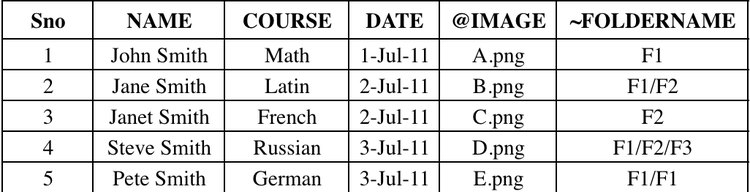
Example of input payload which is same as it is currently.
curl --location --request POST 'https://indesign.adobe.io/v4/merge-data' \
--header 'Authorization: Bearer {YOUR_OAUTH_TOKEN}' \
--header 'x-api-key: {YOUR_API_KEY}' \
--header 'Content-Type: application/json' \
--data-raw '{
  "assets": [
    {
      "source": {
        "url": "{PRE-SIGNED_URL}",
        "storageType": "Azure"
      },
      "destination": "dataMergeTemplate.indd"
    },
    {
      "source": {
        "url": "{PRE-SIGNED_URL}",
        "storageType": "Azure"
      },
      "destination": "FolderNames.csv"
    }
  ],
  "params": {
    "targetDocument": "dataMergeTemplate.indd",
    "outputMediaType": "image/png",
    "outputFolderPath": {OUTPUT_FOLDER_PATH},
    "outputFileBaseString": "merged",
    "dataSource": "FolderNames.csv",
    "recordRange": "All",
    "outputCompressMediaType": "application/zip",
    "outputCompressName": "Works only if outputCompressMediaType is provided",
    "outputFolderBaseString": "Merged folder name; multi-record outputs and empty ~ values go here. Default: mergedFiles",
    "hyphenationSettings": {
      "afterFirst": 3,
      "beforeLast": 3,
      "wordsLongerThan": 6,
      "ladderLimit": 2,
      "zone": 0.15,
      "capitalizedWords": false,
      "lastWord": true,
      "acrossColumns": false,
      "dictionarySettings": [
        {
          "language": "English: USA",
          "wordList": ["~word1", "ex~word2"]
        },
        {
          "language": "English: UK",
          "wordList": ["~word3", "~word4"]
        }
      ]
    }
  },
  "outputs": [
    {
      "destination": {
        "url": "{PUT-SIGNED_URL}"
      },
      "source": "{OUTPUT_FOLDER_PATH}/{outputs}"
    }
  ]
}'
When folder structuring is not supported, and output files will move to ‘outputFolderBaseString’
Why: Folder structuring via the ~ column applies only when the merge job has a clear one-to-one mapping between each data row and its output. In that case, each row’s ~ value defines the folder hierarchy for that record’s output file. If allowMultipleRecordsPerPage is true, multiple records can share a page, so per-row folder paths are ambiguous. If recordsPerFile is not 1, records are combined into multi-page output documents, so many rows contribute to the same file and per-row folder paths are no longer meaningful. In these cases, the API ignores the ~ column and saves output files to the folder specified by outputFolderBaseString.
Parameter Name Change in Advanced Data Merge API
The pagesPerDocument parameter from the base Data Merge API has been renamed to recordsPerFile in the Advanced Data Merge API. Only the name has changed. The parameter still controls how many records are merged into each output document or batch.
-
recordsPerFileomitted or set to the total record count: All records are merged into a single output document/batch. No batching occurs. -
recordsPerFileset to a value smaller than the total record count: Records are split across multiple batches, each containing up torecordsPerFilerecords. For example, with 20 total records andrecordsPerFileset to 10, the merge produces two batches of 10 records each. As described in Output Path Variations, each additional batch's file is disambiguated with a(1),(2), ... suffix on the base filename rather than being written into a separaterangeXsubfolder. -
recordsPerFileset to1: Each record produces its own output document/batch, one record per file. This is also the mode used to get one file per record for InDesign output; PNG and JPEG outputs always behave this way regardless ofrecordsPerFile.
Output Path Variations in Advanced Data Merge API
This section explains where the Advanced Data Merge API writes its output files, and how that location and filename change depending on whether you provide the outputFolderPath and outputFileBaseString parameters in the request. There are four possible combinations of these two parameters; the table below summarizes all four before the detailed cases and examples that follow.
outputFileBaseString omittedoutputFileBaseString providedUnlike the base Data Merge API, the Advanced Data Merge API writes all output files for a job directly to the output folder (temporary or outputFolderPath). It doesn't create range1, range2, or other batch subfolders. If two files have the same name, the API adds a numbered suffix such as (1) to the filename.
Comparing v3 and v4 output structure
The following example shows the output of the same job in each API version. The job sets outputFolderPath to "ResultFolder" and outputFileBaseString to "MergedOutput", and the output is split into two batches.
Base API (v3):
ResultFolder/range1/MergedOutput.pdfResultFolder/range2/MergedOutput.pdf
Advanced Data Merge API (v4):
ResultFolder/MergedOutput.pdfResultFolder/MergedOutput(1).pdf
In v3, each batch is saved to its own rangeN folder with the same filename. In v4, all batches are saved to one folder, and each additional batch gets a numbered suffix, such as (1).
Case 1: Both Parameters Missing
When neither outputFolderPath nor outputFileBaseString is provided:
- Output is created in a temporary folder with a random number prefix (e.g. tmp0696)
- The output filename is derived from the original document filename
Example:
-
Source:
Template.indd -
Output:
tmp0696/Template.indd -
In case of multiple output documents/pdf (e.g.
recordsPerFilesplits the merge into more than one batch):tmp0696/Template.inddtmp0696/Template(1).inddtmp0696/Template.pdftmp0696/Template(1).pdf
-
For PNG/JPEG outputs (one image per record):
tmp0696/Template.pngtmp0696/Template(1).pngtmp0696/Template(2).png
Case 2: Only outputFileBaseString Provided
When only outputFileBaseString is specified:
- Output is created in a temporary folder with a random number prefix (e.g. tmp0696)
- Filename uses the provided base string
Example:
-
Source:
Template.indd -
outputFileBaseString: "MergedOutput" -
Output:
tmp0696/MergedOutput.indd -
In case of multiple output documents/pdf:
tmp0696/MergedOutput.inddtmp0696/MergedOutput(1).inddtmp0696/MergedOutput.pdftmp0696/MergedOutput(1).pdf
-
For PNG/JPEG outputs:
tmp0696/MergedOutput.pngtmp0696/MergedOutput(1).pngtmp0696/MergedOutput(2).png
Case 3: Only outputFolderPath Provided
When only outputFolderPath is specified:
- Output is created in the specified folder
- Filename is derived from the original template
Example:
-
Source:
Template.indd -
outputFolderPath: "ResultFolder" -
Output:
ResultFolder/Template.indd -
In case of multiple output documents/pdf:
ResultFolder/Template.inddResultFolder/Template(1).inddResultFolder/Template.pdfResultFolder/Template(1).pdf
-
For PNG/JPEG outputs:
ResultFolder/Template.pngResultFolder/Template(1).pngResultFolder/Template(2).png
Case 4: Both Parameters Provided
When both parameters are specified:
- Output is created in the specified folder
- Filename uses the provided base string
Example:
-
Source:
Template.indd -
outputFileBaseString: "MergedOutput" -
outputFolderPath: "ResultFolder" -
Output:
ResultFolder/MergedOutput.indd -
In case of multiple output documents/pdf:
ResultFolder/MergedOutput.inddResultFolder/MergedOutput(1).inddResultFolder/MergedOutput.pdfResultFolder/MergedOutput(1).pdf
-
For PNG/JPEG outputs:
ResultFolder/MergedOutput.pngResultFolder/MergedOutput(1).pngResultFolder/MergedOutput(2).png
Note:
- Advanced Data Merge API (v4) never creates a
rangeXsubfolder for batching. All output files for a job are written directly to the resolved output folder. - The API creates one
MissingLinkReport.txtand oneOversetReport.txtfor the whole job, saved at the root of the output folder. Each report has a separate "Record Range" section for each batch. recordsPerFilecontrols batching (it replacespagesPerDocumentfrom the base API). For example, ifrecordsPerFileis 10 and there are 20 records, the merge creates two batches in the same folder. The first file uses the base filename, and each later file gets a numbered suffix, for exampleTemplate.pdfandTemplate(1).pdf.- Some output types create one file per record: PNG, JPEG, PDF with
createSeparateFilesenabled, and InDesign withrecordsPerFileset to1. For these types, each file is named fromoutputFileBaseString(or from the resolved&filename, when the CSV provides one), and duplicate names get a(n)suffix. For example, a CSV with no special columns producesMergedOutput.png,MergedOutput(1).png, andMergedOutput(2).png. The base API uses sequential names such asMergedOutput2.pngandMergedOutput3.png. - If a record spans multiple pages, each page after the first gets a
-<page>suffix, added before the(n)suffix. For example:MergedOutput.png,MergedOutput-2.png(page 2 of the first record),MergedOutput(1).png, andMergedOutput-2(1).png(page 2 of the second record). - For output types that combine multiple records into one file (multi-record PDF or InDesign documents, or
allowMultipleRecordsPerPage), files aren't named per record. Each batch's file uses the base filename, and a(n)suffix is added only when the job produces more than one batch.