Add Multiple Panels
Learn how to create a plugin with multiple panel entrypoints and control their display programmatically.
Overview
While many plugins only need a single panel, UXP allows you to create multiple panels within the same plugin. This is useful when you want to organize different features into separate, focused interfaces—for example, a main control panel and a separate settings or preview panel. You'll learn how to:
- Declare multiple panel entrypoints in your manifest
- Structure your HTML to support multiple panels
- Use lifecycle hooks to control panel visibility
- Open panels programmatically from other panels
This tutorial builds on concepts from the Entrypoints and Lifecycle Hooks guides. If you're new to these topics, we recommend reviewing those first. To programmatically open a panel from another panel, you'll need to use the Inter-Plugin Communication tutorial, but it's not strictly necessary to understand how to create multi-panel plugins.
Key Concepts
A single plugin can expose multiple panels, each appearing as a separate menu item under Window > UXP Plugins > ThePluginName. Each panel:
- Has its own entrypoint definition in the manifest
- Can have its own size constraints and configuration
- Shares the same HTML document and JavaScript context
- Can communicate with other panels in the same plugin
data-variant=info
data-slots=heading, text
ipc (Inter-Process Communication) permission in your manifest.{
// ...
"requiredPermissions": {
"ipc": { "enablePluginCommunication": true }
}
// ...
}
When working with multiple panels, you'll use the show() lifecycle hook to append the appropriate content to the panel when it's displayed. This approach keeps your panel content organized and ensures each panel only displays its relevant UI.
data-variant=warning
data-slots=heading, text
hide() lifecycle hook is not currently working as expected in Premiere. This means that when a panel is hidden, the hide() callback won't be reliably triggered. For now, focus on using the show() hook to append content, and be aware that DOM cleanup in hide() may not execute. This will be fixed in a future update.Implementation
Let's build a plugin with two panels: a main panel and a secondary panel that can be opened from the first.
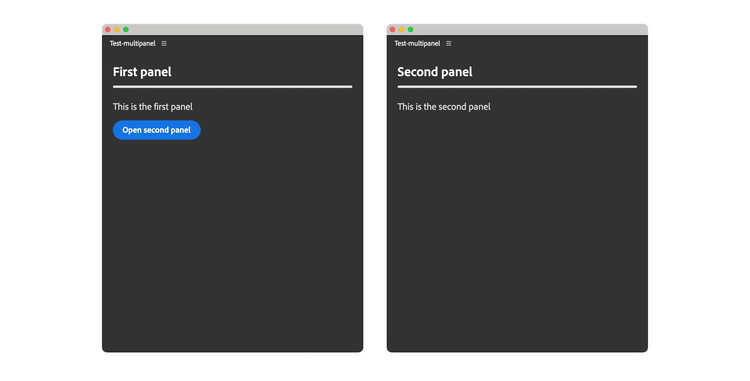
1. Declare Multiple Entrypoints
First, update your manifest.json to declare two panel entrypoints. Notice that we also enable the ipc permission:
{
  "id": "multi-panel-demo",
  "name": "Multi Panel Demo",
  "version": "1.0.0",
  "main": "index.html",
  "host": { "app": "premierepro", "minVersion": "25.6.0" },
  "manifestVersion": 5,
  "requiredPermissions": {
    // 👇 Required for inter-panel control
    "ipc": { "enablePluginCommunication": true }
  },
  "entrypoints": [
    {
      "id": "uxp-first-panel",
      "type": "panel",
      "label": { "default": "First Panel" },
      "minimumSize": { "width": 430, "height": 500 },
      "preferredDockedSize": { "width": 230, "height": 300 }
      // ...
    },
    {
      "id": "uxp-second-panel",
      "type": "panel",
      "label": { "default": "Second Panel" },
      "minimumSize": { "width": 430, "height": 500 },
      "preferredDockedSize": { "width": 230, "height": 300 }
      // ...
    }
  ]
  // ...
}
Both panels will now appear in the Window > UXP Plugins > Multi Panel Demo menu.
2. Structure Your HTML
In your index.html, create separate wrapper containers for each panel. The second panel needs an id attribute so we can reference it in JavaScript later.
<!DOCTYPE html>
<html>
<head>
  <script src="main.js"></script>
  <link rel="stylesheet" href="style.css" />
</head>
<body>
  <!-- First panel content -->
  <div class="wrapper">
    <sp-heading>First Panel</sp-heading>
    <sp-divider size="L"></sp-divider>
    <sp-body>
      This is the first panel.
    </sp-body>
    <sp-button id="open-second-panel">Open Second Panel</sp-button>
  </div>

  <!-- Second panel content -->
  <div class="wrapper" id="second-panel">
    <sp-heading>Second Panel</sp-heading>
    <sp-divider size="L"></sp-divider>
    <sp-body>
      This is the second panel.
    </sp-body>
  </div>
</body>
</html>
Important notes:
- Both panels share the same HTML document.
- Only the second
<div>wrapper needs anidbecause we'll append it to the second panel's body and we need a means to reference it. - The first panel's content is already in the DOM and doesn't need special handling.
data-variant=info
data-slots=text
<div> wrapper id (holding the second panel's content) can be different from the second panel's id in the manifest.json.3. Implement Lifecycle Hooks
Now, let's use lifecycle hooks to programmatically append the second panel's content to the DOM when the second panel is shown. In your main.js:
const { entrypoints, pluginManager } = require("uxp");

// Get reference to the second panel container
const secondPanel = document.querySelector("#second-panel");
let PLUGIN_ID;

entrypoints.setup({
  plugin: {
    create() {
      // Store the plugin ID for later use
      // (IPC -> opening the second panel programmatically)
      PLUGIN_ID = this.id;
      console.log("Plugin created:", PLUGIN_ID);
    },
  },
  panels: {
    "uxp-first-panel": {
      create() { console.log("First panel created") },
      show() {
        console.log("First panel shown");
        // The first panel content is already in the DOM
        // no other action is needed.
      },
    },
    "uxp-second-panel": {
      create() { console.log("Second panel created") },
      show(body) {
        // Append the second panel content when this panel is shown
        body.appendChild(secondPanel); // 👈 Key: append on show
        console.log("Second panel shown");
      },
      hide(body) {
        // ⚠️ Note: This hook currently doesn't work reliably
        body.removeChild(secondPanel);
        console.log("Second panel hidden");
      },
    },
  },
});

// Add button handler to open the second panel via IPC
document.querySelector("#open-second-panel")
  .addEventListener("click", () => {
    // Find this plugin in the list of all plugins
    const me = [...pluginManager.plugins].find(
      (plugin) => plugin.id === PLUGIN_ID
    );
    // Open the second panel programmatically
    me?.showPanel("uxp-second-panel"); // 👈 Opens the second panel
});
How It Works
Let's break down the key mechanisms:
1. Shared HTML Context
Both panels share the same index.html document. When you open either panel from the Window menu, Premiere displays the same HTML document—but which content is visible depends on the panel's lifecycle hooks.
2. Dynamic Content Appending
The show() lifecycle hook receives the panel's body (root node) as a parameter. When the second panel is shown, we use body.appendChild(secondPanel) to inject its content into the DOM. This keeps the second panel's content hidden until explicitly displayed.
3. Programmatic Panel Control
The pluginManager object provides access to all loaded plugins—see a dedicated tutorial here. By finding our own plugin in the list (using the stored PLUGIN_ID), we can call showPanel() to open the second panel programmatically:
const me = [...pluginManager.plugins].find(
  (plugin) => plugin.id === PLUGIN_ID
);
me?.showPanel("uxp-second-panel"); // Opens the panel by entrypoint ID
data-variant=info
data-slots=text
4. Inter-Panel Communication
Since both panels share the same JavaScript context, they can easily communicate by sharing variables, calling functions, and using events.
Use multiple HTML files
You can also use multiple HTML files, one for each panel. This is useful when you want to keep the code for each panel separate and avoid clutter in the main index.html file. The key is to fetch() the second panel's HTML file and inject the content into the DOM, as the following example shows.
data-slots=heading, code
data-repeat=4
data-languages=HTML, HTML, JavaScript, JSON
index.html
<!DOCTYPE html>
<html>
<head>
  <script src="main.js"></script>
  <link rel="stylesheet" href="style.css" />
</head>
<body>
  <!-- First panel content -->
  <div class="wrapper">
    <sp-heading>First Panel</sp-heading>
    <sp-divider size="L"></sp-divider>
    <sp-body>
      This is the first panel.
    </sp-body>
    <sp-button id="open-second-panel">Open Second Panel</sp-button>
  </div>

  <!-- Second panel wrapper -->
  <div class="wrapper" id="second-panel">
    <!-- 👁️ 👁️ nothing here yet 👁️ 👁️ -->
  </div>
</body>
</html>
second-panel.html
<!-- This is what used to be inside the second panel's <div> wrapper -->
<sp-heading>Second Panel</sp-heading>
<sp-divider size="L"></sp-divider>
<sp-body>
  This is the second panel.
</sp-body>
main.js
const { entrypoints, pluginManager } = require("uxp");

// Get reference to the second panel container
const secondPanel = document.querySelector("#second-panel");

// Fetch the second panel's HTML file and inject the content into the DOM
fetch("./second-panel.html")                              // 👈
  // Convert the response to text                         // 👈
  .then(response => response.text())                      // 👈
  // Set the content of the second panel container        // 👈
  .then(html => {                                         // 👈
    secondPanel.innerHTML = html;                         // 👈
    // Add event listeners for the second panel here      // 👈
    // or any other JavaScript code you need              // 👈
    // ...                                                // 👈
  });                                                     // 👈

let PLUGIN_ID;
entrypoints.setup({ /* ... */ });

// Everything else is the same as in the previous example...
manifest.json
{
  "id": "multi-panel-demo",
  "name": "Multi Panel Demo",
  "version": "1.0.0",
  "main": "index.html",
  "host": { "app": "premierepro", "minVersion": "25.6.0" },
  "manifestVersion": 5,
  "requiredPermissions": {
    // 👇 Required for inter-panel control
    "ipc": { "enablePluginCommunication": true }
  },
  "entrypoints": [
    {
      "id": "uxp-first-panel",
      "type": "panel",
      "label": { "default": "First Panel" },
      "minimumSize": { "width": 430, "height": 500 },
      "preferredDockedSize": { "width": 230, "height": 300 }
      // ...
    },
    {
      "id": "uxp-second-panel",
      "type": "panel",
      "label": { "default": "Second Panel" },
      "minimumSize": { "width": 430, "height": 500 },
      "preferredDockedSize": { "width": 230, "height": 300 }
      // ...
    }
  ]
  // ...
}
The example above is rather simple, but it is a technique that comes in handy when the complexity of the panel grows.
Summary
Multiple panels enable you to organize complex plugins into focused, manageable interfaces that users can access independently.
Key Takeaways:
- Declare multiple entrypoints in
manifest.jsonwithtype: "panel"for each panel. - Structure the HTML with wrappers: Use
idattributes for panels that need dynamic control. - Use the
show()hook to append panel content to the DOM when the panel is displayed. Ideally, usehide()to remove the content when the panel is hidden. - Use
pluginManager.showPanel()to open one panel from another programmatically (remember to enable IPC permissions). Panels cannot be closed programmatically, only opened.