Adobe UXP Developer Tool plugin development
Learn how to use all the Adobe UXP Developer Tool features to manage, build and test your plugins
Prerequisites
We will assume that you have already installed the Adobe UXP Developer Tool (UDT v2.2 or later), enabled Developer Mode in both UDT and Premiere, and scaffolded your first plugin.
Side panel
Connected Applications
The left panel shows the currently opened Creative Cloud desktop applications that support UXP and are "connected" to UDT. Plugins can only be loaded when the application is running; as soon as you launch it, the Connected Apps section will populate.
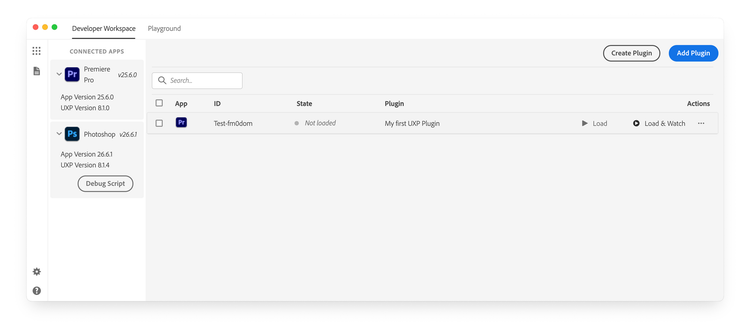
If UDT is unable to connect, please ensure that the application version actually supports UXP extensibility. If you can't see the side panel altogether, click the dots grid icon in the top-right corner to open it.
Preferences
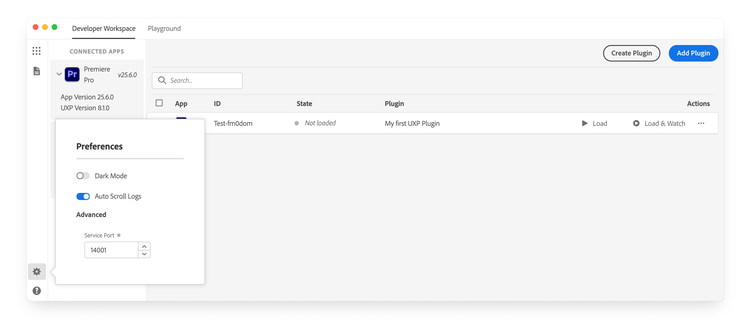
Click the gear icon to open the preferences panel and update the UDT Theme (Dark or Light), toggle Auto Scroll Logs, or change the Service Port that UDT uses to communicate with host applications.
Logs
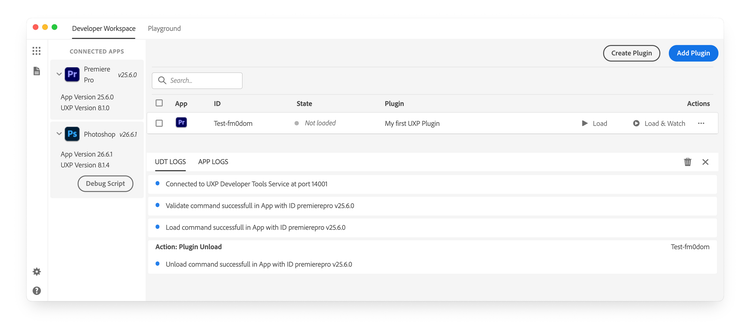
Click the document icon 📄 in the top-left corner to open the Logs panel. You can inspect the UDT Logs, where, among the rest, connection events and plugin loading status are listed, or the App Logs, to check for any issues in the host application.
Read more
data-slots=link, text
data-slots=link, text
data-slots=link, text