Launch External Processes
Open files and launch applications from your plugin to extend workflows beyond Premiere
UXP provides the shell API to let your plugin interact with the user's operating system—opening files in their default applications and launching external programs via URL schemes. This is useful for workflows that span across multiple tools.
System requirements
Please make make sure your development environment uses the following minimum versions to avoid compatibility issues:
- Premiere v25.6
- UDT v2.2
- Manifest v5
Launch Process Security
By default, UXP plugins can't launch external processes; this protects users from unwanted or malicious activity. If your plugin needs to open files or launch applications, you must declare the launchProcess permission in your manifest.json. It has two components:
- Extensions: file extensions your plugin can open, for example,
[".pdf", ".txt"]. - Schemes: URL schemes your plugin can use, for example,
["https", "mailto"].
{
  // ...
  "requiredPermissions": {
    "launchProcess": {
      "extensions": [".pdf", ".mp4"],
      "schemes": ["https", "mailto"]
    }
  }
  // ...
}
data-variant=warning
data-slots=heading, text
developerText parameter to explain why the action is needed.Using the Shell API
The shell module provides two main methods:
openPath(): Opens a file or folder in the system's default application.openExternal(): Launches an application using a URL scheme.
Both methods require user consent and return a Promise that resolves with an empty string on success or an error message on failure.
Access the API:
const { shell } = require("uxp");
Example: Open with Default Application
Use openPath() to open any file on the user's system in its default application. For example, PDFs in a reader, videos in a player, or text files in an editor.
data-slots=heading, code
data-repeat=2
data-languages=JavaScript, JSON
index.js
const { shell } = require("uxp");

// Open a PDF file in the default PDF reader 📄
async function openPDFFile() {
  try {
    // For macOS
    const result = await shell.openPath(
      "/Users/user/Desktop/report.pdf", // 👈 update with your path
      "Opening project report for review"
    );
    // For Windows, use: "C:\\Users\\user\\Desktop\\report.pdf"

    if (result === "") {
      console.log("✅ File opened successfully");
    } else {
      console.error(`❌ Failed to open file: ${result}`);
    }
  } catch (err) {
    console.error("Error opening file:", err);
  }
}

// Open a folder in Finder/Explorer 📁
async function openProjectFolder() {
  // 👇 Must have an empty string "" to allow opening folders
  // in the Manifest requiredPermissions.launchProcess.extensions array
  try {
    // For macOS
    const result = await shell.openPath(
      "/Users/user/Documents/Projects",
      "Opening project folder"
    );
    // For Windows, use: "C:\\Users\\user\\Documents\\Projects"

    if (result === "") {
      console.log("✅ Folder opened successfully");
    } else {
      console.error(`❌ Failed to open folder: ${result}`);
    }
  } catch (err) {
    console.error("Error opening folder:", err);
  }
}
manifest.json
{
  "manifestVersion": 5,
  // ...
  "requiredPermissions": {
    "launchProcess": {
      "extensions": [".pdf", ".txt", ".mp4", ""]
    }
  }
  // ...
}
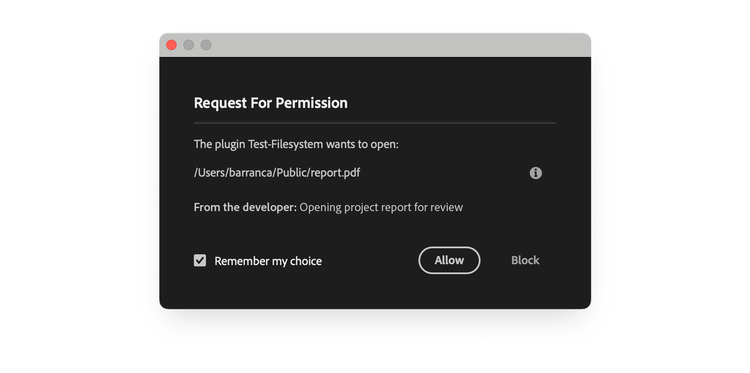
A confirmation dialog will be displayed to the user, asking for permission to open the file. The choice can be remembered to avoid future requests.
data-variant=info
data-slots=text, text2
openPath(), you must specify the file extensions you intend to open in the launchProcess.extensions array of the Manifest requiredPermissions object. Use an empty string "" to allow opening folders in Finder/Explorer, as in the openProjectFolder() function of the above example.Example: Launch Application with URL Scheme
Use openExternal() to launch applications via URL schemes—open websites in browsers, compose emails, or trigger platform-specific apps like Maps.
data-slots=heading, code
data-repeat=2
data-languages=JavaScript, JSON
index.js
const { shell } = require("uxp");

// Open a website in the default browser 🌐
async function openDocumentation() {
  try {
    const result = await shell.openExternal(
      "https://developer.adobe.com/",
      "Opening Adobe Developer documentation"
    );

    if (result === "") {
      console.log("✅ Browser opened successfully");
    } else {
      console.error(`❌ Failed to open browser: ${result}`);
    }
  } catch (err) {
    console.error("Error opening browser:", err);
  }
}

// Compose an email with pre-filled content 📧
async function sendFeedbackEmail() {
  try {
    const subject = encodeURIComponent("Plugin Feedback");
    const body = encodeURIComponent("I have feedback about your plugin...");

    const result = await shell.openExternal(
      `mailto:support@example.com?subject=${subject}&body=${body}`,
      "Opening mail client to send feedback"
    );

    if (result === "") {
      console.log("✅ Mail client opened successfully");
    } else {
      console.error(`❌ Failed to open mail client: ${result}`);
    }
  } catch (err) {
    console.error("Error opening mail client:", err);
  }
}

// Open Maps to a specific location 🗺️
async function openLocationInMaps() {
  try {
    // For macOS: use maps:// scheme
    const macResult = await shell.openExternal(
      "maps://?address=345+Park+Ave+San+Jose",
      "Opening Maps to Adobe office location"
    );

    // For Windows: use bingmaps: scheme
    // const winResult = await shell.openExternal(
    //   "bingmaps:?q=345+Park+Ave+San+Jose,+95110",
    //   "Opening Maps to Adobe office location"
    // );

    if (macResult === "") {
      console.log("✅ Maps opened successfully");
    } else {
      console.error(`❌ Failed to open Maps: ${macResult}`);
    }
  } catch (err) {
    console.error("Error opening Maps:", err);
  }
}
manifest.json
{
  "manifestVersion": 5,
  // ...
  "requiredPermissions": {
    "launchProcess": {
      "schemes": ["https", "mailto", "maps", "bingmaps"]
    }
  }
  // ...
}
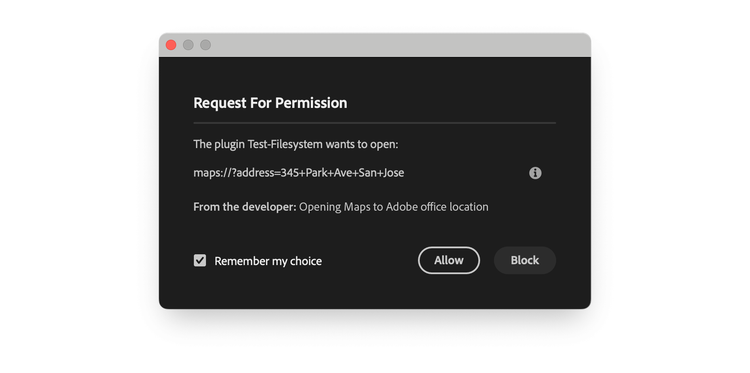
openExternal() and openPath() both require the same user consent via permission confirmation dialog
data-variant=info
data-slots=text
file:/ scheme is not allowed with openExternal(). Use openPath() instead for opening local files.Platform-specific Schemes
URL schemes vary between operating systems. Some schemes are platform-specific:
https://mailto:maps://bingmaps:facetime:data-variant=warning
data-slots=text
maps:// on Windows or bingmaps: on macOS will fail silently or display an error.Run CLI commands
It is possible to run CLI commands (like AppleScripts or shell scripts) directly from your plugin using shell.openPath(). There are known limitations with this approach; for example, it's not possible to pass any parameters, nor to capture the output of the command:
const result = await shell.openPath(    // external command
  "/bin/ls",                            // ✅ will run
  "Running the ls command"              // ⚠️ result is an empty string
);

const result = await shell.openPath(    // external command + argument
  "/bin/ls -la",                        // ❌ will fail
  "Running the ls -la command"
);
Best Practices
- Provide clear context: The
developerTextparameter appears in the user consent dialog. Write clear, user-friendly explanations in plain language.
// ✅ Good: Clear and specific
await shell.openExternal(
  "https://example.com/guide",
  "Opening tutorial guide in your browser"
);

// ❌ Avoid: Vague or technical
await shell.openExternal(
  "https://example.com/guide",
  "Opening URL"
);
- Handle user denial gracefully: Users can deny the launch request. Check the return value and provide fallback options.
const result = await shell.openPath(
  filePath,
  "Opening project file"
);
if (result !== "") {
  // User denied or operation failed
  console.log("Unable to open file. Please open it manually.");
}
- Check platform compatibility: Use platform detection for platform-specific schemes.
const isMac = require("os").platform() === "darwin";
const scheme = isMac ? "maps://" : "bingmaps:";
- Encode URL parameters: When building URLs with query parameters, always encode special characters.
const subject = encodeURIComponent("My Subject");
const url = `mailto:user@example.com?subject=${subject}`;
- Declare all schemes and extensions: Only list the schemes and extensions your plugin actually uses—don't request unnecessary permissions.
Troubleshoot Common Issues
launchProcess in manifestfile:// scheme doesn't workopenPath() for local files, not openExternal()Reference Material
shellmodule: complete Shell API reference.- Manifest Permissions: overview of all permissions.
launchProcessPermission: detailed permission documentation.
Summary
-
Launch Process Security: By default, plugins cannot launch external processes. You must declare the
launchProcesspermission inmanifest.json:extensions: Array of file extensions your plugin can open (e.g.,[".pdf", ".mp4"]). Use an empty string""to allow opening folders in Finder/Explorer.schemes: Array of URL schemes your plugin can use (e.g.,["https", "mailto"]).- User consent is always required for security—users see a dialog for every launch attempt unless the choice is remembered.
-
Two Shell Methods:
openPath(path, developerText): Opens files or folders in their default system application; requires the file extension to be listed inextensions.openExternal(url, developerText): Launches applications via URL schemes; requires the scheme to be listed inschemes; cannot usefile://(useopenPath()instead).
-
User Experience Best Practices:
- URL schemes are operating system-specific: use
require("os").platform()to check the operating system and use the appropriate scheme. - Provide clear, user-friendly text in the
developerTextparameter to explain why the action is needed. - Handle user denial gracefully by checking return values and offering fallback options.
- Only declare schemes and extensions your plugin actually uses—avoid requesting unnecessary permissions.
- Encode URL parameters with
encodeURIComponent()to handle special characters properly.
- URL schemes are operating system-specific: use