Troubleshooting - AEM Assets Content Hub Extensibility
The ability to get fast feedback and see if the code works as expected is crucial for rapid development. A developer may connect a locally running UI Extension to AEM Assets Content Hub, link it to the correct delivery repository, and verify changes before deployment and extension publication.
Running in local environment
There are two options to run an extension locally:
- Complete local environment isolation. In this case, both the front-end code of your extension and the serverless actions run locally. This mode is enabled with the
aio app devcommand. - Partial isolation using the
aio app runcommand, where the extension still uses Adobe I/O Runtime and deploys server-side functions in Adobe cloud.
For both options, the local development server with file change monitoring will be started to serve the UI Extension front-end.
Regardless of where the server-side handlers are running, in local containers or on Adobe I/O Runtime, the developer can connect a debugger to trace script execution.
Complete local environment isolation
➜ demo-extension-project % aio app dev
This will deploy the actions to a local OpenWhisk instance, which the Adobe I/O CLI automatically downloads and installs. The extension SPA runs on the local machine.
➜  demo-extension-project % aio app dev
To view your local application:
  -> https://localhost:9080
To view your deployed application in the Experience Cloud shell:
  -> https://experience.adobe.com/?devMode=true#/custom-apps/?localDevUrl=https://localhost:9080
press CTRL+C to terminate the dev environment
Use Adobe I/O Runtime to deploy server-side handlers
➜ demo-extension-project % aio app run
This will deploy the actions to Adobe I/O Runtime while running the UI part on the local machine.
➜  demo-extension-project % aio app run
  create .vscode/launch.json

No change to package.json was detected. No package manager install will be executed.

To view your local application:
  -> https://localhost:9080
To view your deployed application in the Experience Cloud shell:
  -> https://experience.adobe.com/?devMode=true#/custom-apps/?localDevUrl=https://localhost:9080
press CTRL+C to terminate dev environment
Now your UI Extension is reachable using the URL shown in the Terminal.
UI Extension endpoint
Once the local runtime starts, the extension endpoint is returned as the To view your local application URL. You need this URL to embed the locally running extension in AEM Assets Content Hub.
Accept the Certificate
If you are using this application for the first time, you will see a message similar to:
success: generated certificate
A self signed development certificate has been generated, you will need to accept it in your browser in order to use it.
Waiting for the certificate to be accepted.... timed out
This message appears because the local development server uses an SSL certificate for secure communication. Learn more about the purpose of this certificate in Certificates for localhost.
Navigate to https://localhost:9080. In Google Chrome, you should see a screen similar to this:
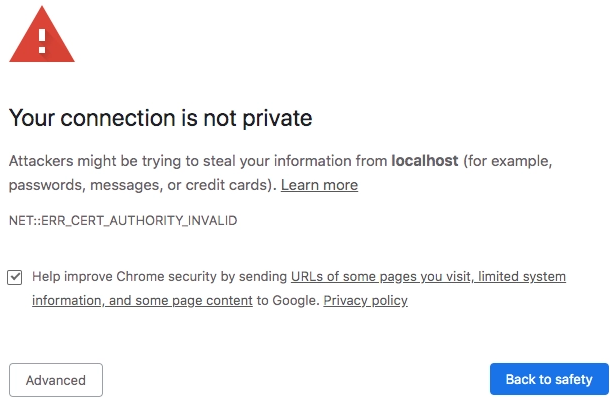
Select Advanced. The next screen may vary by browser, but you should see an option to select Proceed to localhost (unsafe) to accept the certificate.
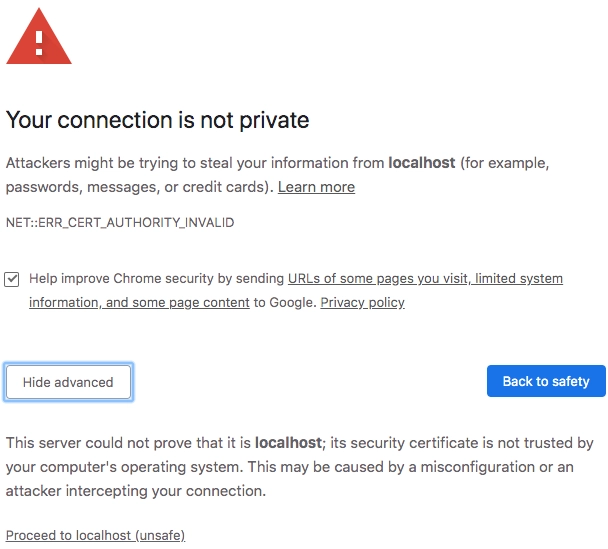
Alternatively, in Google Chrome you may type thisisunsafe. Refer to your browser's documentation for instructions on accepting a self-signed certificate.
You may need to exit the current process and run aio app run again. If the command selected another port, open that port instead.
Load UI Extension
Using the extension endpoint URL returned by the run command, you may embed the locally running extension in AEM Assets Content Hub:
-
Navigate to AEM Assets Content Hub.
-
Add the following query parameters to the URL:
devMode=trueinstructs Adobe Experience Shell to allow content from localhost.ext=<extension_endpoint_url>specifies the full extension endpoint URL. You may use multipleextparameters to test several extensions at the same time.repo=<delivery_repository>specifies the Content Hub delivery repository.
-
Reload AEM Assets Content Hub with the added extension.
The AEM Assets Content Hub URL should look similar to https://experience.adobe.com/?devMode=true&ext=https://localhost:9080&repo=delivery-p12345-e123456.adobeaemcloud.com#/assets/contenthub/.
ext= query parameter
The ext query parameter supports different syntax variations depending on the number of extensions to load and their extension points.
The complete syntax of the ext= query parameter is:
ext.<ExtensionPointId>=<url>[,<url>]
Where:
ExtensionPointIdis the ID of the extension point in AEM Assets Content Hub.urlis the URL of the extension to load.
You may specify multiple ext parameters with different extension point IDs to load extensions for different extension points. You may also specify multiple extension URLs for the same extension point by separating them with a comma.
Example:
ext.aem%2fassets%2fcontenthub%2f1=https://localhost:9080 loads the locally running extension from https://localhost:9080 and applies it to the aem/assets/contenthub/1 extension point.
The ext parameter can also be used without specifying the extension point ID:
ext=<url>[,<url>]
In this case, AEM Assets Content Hub applies the extension to all available extension points.
Additional troubleshooting
Registration is skipped
The sample can restrict registration with the allowedRepos array. Confirm that it contains the delivery repository passed in the initialization URL's repo query parameter.
Use browser developer tools to inspect the extension iframe and look for the registration log or an error from register().
The extension is deployed but not visible to some users
If the App Builder project includes Adobe services that are not required by the extension, only users with access to those services may be able to see it.
Remove all non-required services from the App Builder project's Products and Services section in Adobe Developer Console. Keep Adobe I/O Runtime, then redeploy the extension and create a new approval request.
The extension appears only with the ext URL parameter
The extension may have been deployed or approved in a different workspace than the one currently selected. The ext parameter bypasses the normal registration flow used by an approved extension.
Select the Production workspace, redeploy the extension, and create a new approval request:
aio app use -w Production
aio app deploy
OAuth token is invalid
The following error indicates that the Adobe I/O CLI OAuth token has expired or is invalid:
Error: [CoreConsoleAPISDK:ERROR_GET_PROJECT_BY_ID] 401 - Unauthorized
Log out, log in again, and select the intended Adobe Developer Console context:
aio logout
aio login
aio console org select
aio console project select
aio console workspace select
aio app use -g
Do not commit the generated .env file.
More help
For general local preview issues, see Local Preview of UI Extensions. For a working implementation, compare your project with the AEM Assets Content Hub sample application.