Browse View
AEM Assets View offers the ability to customize the ActionBar, QuickActions, and header menu in the Browse View.
data-variant=info
data-slots=text
data-variant=info
data-slots=text
The Browse View in the AEM Assets View refers to the asset listing pages such as Assets, Collections, Recent, Search and Trash.
Definitions
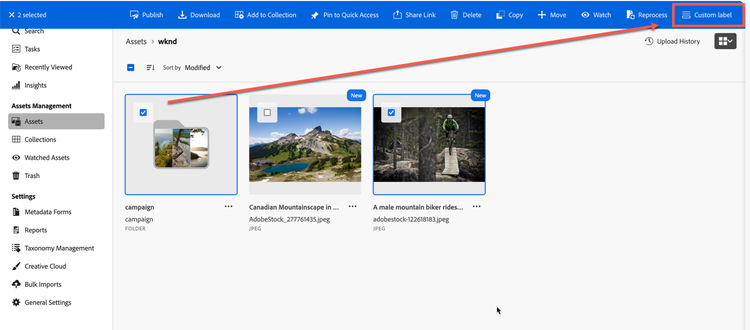
ActionBar is the blue bar with actions that appears at the top when one or more assets in the Browse View are selected.

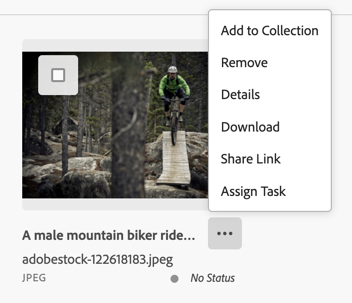
QuickActions is the dropdown menu from the More action button (shown as ⋯) next to each asset.
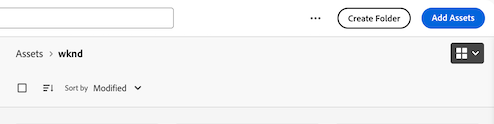
Header menu is the set of buttons at the top right of the browse screen. Custom buttons may be added to the header menu between the ellipses menu and the default header menu buttons.
Extensions should use the unified aem/assets/assetsview/1 extension point to utilize extensibility services of the Browse View. The standalone aem/assets/browse/1 extension point remains supported for existing extensions, but new extensions should use aem/assets/assetsview/1, which also lets the same extension customize the Details View. Regardless of the extension point, the Browse View capabilities are provided through the same actionBar, quickActions, and headerMenu namespaces described below.
An extension needs to implement both actionBar and quickActions namespace to be recognized by Assets View. Header menu buttons are customized through the optional, cross-cutting headerMenu namespace, documented on the dedicated Header Menu page.
Custom ActionBar actions and QuickActions menu actions
This extensibility feature allows context-aware customization of the ActionBar actions and the QuickActions menu actions associated with the selected assets.
Using the actionBar namespace, custom actions could be added to the ActionBar after the list of built-in actions, and the built-in actions could be overridden or hidden based on the context and the selected assets.
In this example, a custom action is added to the ActionBar after the list of built-in ActionBar actions.
Using the quickActions namespace, built-in QuickActions menu actions can be overridden or hidden based on the context and the selected asset.
Custom header menu buttons
Browse extensions can add, hide, or override header menu buttons using the headerMenu namespace. Because header menu behavior is shared between the Browse View and the Details View, it is documented on the dedicated Header Menu page, together with the built-in header menu button ids for each browsing context.
API Reference
This API reference section is further broken down into two parts: the API provided by the AEM Assets View host application to the extension and the API provided by the extension to the AEM Assets View host application.
Host API Reference
In addition to the Common API provided by AEM Assets View to all extensions, the host application provides the following definitions that are specific to the Browse View: actionBar and quickActions namespaces. Header menu customization is available through the shared headerMenu namespace.
Browsing context
Assets View supports assets browsing experiences in multiple modes, or "contexts". The current context is communicated to Extension APIs, so that the custom code within Extension can adapt to the state of Assets View.
The supported browsing contexts are:
assetscollectionsrecentsearchtrashBuilt-in actions
The host application allows hiding certain built-in actions. Depending on the browsing content, below is the list of action ids of actions that can be hidden:
assetscollectionsrecentsearchtrashExtension API Reference
The extension definition object passed by the extension to the register() function defines the actionBar and quickActions namespaces. For header menu customization, see the Header Menu page.
The methods in these namespaces provide the capabilities to
- Add custom actions to the ActionBar
- Hide or customize built-in actions in the ActionBar and QuickActions
actionBar namespace
The actionBar namespace includes these 3 methods
getActions({ context, resourceSelection })getHiddenBuiltInActions({ context, resourceSelection })overrideBuiltInAction({ actionId, context, resourceSelection })
actionBar.getActions({ context, resourceSelection })
Description: returns an array of custom action descriptors or an empty array if no custom actions should be added to the ActionBar in the specified context for the selected assets.
Parameters:
-
context (
string): current browsing context. -
resourceSelection (
object): an object representing the asset selection.-
resources (
array): an array of selected assets.- id (
string): selected asset URN. - path (
string): selected asset path.
- id (
-
Returns (array) an array of custom action descriptors or an empty array if no custom actions should be added to the ActionBar.
Each array element is a custom action descriptor that is a JSON with the following properties:
id(string): action id, unique within given extension.label(string): Custom action title.icon(string): Name of the React-Spectrum workflow icon.onClick(function): An activation handler.
Example:
actionBar: {
    getActions: ({ context, resourceSelection }) => {
        return [{
            'id': 'customId',
            'icon': 'Form',
            'label': 'Custom label',
            'onClick': async () => {
                // ...
            }
        }];
    },
}
getHiddenBuiltInActions({ context, resourceSelection })
Description: returns an array of built-in action id that should be hidden in the specified context for the selected assets.
This method is called by the host application to determine which built-in actions are to be hidden. The host calls this method once whenever the asset selection changes.
Extension code should ensure that this method returns fast because the host application blocks the rendering of the ActionBar until the actions' visibility could be determined. In particular it is recommended not to use backend server calls in this method.
Parameters:
-
context (
string): current browsing context -
resourceSelection (
object): an object representing the asset selection-
resources (
array): an array of selected assets.- id (
string): selected asset URN. - path (
string): selected asset path.
- id (
-
Returns (array) an array of action ids that should be hidden from the ActionBar, or an empty array in case no action needs to be hidden
Example:
getHiddenBuiltInActions: ({ context, resourceSelection }) => {
   return [];
},
overrideBuiltInAction({ actionId, context, resourceSelection })
Description: Return true if the extension handled the action and the built-in handler should not run (the action is overridden). Return false to let the Host run the default built-in action.
This method is called by the Host when the user activates one of the built-in actions, before invoking the actual action handler. The method returns true if the Extension had performed custom action processing and the Host should not invoke the built-in action handler. Otherwise the method returns false, and the Host should use the built-in action handler.
Parameters:
-
actionId (
string): built-in action id. -
context (
string): current browsing context. -
resourceSelection (
object): an object representing the asset selection.-
resources (
array): an array of selected assets.- id (
string): selected asset URN. - path (
string): selected asset path.
- id (
-
Returns (boolean) false for Host to use built-in action handler, true to skip built-in handler and stop
Example:
overrideBuiltInAction: ({ actionId, context, resourceSelection }) => {
    //do some custom tasks
    return true;  // skip the Host's built-in handler and stop
},
quickActions namespace
The quickActions namespace include these 2 methods
getHiddenBuiltInActions({ context, resource })overrideBuiltInAction({ actionId, context, resource })
getHiddenBuiltInActions({ context, resource })
Description: returns an array of built-in action id that should be hidden in the specified context for the selected asset.
This method is called by the host application to determine which built-in actions are to be hidden. The host calls this method once whenever QuickAction menu is triggered.
Extension code should ensure that this method returns fast because the host application blocks the rendering of the QuickActions until the actions' visibility could be determined. In particular it is recommended not to use backend server calls in this method.
Parameters:
-
context (
string): current browsing context. -
resource (
object): an object representing the selected asset.- id (
string): selected asset URN. - path (
string): selected asset path.
- id (
Returns (array) an array of action ids that should be hidden from the QuickActions menu, or an empty array in case no action needs to be hidden.
Example:
getHiddenBuiltInActions: ({ context, resource }) => {
    return [];
},
overrideBuiltInAction: ({ actionId, context, resource })
Description: Return true if the extension handled the action and the built-in handler should not run. Return false to let the Host run the default built-in action.
This method is called by the Host when the user activates one of the built-in actions, before invoking the actual action handler. The method returns true if the Extension had performed custom action processing and the Host should not invoke the built-in action handler. Otherwise the method returns false, and the Host should use the built-in action handler.
Parameters:
-
actionId (
string): built-in action id. -
context (
string): current browsing context. -
resource (
object): an object representing the selected asset.- id (
string): selected asset URN. - path (
string): selected asset path.
- id (
Returns (boolean) false for Host to use built-in action handler, true to skip built-in handler and stop.
Example:
overrideBuiltInAction: ({ actionId, context, resource }) => {
    //do some custom tasks
    return true;
},
Examples
These code snippets demonstrate how to add a custom action to the ActionBar and hide built-in actions or override built-in action handlers from the ActionBar and QuickActions menu in the Browse View. (The examples below serve illustrative purposes thus omit certain import statements and other non-important parts.) For header menu button examples, see the Header Menu page.
The ExtensionRegistration component initializes the extension registration process by calling the register() function provided by the @adobe/uix-guest library.
The objects passed to the register() function describe the extension and its capabilities. In particular, it declares that the extension uses the actionBar and quickActions namespaces with their required methods. Header menu buttons are declared through the optional headerMenu namespace.
This example demonstrates the minimal set of namespaces and methods required for a browse extension to be recognized by the Host application.
function ExtensionRegistration() {
    const init = async () => {
        const guestConnection = await register({
            id: extensionId,
            methods: {
                actionBar: {
                    async getActions({ context, resourceSelection }) {
                        return [];
                    },
                    async getHiddenBuiltInActions({ context, resourceSelection }) {
                        return [];
                    },
                    async overrideBuiltInAction({ actionId, context, resourceSelection }) {
                        return false;
                    },
                },
                quickActions: {
                    async getHiddenBuiltInActions({ context, resource }) {
                        return [];
                    },
                    async overrideBuiltInAction({ actionId, context, resource }) {
                        return false;
                    },
                },
            },
        });
    };
    init().catch(console.error);

    return <Text>IFrame for integration with Host (AEM Assets View)...</Text>;
}

export default ExtensionRegistration;
Example of adding custom actions
Here is an example for adding a custom action after the built-in actions in the ActionBar.
In the example below, the context and the number of selected assets are considered for the decision of adding a custom action labeled with Custom label along with the Form icon is added in the assets context when the number of selected assets is 1.
function ExtensionRegistration() {
    const init = async () => {
        const guestConnection = await register({
            id: extensionId,
            methods: {
                actionBar: {
                    async getActions({ context, resourceSelection }) {
                        if (context === 'assets' && resourceSelection.resources.length === 1) {
                            return [{
                                'id': 'customId',
                                'icon': 'Form',
                                'label': 'Custom label',
                                'onClick': async () => {
                                    // ...
                                }
                            }];
                        }
                        return [];
                    },
                    // ...
                },
                quickActions: {
                    // ...
                },
                // ...
            },
        });
    };
    init().catch(console.error);

    return <Text>IFrame for integration with Host (AEM Assets View)...</Text>;
}

export default ExtensionRegistration;
Example of hiding built-in actions
Here are the examples for hiding built-in actions from the ActionBar and the QuickActions menu.
In this example, the Delete action is hidden from the ActionBar only in the trash context. It does not hide any actions in the other contexts.
function ExtensionRegistration() {
    const init = async () => {
        const guestConnection = await register({
            id: extensionId,
            methods: {
                actionBar: {
                    // ...
                    async getHiddenBuiltInActions({ context, resourceSelection }) {
                        if (context === 'trash') {
                            return ['delete'];
                        }
                        return [];
                    },
                },
                quickActions: {
                    // ...
                },
            },
        });
    };
    init().catch(console.error);

    return <Text>IFrame for integration with Host (AEM Assets View)...</Text>;
}
In the example below, the Delete action is hidden from the QuickActions menu only in the trash context. It does not hide any actions in the other contexts.
function ExtensionRegistration() {
    const init = async () => {
        const guestConnection = await register({
            id: extensionId,
            methods: {
                actionBar: {
                    // ...
                },
                quickActions: {
                    async getHiddenBuiltInActions({ context, resource }) {
                        if (context === 'trash') {
                            return ['delete'];
                        }
                        return [];
                    },
                },
                // ...
            },
        });
    };
    init().catch(console.error);

    return <Text>IFrame for integration with Host (AEM Assets View)...</Text>;
}
Example of overriding built-in actions
Here are the examples for overriding the built-in actions from the ActionBar and the QuickActions menu.
In this example, the Download action is overridden in the ActionBar in any applicable context. The extension will determine if the user has permission to download the asset selection. If the user does not have sufficient permision, a dialog will be displayed and the built-in handler in the Host application will be skipped.
The built-in handlers will be executed when the user has sufficient permission to download as well as for other built-in actions.
function ExtensionRegistration() {
    const init = async () => {
        const guestConnection = await register({
            id: extensionId,
            methods: {
                actionBar: {
                    // ...
                    async overrideBuiltInAction({ actionId, context, resourceSelection }) {
                        if (actionId === 'download') {
                            // determines the user's permission to download
                            const canDownload = ...
                            // shows an info dialog explaining why the user cannot download and return true to skip built-in handler and stop
                            if (!canDownload) {
                                guestConnection.host.modal.openDialog({
                                    title: 'Download',
                                    contentUrl: '/#modal-download-warning',
                                    type: 'modal',
                                    size: 'S',
                                    payload: { /* arbitrary payload */ }
                                });
                                // skip built-in handler
                                return true;
                            }
                        }
                        // continue to execute built-in handler
                        return false;
                    },
                },
                quickActions: {
                    // ...
                },
            },
        });
    };
    init().catch(console.error);

    return <Text>IFrame for integration with Host (AEM Assets View)...</Text>;
}
Example of user interaction with overriding built-in actions
In this example, the Modal API is used to let the user confirm or cancel a default action based on their selection. The extension presents a confirmation dialog and waits for the user's response. If the user confirms, the built-in handler is executed by returning false. If the user cancels, the built-in handler is skipped by returning true.
actionBar: {
    async overrideBuiltInAction({ actionId, context, resourceSelection: { resources } }) {
        const { promise, resolve } = Promise.withResolvers();
        guestConnection.host.modal.openDialog({
            title: `Confirm ${actionId}`,
            contentUrl: '#confirm',
            type: 'S',
            payload: {
                callback: resolve
            }
        });
        return await promise;
    },
}
In the example below, the Download action is overridden in the QuickActions menu in any applicable context. The extension will determine if the user has permission to download the asset selection. If the user does not have sufficient permision, a dialog will be displayed and the built-in handler in the Host application will be skipped.
The built-in handlers will be executed when the user has sufficient permission to download as well as for other built-in actions.
function ExtensionRegistration() {
    const init = async () => {
        const guestConnection = await register({
            id: extensionId,
            methods: {
                quickActions: {
                    // ...
                    async overrideBuiltInAction({ actionId, context, resource }) {
                        if (actionId === 'download') {
                            // determines the user's permission to download
                            const canDownload = ...
                            // shows an info dialog explaining why the user cannot download and return true to skip built-in handler and stop
                            if (!canDownload) {
                                guestConnection.host.modal.openDialog({
                                    title: 'Download',
                                    contentUrl: '/#modal-download-warning',
                                    type: 'modal',
                                    size: 'S',
                                    payload: { /* arbitrary payload */ }
                                });
                                // skip built-in handler
                                return true;
                            }
                        }
                        // continue to execute built-in handler
                        return false;
                    },
                },
                actionBar: {
                    // ...
                },
            },
        });
    };
    init().catch(console.error);

    return <Text>IFrame for integration with Host (AEM Assets View)...</Text>;
}
To open a custom dialog from custom ActionBar actions or QuickActions menu actions, refer to the Modal API provided by AEM Assets View to all extensions for implementation of dialog management. For header menu button examples — including hiding and overriding built-in header menu buttons — see the Header Menu page.