Common Concepts in Creating Extensions
Understand the fundamentals required to develop an extension for the AEM Assets View.
data-variant=info
data-slots=text
data-variant=info
data-slots=text
Extension Point
AEM Assets View has a unified aem/assets/assetsview/1 extension point that allows you to extend its functionality in both the Browse View and the Details View from a single extension. To declare it to be used by your extension, you need to add the following configuration to your app.config.yaml at the root of your extension:
extensions:
  aem/assets/assetsview/1:
    $include: src/aem-assets-assetsview-1/ext.config.yaml
Here is an example of ext.config.yaml file:
operations:
  view:
    - type: web
      impl: index.html
actions: actions
web: web-src
data-variant=info
data-slots=text
aem/assets/browse/1 and aem/assets/details/1 extension points remain supported for existing extensions, but new extensions should use the unified aem/assets/assetsview/1 extension point. It exposes the same namespaces and methods, so a single extension can customize both screens without registering multiple extension points.Extension Registration
Interaction between UI Extension and AEM Assets View starts with the initialization process that includes extension's capabilities registration so AEM Assets View knows when to invoke the extension and which APIs to expose. Registration is done by calling the register() function provided by @adobe/uix-guest library. This asynchronous function takes single object that describes extension and returns an object representing connection to the AEM Assets View.
The register() function should be invoked after extension initialization page is loaded.
Extension registration data must include:
-
id- string with random extension identifier. This identifier is useful for debugging of interaction between AEM Assets View and extension and is needed if extension provides custom UI. -
methods- objects with the extension APIs exposed to the AEM Assets View. All methods are grouped into namespaces that represent more granular areas of AEM Assets View functionality within the extension point. The following namespaces are available under the unifiedaem/assets/assetsview/1extension point:actionBar, that allows adding, hiding, or overriding ActionBar actions in the Browse ViewquickActions, that allows hiding or overriding QuickActions menu actions in the Browse ViewdetailSidePanel, that allows adding custom side panels in the Details ViewheaderMenu, that allows adding, hiding, or overriding header menu buttons in the Browse View and the Details View
Implement only the namespaces your extension needs. A single extension can mix Browse View and Details View namespaces in one register() call.
import { register } from '@adobe/uix-guest';

// ...

      const guestConnection = await register({
        id: 'extension-id',
        methods: {
          // Browse View
          actionBar: {
            getActions() {
              // ..
            }
          },
          // Details View
          detailSidePanel: {
            getPanels() {
              // ..
            }
          },
        }
      });
// ...
Building Extension UI
Namespaces that render extension content — such as detailSidePanel (custom side panels) and the modal dialogs used by ActionBar actions, QuickActions, and header menu buttons — require the UI extension to provide its own interface. This interface should be implemented as a separate entry point within the extension web application.
Normally this interface needs data from the AEM Assets View or needs to trigger certain action within the host application. To support this the interface page should establish its own connection with AEM Assets View using the attach() function provided by @adobe/uix-guest library.
In this example, the interface page establishes a connection with the AEM Assets View using extension id and obtains the AEM host URL:
import { attach } from '@adobe/uix-guest';

const guestConnection = await attach({ id: 'extension-id' });
const aemHost = await guestConnection.discovery.getAemHost();
Set up communication with AEM Assets View
Both register() and attach() functions of @adobe/uix-guest library return the same connection object that has host property and exposes AEM Assets View API to UI Extensions. Through this API you can access data from the host application as well as invoke certain actions within it.
Common APIs exposed by AEM Assets View to all UI Extensions
The APIs documented below are available to all AEM Assets View UI Extensions, irrespective of the extension point they are using.
Every API is defined under its own namespace, which in turn is contained within the host object of the connection instance.
All API invocations are asynchronous and return a Promise.
Authentication API
This API provides information about the current Org, access token and API key in the AEM Assets View, as well as the signed-in user's profile and group membership. The API uses auth namespace.
auth.getIMSInfo()
Description: returns information about IMS Org name, Id and access token.
Return Object Structure
imsOrg(string): The IMS organization identifier.imsOrgName(string): The name of the IMS organization.accessToken(string): The access token for the IMS.
auth.getApiKey()
Description: returns API key used by the AEM Assets View.
Returns (string): API key
Example:
const { imsOrg, accessToken } = await guestConnection.host.auth.getIMSInfo();

const apiKey = await guestConnection.host.auth.getApiKey();
auth.getCurrentUserProfile()
Description: returns basic profile information about the currently signed-in user.
Return Object Structure
name(string): The user's display name.userId(string): The user's IMS identifier.email(string): The user's email address.
Example:
const { name, userId, email } = guestConnection.host.auth.getCurrentUserProfile();
auth.getCurrentUserGroupMembership()
Description: returns the groups the currently signed-in user belongs to within the current Org. Only groups linked to an IMS group are returned. This API is asynchronous and returns a Promise.
Return Object Structure (Array of objects, each with the following properties):
name(string): The group name.linkedGroupId(number): The identifier of the linked IMS group.
Example:
const groups = await guestConnection.host.auth.getCurrentUserGroupMembership();
// groups: [{ name: 'Marketing', linkedGroupId: 875881973 }, ...]
Discovery API
This API provides information AEM author instance location.
discovery.getAemHost()
Description: returns the URL of the AEM author instance.
Returns (string): AEM author instance URL
Example:
const aemHost = await guestConnection.host.discovery.getAemHost();
Toast API
This API provides methods to show toast messages in the AEM Assets View.
toast.display({ variant, message })
Description: shows a toast message in the AEM Assets View.
Parameters:
-
options (
object): Object with the following properties:- variant (
string, optional): The type of toast message. Possible values areneutral,positive,info,negative. Default value isinfo. - message (
string, required): The message to display in the toast.
- variant (
Example:
guestConnection.host.toast.display({ variant: 'positive', message: 'Asset saved successfully' });
Router API
This API provides methods to navigate to different parts of the AEM Assets View.
router.navigateToAssetDetails({ assetPath })
Description: navigates to a Details View of the specific asset.
Parameters:
- options (
object): Object with the following properties:- assetPath (
string, required): The path to the asset in the AEM Assets View.
- assetPath (
Example:
guestConnection.host.router.navigateToAssetDetails({ assetPath: '/content/dam/my-assets/image.jpg' });
i18n API
This API provides methods to support localization of the UI Extension.
i18n.getLocalizationInfo()
Description: returns information about the current locale used in the AEM Assets View.
Return Object Structure
locale(string): The current locale used in the AEM Assets View.
Example:
const { locale } = await guestConnection.host.i18n.getLocalizationInfo();
Theme API
This API provides methods to retrieve the current host application color scheme.
theme.getThemeInfo()
Description: returns information about the current color scheme used in the AEM Assets View.
Return Object Structure
colorScheme(string): The current color scheme locale used in the AEM Assets View, eitherlightordark.
Example:
const { colorScheme } = await guestConnection.host.theme.getThemeInfo();
Modal API
This API provides methods to open a modal dialog in the host application, close it and retrieve the payload associated with it.
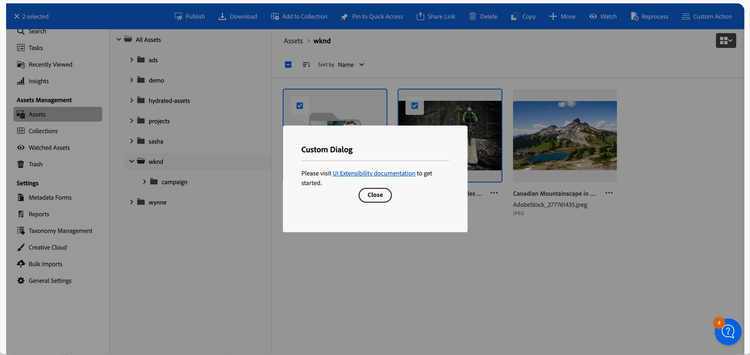
modal.openDialog(options)
Description: opens a dialog with the configuration info provided. The dialog content is loaded from a specified url.
Parameters:
-
options (
object): Object with the following dialog configuration properties:- title (
string, optional): The title of the dialog. - contentUrl (
string): Relative root to the dialog's content. - type (
string, optional): The type of the dialog. Possible values aremodal,fullscreen. Default value ismodal. - size (
string, optional): The size of the dialog. Possible values areS,M,L. Default value isM. Ignored when the dialog type isfullscreen. - payload (
any, optional): arbitrary payload object the extension may want to pass over the code inside the dialog. This payload object can later be accessed by the extension viamodal.getPayload().
- title (
Example:
These code snippets demonstrate how to create a custom dialog using UIX SDK library and add open it in the Host application. (The examples below serve illustrative purposes thus omit certain import statements and other non-important parts.)
Here, the main application code defines three routes:
- the first two are the default routes which trigger the
ExtensionRegistrationcomponent responsible for initial extension registration within the AEM Assets View application. - the
modal-custom-actionroute which invokes theModalCustomActioncomponent responsible for rendering the custom dialog content. This route gets called by the AEM Assets View application when the extension callsmodal.openDialog. During the registration the extension will specify/#modal-custom-actionas content location.
import React from 'react';
import ErrorBoundary from 'react-error-boundary';
import { HashRouter as Router, Routes, Route } from 'react-router-dom';
import ExtensionRegistration from './ExtensionRegistration';
import ModalCustomAction from './ModalCustomAction';

function App() {
    return (
        <Router>
            <ErrorBoundary onError={onError} FallbackComponent={fallbackComponent}>
                <Routes>
                    <Route index element={<ExtensionRegistration />} />
                    <Route exact path="index.html" element={<ExtensionRegistration />} />
                    <Route path="modal-custom-action" element={<ModalCustomAction />} />
                    // YOUR CUSTOM ROUTES SHOULD BE HERE
                </Routes>
            </ErrorBoundary>
        </Router>
    );

    // Methods

    // error handler on UI rendering failure
    function onError(e, componentStack) {}

    // component to show if UI fails rendering
    function fallbackComponent({ componentStack, error }) {
        return (
            <React.Fragment>
                <h1 style={{ textAlign: "center", marginTop: "20px" }}>
                    Extension rendering error
                </h1>
                <pre>{componentStack + '\n' + error.message}</pre>
            </React.Fragment>
        );
    }
}

export default App;
The ModalCustomAction component is responsible for rendering the custom dialog content. It uses the attach() function provided by the @adobe/uix-guest library to establish a connection with the AEM Assets View and uses this connection object to obtain the theme information of the AEM Assets View for rendering its content with the matching theme.
export default function ModalCustomAction() {
    // Fields
    const [guestConnection, setGuestConnection] = useState();
    const [colorScheme, setColorScheme] = useState('light');

    useEffect(() => {
        (async () => {
            const guestConnection = await attach({ id: extensionId });
            setGuestConnection(guestConnection);

            const { colorScheme } = await guestConnection.host.theme.getThemeInfo();
            setColorScheme(colorScheme);
        })()
    }, []);

    function closeDialog() {
        guestConnection.host.modal.closeDialog();
    }

    return (

        <Provider theme={defaultTheme} colorScheme={colorScheme}>

            <View>
                <View paddingBottom="size-300">
                    <Text>Please visit <Link href="https://developer.adobe.com/uix/docs/">UI Extensibility documentation</Link> to get started.</Text>

                    <Flex justifyContent="center" paddingBottom="size-300">
                        <ButtonGroup>
                            <Button variant="primary" onPress={() => closeDialog()}>Close</Button>
                        </ButtonGroup>
                    </Flex>
                </View>
            </View>
        </Provider>
    );
}
The custom dialog can be opened in Assets View using modal.openDialog and passing in the dialog's content url, title, type size and an optional payload object. The custom dialog component can retrieve the payload object using modal.getPayload()
'onClick': async () => {
    guestConnection.host.modal.openDialog({
        title: 'Custom Dialog',
        contentUrl: '/#modal-custom-action',
        type: 'modal',
        size: 'S',
        payload: { /* arbitrary payload */ }
    });
},
modal.closeDialog()
Description: closes currently active dialog.
Example:
function closeDialog() {
    guestConnection.host.modal.closeDialog();
}

<View>
  <ButtonGroup>
    <Button variant="primary" onPress={() => closeDialog()}>Close</Button>
  </ButtonGroup>
</View>
modal.getPayload();
Description: returns the payload object which could potentially be used by the extension code when calling modal.openDialog().
Returns optional arbitrary payload object.
Example:
const payload = await guestConnection.host.modal.getPayload();
// work with payload
// ...