Details View
The Details View in the AEM Assets View shows detailed information about the selected asset.
data-variant=info
data-slots=text
data-variant=info
data-slots=text
Extensions should use the unified aem/assets/assetsview/1 extension point to utilize extensibility services of the Details View. The standalone aem/assets/details/1 extension point remains supported for existing extensions, but new extensions should use aem/assets/assetsview/1, which also lets the same extension customize the Browse View. Regardless of the extension point, the Details View capabilities are provided through the detailSidePanel namespace described below and the shared headerMenu namespace.
Custom header menu buttons in Details View
The Details View header menu includes built-in buttons (for example "Assign tasks" and "Download"). A details extension can add, hide, or override header menu buttons using the headerMenu namespace. Because header menu behavior is shared between the Browse View and the Details View, it is documented on the dedicated Header Menu page, together with the built-in header menu button ids for the details context.
Custom side panels
The extensibility feature allows adding new panels and corresponding icon buttons to the side rail using the detailSidePanel namespace. The custom icons appear under the list of the standard panel icons.
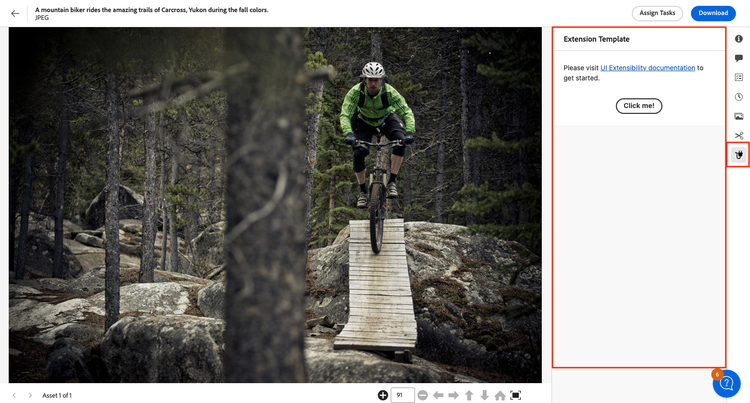
The host application fully manages UI interaction, including toggling the panel when user clicks the button, deep linking panel in the URL and auto-hiding the panel when an asset changes.
The host is also responsible for rendering panel's header.
The extension only declares the icon type, panel title and the URL for the custom panel content.
API Reference
This API reference section is further broken down into two parts: the API provided by the AEM Assets View host application to the extension and the API provided by the extension to the AEM Assets View host application.
Host API Reference
In addition to the Common API provided by AEM Assets View to all extensions, the host application provides the following API specific to the Details View, the detailSidePanel namespace. Header menu customization is available through the shared headerMenu namespace.
details.getCurrentResourceInfo()
Description: returns the path and id of the asset shown in the Details View.
Return Object Structure
path(string): Current asset path.id(string): Current asset id.
Example:
const { path, id } = await guestConnection.host.details.getCurrentResourceInfo();
Extension API Reference
The extension definition object passed by the extension to the register() function defines the detailSidePanel namespace. For header menu customization, see the Header Menu page.
detailSidePanel namespace
The detailSidePanel namespace includes the following method:
getPanels()
detailSidePanel.getPanels()
Description: returns an array of custom panel descriptors that the extension wants to add to the side rail of the Details View.
Returns (array) an array of custom panel descriptors or an empty array if no custom panels should be added.
Each array element is a custom panel descriptor that is a JSON with the following properties:
id(string): Panel id, unique within given extension.tooltip(string): Icon tooltip.title(string): Custom panel title.icon(string): Name of the React-Spectrum workflow icon.contentUrl(string): Relative root to the panel's content.reloadOnThemeChange(boolean): Whether to reload custom panel when application theme changes.
Example of adding custom side panels
These code snippets demonstrate how to create a custom side panel using UIX SDK library and add it to the side rail of the Details View. (The examples below serve illustrative purposes thus omit certain import statements and other non-important parts.)
Here, the main application code defines three routes:
- the first two are the default routes which trigger the
ExtensionRegistrationcomponent responsible for initial extension registration within the AEM Assets View application. - the
extension-templateroute which invokes thePanelExtensionTemplatecomponent responsible for rendering the custom panel content. This route gets called by the AEM Assets View application when the user clicks the custom panel icon. During the registration the extension will specify/#extension-templateas content location.
function App() {
    return (
        <Router>
            <ErrorBoundary onError={onError} FallbackComponent={fallbackComponent}>
                <Routes>
                    <Route index element={<ExtensionRegistration />} />
                    <Route exact path="index.html" element={<ExtensionRegistration />} />
                    <Route path="extension-template" element={<PanelExtensionTemplate />} />
                    // YOUR CUSTOM ROUTES SHOULD BE HERE
                </Routes>
            </ErrorBoundary>
        </Router>
    );

    function onError(e, componentStack) {}

    function fallbackComponent({ componentStack, error }) {
        return (
            <React.Fragment>
                <h1 style={{ textAlign: 'center', marginTop: '20px' }}>
                    Extension rendering error
                </h1>
                <pre>{componentStack + '\n' + error.message}</pre>
            </React.Fragment>
        );
    }
}

export default App;
The ExtensionRegistration component initializes the extension registration process by calling the register() function provided by the @adobe/uix-guest library.
The objects passed to the register() function describe the extension and its capabilities. In particular, it declares that the extension uses the detailSidePanel namespace and its getPanels method. A details extension can also declare the shared headerMenu namespace in the same register() call to customize header menu buttons.
function ExtensionRegistration() {
    const init = async () => {
        const guestConnection = await register({
            id: extensionId,
            methods: {
                detailSidePanel: {
                    getPanels() {
                        return [
                            {
                                'id': 'extension-template',
                                'tooltip': 'Extension Template',
                                'icon': 'Extension',
                                'title': 'Extension Template',
                                'contentUrl': '/#extension-template',
                                'reloadOnThemeChange': 'true',
                            },
                        ];
                    },
                },
            },
        });
    };
    init().catch(console.error);

    return <Text>IFrame for integration with Host (AEM Assets View)...</Text>;
}

export default ExtensionRegistration;
To add, hide, or override header menu buttons in the Details View — including a worked example that hides the built-in Download button and takes over the Assign tasks click — see the Header Menu page.
The PanelExtensionTemplate component is responsible for rendering the custom panel content. It uses the attach() function provided by the @adobe/uix-guest library to establish a connection with the AEM Assets View and uses this connection object to render a toast message within the AEM Assets View when the user clicks the "Click me!" button.
export default function PanelExtensionTemplate() {
    // Fields
    const [guestConnection, setGuestConnection] = useState();
    const [colorScheme, setColorScheme] = useState('light');

    useEffect(() => {
        (async () => {
            const guestConnection = await attach({ id: extensionId });
            setGuestConnection(guestConnection);

            const { colorScheme } = await guestConnection.host.theme.getThemeInfo();
            setColorScheme(colorScheme);
        })()
    }, []);

    function displayToast(variant, message) {
        guestConnection.host.toast.display({ variant, message });
    }

    return (
        <Provider theme={defaultTheme} colorScheme={colorScheme} height={'100vh'}>
            <View backgroundColor="gray-50">
                <View padding="size-300">
                    <Text>Please visit <Link href="https://developer.adobe.com/uix/docs/">UI Extensibility documentation</Link> to get started.</Text>

                    <Flex justifyContent="center" marginTop="size-400">
                        <ButtonGroup>
                            <Button variant="primary" onPress={() => displayToast('neutral', 'Message from the Extension')}>Click me!</Button>
                        </ButtonGroup>
                    </Flex>
                </View>
            </View>
        </Provider>
    );
}