Set up developer tools
Building a UXP plugin requires a code editor for writing the project and the UXP Developer Tool (UDT) for creating, loading, reloading, and debugging it.
Choose a code editor
A reliable code editor helps you stay organized and productive. Any modern editor works. Visual Studio Code is a safe default: it's free, with a strong extension ecosystem, built-in formatting and linting, and a good fit for UXP workflows.
Once you've picked an editor, set up autocomplete and type checking and ESLint linting for UXP so mistakes surface as you type. Neither is required to start, but both pay off quickly.
Install the UXP Developer Tool
The UXP Developer Tool (UDT) simplifies creating, loading, managing, and debugging plugins for Adobe's UXP-powered applications.
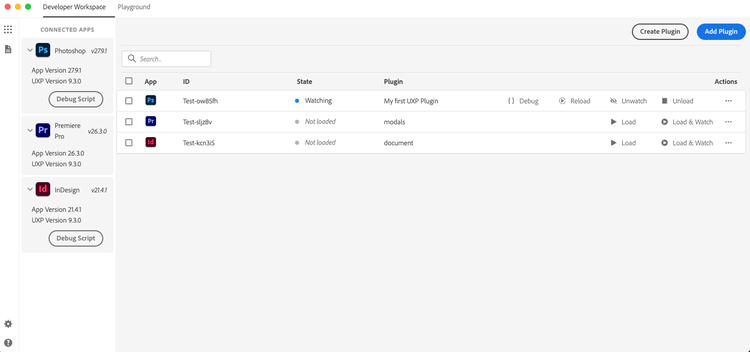
In addition, the UXP Developer Tool:
- Includes a Code Playground to quickly test and explore APIs.
- Lets you package plugins into a
.ccxinstallable file, ready for distribution. - Provides starter templates and sample projects to help you get moving faster.
data-variant=info
data-slots=heading,text
Install from Creative Cloud
You can install UDT directly from Creative Cloud, or by following these steps:
-
Open the Adobe Creative Cloud desktop app. If you don't have it installed, download and install it here.
-
Sign in with your Adobe ID if you haven't already.
-
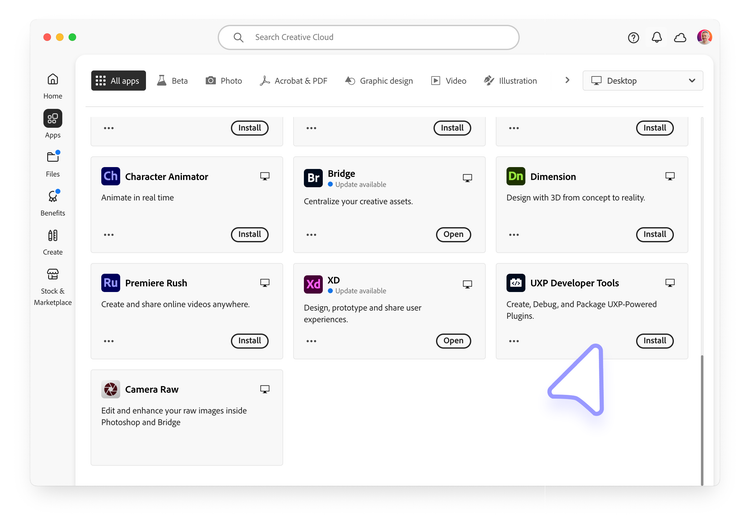
Go to the All apps section and search for "UXP Developer Tools".
-
Select Install on the UXP Developer Tools card.
data-variant=warning
data-slots=text
Enable Developer Mode
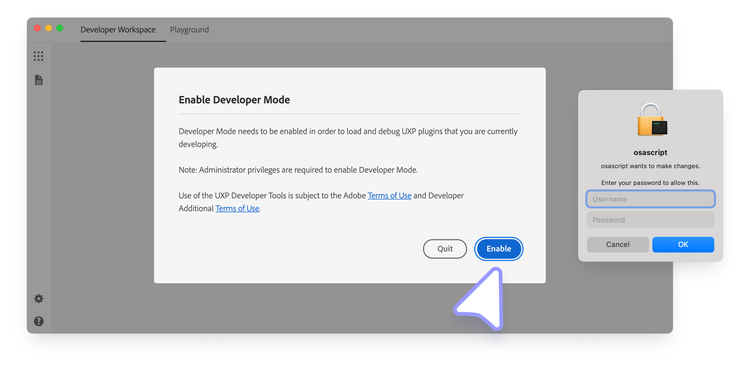
The first time you launch UDT, it asks you to enable Developer Mode. This is required to load plugins in development into your host application. Click Enable; elevated permissions will be requested, and you may need to enter your password or approve an action.
data-slots=heading, list
data-repeat=1
data-summary=Manual fallback: Enable Developer Mode via settings.json
data-subText=If enabling Developer Mode inside UDT fails, configure it manually on disk (requires admin privileges):
-
Manual configuration steps:
- Quit the UXP Developer Tool.
- Navigate to
/Library/Application Support/Adobe/UXP/Developeron macOS, or%CommonProgramFiles%/Adobe/UXP/Developeron Windows (create the folder if needed). - Create a file named
settings.jsoncontaining{ "developer": true }. - Launch the UXP Developer Tool again.
Next step
Your tools are ready. Now build your first plugin.