Install a UXP plugin
Choose the installation method that matches the plugin's distribution channel. Creative Cloud Desktop handles Marketplace and .ccx installations; administrators can also use UPIA for managed deployment.
data-slots=heading, text
data-variant=warning
Choose an installation method
.ccx package.ccx installer or use UPIA.In Premiere, installed plugins appear under Window > UXP Plugins.
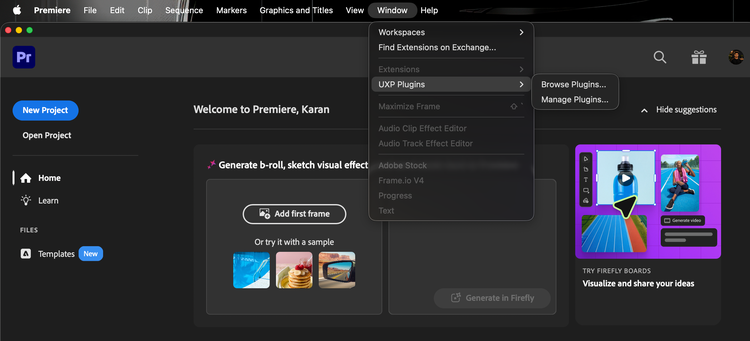
Use the Creative Cloud Marketplace
In Creative Cloud Desktop, open Stock & Marketplace, then select the Plugins tab.
- Find the plugin and select Get.
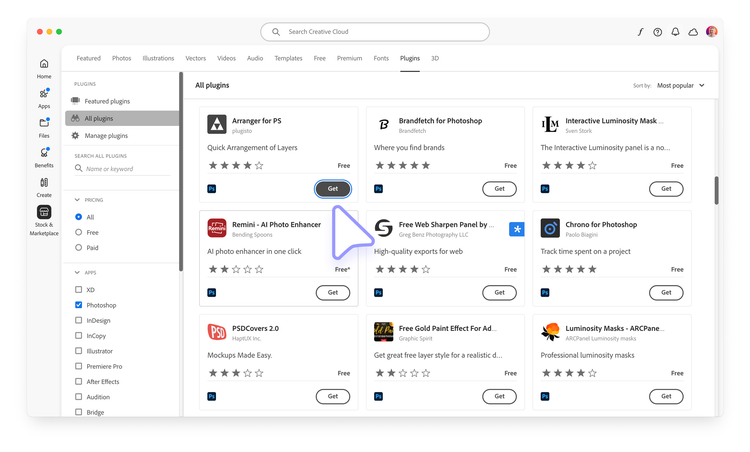
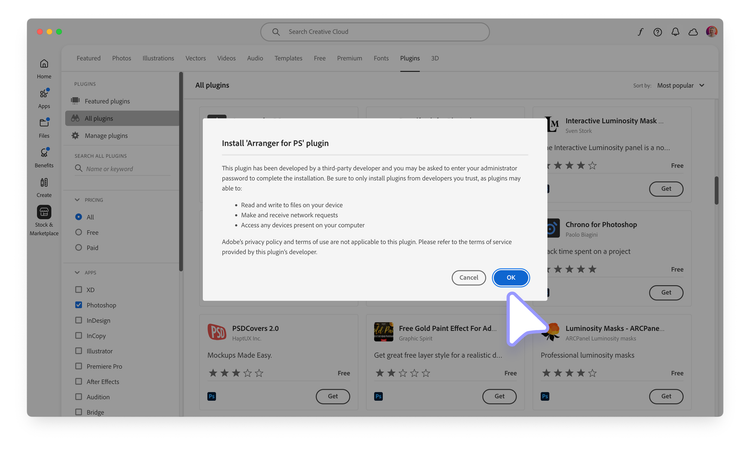
- Review the permissions declared by the plugin manifest, then select OK.
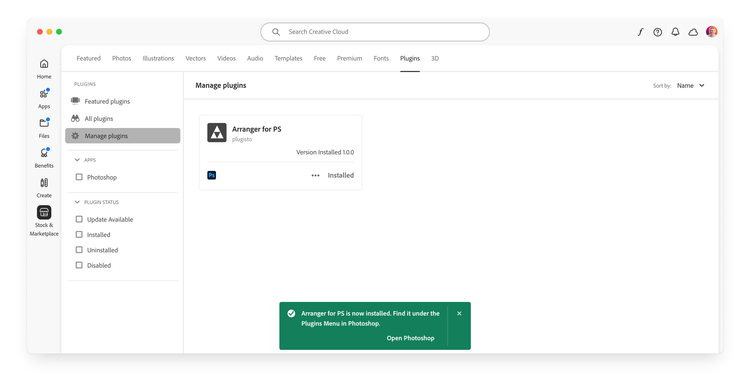
- Confirm that the plugin appears under Manage Plugins and in the host application.
Use a .ccx installer file
To install a package obtained outside Marketplace:
- Double-click the
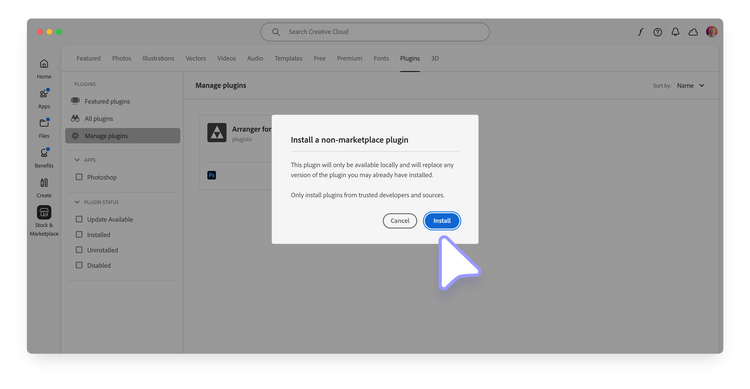
.ccxfile to open Creative Cloud Desktop. - Review the warning for packages from outside Marketplace, then select Install.
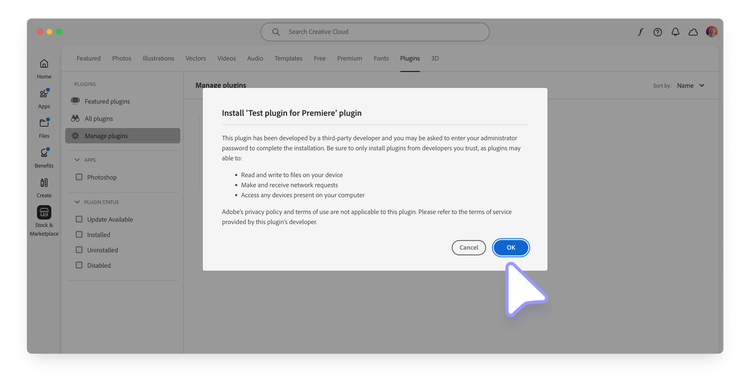
- Review any required permissions. Some packages may request administrative privileges.
- Confirm that the plugin appears under Manage Plugins and in the host application.
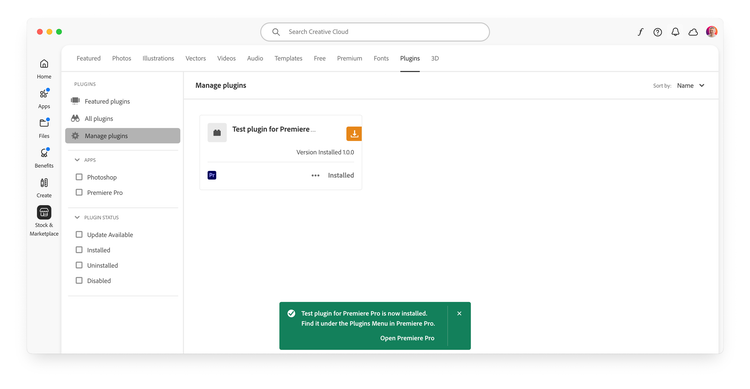
If the installation fails, click the Details link on the red toast to open the Logs and check the error message. See Troubleshooting for more details.
Uninstall or disable a plugin
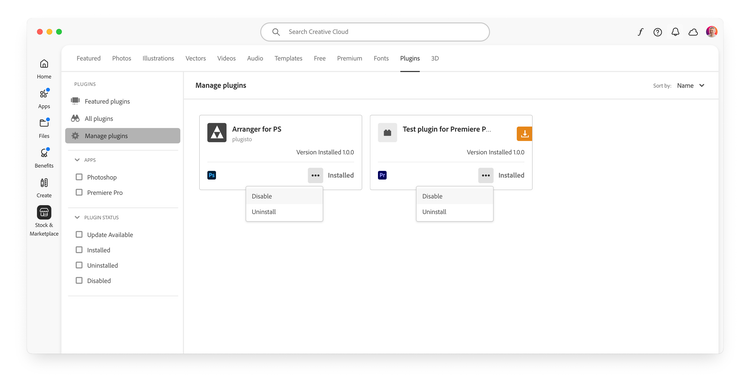
In Creative Cloud Desktop, open Manage Plugins, open the plugin's Actions (•••) menu, and choose:
- Disable to remove the plugin from the host while keeping it installed.
- Uninstall to remove the installed package.
data-variant=info
data-slots=text, text2
.ccx file, which display an orange download icon..ccx file disappear entirely from the Manage Plugins tab once uninstalled.Use the UPIA tool
The Unified Plugin Installer Agent (UPIA) is the command-line utility used by Creative Cloud Desktop to install, remove, and list plugins. See the UPIA documentation for complete options.
The UPIA tool can install, uninstall, and list plugins. Here's a quick summary of the available commands.
On macOS
Open the Terminal and cd to the UPIA executable folder. Admin privileges may be required:
cd "/Library/Application Support/Adobe/Adobe Desktop Common/RemoteComponents/UPI/UnifiedPluginInstallerAgent/UnifiedPluginInstallerAgent.app/Contents/macOS"

./UnifiedPluginInstallerAgent --help
./UnifiedPluginInstallerAgent --version
./UnifiedPluginInstallerAgent --install <extension-file-path>
./UnifiedPluginInstallerAgent --remove <extension-file-path>
./UnifiedPluginInstallerAgent --list <all || product display name>
Examples:
#### Examples
./UnifiedPluginInstallerAgent --install "~/Desktop/Test-xjluvc_premierepro.ccx"
./UnifiedPluginInstallerAgent --remove "startup-test"
./UnifiedPluginInstallerAgent --list all
On Windows
Open Command Prompt, change to the UPIA executable folder, then run the command you need. Admin privileges may be required:
cd "C:\Program Files\Common Files\Adobe\Adobe Desktop Common\RemoteComponents\UPI\UnifiedPluginInstallerAgent"

UnifiedPluginInstallerAgent.exe /help
UnifiedPluginInstallerAgent.exe /version
UnifiedPluginInstallerAgent.exe /install <extension-file-path>
UnifiedPluginInstallerAgent.exe /remove <extension-file-path>
UnifiedPluginInstallerAgent.exe /list <all || product display name>
Examples:
#### Examples
UnifiedPluginInstallerAgent.exe /install "C:\Temp\Test-xjluvc_premierepro.ccx"
UnifiedPluginInstallerAgent.exe /remove "startup-test"
UnifiedPluginInstallerAgent.exe /list all
Troubleshooting
If installation fails:
- It is helpful to run the host application at least once before installing any plugin.
- If the Creative Cloud Desktop application is not launching when you double-click on a
.ccxfile, try locating the UPIA executable and running it manually. The file extension may not have been associated properly, or there might be permission issues. - It may happen that the UPIA executable is either corrupted or not present in the system. Reinstalling the Creative Cloud Desktop application may resolve the issue. If you are installing plugins in an enterprise environment, please check here how to include the UPIA in your package.
- Reach out to ccintrev@adobe.com for support. If further troubleshooting is necessary, you may be asked to run the Log Collector tool.