Create a Marketplace listing

Prepare the listing content and .ccx package before opening Developer Distribution. Marketplace submissions go through Adobe review before publication.

Preparing for Submission

1. Metadata

An asterisk identifies a required field.

Name
Character Length
Description
* Public plugin name
45
A unique name for the plugin
* Subtitle
30
A subtitle that will appear in the plugin listing card
* Description
5000
A full context and description of the plugin and its features
* Categories
NA
Collaboration, Tools & Automation, Usability & Testing, Publish & Handoff, Design Assets
Tags
300
Tags to increase discoverability of the listing
* Support email
1000
Support email address to be shared with your users
Help URL
1000
URL for your users to get help
Privacy Policy URL
1000
URL of your Privacy Policy
Terms of Service URL
1000
URL of your Terms of Service
Purchase Method
NA
Either Free, Perpetual, or Subscription
* Trader information
NA
Provide the Trader information in the Publisher Profile if you want to make your plugins available in the EU
* Version details
1000
Public release notes
* Supported Languages
1000
Languages supported by the plugin
* Note to Adobe reviewers
1000
Instructions for reviewers

Complete every required field and verify names, links, pricing, supported languages, and release notes before submission.

data-slots=heading, text
data-variant=info
Testing credentials
Provide working credentials, license keys, or test accounts for every paid or restricted feature. Reviewers must be able to test the complete plugin.

2. Assets

Type
Format
Description
* 48x48 icon
.jpg/png < 1MB
a 48x48 sized icon for the plugin card
* 96x96 icon
.jpg/png < 1MB
a 96x96 sized icon for the plugin card
* 192x192 icon
.jpg/png < 1MB
a 192x192 sized icon for the plugin card
* Screenshot
.jpg/png < 5MB
a 1360x800 sized screenshot for the plugin listing page
Additional screenshots
.jpg/png < 5MB
4 more optional 1360x800 sized screenshots
Videos
URL
Up to 5 YouTube or Vimeo video URLs with captions (255 chars)
* Publisher logo
.jpg/png < 2MB
250x250 sized logo to represent you or your company
data-slots=text
data-variant=info
A publisher logo is only required the first time you submit for distribution, and if you've never created a publisher profile.

3. Plugin Package

Follow the instructions in Package a UXP plugin to create a .ccx package file. Make sure to review the plugin's ID recommendations.

Submit the listing

1. Public Profile

Create a publisher profile in the Developer Distribution portal before the first submission. Follow the getting-started documentation for account setup.

data-slots=text1, text2
data-variant=error
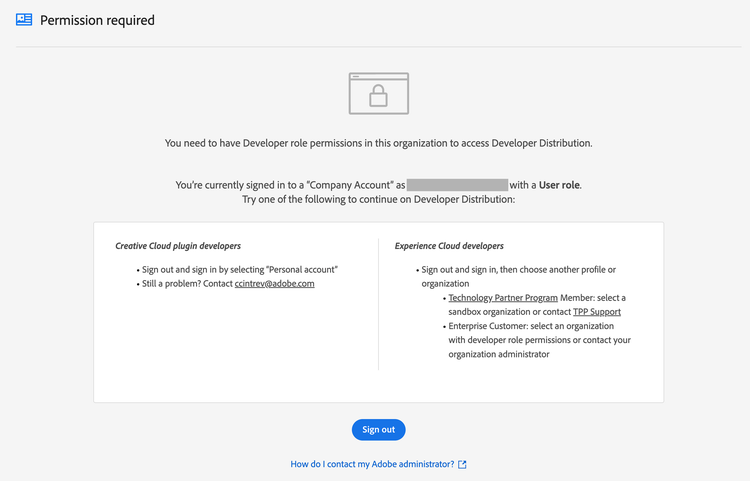
If the portal displays Permission Required, ask the Admin Console administrator to grant your enterprise account the Developer role, or sign in with a personal Adobe ID.
Developer Distribution - permission required

Add the Public name, Marketing website, Description, and Publisher logo. Check the branding guidelines before saving the profile.
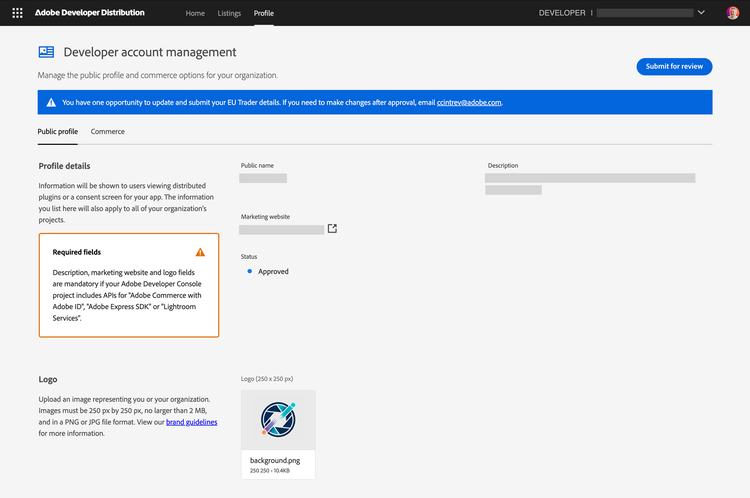
Developer Distribution - publisher profile

data-slots=heading, text1, text2
data-variant=info
EU Digital Services Act (DSA) Trader Requirements
Provide Trader information to make the listing available in the EU. See the EU Digital Services Act Trader Requirements.
If you do not wish to provide such information, your listing will be automatically hidden to users in Europe (who won't be able to purchase your plugin), while the rest of the world will still have access to it.

In the Commerce tab of the Publisher Profile page, you'll be asked to register with Adobe's third-party payment provider, FastSpring, and enter your FastSpring key. This will allow the Creative Cloud Marketplace to pay for your plugin's sales and transfer the royalties to your FastSpring account.

2. Create a New Listing

In Developer Distribution, select Create New Listing.
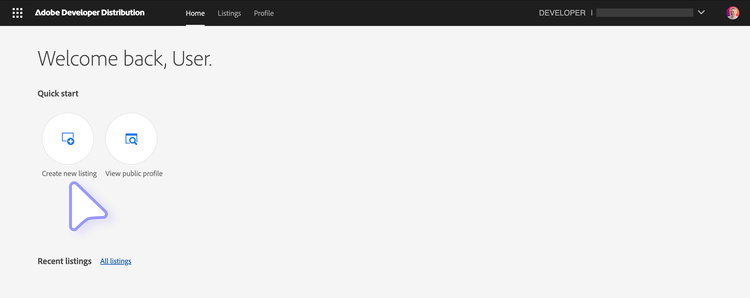
Developer Distribution - create new listing

Select Creative Cloud desktop plugin, then select Next.
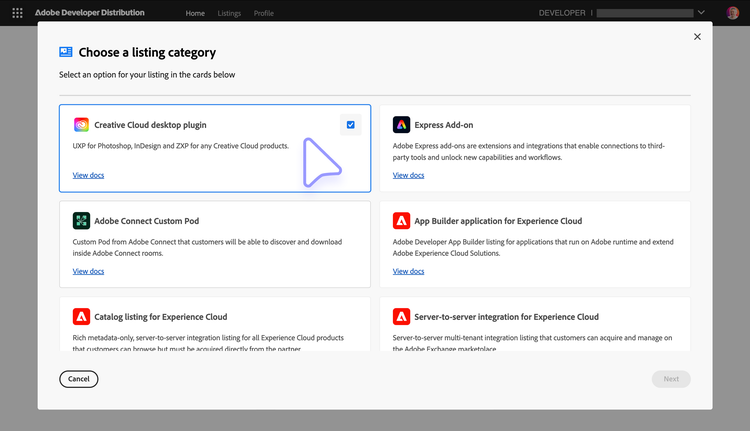
Developer Distribution - Creative Cloud Desktop plugin

Choose the target Creative Cloud application and select Next.
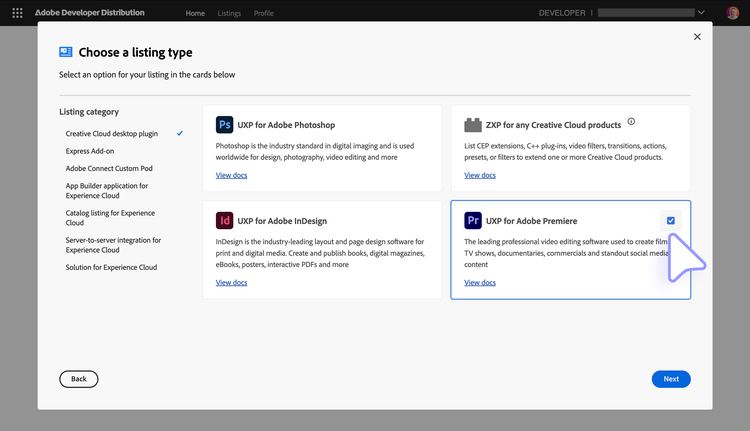
Developer Distribution - Product cards

If you already have published or draft listings, you can select them from the dropdown menu and click on Continue with existing Plugin; otherwise, click on Create a new listing.
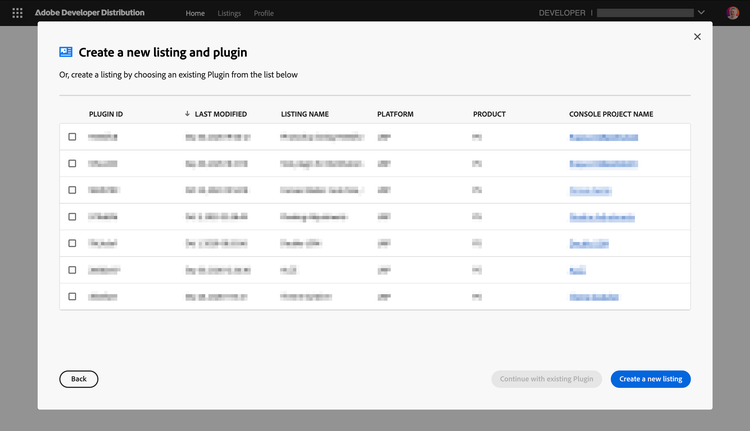
Developer Distribution - Continue with existing Plugin

The portal generates the plugin ID. Store this value, add it to the plugin manifest, then select Continue to your listing.
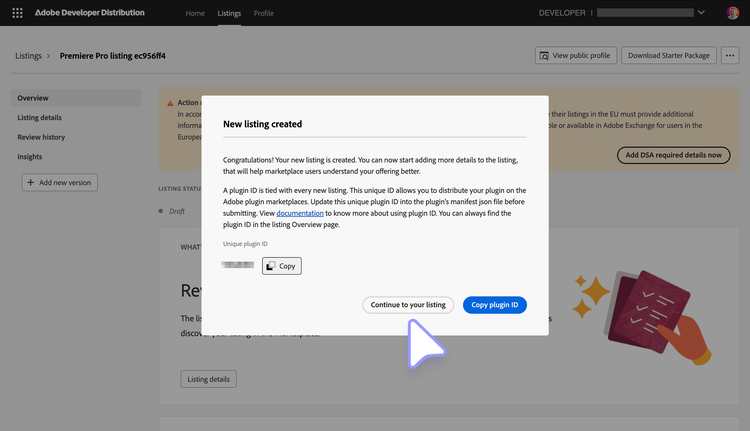
Developer Distribution - Create a new listing

3. Plugin Details

Open Listing Details and complete the General, Localizations, Media, Tags, and Services sections with the material prepared earlier.
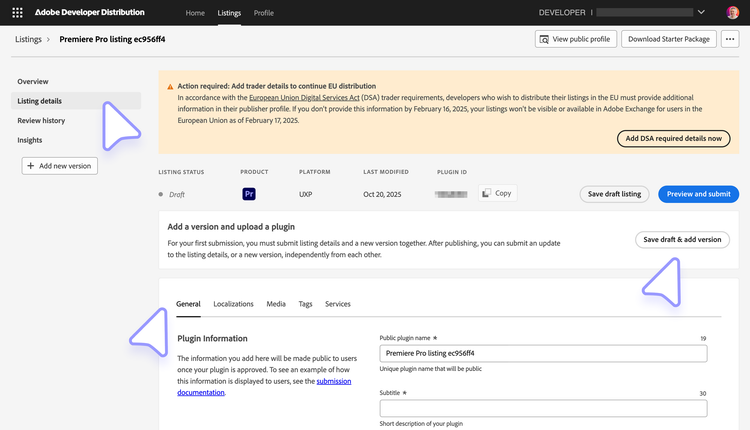
Developer Distribution - plugin details

data-variant=info
data-slots=heading, text
Hybrid plugin architecture support
Hybrid plugins submitted to the Creative Cloud Marketplace must include binaries for all three supported architectures: macOS arm64 (Apple Silicon), macOS x64 (Intel), and Windows x64. The Developer Distribution portal will reject the .ccx package if any architecture is missing.
data-variant=info
data-slots=text
It is possible to build and install a Hybrid plugin that only supports a subset of architectures for local development or independent distribution, but Marketplace submission requires full coverage. See the Building Hybrid Plugins guide for details.

4. Add a New Version

For every plugin version you submit (including the first one), you have to upload the .ccx package file prepared earlier.
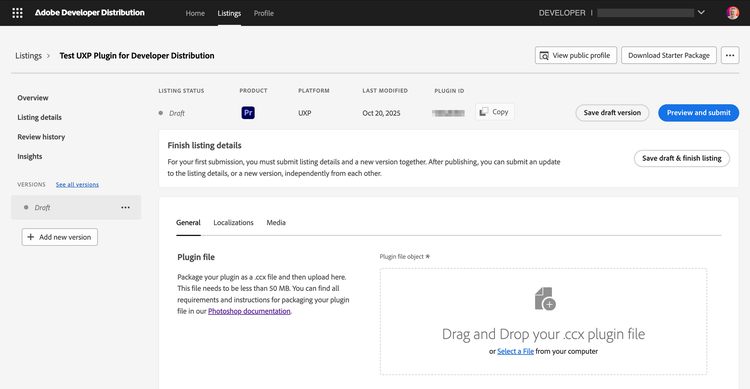
Developer Distribution - Upload CCX

Fill in the required fields (Supported languages, Version details, Screenshots...) in all the tabs. For your first submission, you must submit listing details and a new version together; after publishing, you can submit an update to the listing details, or a new version, independently from each other.

Select Submit for review, inspect the summary, and add reviewer instructions and testing credentials. Preview the Marketplace listing before submitting.

You have the option to have your plugin automatically published after the review process is complete, or manually publish it later.
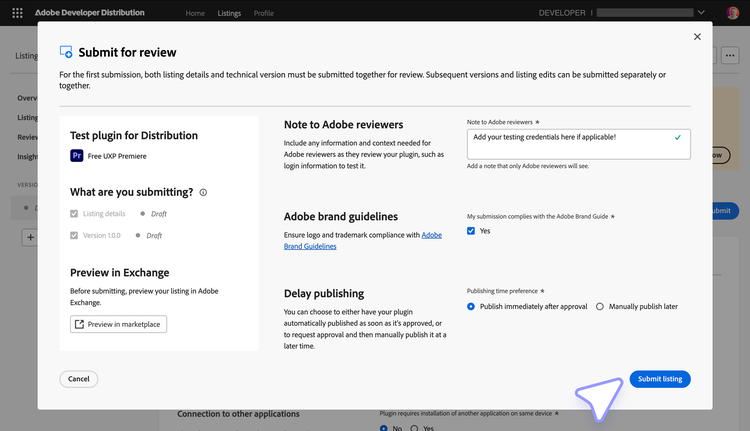
Developer Distribution - Submit for review

Select Submit listing to enter review. Adobe aims to respond within 10 business days with approval or requested changes. See the review guidelines for the evaluation criteria.