Use the UDT Playground
The Playground provides a sandbox for testing UXP markup, styles, and JavaScript without creating a project on disk. Use it to explore an API, verify a small interaction, or iterate on an interface before moving the code into a plugin project.
Before you begin
Launch a supported Creative Cloud application and confirm that it appears under Connected Apps in UDT.
1. Open the Playground
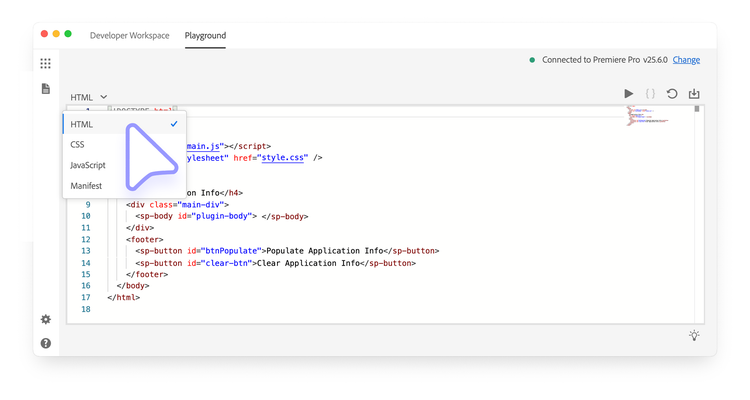
Select Playground in the top toolbar. Use the language menu to switch among the HTML, CSS, JavaScript, and Manifest editors.
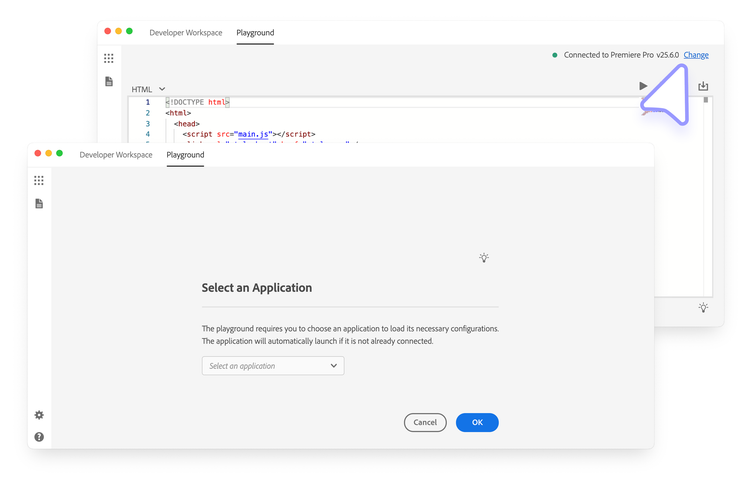
If multiple supported applications are running, select Change in the upper-right corner, choose the target host, and confirm with OK.
2. Load the prototype
Select Play in the upper-right corner to load the Playground code into the selected host application.
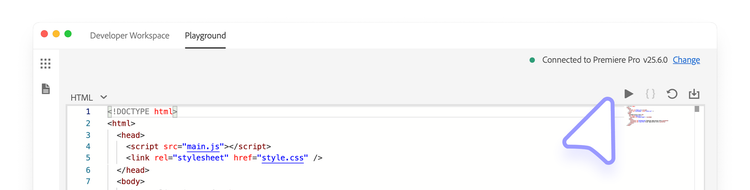
UDT displays Plugin Load Successful after a successful load. If loading fails, select Details in the Plugin Load Failed notification to inspect the log.
3. Edit and debug the prototype
After the initial load, changes in the HTML, CSS, and JavaScript editors automatically refresh the plugin. Select Reset to restore the Playground's initial code.
data-slots=heading, text
data-variant=info
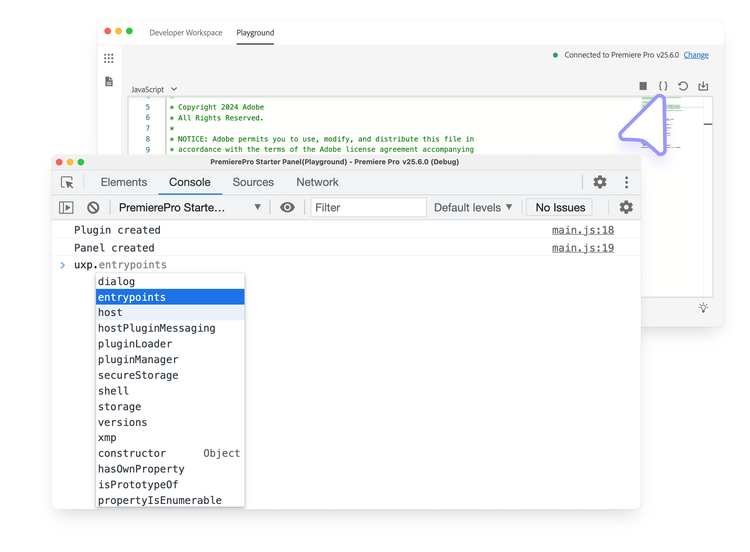
Select the {} control to open the UDT debugger. It is based on Chrome DevTools and provides tools for inspecting elements, console output, and JavaScript execution.
4. Export the project
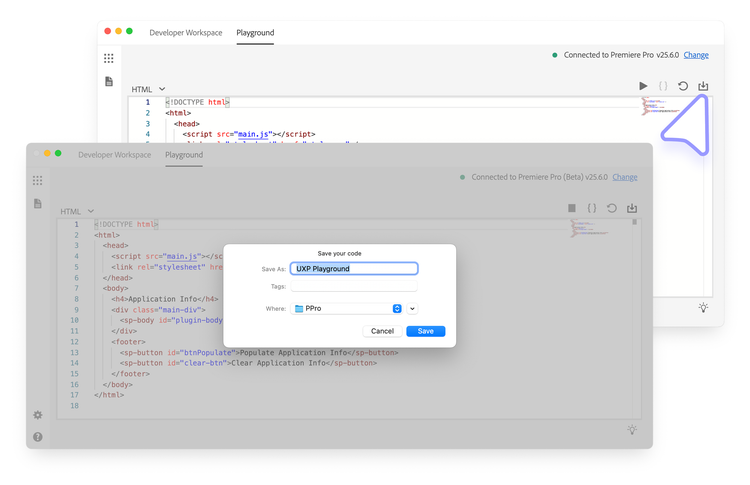
Select Download in the upper-right corner and choose a destination. UDT exports the current HTML, CSS, JavaScript, and manifest into a UXP Playground project folder that you can add to the Developer Workspace as a regular plugin.