Use the UXP Developer Tool
The UXP Developer Tool (UDT) is your workspace for loading, testing, and debugging UXP plugins. This guide introduces the controls you use to connect host applications, configure UDT, and inspect logs.
Before you begin
Before continuing, make sure you have:
- Installed UDT v2.2 or later.
- Enabled Developer Mode in UDT and your host application.
- Scaffolded a plugin.
Navigate the workspace
The Developer Workspace displays connected applications in the sidebar and your plugins in the main area. Use the controls along the left edge to switch between the workspace, logs, and preferences.
Connected applications
The Connected Apps panel lists running Creative Cloud desktop applications that support UXP. UDT can load a plugin only while its host application is running. Launch a supported application, and it appears in the panel automatically.
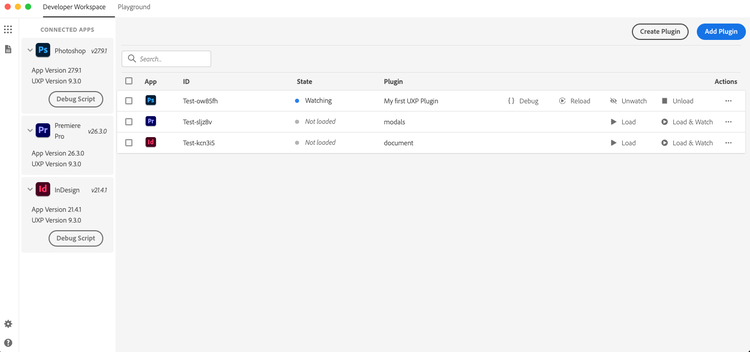
If an application does not appear, confirm that its installed version supports UXP extensibility. If the sidebar is hidden, select the grid icon in the upper-left corner.
Preferences
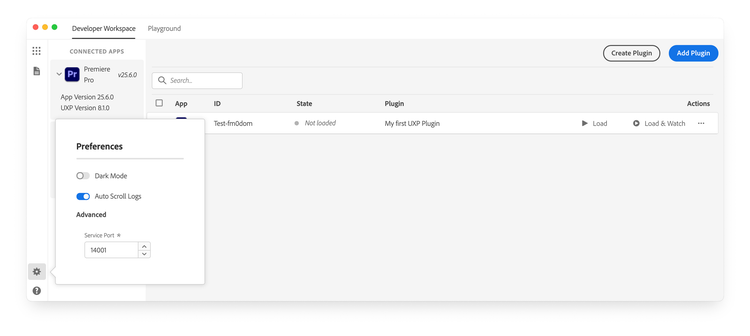
Select the gear icon in the lower-left corner to open Preferences. From there, you can choose a light or dark Theme, turn Auto Scroll Logs on or off, and change the Service Port that UDT uses to communicate with host applications.
Logs
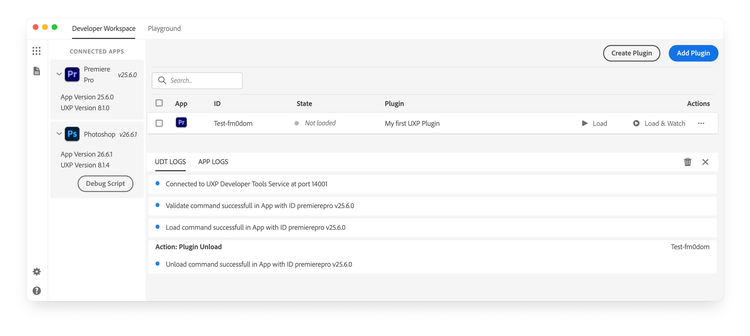
Select the document icon in the upper-left corner to open Logs. Use UDT Logs to review connection events and plugin load status. Use App Logs to investigate issues reported by the host application.
Read more
data-slots=heading, text, links
data-repeat=3
data-width=100%