Assign Bridge roles to users
Bridge access is based on assigned roles. Only an Admin Console administrator for your organization can assign roles. Granting a user access is a two-step process:
- Ensure that the user is part of your organization. Existing users who are already part of the organization only need a role assignment. Proceed directly to Assign a role. New users must first be added to the organization.
- Assign a Bridge role to the user. The assigned role determines the user's level of access in the Bridge.
Bridge roles
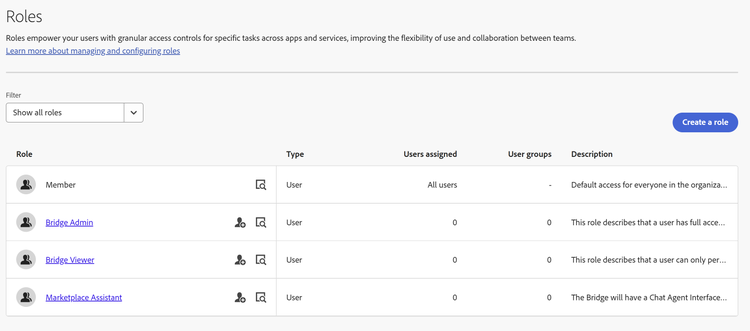
Only users assigned the Bridge Admin or Bridge Viewer role can sign in to the Bridge. These roles are managed by Adobe and cannot be deleted by administrators.
The Marketplace Assistant role is assigned in addition to Bridge Admin or Bridge Viewer. It does not grant sign-in access to the Bridge on its own.
Make user part of the organization
- Sign in to Adobe Admin Console using the admin account provided for your distribution.
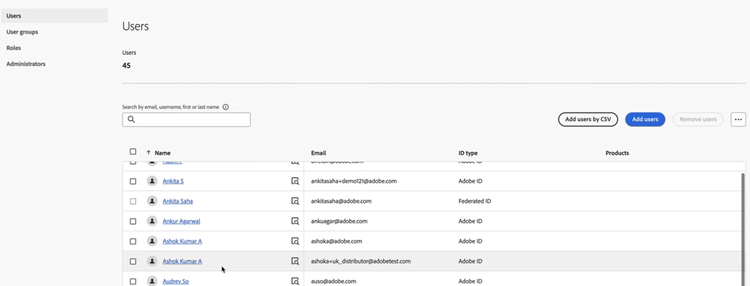
- From the Users tab, select Add users.
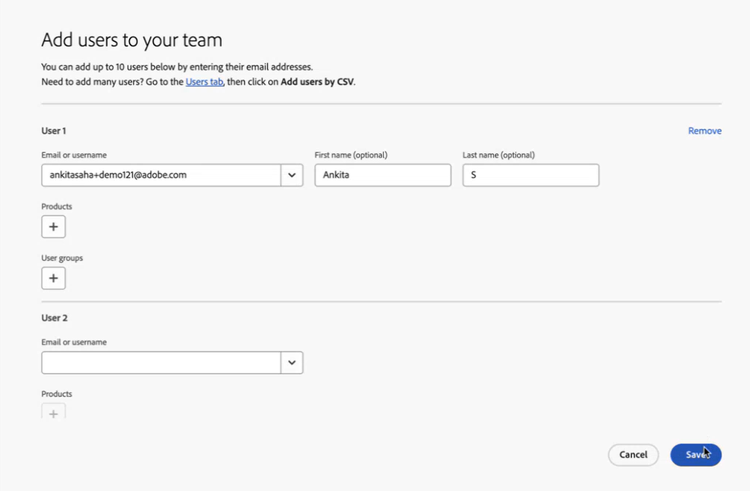
- In the Add users to your team dialog box, enter the details of the user to be added and select Save.
Assign a role
-
Sign in to adminconsole.adobe.com using the administrator account provided for your distribution, and select the correct account or organization.
-
From the top navigation bar, select Users.
-
Select the role that you want to assign to the user.
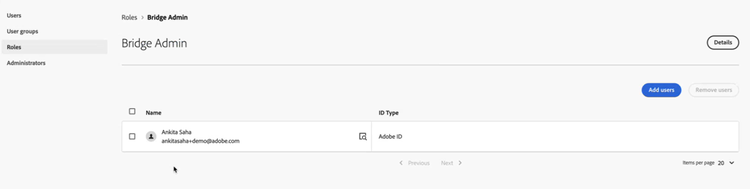
You can assign the Bridge Admin, Bridge Viewer, or Marketplace Assistant role.
-
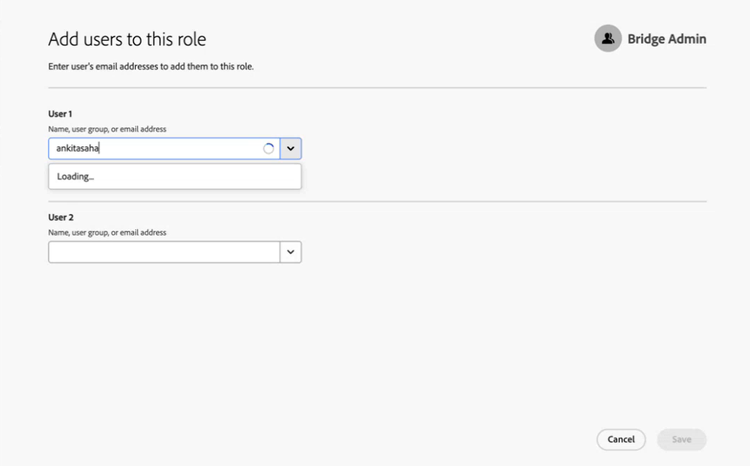
Select Add users. The Add users to this role dialog box appears.
-
Select users who require the role and then select Save. The selected users can now access the Bridge according to the permissions granted by their assigned role.
Repeat this procedure whenever you need to add users or modify existing role assignments.