Sign in and select your distribution
Once a user has been assigned, they can sign in directly:
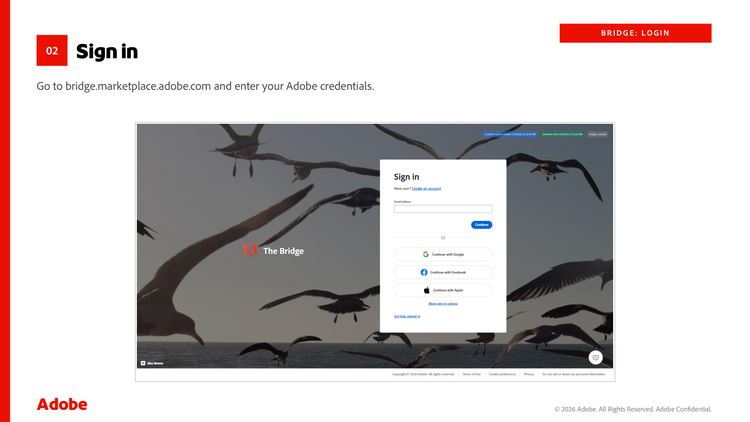
- Go to http://bridge.marketplace.adobe.com/.
- Sign in using the Adobe credentials that were assigned a Bridge Admin or Bridge Viewer role.
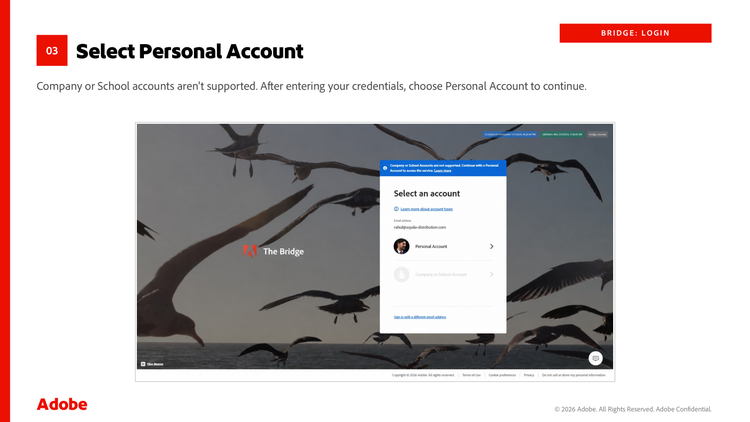
- When prompted to choose an account type, select Personal Account. Company or School account sign-in is not supported for the Bridge.
- If your account is associated with more than one distributor organization, you are prompted to select an organization. Search by name or choose from the list.
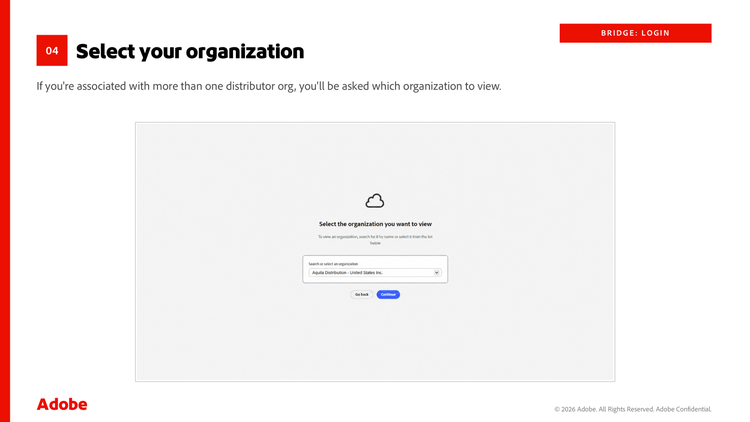
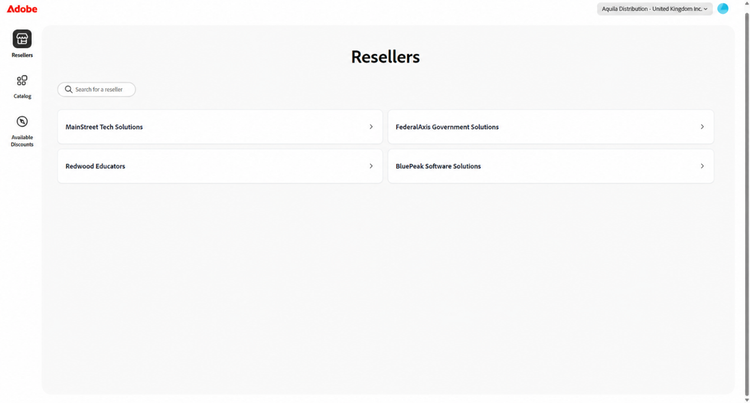
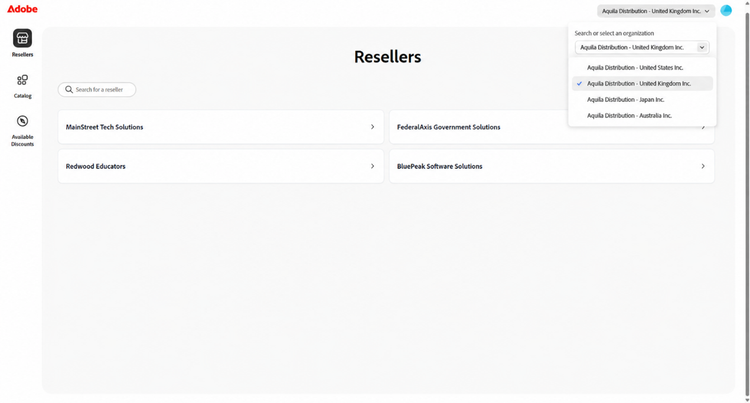
- Select the specific distribution you want to administer, then select Continue. You land on the Bridge, with Resellers, Catalog, and Available Discounts available from the left navigation menu.
Note: After signing in, the user lands on the Resellers view, where you can search by name or ID. Distributors see many resellers. Platinum partners see only a few.
Switching distributions
If you are associated with more than one distribution, you do not need to sign out to change context. Use the picker at the upper-right corner of the Bridge to switch between the distributions associated with your account.
Next steps
See Supported features to understand what you can do after signing in.