Authentication
Authenticate Workfront Fusion API requests with Adobe IMS access tokens.
Overview
Every Workfront Fusion API request must include an access token from Adobe Identity Management System (IMS). The API supports both IMS token types:
- User authentication: requests run as a Fusion user and have that user's access.
- Server-to-server: requests run as a technical account and have the access you grant it. Recommended for production, unattended and organization-wide integrations.
This page covers server-to-server authentication. For user tokens, see IMS user authentication.
Setup at a glance
A new technical account has no team or role, so its requests return empty results until you complete step 2.
Call the REST API
Use this option to call the API from your own server-side application. Complete step 1 and step 2 first.
1. Request an access token
Exchange your Client ID and Client Secret for an access token:
export FUSION_CLIENT_ID=<your_client_id>
export FUSION_CLIENT_SECRET=<your_client_secret>

curl --location 'https://ims-na1.adobelogin.com/ims/token/v3' \
--header 'Content-Type: application/x-www-form-urlencoded' \
--data-urlencode 'grant_type=client_credentials' \
--data-urlencode "client_id=$FUSION_CLIENT_ID" \
--data-urlencode "client_secret=$FUSION_CLIENT_SECRET" \
--data-urlencode 'scope=openid,AdobeID,profile,additional_info.projectedProductContext'
Response:
{"access_token":"yourExampleToken","token_type":"bearer","expires_in":86399}
Tokens are valid for 24 hours. expires_in gives the remaining lifetime in seconds. Cache the token, reuse it across requests, and request a new one shortly before it expires. Don't request a new token for every API call.
2. Call the API
Send the token with these headers on every request:
AuthorizationBearer <access_token>x-api-keyx-gw-regionor2x-organization-idIf you don't know your region and organization ID yet, call the regions endpoint. It needs only the token:
export FUSION_ACCESS_TOKEN=<your_access_token>

curl --location 'https://app.workfrontfusion.com/api/v3/users/me/regions' \
--header "Authorization: Bearer $FUSION_ACCESS_TOKEN"
See API Headers for details on each header and the error responses.
Use the Adobe Fusion connector
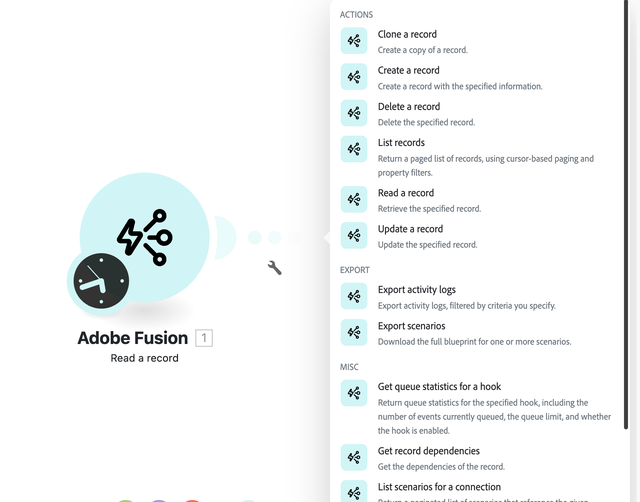
Use this option to work with your Fusion organization from inside a scenario, without writing code or managing tokens. The connector's modules cover the same resources as the Fusion API:
In most modules, you first pick a Record type, such as scenarios, connections or hooks.
Choose a connection type
Use IMS Server to server for organization-wide or unattended scenarios, such as audits, backups and control centers. That way the scenario doesn't depend on one person's account.
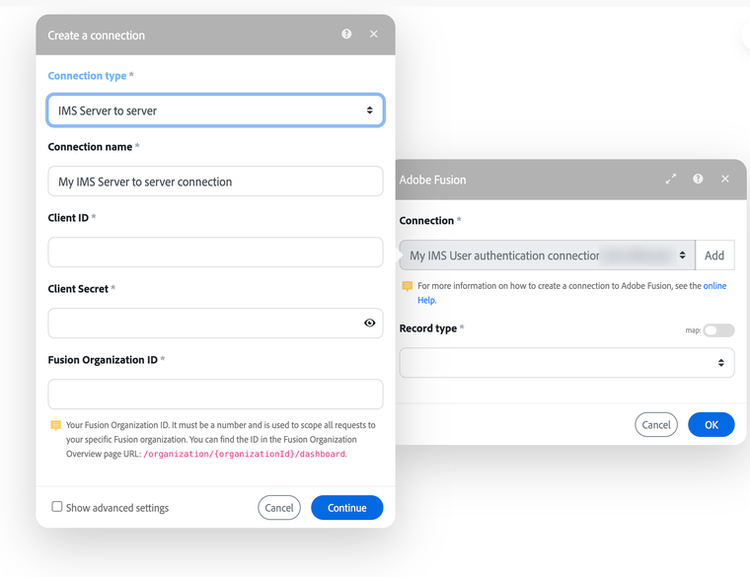
Create a server-to-server connection
Complete step 1 and step 2 first.
- In a scenario, add any Adobe Fusion module.
- Next to Connection, click Add.
- Set Connection type to IMS Server to server.
- Fill in the fields as described in the following table.
- Click Continue.
Fusion Admin (S2S).../organization/{organizationId}/dashboard. Not the ...@AdobeOrg ID.
data-variant=warning
data-slots=text
Verify the connection
Run a list module once, for example List records for scenarios. You should see scenarios from the whole organization (Organization Owner) or from the teams you added the technical account to. If you get no results or an error, see Troubleshooting.
Security best practices
- Store the Client Secret securely, for example in a secrets manager. Never share it in code, email or chat.
- If the Client Secret is exposed, rotate it on the credential's Credential details tab in the Developer Console.
Troubleshooting
...@AdobeOrg ID.400, 401 or 403 errorsNext: Explore the endpoints in the API Reference.