Step 1: Create Credentials
Create the OAuth Server-to-Server credential for your technical account.
Overview
Create an OAuth Server-to-Server credential in the Adobe Developer Console. This credential provisions the technical account that you use everywhere else: when calling the Fusion API directly and when creating an Adobe Fusion connector connection inside a scenario.
data-variant=info
data-slots=text
Where this fits: 1. Create credentials → 2. Give the technical account access → 3. Call the API or use the Adobe Fusion connector
Before you begin
- Developer access to the Adobe Developer Console.
- An organization that has a Workfront Fusion product license.
data-variant=warning
data-slots=text
Create the project and credential
- Go to the Adobe Developer Console and open an existing project, or create a new one.
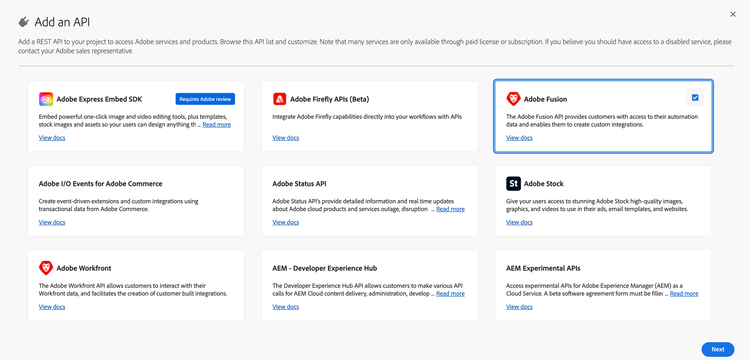
- Click Add to Project, then select API.
- Select Adobe Fusion. This grants access to scenarios, blueprints and other Fusion resources.
- Optional: also add Adobe Workfront if you want the same credential to write results back to Workfront.
- On the Select authentication type screen, choose OAuth Server-to-Server, then click Next.
- Give the credential a clear name (for example,
Adobe Fusion API Access), click Next, then click Save configured API. - If your organization has multiple Fusion instances, select the instance that the credential should be associated with.
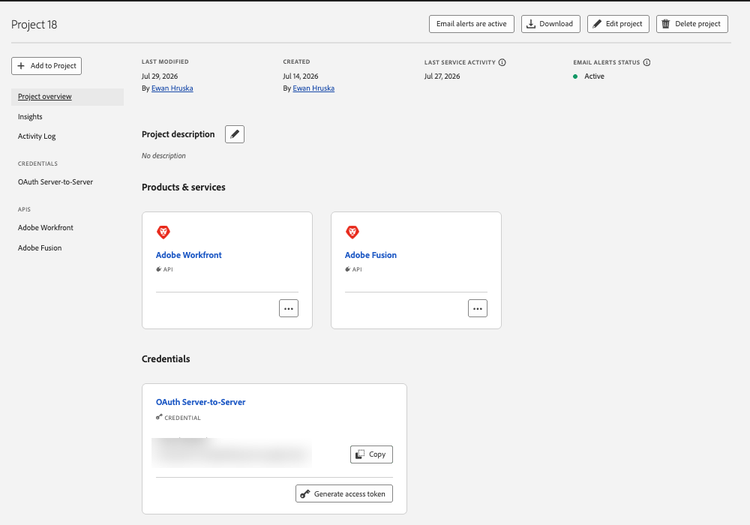
When you're done, the project overview lists Adobe Fusion (and Adobe Workfront, if added) under Products & services, and the OAuth Server-to-Server credential under Credentials.
Shortcut: You can also go to API and services, search for Adobe Fusion, and click Create project on the product card. It creates a project with the Fusion API and an OAuth Server-to-Server credential in one step.
Collect the credential details
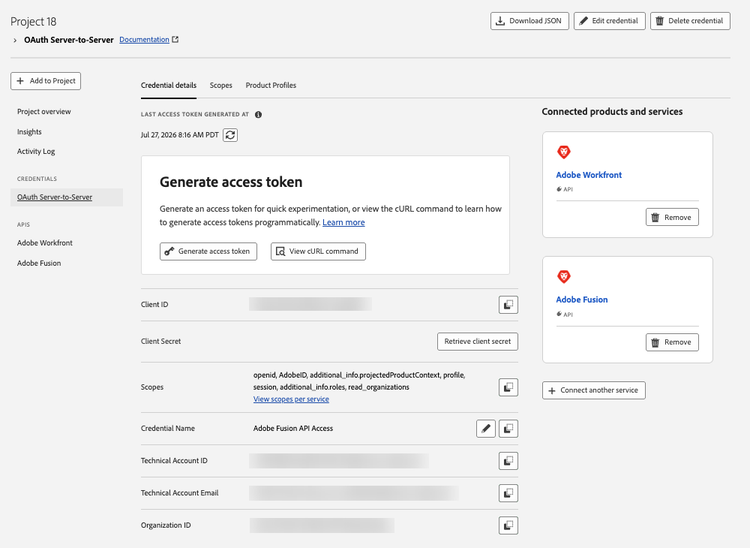
In the project, select OAuth Server-to-Server in the left navigation and open the Credential details tab. Note these values. You'll need them in the next steps:
x-api-key header, and the Adobe Fusion connector connection...@AdobeOrg)@techacct.adobe.com)
data-variant=warning
data-slots=text
Check the scopes
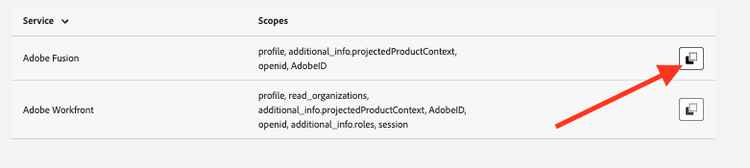
On the Scopes tab, confirm that each service you added has scopes. The Fusion API token request uses openid,AdobeID,profile,additional_info.projectedProductContext. Use the copy control next to a service if you need to record its scope string.
Share credentials with developers
To call the Fusion API, developers need a Client ID and an access token. Only organization admins can open these projects in the Console, so the Generate access token button isn't a practical way to share access. Access tokens also expire every 24 hours.
data-variant=info
data-slots=text
To give developers a ready-made token request:
- In the Generate access token block, select View cURL command.
- Copy the command and share it with developers in your organization. It looks similar to this:
curl -X POST 'https://ims-na1.adobelogin.com/ims/token/v3' \
-H 'Content-Type: application/x-www-form-urlencoded' \
-d 'grant_type=client_credentials&client_id={client_id}&client_secret={client_secret}&scope=openid,AdobeID,profile,additional_info.projectedProductContext'
Next step
A new technical account can't see any scenarios yet. Continue to Step 2: Give the technical account access.