Step 2: Give the Technical Account Access
Choose what the technical account can reach in Workfront Fusion, and grant that access.
Overview
Where this fits: 1. Create credentials → 2. Give the technical account access → 3. Call the API or use the Adobe Fusion connector
When you create an OAuth Server-to-Server credential, a technical account is added to your Fusion organization as an organization member on no team. By default it can't see anything. Requests authenticate, but they return little or no data.
Choose an access level
Admin-level actions, such as viewing and exporting activity logs, always need admin access in the Adobe Admin Console. Option 2 already includes it. With Option 1, add it as an optional extra step.
data-variant=info
data-slots=text
Before you begin
- Rights to manage teams and organization roles in Workfront Fusion.
- For Option 2, or for admin-level actions: System Administrator access to the Adobe Admin Console. If you don't have it, ask your organization administrator.
- The Technical Account Email from Step 1. It ends in
@techacct.adobe.com. You use it to find the technical account in Fusion and in the Admin Console.
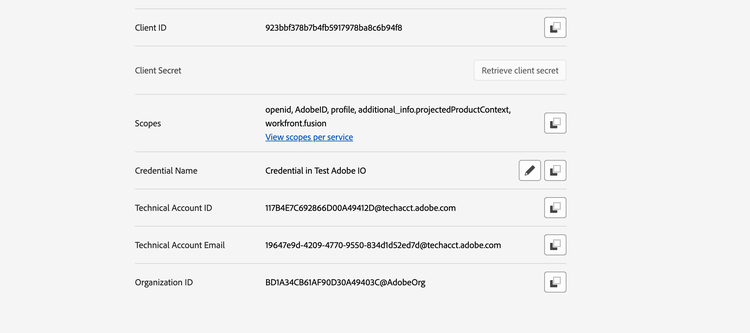
The technical account email is shown on the project's Credential details tab in the Adobe Developer Console. For example, 19647e9d-4209-4770-9550-834d1d52ed7d@techacct.adobe.com:
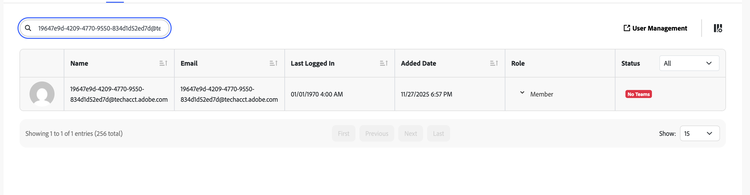
Fusion creates the matching user automatically. It's listed in Org overview > Users with the role Member and the status No Teams:
Option 1: Team access
Use this option when the integration only needs specific teams. No admin access is required.
Add the technical account to teams
- In Fusion, open the Teams tab and select the target team.
- Add the technical account user with the right team permissions.
- Repeat for each team whose scenarios the integration must reach.
Optional: Allow admin-level actions
If the integration also needs admin-level actions, such as viewing and exporting activity logs, make the technical account an admin in the Adobe Admin Console. Follow Grant admin access in the Adobe Admin Console. You don't need to change its Fusion role.
Option 2: Organization-wide access
Use this option when the integration must reach every team. It takes two steps, in order: first make the technical account an admin, then give it the Organization Owner role. Only admins can be given the Organization Owner role. This option also covers admin-level actions such as activity logs.
1. Grant admin access in the Adobe Admin Console
- Go to adminconsole.adobe.com and open the Products tab.
- Select Workfront Fusion. Open the correct organization instance and its product profile. If you're prompted, choose your Production instance.
- Select the Admins tab and click Add admin.
- Enter the Technical Account Email and click Save.
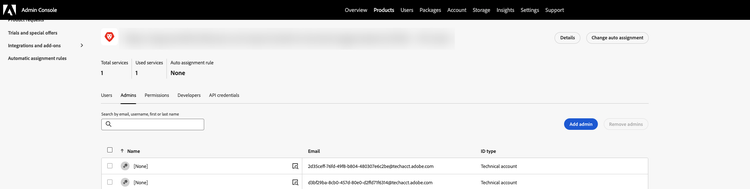
The technical account now appears as an admin with the ID type Technical account.
data-variant=info
data-slots=text
For more details, see Add users to Adobe Workfront Fusion through the Adobe Admin Console.
2. Make it an Organization Owner
- In Fusion, open Org overview, then the Users tab.
- Find the technical account by its
@techacct.adobe.comaddress. It shows as Member with No Teams. - Set its Role to Owner.

Next step
The technical account is ready. Choose how you want to use it:
- Call the REST API from your own code: generate an access token, then add the required headers.
- Work inside a Fusion scenario: create an Adobe Fusion connector connection.